Press!again!to!stop!recording.!
Connect!the!smaller!plug!of!the!USB!cable!to!the!sync!connector!on!your!phone.!
Connect!the!other!plug!of!the!USB!cable!to!the!USB!port!of!the!AC!adapter.!
Plug!in!the!AC!adapter!to!an!electrical!outlet!to!start!charging!the!battery.!
As the battery is being charged, the notification LED shows a solid red light. The light turns to solid green when
the phone is fully charged.
When you charge the battery while the phone is on, the charging battery icon ( ) is displayed in the status bar
of the Home screen. After the battery has been fully charged, a full battery icon ( ) will be displayed in the
status bar of the Home screen.!
!
Turning!your!phone!on!&!off!
!
If you do not need to use your phone, you can turn the power off to save battery life.
If the display is off, press the Power button to turn the display back on.
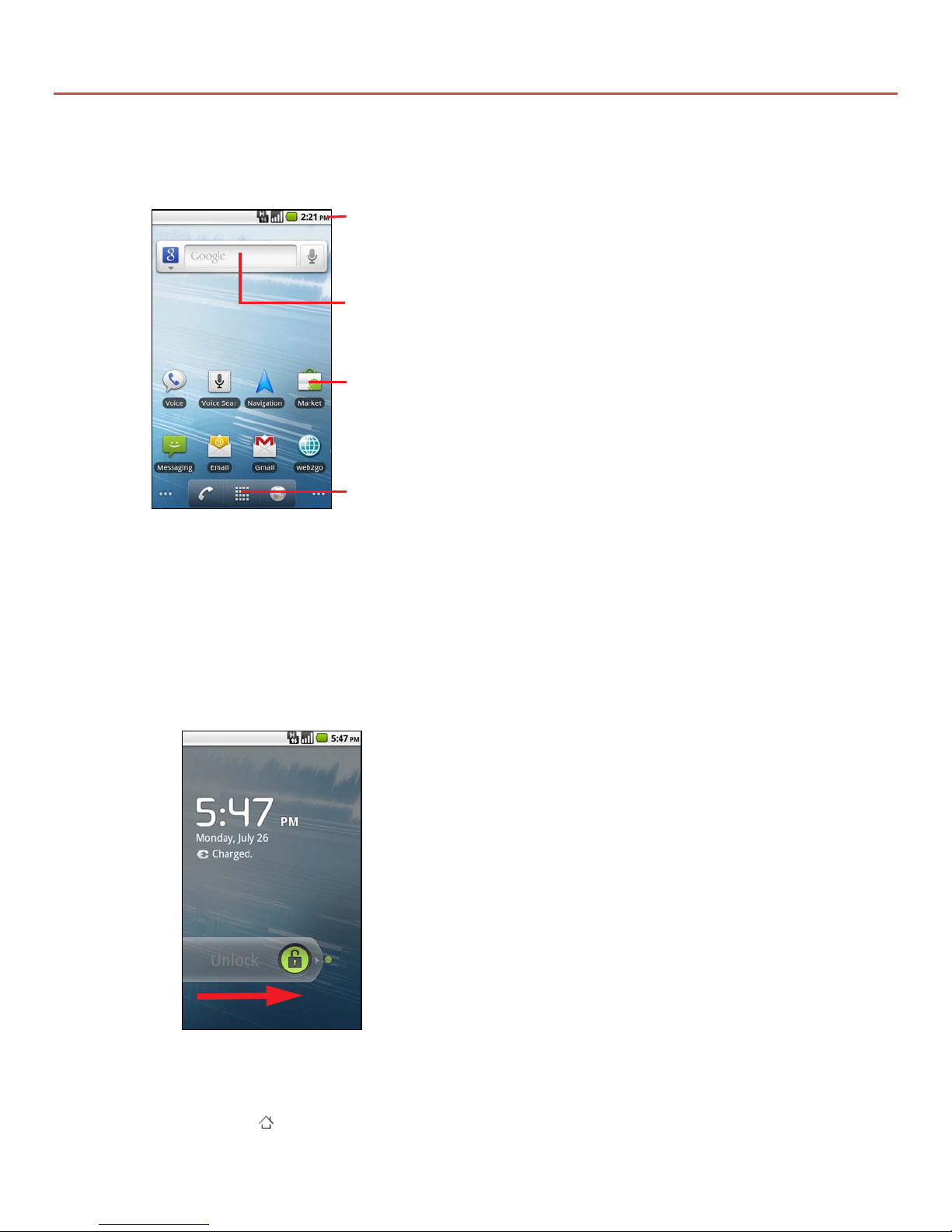
Unlock your phone if the Lock screen is displayed. See “To wake up the phone” on page 8 to learn
how to unlock the screen.
Press and hold the Power button for a few seconds.
When the Phone options options menu appears, tap Power off.
Tap OK when prompted to turn off the phone.
24 Android basics
User’s Guide T-Mobile G2
Charging the battery
The battery is partially charged when shipped. Before you turn on
and start using your phone, it is recommended that you charge the
battery. Some batteries perform best after several full charge/
discharge cycles.
1Connect the smaller plug of the USB cable to the sync connector
on your phone.
2Connect the other plug of the USB cable to the USB port of the
AC adapter.
3Plug in the AC adapter to an electrical outlet to start charging the
battery.
As the battery is being charged, the notification LED shows a solid
red light. The light turns to solid green when the phone is fully
charged.
When you charge the battery while the phone is on, the charging
battery icon ( ) is displayed in the status bar of the Home screen.
After the battery has been fully charged, a full battery icon ( ) will
be displayed in the status bar of the Home screen.
Important
!Only the AC adapter and USB sync cable provided with your phone must
be used to charge the battery
!Do not remove the battery from the phone while you are charging it using
the AC or car adapter.
!As a safety precaution, the battery stops charging when it overheats.
24 Android basics
User’s Guide T-Mobile G2
Charging the battery
The battery is partially charged when shipped. Before you turn on
and start using your phone, it is recommended that you charge the
battery. Some batteries perform best after several full charge/
discharge cycles.
1Connect the smaller plug of the USB cable to the sync connector
on your phone.
2Connect the other plug of the USB cable to the USB port of the
AC adapter.
3Plug in the AC adapter to an electrical outlet to start charging the
battery.
As the battery is being charged, the notification LED shows a solid
red light. The light turns to solid green when the phone is fully
charged.
When you charge the battery while the phone is on, the charging
battery icon ( ) is displayed in the status bar of the Home screen.
After the battery has been fully charged, a full battery icon ( ) will
be displayed in the status bar of the Home screen.
Important
!Only the AC adapter and USB sync cable provided with your phone must
be used to charge the battery
!Do not remove the battery from the phone while you are charging it using
the AC or car adapter.
!As a safety precaution, the battery stops charging when it overheats.
24 Android basics
User’s Guide T-Mobile G2
Charging the battery
The battery is partially charged when shipped. Before you turn on
and start using your phone, it is recommended that you charge the
battery. Some batteries perform best after several full charge/
discharge cycles.
1Connect the smaller plug of the USB cable to the sync connector
on your phone.
2Connect the other plug of the USB cable to the USB port of the
AC adapter.
3Plug in the AC adapter to an electrical outlet to start charging the
battery.
As the battery is being charged, the notification LED shows a solid
red light. The light turns to solid green when the phone is fully
charged.
When you charge the battery while the phone is on, the charging
battery icon ( ) is displayed in the status bar of the Home screen.
After the battery has been fully charged, a full battery icon ( ) will
be displayed in the status bar of the Home screen.
Important
!Only the AC adapter and USB sync cable provided with your phone must
be used to charge the battery
!Do not remove the battery from the phone while you are charging it using
the AC or car adapter.
!As a safety precaution, the battery stops charging when it overheats.