
Tamtus MagicView UVC-500AF Manuale utente

User Guide
Portable Document Camera
www.tamtus.co.kr
UVC-500AF
The information and specifications herein are subject to change without prior notice.

MagicView UVC-500 v1.03User Guide
2
I_Introduction ‥‥‥‥‥‥‥‥‥‥‥‥‥‥‥‥‥‥‥2
1. Hardware Specifications ‥‥‥‥‥‥‥‥‥‥‥‥‥‥‥‥2
2. Components ‥‥‥‥‥‥‥‥‥‥‥‥‥‥‥‥‥‥‥‥‥3
3. Using Hardware ‥‥‥‥‥‥‥‥‥‥‥‥‥‥‥‥‥‥‥3
II_Installation ‥‥‥‥‥‥‥‥‥‥‥‥‥‥‥‥‥‥‥5
1. The Installation Process ‥‥‥‥‥‥‥‥‥‥‥‥‥‥‥‥5
2. Software Installation ‥‥‥‥‥‥‥‥‥‥‥‥‥‥‥‥‥6
3. Hardware Installation ‥‥‥‥‥‥‥‥‥‥‥‥‥‥‥‥‥9
4. Precautions for Installation ‥‥‥‥‥‥‥‥‥‥‥‥‥‥10
III_Using MagicView UVC ‥‥‥‥‥‥‥‥‥‥‥‥‥‥11
1. Getting Started ‥‥‥‥‥‥‥‥‥‥‥‥‥‥‥‥‥‥‥11
2. Using Real-time Mode ‥‥‥‥‥‥‥‥‥‥‥‥‥‥‥‥19
3. Using Teaching Mode ‥‥‥‥‥‥‥‥‥‥‥‥‥‥‥‥22
IV_Software Features ‥‥‥‥‥‥‥‥‥‥‥‥‥‥‥‥24
1. Name of Each Part of User Interface ‥‥‥‥‥‥‥‥‥24
2. Using Features ‥‥‥‥‥‥‥‥‥‥‥‥‥‥‥‥‥‥‥26
V_Troubleshooting ‥‥‥‥‥‥‥‥‥‥‥‥‥‥‥‥‥37
VI_Precautions ‥‥‥‥‥‥‥‥‥‥‥‥‥‥‥‥‥‥‥38
Contents
The information and specifications herein are subject to change without prior notice.

MagicView UVC-500 v1.03User Guide
3
I_Introduction
MagicView UVC-500AF
Capture Area 297mm x 210mm (A4 size) or higher
Focus Autofocus
Focus Distance 7cm ~ Infinite
Lighting 12 pieces super bright white chips built-in
LED Light Intensity Varies between 300 and 600 Lux according to environment
Color / Brightness Control Manually controlled
PC Interface High speed USB 2.0
Minimum Specifications Pentium IV 1.8 GHz, 256MB RAM, 10GB HDD or higher
Operating Systems Windows XP, Windows Vista, Windows 7
Software Supplied MagicView software
(viewer, capture, video record, image edit, annotation)
Body 3-axis articulated construction
Dimensions Folded 2.4'' W x 3.0'' H x 6.9'' D,
Extended 2.4'' W x 4.0'' - 15.0'' H x 6.3'' D
Net Weight 720 grams
(carrying case, set-up CD and user guide not included)
Accessories Included hard carrying case, lens cover, set-up CD, user guide
1. Hardware Specifications
Dimension in Inches
2.4
15.0
11.4
7.7
4.0
6.9
3.0
MagicView UVC-500 v1.03User Guide
4
2. Components
(2) Components
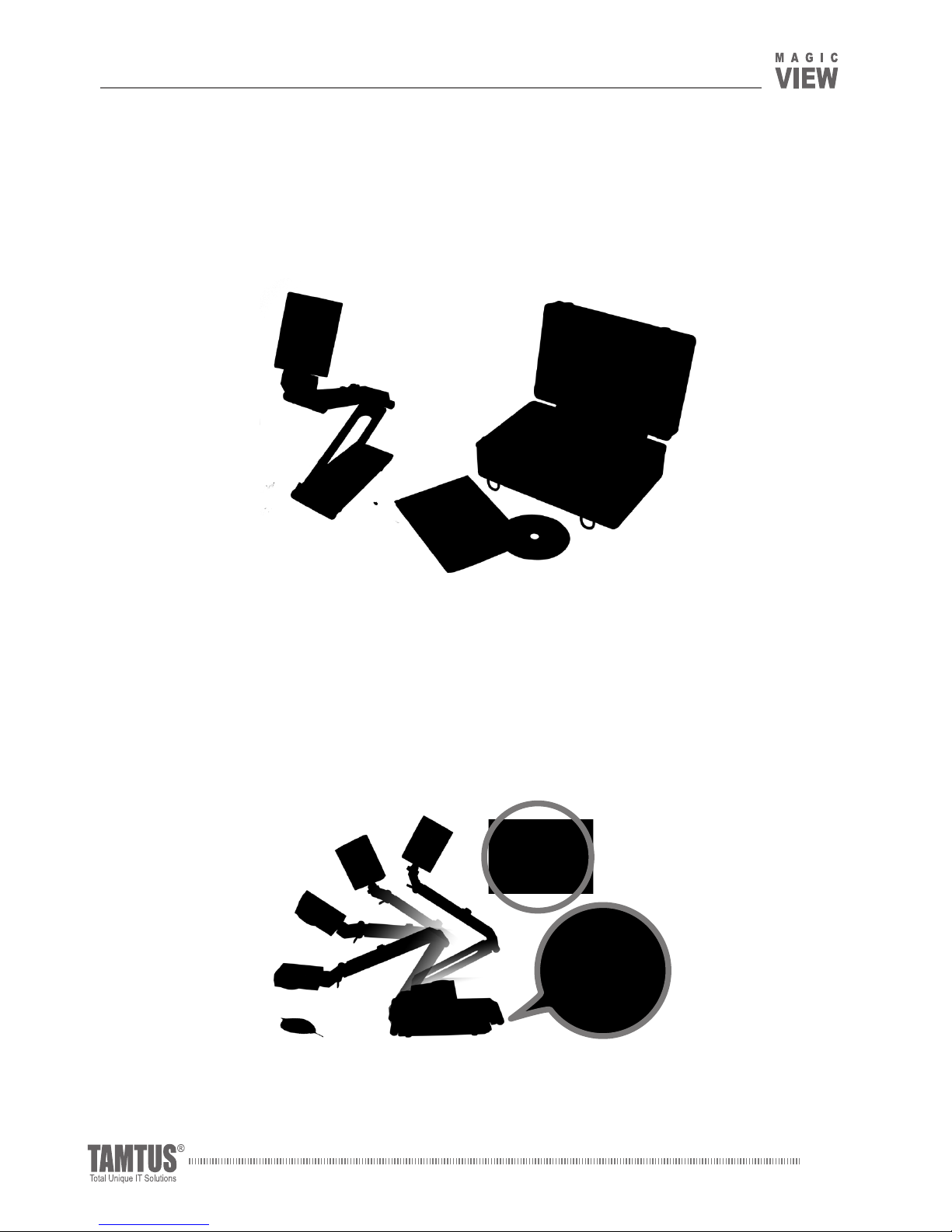
Document Camera, User Guide, Set-up CD, Aluminum Carrying Case.
3. Using Hardware
(1) How to use the arm
By using the rotary head and 3-axis articulated arm of MagicView UVC as shown in this
picture, the height and angle can be easily adjusted to the best shooting position.
Rotary Head
3-axis Articulated Arm
I_Introduction

MagicView UVC-500 v1.03User Guide
5
(2) How to use the lighting system and basic focus
The camera head is equipped with an LED lighting system that produces up to
10,000mcd brightness to facilitate its placement in dark places. It can be turned on or off
depending on usage environments.
This product is designed to control all functions using a remote control UI installed in a
PC. This remote control UI is specially developed by Tamtus to be conveniently used on a
computer monitor or an interactive whiteboard in the classroom.
(3) How to use the carrying case
The aluminum case, which comes with MagicView document camera, can protect
from damage to the product during transportation and storage. It can also be used as
a platform on which the product is placed to secure a wider surface when it projects an
object larger than A4 size.
Its exterior is made of aluminum
material. It has a handle and a locking
device. Its interior is lined with sponge
for protection of the product.
MagicView UVC document camera on top
of aluminum case.
Adjusting
Autofocus
Turning Light
ON/OFF
Hide
I_Introduction

MagicView UVC-500 v1.03User Guide
6
1. The installation process
Insert the MagicView UVC-500 Set-up CD, the installation program will start
automatically. Alternatively, you can install or uninstall the individual programs manually
as necessary. The MagicView UVC-500 is UVC (Universal Video Class) compatible
which installs the required driver automatically when connecting the MagicView UVC
camera to a PC's USB port. There is no need to install any special drivers.
Install the MagicView UVC program
Install Motion JPEG Codec
Execute the MagicView UVC program
If your computer does not meet the system specifications that MagicView UVC
requires, there may be no screen appearing. In that event, you may need to install
additional codecs or to upgrade the driver.
Content of Installation CD
Set-up Program, MagicView UVC Viewer Program, MJPC Codec, User Guide,
Driver Update program
II_Installation
Note
MagicView UVC-500 v1.03User Guide
7
2. Software installation
Insert the MagicView UVC-500AF Set-up CD.
(1) Install the main program
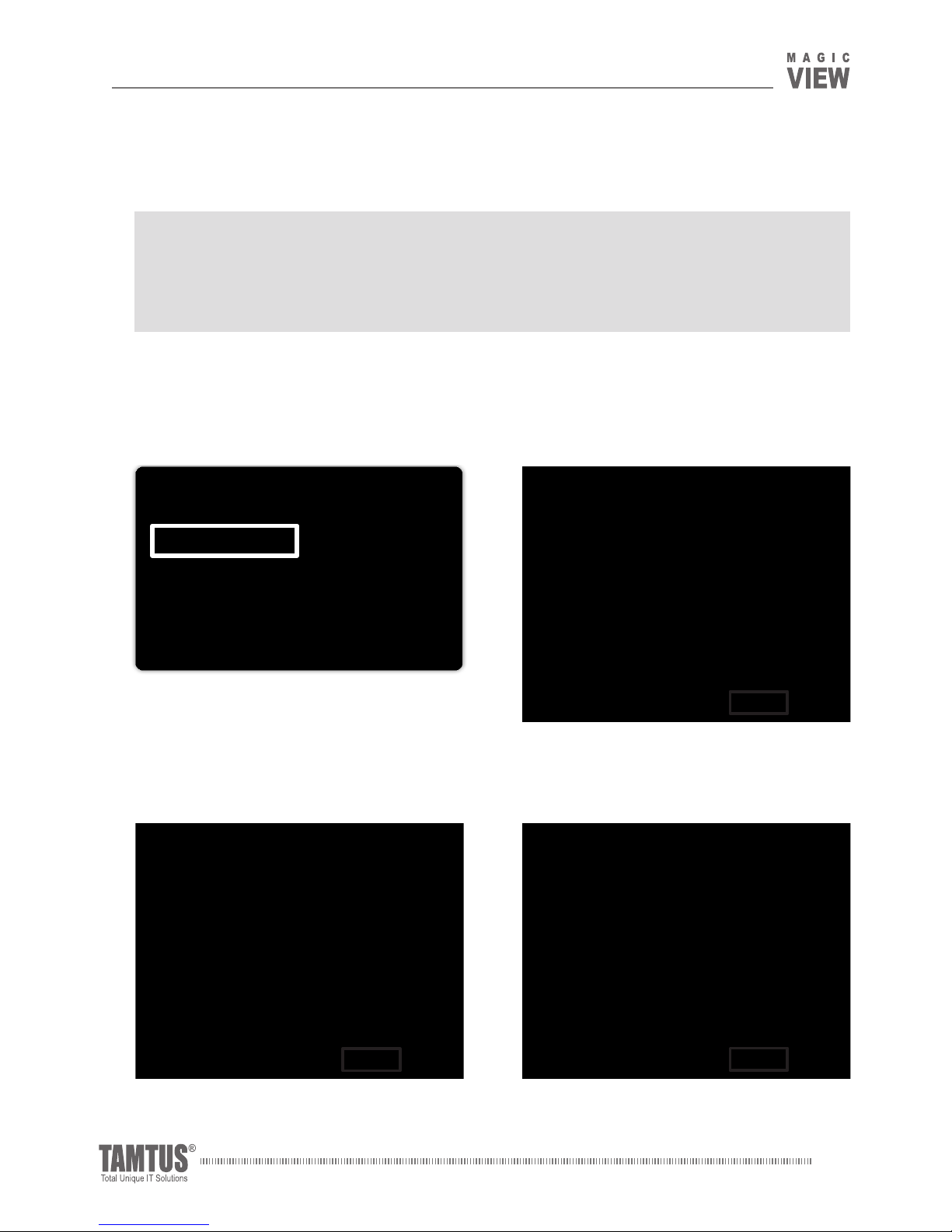
① Click "MagicView UVC-500AF Setup." ② Installation starts. Click "Next."
③
Read the consumer license and accept
it by clicking "I Agree."
④
Choose a folder to install the software
in an "Install" to continue the installation.
Do not connect the MagicView UVC-500 to the PC before driver and program are
installed. Otherwise, there may be no image coming to the PC monitor. If that happens,
close the MagicView UVC program being run, disconnect and then reconnect the USB
cable to the PC, and run the MagicView UVC program again.
MagicView UVC-500AF Setup
MJPEG Codec Setup Exit
II_Installation

MagicView UVC-500 v1.03User Guide
8
⑤
When the entire installation process is
complete, click "Finish."
(2) MJPEG Codec installation
①
Click "MJPEG Codec Setup."
②
Click "OK."
③
Click "Next."
MagicView UVC-500AF Setup
MJPEG Codec Setup Exit
④
Choose "I accept the terms of the
license agreement" and click "Next."
II_Installation

MagicView UVC-500 v1.03User Guide
9
⑥
Click "Next."
⑦ Click "Next." ⑧ Click "Install."
⑨ Click "Finish" to complete the installation.
⑤
Choose "No. I want to evaluate the
product" and click "Next."
II_Installation

MagicView UVC-500 v1.03User Guide
10
3. Hardware installation
(1) After installing the MagicView UVC-500 driver and viewer program, connect the USB
cable of the Document Camera to the USB port at the front or the rear of your PC.
(2) There is no need to install any special drivers to use MagicView UVC-500. After connecting
the USB cable of MagicView UVC-500 to a PC's USB port, wait a few seconds, a message
appears as "Your device is ready to use."
MagicView UVC-500 document camera can only be
used in USB 2.0 mode. Check if the PC supports
USB 2.0
PC의 후면에
설치되어 있는
USB단자
USB ports at the
rear of the PC
Note
II_Installation
Indice


