TCAT TEANA Manuale utente

Table of Contents
3
TEANA TCAT MULTIMEDIA NAVIGATOR
TEANA TCAT MULTIMEDIA NAVIGATOR Table of Contents
1. BEFORE GETTING STARTED 5
1-1. Features 5
1-2. GPS (Global Positioning System) 5
1-3. Using external storage 5
1-4. External audio 6
1-5. Operation 6
2. QUICK GUIDE 7
2-1. Start-up 7
2-2. Main menu 8
3. QUICK MENU 9
3-1. Volume control 9
4. PIP 10
4-1. Short cut menu 10
4-2. Short cut menu operation 11
4-3. Music PIP mode 12
4-4. Music PIP mode operation 13
5. MUSIC PLAYER 14
5-1. How to start 14
5-2. Screen description 15
5-3. Choose music files 16
5-4. Player operation 18
6. MOVIE PLAYER 20
6-1. How to start 20
6-2. Screen description 21
6-3. Choose movie files 22
6-4. Player operation 24
6-5. Overlay Menu 25
7. IPOD 26
7-1. How to start 26
7-2. Screen description 27
7-3. Player operation 28
8. BLUETOOTH 30
8-1. How to start 30
8-2. Bluetooth screen 31
8-3. Bluetooth Pairing 32
8-4. Bluetooth Main screen description 33
8-5. Function description 34
8-6. Phone Book screen description 36
8-7. Phone Book operation 37

1. BEFORE GETTING STARTED
1-1. Features
TCAT Multimedia Navigator is the GPS (Global Positioning System) equipment supporting multimedia features such as music player,
movie player and external DVD connection. The 7 inch LCD WVGA (800x480) with true color (16.7M colors) display will give best
quality to fulfill your entertainment needs inside the vehicle.
1-2. GPS (Global Positioning System)
Built-in high performance GPS device helps the Navigation software to work in a stable performance.
GPS performance for time retrieving and geometric position detection can be varied according to the atmosphere status & embedded
battery charging level.
1-3. Using external storage
TCAT Multimedia Navigator supports two types of external storage device -SD Card & USB storage-
SD Card includes Navigation software and system operation software on it. You can add your media files -music or video- in free
spaces on SD card.
5
TEANA TCAT MULTIMEDIA NAVIGATOR
TEANA TCAT MULTIMEDIA NAVIGATOR Before getting started
4
TEANA TCAT MULTIMEDIA NAVIGATOR
TEANA TCAT MULTIMEDIA NAVIGATOR Table of Contents
Table of Contents
MAKE A BACK-UP OF THE SD CARD SYSTEM FILES IN CASE OF ACCIDENTAL DELETION OR
CORRUPTION OF THE SYSTEM FILES.
8-8. Call List screen description 38
8-9. Call List operation 39
8-10. Paired List operation 40
8-11 Player operation (A2DP Sink & AVRCP) 40
9. PHOTO Viewer 41
9-1. How to start 41
9-2. Viewer gesture operation 42
9-3. Viewer button operation 43
10. MEMO software 44
10-1. How to start 44
10-2. Software operation 44
11. SCREEN 45
11-1. How to start 45
11-2. How to switch LCD ON or OFF. 45
12. AV-IN (OPTIONAL CONNECTION) 45
12-1. How to start 45
12-2. Audio/Video connection 45
12-3. How to exit AV-IN screen. 45
13. TRIP 46
13-1. How to start 46
13-2. TRIP Bar Screen 46
13-3. TRIP Full Screen 47
14. CLOCK MODE 48
14-1. How to start 48
14-2. How to finish 48
15. SETTING 49
15-1. How to go into the setting menu 49
15-2. Start option 50
15-3. Speaker operation 50
15-4. Touch screen calibration 50
15-5. Parking lines show 50
15-6. LCD brightness 51
15-7. Auto Volume Control 51
15-8. PIP Option 52
15-9. Booting Logo Change 52
15-10. System information 53
16. APPENDIX 54
16-1. Technical specification 54


2. QUICK GUIDE
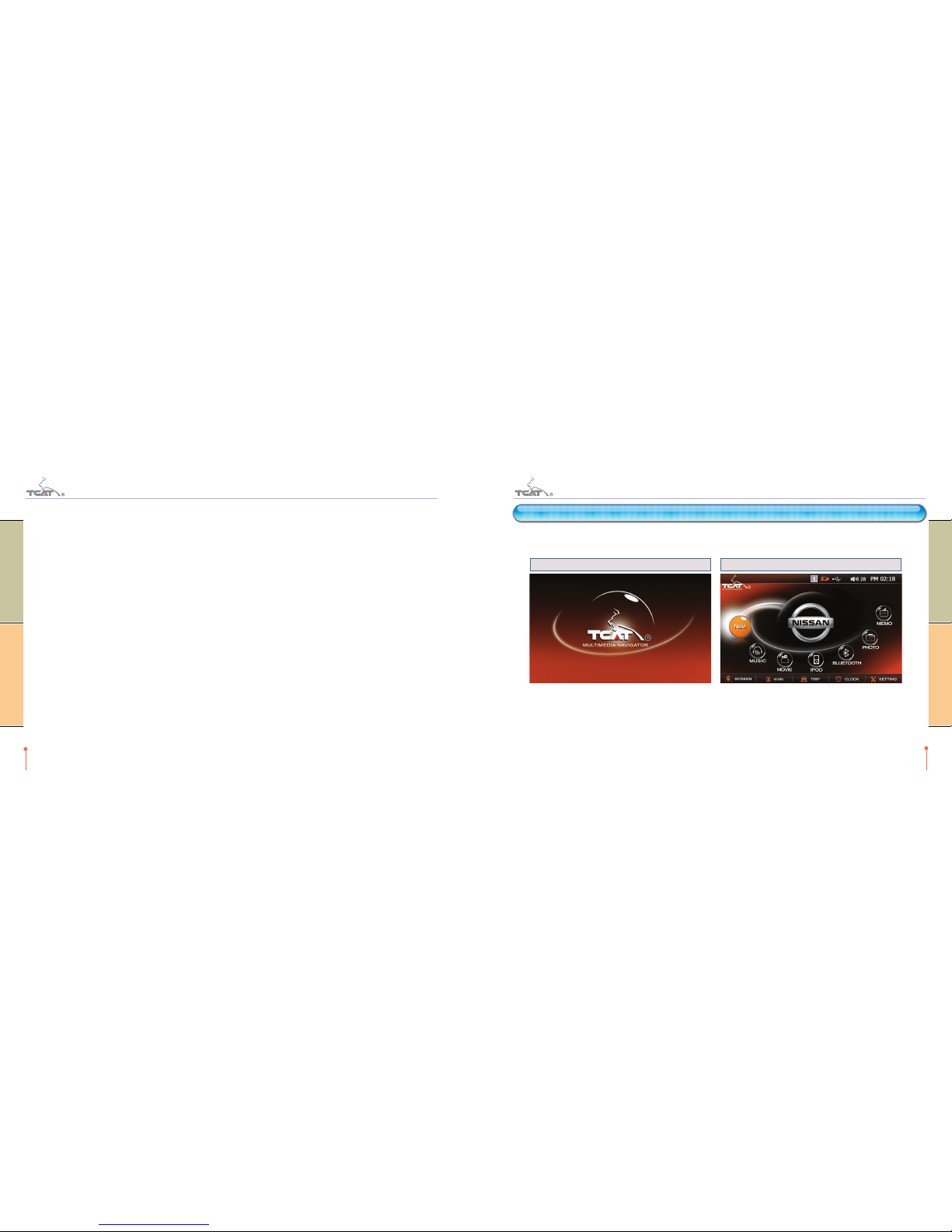
2-1. Start-up
On the car start-up, TCAT Multimedia Navigator will start up automatically.
Boot Screen Main Menu
Just the Rear View Camera mode can function All features are ready
7
TEANA TCAT MULTIMEDIA NAVIGATOR
TEANA TCAT MULTIMEDIA NAVIGATOR Quick guide
Using the USB connection, you can use USB memory stick or USB type external HDD (up to 32GB). Take note: only FAT (or FAT32)
file system can be supported on external storage. -If your external device is formatted with NTFS file system, it cannot be detected.
And power supplying for the USB connection is up to 500mA as the USB interface standard. High power consumption external HDD
storage can not be detected.
1-4. External audio
You can use built-in stereo speaker & OEM audio aux input simultaneously or exclusively.
If you turn on Aux mode on radio, you can enjoy car audio through car audio system & navigation software voice through the car’s
speakers.
1-5. Operation
All user operations are done through the Touch Screen Panel.
Just click the ICON button on the screen you want to use.
6
TEANA TCAT MULTIMEDIA NAVIGATOR
TEANA TCAT MULTIMEDIA NAVIGATOR Before getting started

3. QUICK MENU
Quick menus are supported on music player, movie player and setting mode. Using the quick menu, you can simply move to the function
and control the system volume.
Move to Main Menu
Start or move to navigation software (SpeedNavi)
Move to music (or movie) player
Move to Ipod player
Move to Bluetooth
Volume-up the system sound
Volume-down the system sound
9
TEANA TCAT MULTIMEDIA NAVIGATOR
TEANA TCAT MULTIMEDIA NAVIGATOR Quick menu
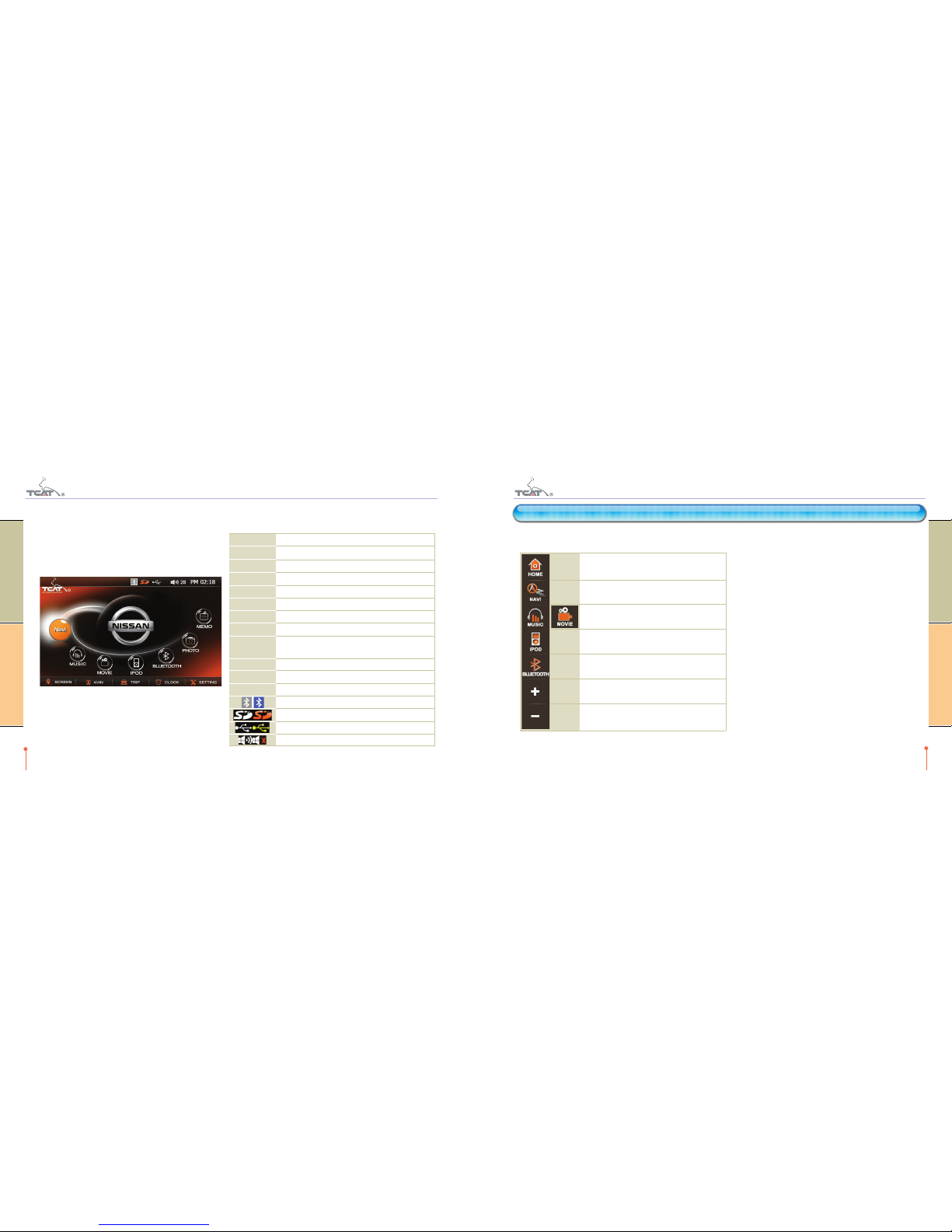
2-2. Main menu
On main menu, system audio volume & time information is displayed on right top corner and function start ICON buttons on center. Just
touch the menu button to start any functions.
8
TEANA TCAT MULTIMEDIA NAVIGATOR
TEANA TCAT MULTIMEDIA NAVIGATOR Quick guide
Start navigation software (SpeedNavi)
Move to music player
Move to movie player
Move to Ipod player
Move to Bluetooth
Move to PHOTO viewer
Move to MEMO software
LCD On/Off
Move to external AV monitor mode (If external
equipment is connected)
Move to Trip viewer
Move to Clock display mode
Move to system setting mode
Bluetooth disconnect/connect state
SD Card remove/insert state
USB Host remove/insert state
Volume mute off/on state (volume control range 0-30)
NAVI
MUSIC
MOVIE
IPOD
BLUETOOTH
PHOTO
MEMO
SCREEN
AVIN
TRIP
CLOCK
SETTING
3-1. Volume control
There are two types of volume, system volume & player
volume.
The system volume is the master volume of the system.
All sound for all software is controlled by this volume
control. And the player volume is the relative volume to the
system volume for each player. Music, Movie, Ipod and
Bluetooth support player volume.

4-2. Short cut menu operation
Category ICON Descriptions
11
TEANA TCAT MULTIMEDIA NAVIGATOR
TEANA TCAT MULTIMEDIA NAVIGATOR PIP
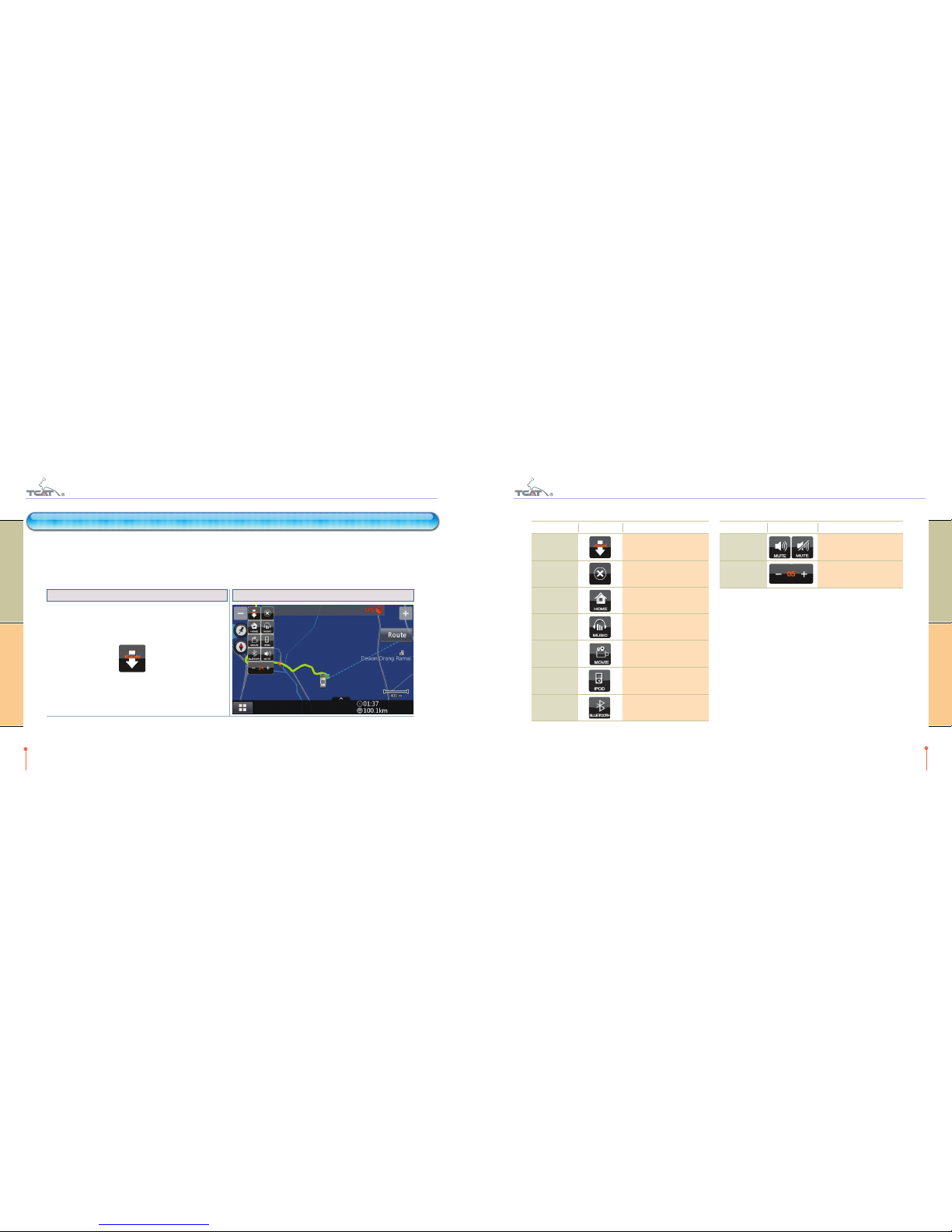
4-1. Short cut menu
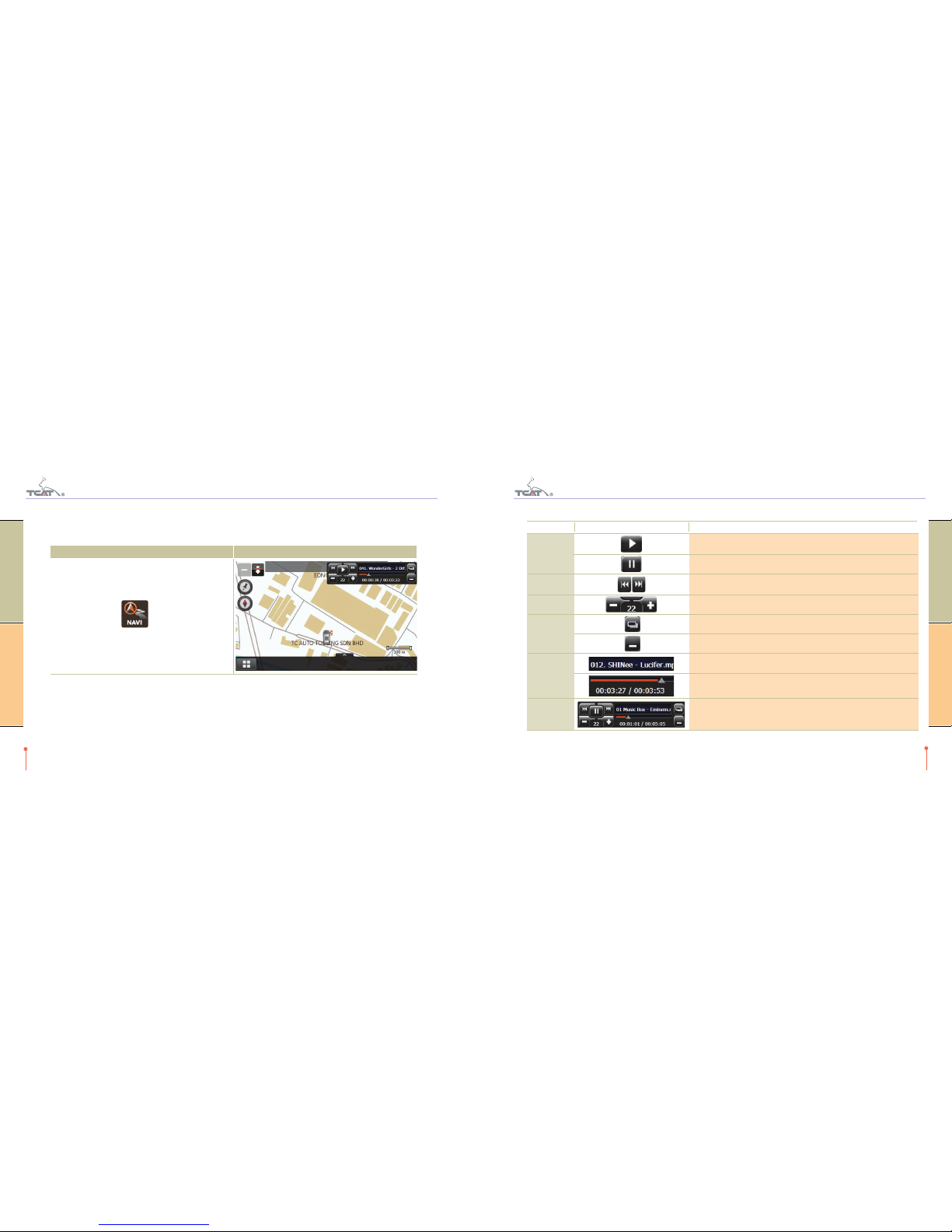
Just click the NAVI icon on main menu or quick menu.
Short cut ICON is displayed on the map. Clicking the icon will expand the short cut menu.
When you drag ICON button, short cut menu expansion state can be moved.
10
TEANA TCAT MULTIMEDIA NAVIGATOR
TEANA TCAT MULTIMEDIA NAVIGATOR PIP
4. PIP
Short cut ICON Short cut expand screen shot
Expand
Collapse
Main Menu
Music
Movie
Ipod
Bluetooth
Short cut Menu expand
Short cut Menu move
Short cut menu collapse
Move to Main Menu
Move to music player
Move to movie player
Move to Ipod player
Move to Bluetooth
Category ICON Descriptions
Mute
Volume
Mute control (On/Off toggle)
Mute the system volume
System volume control
(control range 0-30)

4-4. Music PIP mode operation
13
TEANA TCAT MULTIMEDIA NAVIGATOR
TEANA TCAT MULTIMEDIA NAVIGATOR PIP
4-3. Music PIP mode
Just click the MUSIC icon on main menu or quick menu.
If you click on the Quick NAVI button, MUSIC PIP mode displayed.
Quick Menu ICON MUSIC PIP mode screen shot
12
TEANA TCAT MULTIMEDIA NAVIGATOR
TEANA TCAT MULTIMEDIA NAVIGATOR PIP
Category ICON Descriptions
Basic
Move
Volume
Mode Change
File
Information
PIP Rotation
Play select music
Pause current music
Move to previous or next song.
While loading the music, buttons are paused a few seconds.
Player volume control (control range 0-30)
Full Mode
Hide
Playing file name
Time bar & Time information
Player can change to four locations. To change, click on the file name area.
(Right Top /Left Top/Left Bottom/Right Bottom)

5-2. Screen description
15
TEANA TCAT MULTIMEDIA NAVIGATOR
TEANA TCAT MULTIMEDIA NAVIGATOR Musick player
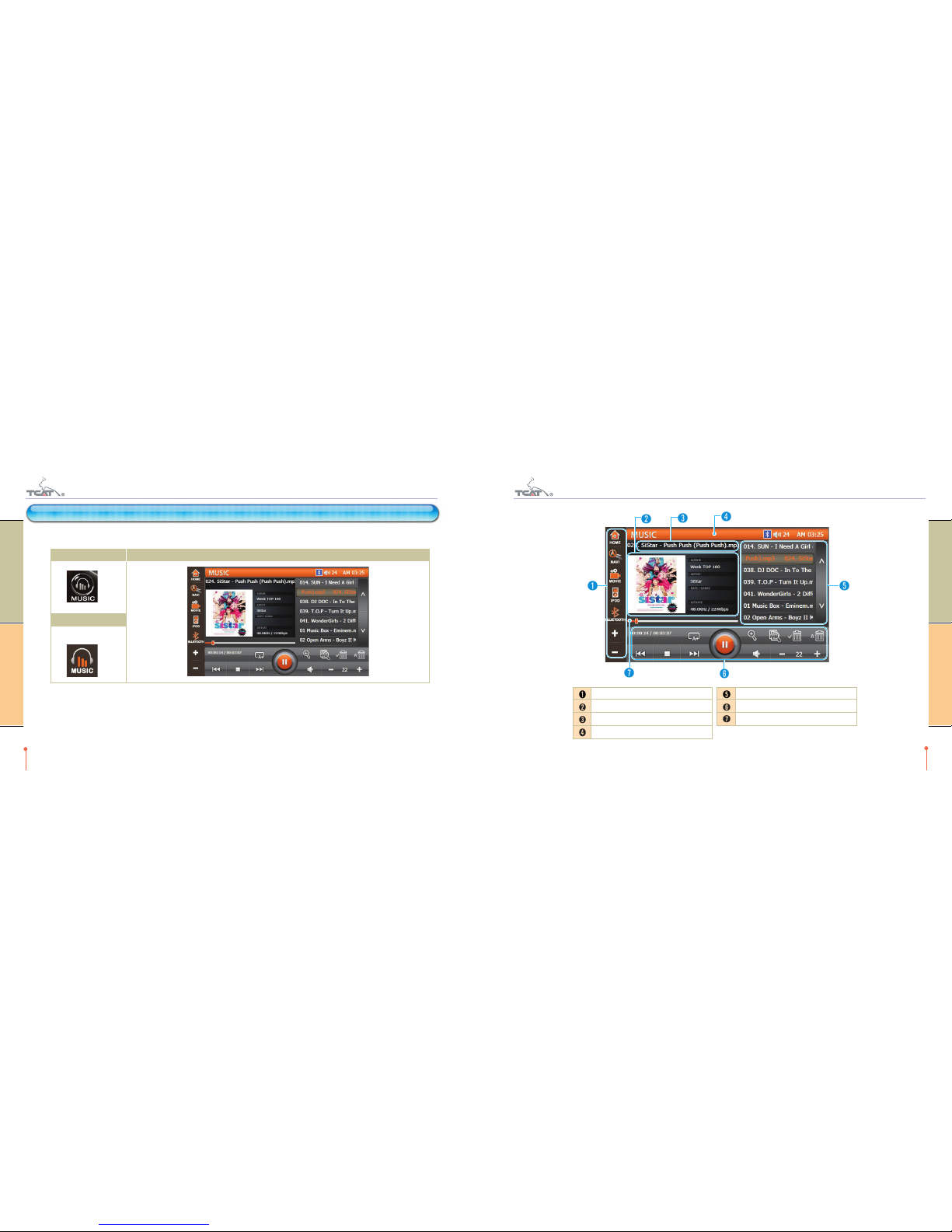
5-1. How to start
Just click the MUSIC icon on main menu or quick menu.
On Main Menu MUSIC Player Screen
On Quick Menu
14
TEANA TCAT MULTIMEDIA NAVIGATOR
TEANA TCAT MULTIMEDIA NAVIGATOR Musick player
5. MUSIC PLAYER
Quick Menu
Album Art & information
Song title
Player Title
Play List
Player Control
Time bar & Time info

17
TEANA TCAT MULTIMEDIA NAVIGATOR
TEANA TCAT MULTIMEDIA NAVIGATOR Musick player
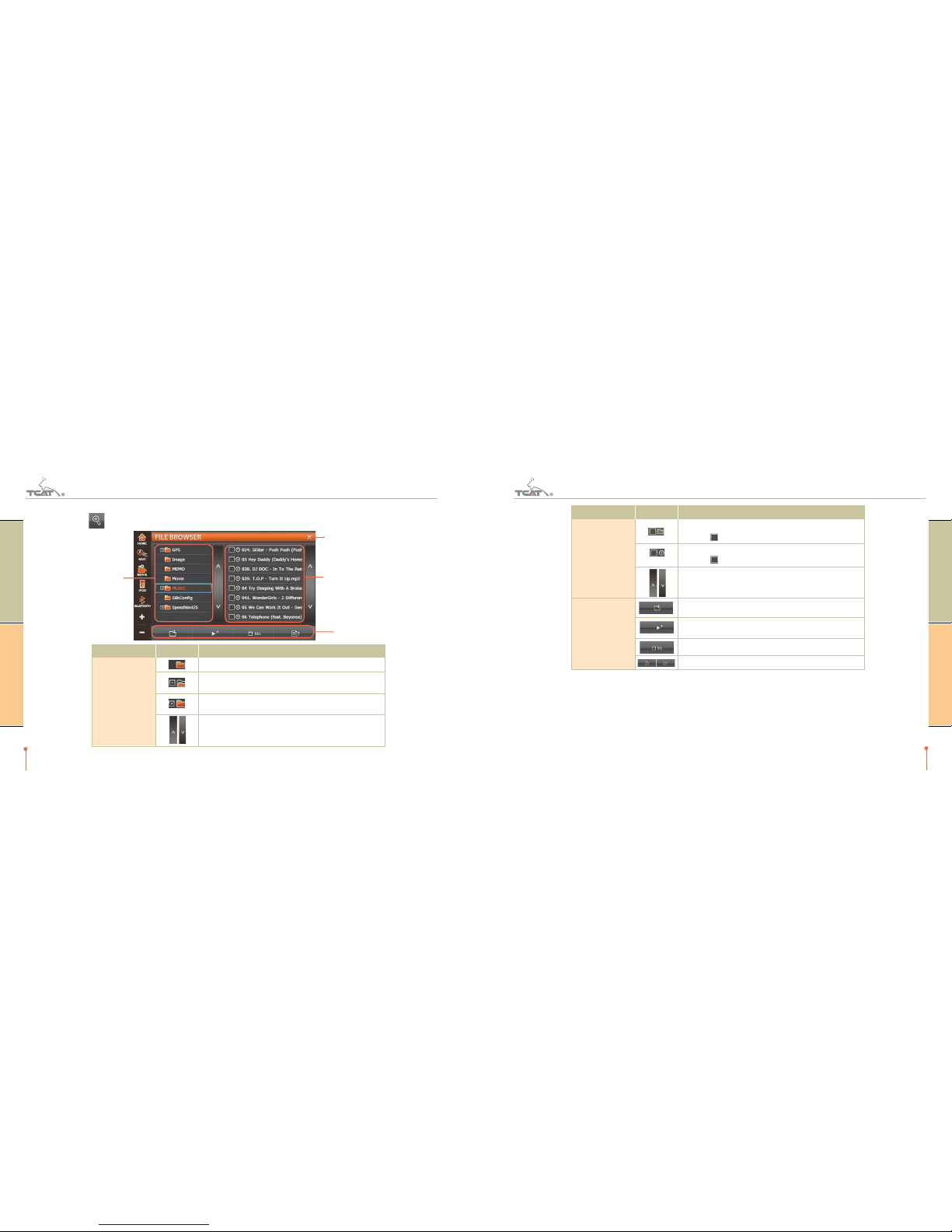
5-3. Choose music files
Just click the ICON to open the following file browser screen.
16
TEANA TCAT MULTIMEDIA NAVIGATOR
TEANA TCAT MULTIMEDIA NAVIGATOR Musick player
Folder List ICON
Description
Folder List Area
Folder List Area
Menu Zone
Exit Button
Category ICON Description
Child folder (no sub-folder)
Parent folder (sub folder is opened)
On click the (-), sub folder list is closed
Parent folder (sub folder is closed)
On click the (+), sub folder list is opened
Page up / down the folder list
File List ICON
Description
Menu Zone ICON
Description
Category ICON Description
Folder name
Click the [ ] box choose all songs in folder (on/off toggle)
Song name
Click the [ ] box choose the song (on/off toggle)
Page up / down the file list
Move to upper folder from selected folder
Add selected files to play list.
Return to the player screen
Select all items on file list
Select sort order in file list (ascending/descending toggle)

19
TEANA TCAT MULTIMEDIA NAVIGATOR
TEANA TCAT MULTIMEDIA NAVIGATOR Musick player
18
TEANA TCAT MULTIMEDIA NAVIGATOR
TEANA TCAT MULTIMEDIA NAVIGATOR Musick player
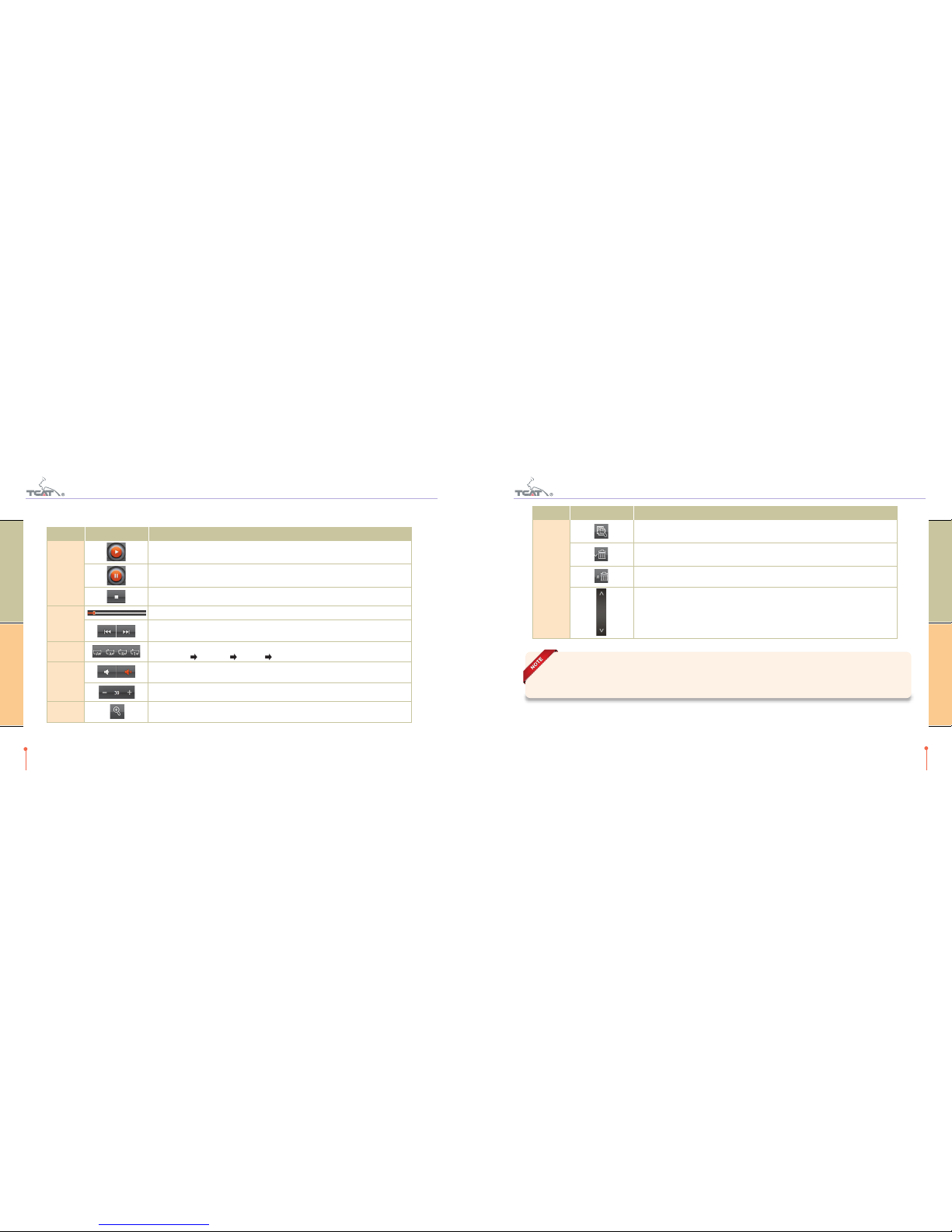
5-4. Player operation
To start the play of the specified song, just double click the file on play list area.
Basic
Move
Play Mode
Volume
Play List
Category ICON Description
Play selected music
Pause current music
Stop the play
Move playing position by moving the time bar.
Move to previous or next song.
While loading the music, buttons are paused a few seconds.
Repetition mode control
Play all once Repeat all Random Repeat one
Mute control (On/Off toggle)
Mute the system volume
Player volume control (control range 0-30)
Open file browser to add files to play list
Play List
Category ICON Description
Automatically loads songs from SD card or USB memory into the playlist.
Delete selected music file from play list
Delete all music from play list.
Play mode is automatically stopped.
Page up / down the play list
Files downloaded partially or corrupted files may cause system hang or application errors. In such cases,
delete the corrupted file.

On Main Menu MOVIE Player Screen
On Quick Menu
21
TEANA TCAT MULTIMEDIA NAVIGATOR
TEANA TCAT MULTIMEDIA NAVIGATOR Movie player
20
TEANA TCAT MULTIMEDIA NAVIGATOR
TEANA TCAT MULTIMEDIA NAVIGATOR Movie player
6-1. How to start
Just click the MOVIE icon on main menu or quick menu.
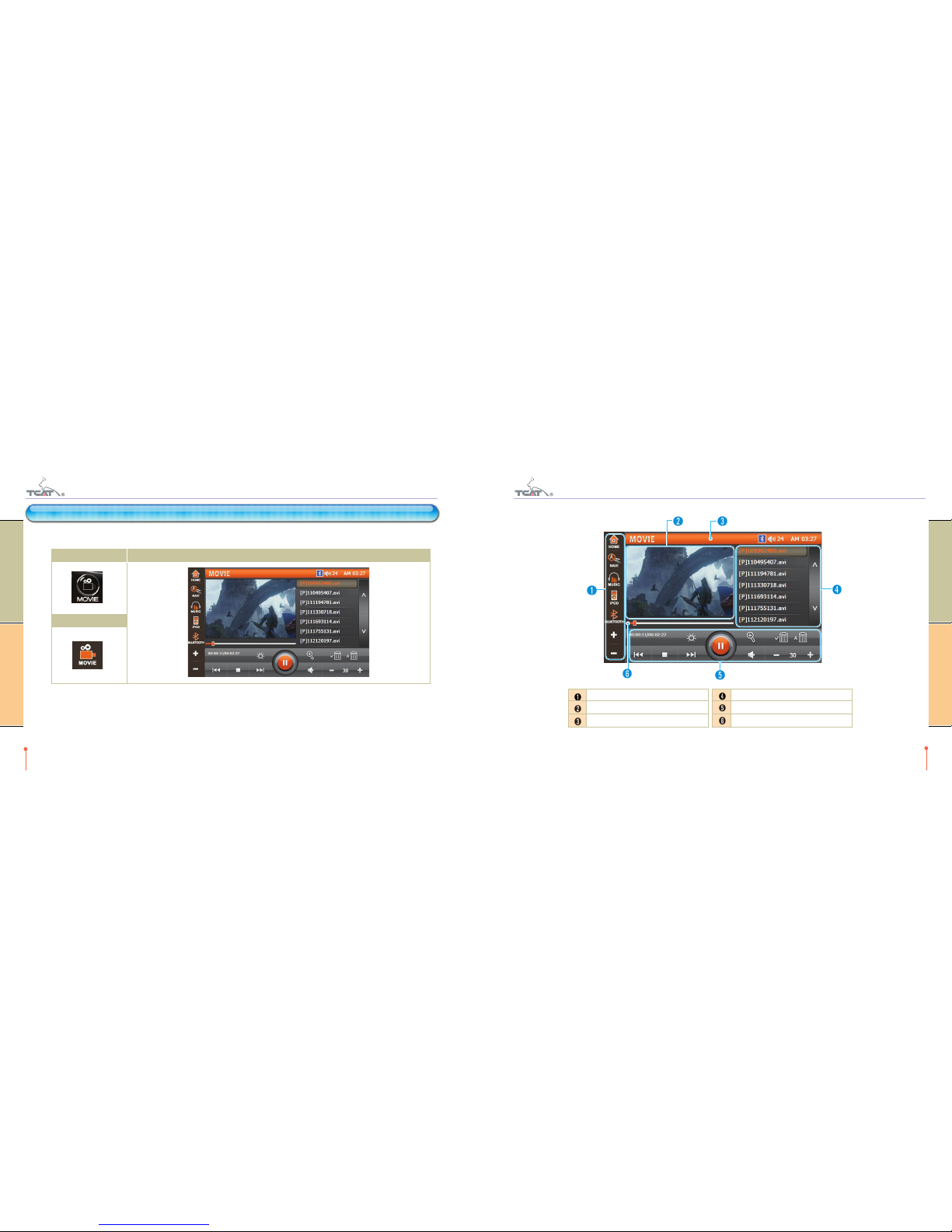
6. MOVIE PLAYER
6-2. Screen description
Quick Menu
Movie display zone
Player Title
Play List
Player Control
Time bar & information
Indice
Altri manuali TCAT Sistema di navigazione per auto