
TDS SuperEASY Manuale utente
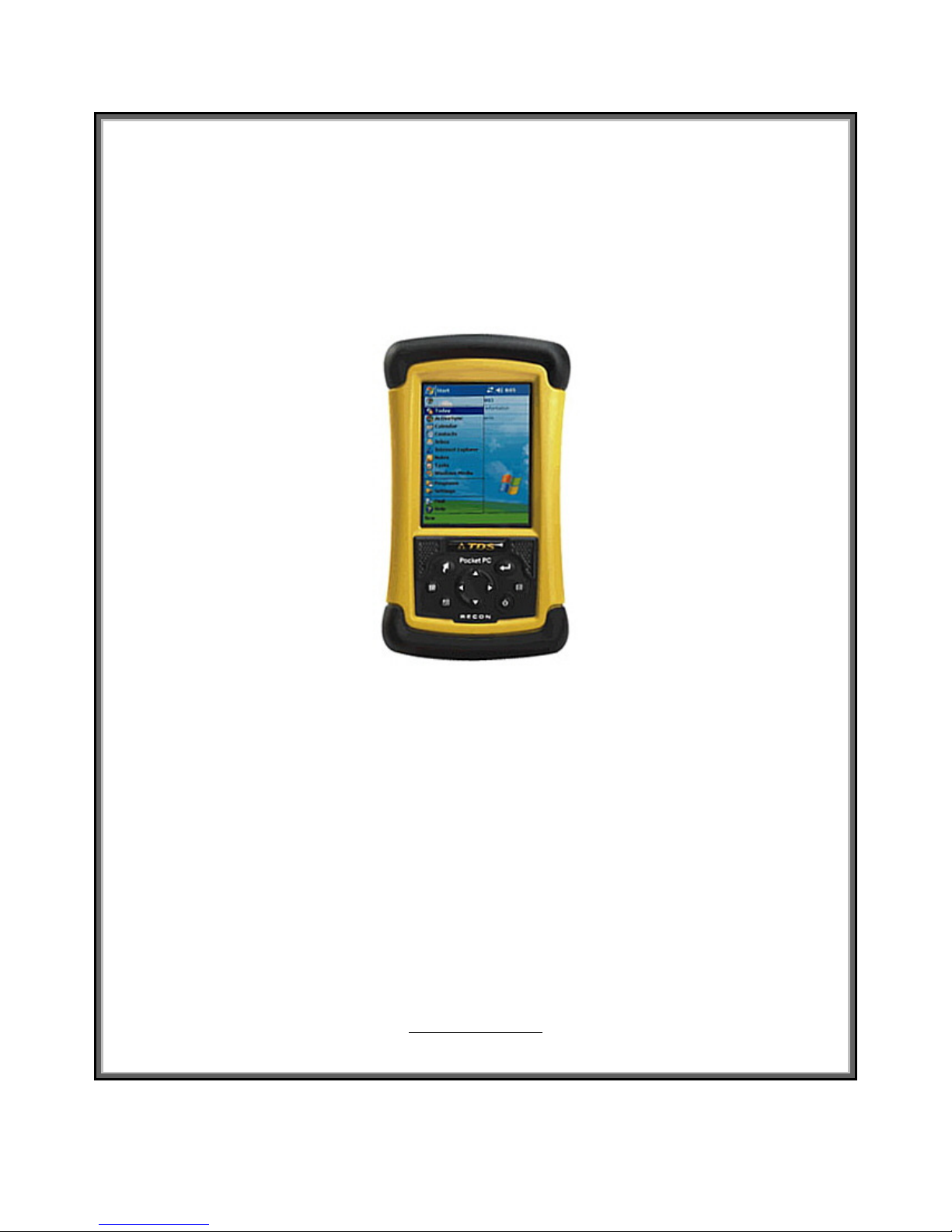
Pocket SuperEASY™
User’s Guide
For Operating Systems:
Windows Mobile 2003, 2003SE (Second Edition)
Windows Mobile .0
Windows Mobile 6.0
.NET CE V4.2
Atterbury Consultants, Inc.
3800 SW Cedar Hills Blvd. Suite 145
Beaverton, Oregon 97005
503- 4 -5393 Phone
503- 44-1 83 Fax
www.atterbury.com

Printed 6/2/2010
Pocket SuperEASY™
System Requirements
Operating Systems:
Windows Mobile 2003, 2003SE (Second Edition), Windows Mobile 5.0,
Windows Mobile .0, or .NET CE V4.2
Minimum Hardware Requirements:
4 Mb of memory
200 MHz processor
Recommended Hardware Requirements:
4 Mb of memory
400 MHz processor or faster
512 MB, or larger, storage card

Pocket SuperEASY™
Atterbury Consultants, Inc.
Contents
SOFTWARE INSTALLATION ..................................................................1
START POCKET SUPEREASY™ ...........................................................3
CREATE A CRUISE PROJECT ...............................................................4
ADDING A TYPE(S) TO AN EXISTING PROJECT.................................6
DELETING AN EXISTING PROJECT......................................................7
DELETING A TYPE(S) FROM AN EXISTING PROJECT ....................... 7
DATA STORAGE .....................................................................................8
TRANSFERRING SPECIES, SORT AND GRADE TABLES FROM
SUPERACE™ TO POCKET SUPEREASY™ .......................................10
ENTERING PLOT DATA........................................................................12
DELETING A TREE RECORD ...............................................................16
CALCULATOR .......................................................................................18
PLOT DATA EDIT ROUTINE .................................................................19
ENTERING SITE INDEX TREE DATA...................................................20
DOWN WOODY SCREEN......................................................................21
ACCESSING TABLE FILES ..................................................................22
TRANSFERRING PLOT DATA TO SUPERACE™ ...............................2
UN-INSTALL POCKET SUPEREASY™................................................27
CONTACTING ATTERBURY CONSULTANTS, INC. ........................... 28
Pocket SuperEASY™
Atterbury Consultants, Inc. 1
Software Installation
Be sure you have access to SuperACE™ before using Pocket
SuperEASY™ to collect cruise data. Pocket SuperEASY™ will only
download cruise data to a PC or laptop computer that has a copy of
SuperACE™ installed. Pocket SuperEASY™ is not compatible with
previous versions of SuperACE™.
To install Pocket SuperEASY™:
1. Make sure your mobile device is “synced” to your PC.
2. Load the installation CD on the PC.
3. Open Control Panel on the PC.
4. Select “Add/Remove Programs”
5. Select “Add New Programs”
. Click on “CD or Floppy”
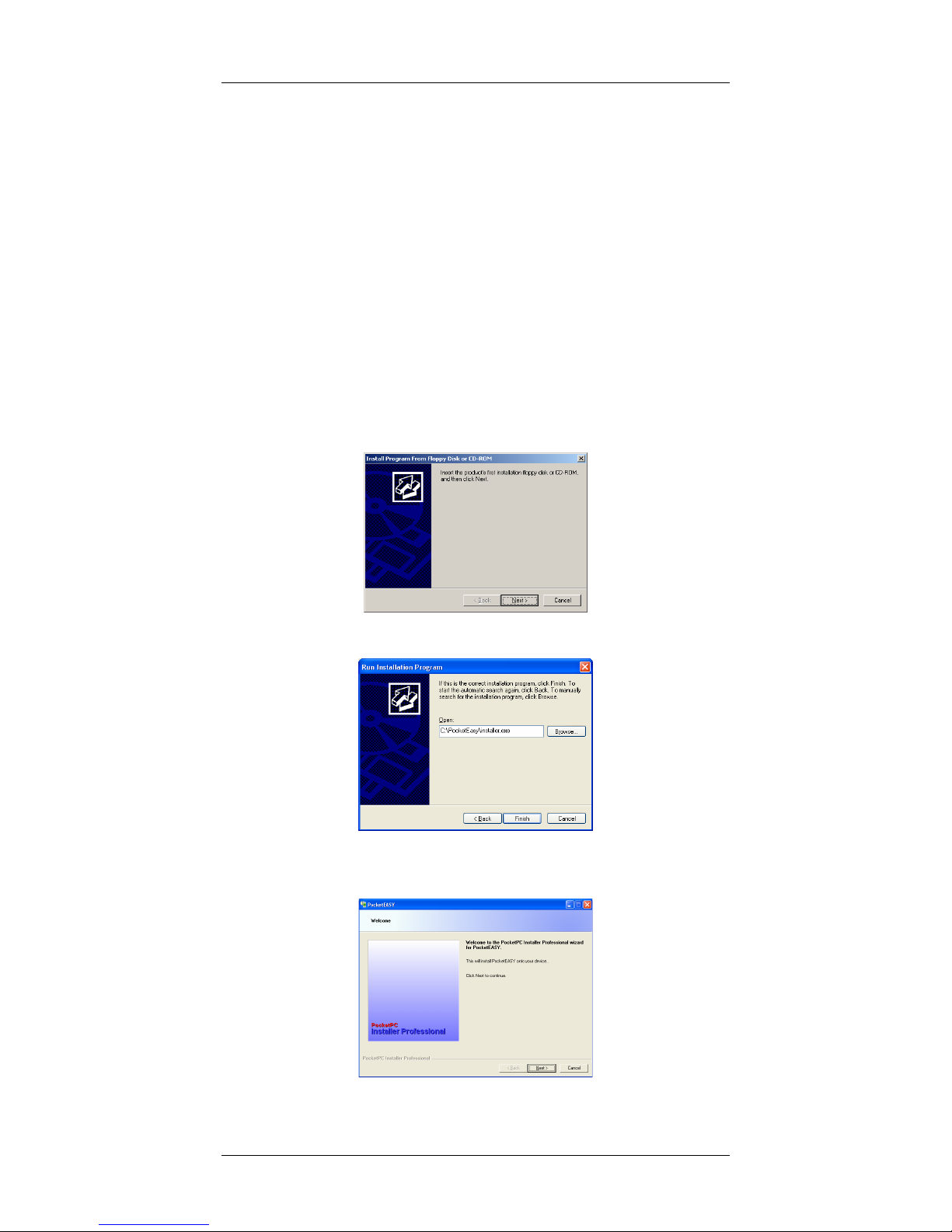
7. The following screen appears
8. Click Next
9. Browse to the CD and select Installer.exe located in the
PocketEASY folder and click Finish.
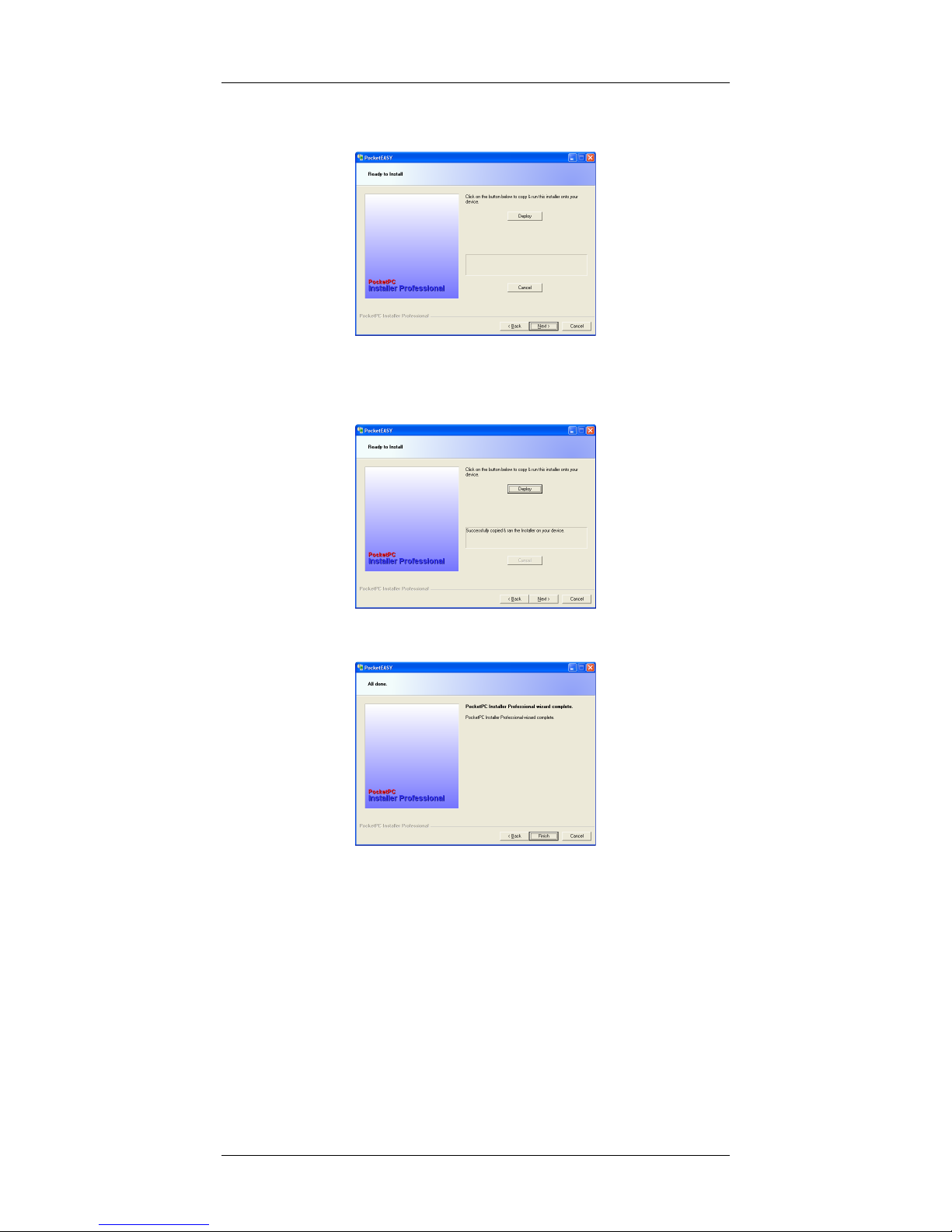
10. Click Next.
Pocket SuperEASY™
Atterbury Consultants, Inc. 2
11. Click Deploy. The installation will begin. Wait until you see the
message “Successfully copied & ran the installer on your
device” on the screen.
12. Click Next.
13. The install is complete. Click Finish.
14. The program is now loaded onto your mobile device.
Pocket SuperEASY™
Atterbury Consultants, Inc. 3
Start Pocket SuperEASY™
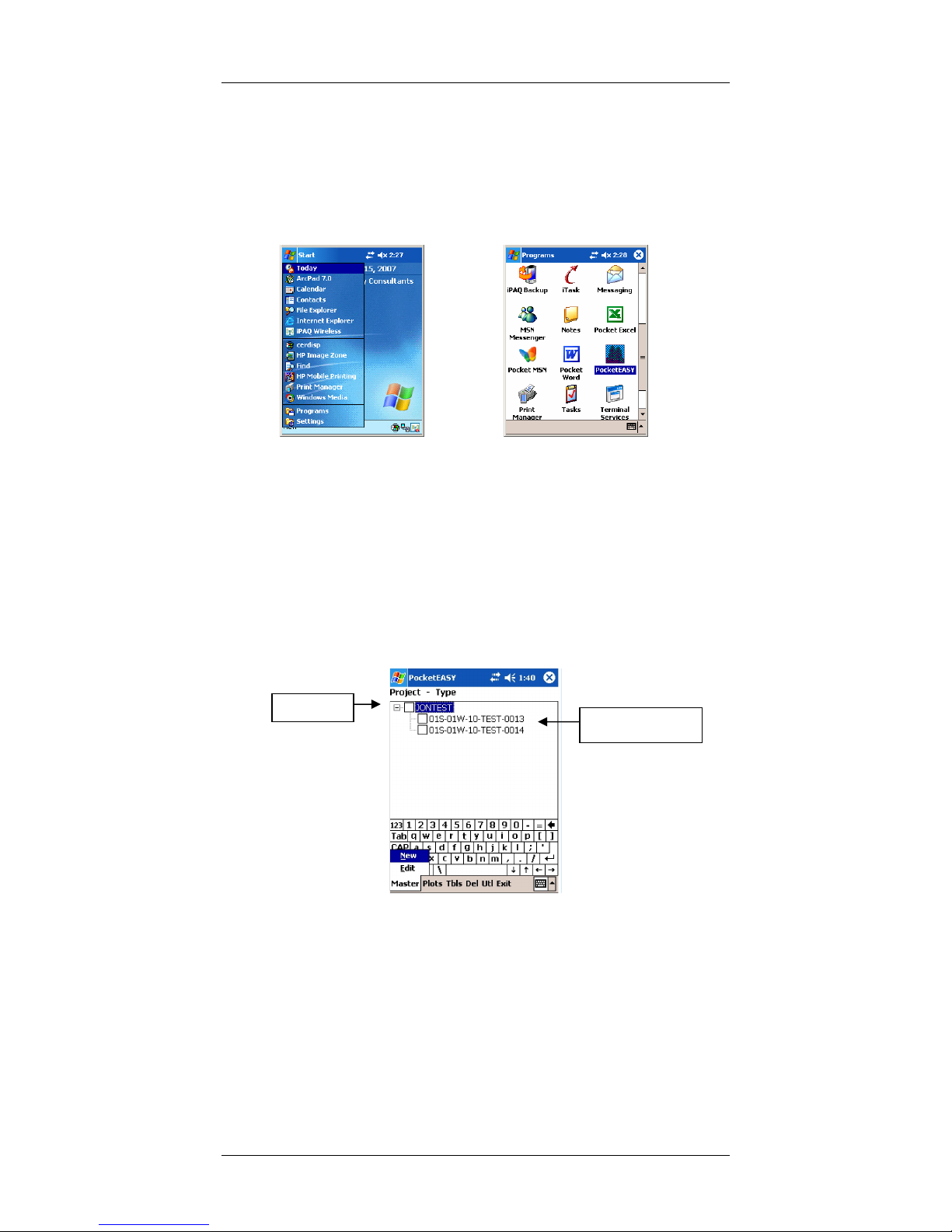
To start Pocket SuperEASY™, tap Start at the top of the screen, then
Programs near the bottom of the list, then tap on the PocketEASY™
icon. Pocket SuperEASY™ is referred to as PocketEASY™ in the
software application.
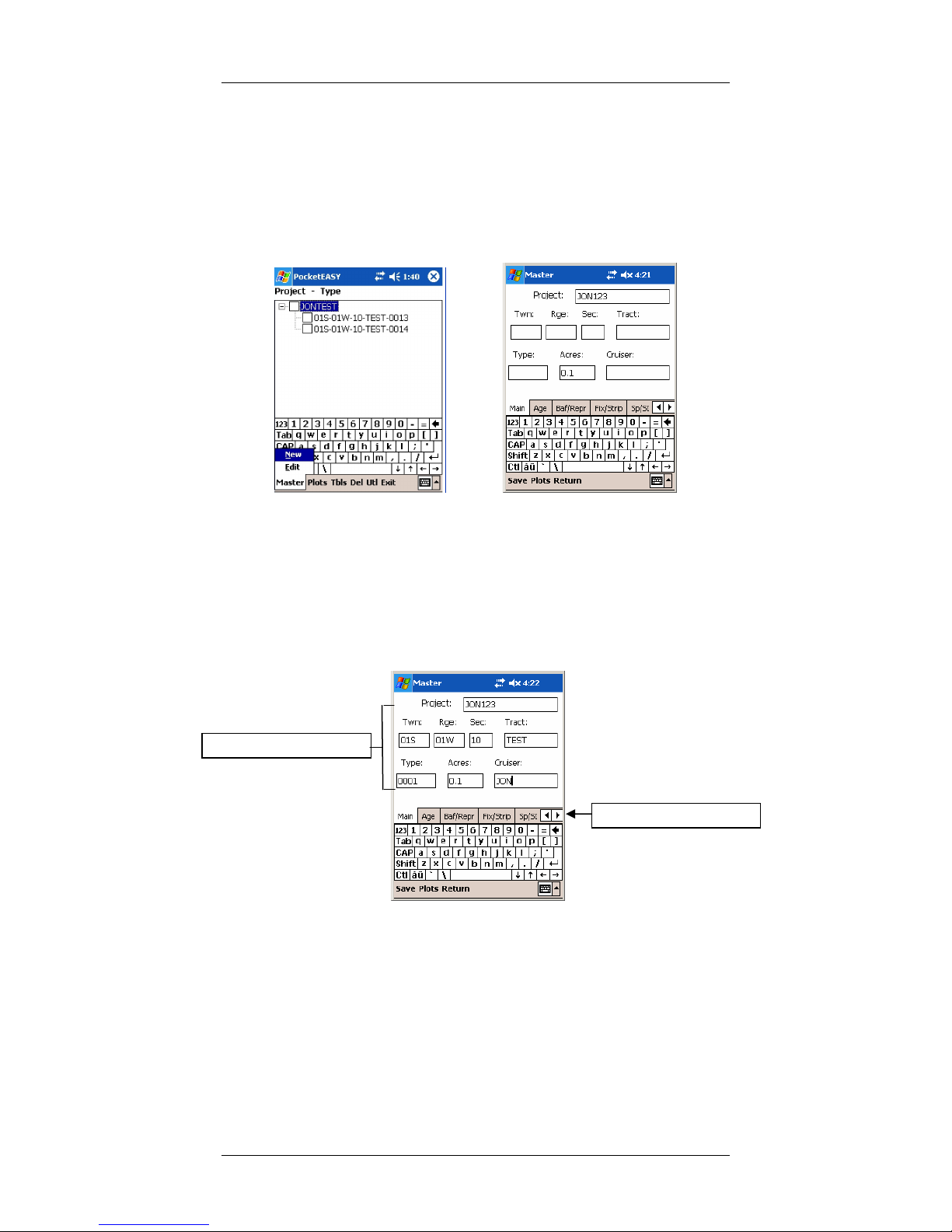
The following screen will open. This is the Project screen where you
enter a new cruise project or open an existing cruise project If there are
no projects the screen will be blank. Existing projects are listed by their
project name with the associated cruise type or types listed as subfiles
below each project. To hide the associated cruise type(s), click on the
minus (-) sign to the left of the Project name. This will hide the timber
type(s) and the minus (-) sign will change to a plus (+) sign. To unhide
the timber type(s), click on the plus (+) sign. Note: Users of handhelds
with .NET CE V4.2 will see the menus on the top rather than the
bottom.
Project Screen
Project
Cruise Types
Pocket SuperEASY™
Atterbury Consultants, Inc. 4
Create a Cruise Project
To create a new project tap on Master at the bottom of the Project
screen. Then tap New from the menu. This will open the Master screen
below.
Project Screen Master Screen
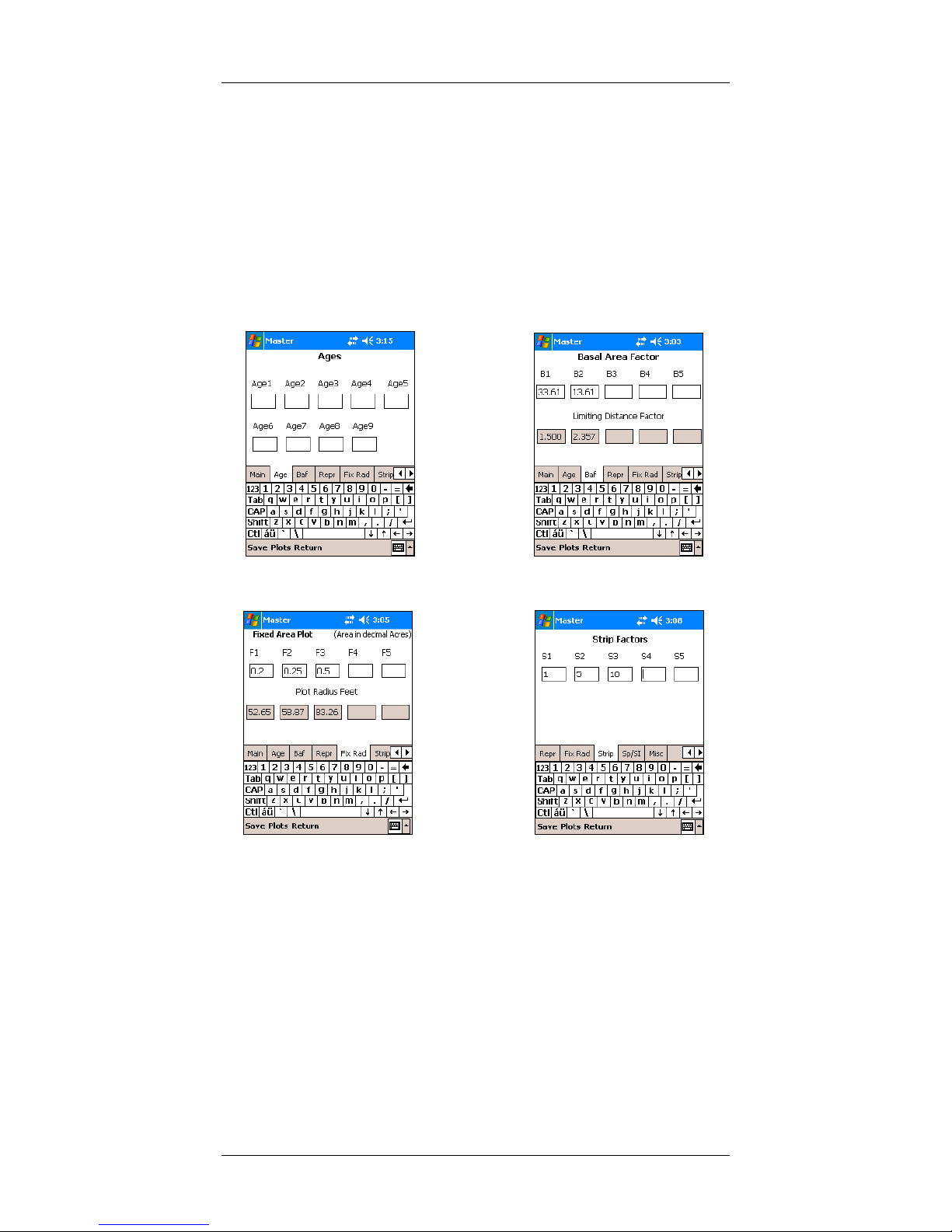
The cursor will be in the Project cell. Type in the name of the project you
wish to create. The name can contain up to 8 characters. The project
name can be composed of either alphabetic, numeric or alphanumeric
characters. It cannot include spaces or symbols. At a minimum, the
Township, Range, Section and Type number should be entered. With
the exception of the Acres entry, all the master entries are alphanumeric.
A completed Master Screen example is shown below.
Master Screen
Tabs to other screens
Master screen entries
Pocket SuperEASY™
Atterbury Consultants, Inc. 5
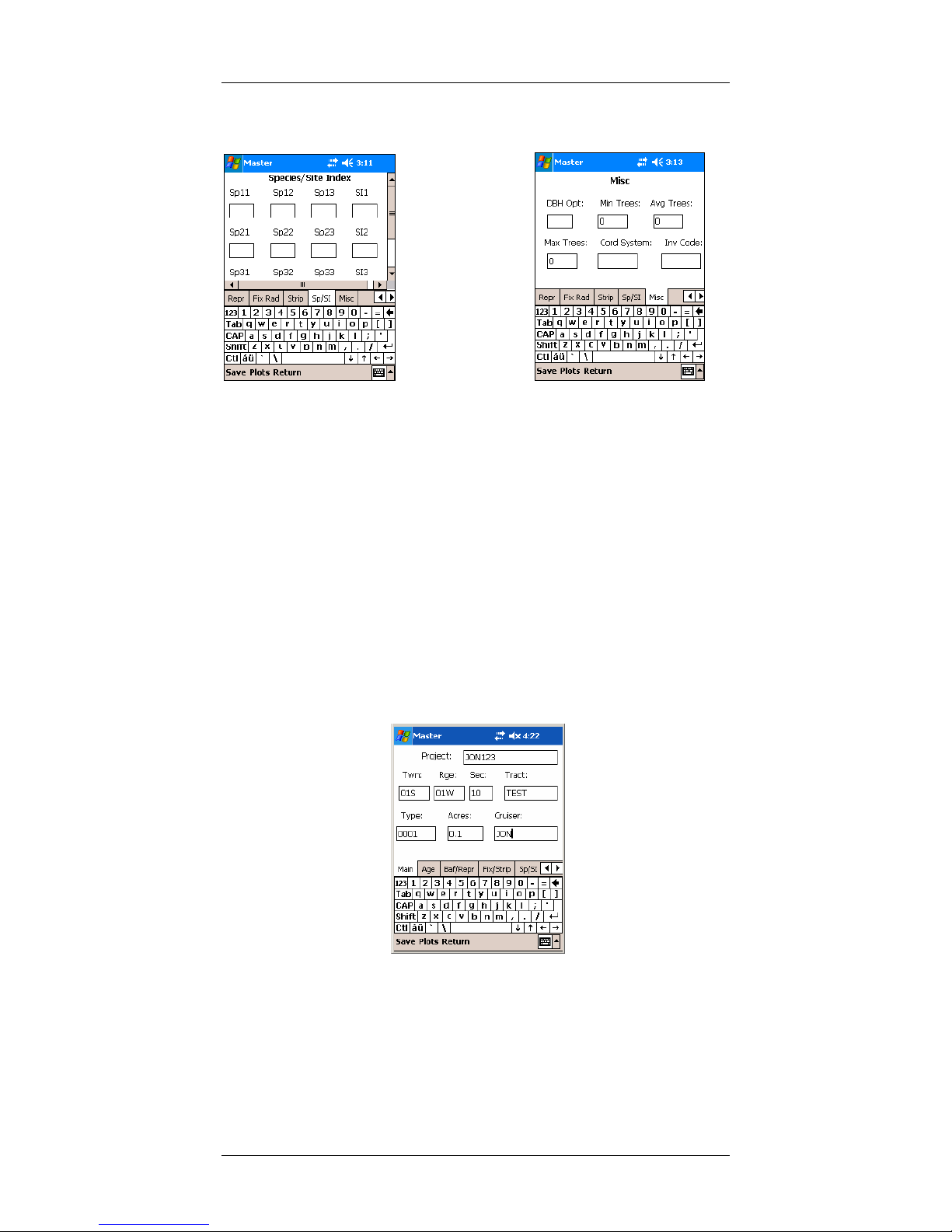
Along the top of the keyboard in the Master Screen are tabs that will take
you to other screens to enter values for age, prism factors (BAF), plot
radii, strip cruise factors, species site index and miscellaneous
information (refer to previous screen). These entries are not required but
it is recommended that you make it a habit to fill in any necessary values
that may be used in completing a cruise. All the information entered into
these screens will be downloaded with the plot data to SuperACE™. The
screens are shown below.
Age Codes Years BAF Values
With example values.
Fixed Area Plot Strip Cruise Factors
With example values. With example values.
Pocket SuperEASY™
Atterbury Consultants, Inc.
Site Index by Species Miscellaneous
Once all the Master Screen tabs have been filled in with the necessary
values you can either tap Save to save the information and return to the
Project Screen, tap Plots to save the entries and go directly to the Plot
Screen or tap Return to leave the screen without saving any of the
entries.
Adding a Type(s) to an Existing Project
To create a new project type tap on Master at the bottom of the Project
screen. Then tap New from the menu. This will open the Master screen.
The name of the project should appear in the Project cell. At a minimum,
the Township, Range, Section and Type number should be entered. The
type number will differentiate this type from other project types. A
completed Master Screen example is shown below.
Master Screen
Once all the Master Screen tabs have been filled in with the necessary
values you can either tap Save to save the information and return to the
Project Screen, tap Plots to save the entries and go directly to the Plot
Screen or tap Return to leave the screen without saving any of the
entries.

Pocket SuperEASY™
Atterbury Consultants, Inc. 7
Deleting an Existing Project
1. In the Project Screen, tap on the Project name that is to be
deleted so that it is highlighted in blue.
Project Screen
2. Tap on the Del option at the bottom of the screen.
3. A delete verification screen will appear confirming that you wish
to delete the selected project.
4. Tap Yes or No
. If you tap Yes the project and ALL associated cruise stands will
be deleted from the mobile unit. Note: you can not undelete a
project once it has been deleted.
Deleting a Type(s) from an Existing Project
1. In the Project Screen, make sure that types are visible, if not, tap
on the plus(+) sign next to the project name then tap on the type
or types that are to be deleted so that they are highlighted in
blue.
2. Tap on the Del option at the bottom of the screen.
3. A delete verification screen will appear confirming that you wish
to delete the selected type(s).
Indice
Altri manuali TDS Palmare


