Technare PS-01 Manuale utente


USB Print Server PS-01
User Manual
Please find the Declaration of Conformity for this device under following internet-link:
www.technaxx.de/konformitätserklärung/usb_print_server_ps-01
Table of Content
Environment Setup, Introduction, Hardware Installation, USB LPR Printer Setup on Windows
USB LPR Printer Setup on Mac OS X™ (Bonjour), MFP-Printer / LPR Printer Compatibility List
Copyright Notice: Copyright Incorporated 2010. All rights reserved.
Disclaimer: Incorporated shall not be liable for technical or editorial errors or omissions contained herein; nor for incidental or consequential
damages resulting from furnishing this material, or the performance or use of this product. Incorporated reserves the right to change product
specifications without notice. Information in this document may change without notice.
Trademarks: Microsoft, Windows XP, Windows VISTA and Windows 7 are registered trademarks of the Microsoft Corporation. All other brand
and product names mentioned herein may be registered trademarks of their respective owners.
Customers should ensure that their use of this product does not infringe upon any patent rights. Trademarks mentioned in this publication are
sued for identification purposes only and are properties of their respective companies.
English

Introduction
The USB Print Server that allows any networked computer to share a USB printer. It complies with USB 2.0 specifications (and is backward
compatible with USB 1.1), and provides an auto-sensing Ethernet port that works with either 10Base-T, 100Base-T or 1000Base-T networks.
This unit also supports multiple protocols and multiple operating systems. The built-in web management feature provides more convenience by
allowing the user to configure, monitor and even reset the USB server via a web browser. Please read this user manual carefully
before using. All information on this booklet is subject to change without notice due to technical reasons.
Security and Disposal Hints for Batteries
Hold children off batteries. When a child swallowed a battery by mistake go to a doctors place or bring the child into a hospital promptly!
Look for the right polarity (+) and (▬) of batteries! Always change all batteries, never use old and new or different types together.
Do NOT open, deform or load up batteries! There is a risk of injury by battery leakage fluid! Never short batteries.
NEVER throw batteries into fire! There is a risk of explosion!
Take out exhausted batteries from the device and take out batteries from the device when its not used over a longer period of time.
Hints for Environment Protection
Cleaning: Protect the device from contamination and pollution. Only clean the device with soft cloth or drapery, avoid using rough or coarse-
grained materials. Do NOT use solvents or other aggressive cleaner. Wipe the device after cleaning accurately. Important Notice: Should
battery fluid leak from a battery, wipe the battery-case with a soft cloth dry and put in a new battery!
Packages materials are raw materials and can be recycled. Separate the packages by types and put them to an
adequate recycling on behalf of the environment. More detailed information you get from your official civil service.
Do not disposal old devices into the domestic waste. Disposal old / defective devices professionally! The environment
will be grateful for that.
Do not disposal batteries into the domestic waste. Disposal old / empty / defective batteries professionally! The
environment will be more than grateful for that.

Features
Easily connects your USB Printer to a network
Allows multiple computers to share USB Printer on the network
Print from any computer on your local network
Supports DHCP Client and multiple network protocols
10Base-T/100Base-T auto-sensing
Supports Web Management software
Package Contents
USB Print Server PS-01
Network Cable
Power Adapter 5V/1A
Installation CD
User Manual
System Requirements
Windows 7, Vista, XP, 2003, 2000
Mac OS X 10.2 or later (only support LPR Printer)
Printer with a USB connection

Hardware Installation
1. Make sure your network is working properly.
2. Connect the USB Printer to the USB ports on the Network Printer Server directly or via enclosed USB
extension cable.
3. Make sure all the driver of the devices connected with the Network Printer Server is installed on your
computer properly.
4. Connect the Network Printer Server to the router or Ethernet switch/hub or bridge by enclosed network
cable.
5. Plug in the power adapter to the Network Printer Server.
6. Install the driver of the Network Printer Server (please find instructions in the next section).

USB LPR Printer Setup on Windows
Provides a straight forward and easy-to-use utility that helps you to set up USB printers connects to LPR
Printer server as network printers, Network Printer Wizard. This utility reduces the dozens of steps in setting
up network printer via Windows build-in printer setup program to a few point-and-clicks with the mouse.
Users no longer need to deal with the confusing IP setting, queue name entering and port configuration.
Install Network Printer Wizard Software
To start the installation, double click on Setup.exe
Then click Networking Printer Wizard for Windows
from autorun setup cover page.
Wait for the installer to run:
Extract Files and install? Click on Yes:
Click on Finish to exit installer once installation completes:

The installer creates a shortcut on the Desktop for you:
Network Printer Wizard Setup
1. Now we can start setting up your printer.
Click on the Launch Network Printer Wizard
icon created on the desktop.
2. Click on Next to continue when you see this
welcome dialog box.
Select the printer you would like to setup on this list and then Click on
Next. The number of printers you see on this list depends on the
number of printers that are connected to your network. If you only have
one printer on the network, you see only one printer on this list. If you
do not see any printers, please make sure your printers and USB LPR
Printer Server is correctly powered on and connected to the network.

3. On the next dialog box, select the driver form the list if it’s there,
and then click on the Next button and go to step 7.
Else, read on.
If you can’t find the target printer’s driver on the list, insert the disk
containing the printer’s driver, click on Have Disk… button then go to
step 5.
4. You must browse to the folder that contains the driver for your
printer and click on OPEN to use it:
5. Then, select the driver from the list again and then click on the Next button. If you did not select the
correct driver, here is the chance for you to verify. Click on Have Disk… again to re-select.
6. Once you have selected the correct driver from the list, click on
Finish button. The wizard might take a minute to setup the
network printer for you.

7. After the printer has been setup correctly, you can see it under
Control Panel > Printers:
Now you can print any document using the printer you just setup:
If you have more than one printer set up, make sure you have selected
the correct printer to print.
NOTE: REMEMBER, THIS SETUP IS A ONE-TIME THING. YOU DO NOT HAVE TO RUN THIS
PROCESS EVERY TIME YOU WANT TO PRINT. HOWEVER, IF YOU REMOVE THE NETWORK
PRINTER WIZARD PROGRAM, YOUR PRINTER SETUP WILL NO LONGER WORK.

Remove the Printer Setting
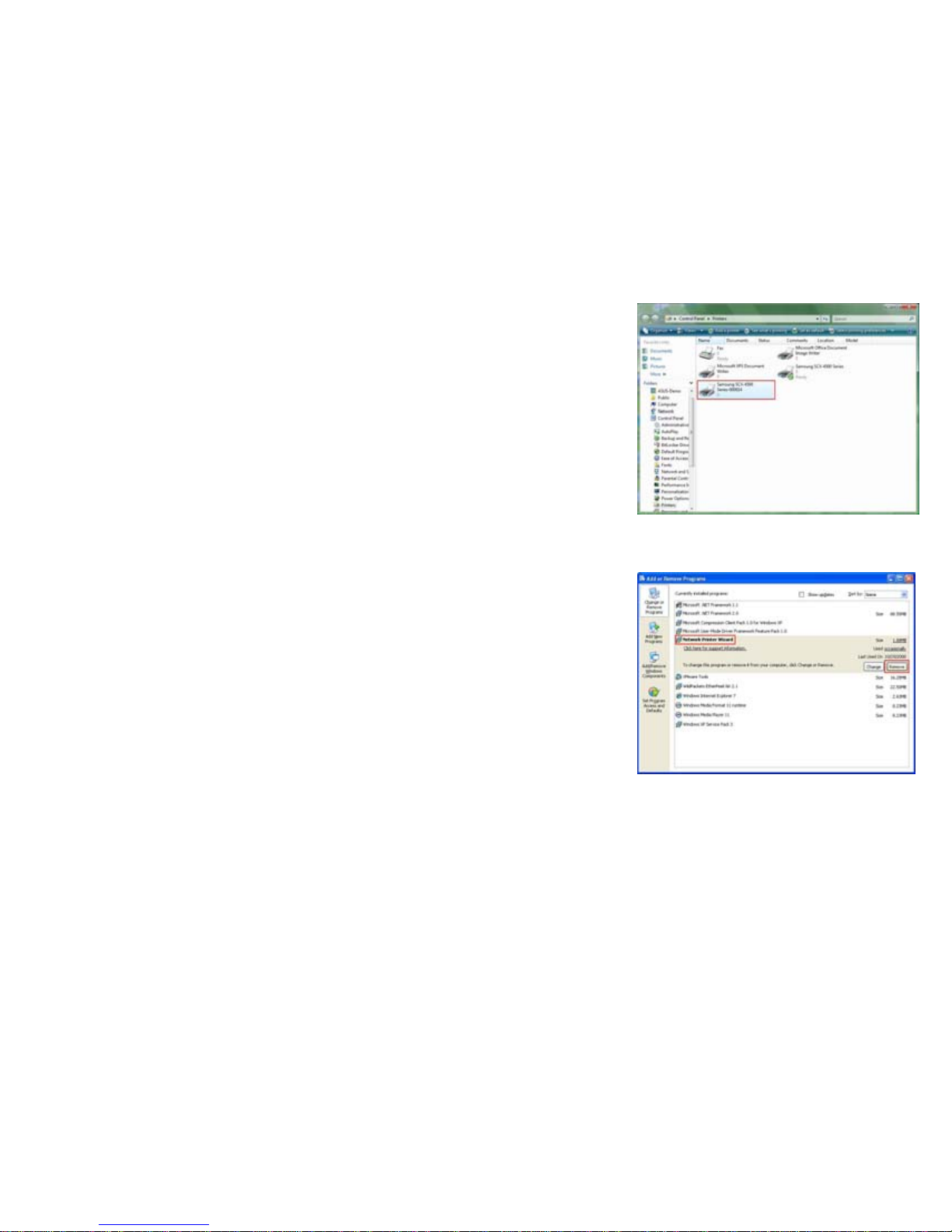
To remove the printer setup, go to the Control Panel > Printers dialog
box and remove the printer entry from it.
Simply Delete this icon by pressing Del key on your keyboard. Then it
will be removed from the list of usable printers when you print
document.
Remove the Program
To remove the Network Printer Wizard program, please go to the Control Panel > Add or Remove
Programs (Programs and Features on Windows VISTA)
Then select to remove the program
Then follow the instructions of the installer complete the removing
process:
NOTE: Once you remove this problem, you will no longer be able to
print using the printers you setup with Network Printer Wizard
Indice
Lingue: