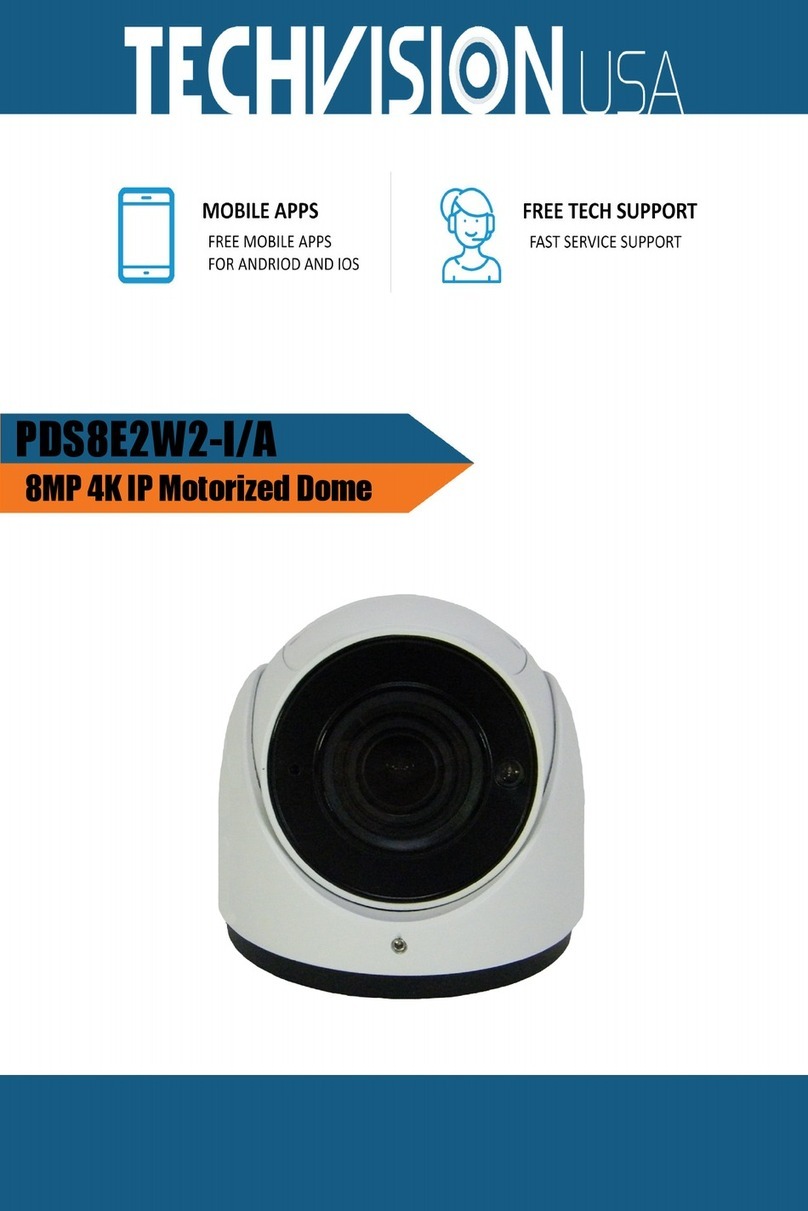
TechVision PDE4L3WZ-I Manuale utente

PDE4L3WZ-I
Motorized 4MP IP Dome Security
Camera

HD IR Network Dome Camera Quick Start Guide
i
Welcome
Thank you for purchasing our network cameras.
This user’s manual is designed to be a reference tool for using your product.
Please read the following safeguards and warnings carefully before you use this series product.
Please keep this user’s manual well for future reference.
Important Safeguards and Warnings
Electrical safety
All installation and operation should conform to your local electrical safety codes.
The power source shall conform to the requirement of the Safety Extra Low Voltage (SELV)
standard, and supply power with rated voltage which conforms to Limited power Source
requirement according IEC60950-1. Please note that the power supply requirement is subject to
the device label.
Make sure the power supply is correct before operating the device.
A readily accessible disconnect device shall be incorporated in the building installation wiring
Prevent the power cable from being trampled or pressed, especially the plug, power socket and the
junction extruded from the device.
We assume no liability or responsibility for all the fires or electrical shock caused by improper
handling or installation.
Environment
Do not aim the device at strong light to focus, such as lamp light and sun light, otherwise it might
cause over brightness or light marks, which are not the device malfunction, and affect the longevity
of Charge Coupled Device (CCD) or Complementary Metal-Oxide Semiconductor (CMOS).
Do not place the device in a damp or dusty environment, extremely hot or cold temperatures, or the
locations with strong electromagnetic radiation or unstable lighting.
Keep the camera away from water or other liquid to avoid damages to the internal components.
Keep the indoor device away from rain or damp to avoid fire or lightning.
Keep sound ventilation to avoid heat accumulation.
Transport, use and store the device within the range of allowed humidity and temperature.
Heavy stress, violent vibration or water splash are not allowed during transportation, storage and
installation.
Pack the device with standard factory packaging or the equivalent material when transporting the
device.
The device needs to be installed in the location where professional staff can cover (professionals
need to know the attentions of using the device), non-professionals are not allowed to enter device
installation area when the device is operating normally, which may cause accidental damage.
Operation and Daily Maintenance

HD IR Network Dome Camera Quick Start Guide
ii
Do not directly touch the heat dissipation component of the device to avoid scald.
Do not dismantle the device because there is no component that can be fixed by users themselves.
Otherwise, it might cause water leakage or bad image due to unprofessional dismantling.
Please contact after-sale service to replace desiccant when it becomes green. (The desiccant is
not provided by default)
It is recommended to use the device together with lightning arrester to improve lightning protection
effect.
It is recommended to get the grounding holes to be grounded to enhance the reliability of the
device.
Do not directly touch the optic component CCD or CMOS. You can use the air blower to blow away
the dust or dirt on the lens surface. Please use a dry cloth wetted by alcohol to wipe away the dust
gently if necessary.
Use the dry soft cloth to clean the device. If the dust is difficult to be removed, please wipe it away
with a clean cloth wetted slightly by the mild detergent, and then use the dry cloth to clean the
device. Do not use volatile solvents like alcohol, benzene, thinner, or strong detergent with
abrasiveness, otherwise it will damage the surface coating or reduce the working performance of
the device.
When installing or using the device, do not directly touch or wipe the surface of the dome cover
because it is an optical device. If stained with dirt, use oil-free soft brush or air blower to gently
wipe it away. If stained with grease or fingerprint, use soft cloth to gently wipe the water drop or oil
and wait till it is dry, and then use oil-free cotton cloth or lens cleaning paper soaked with alcohol or
detergent to wipe from the lens center outward till it is clean.
We are not liable for any problems caused by unauthorized modification or attempted repair.
The dome cover is a kind of optical component, please do not touch or wipe the cover surface
during installation and application, it may stain dust, grease or fingerprint, you can use absorbent
cotton to dip some diethyl ether or use soft cloth to dip some water and then wipe gently. You can
also use air gun to remove the dust if the cover is stained with dust.
Warnings
Please strengthen the protection of network, device data and personal information, adopt
necessary measures of guarantee device network security, including but not limited to using strong
password, modifying password regularly, upgrading firmware to the latest version, isolating
computer network and so on. For the IP camera firmware of some old version, the ONVIF
password won’t be modified automatically after the main password of the system is modified. You
need to upgrade the camera firmware or upgrade the ONVIF password manually.
Please modify the default password after login to avoid being stolen.
Use the standard components provided by manufacturer and make sure the device is installed and
fixed by professional engineers.
The surface of the image sensor should not be exposed to laser beam radiation in an environment
where a laser beam device is used.
Do not provide two or more power supply sources for the device; otherwise it might damage the
device.

HD IR Network Dome Camera Quick Start Guide
iii
Disclaimer
This manual is for reference only. Please refer to the actual product for more details.
Minor differences might be found in user interface, and there might be deviation between the actual
value of some data and the value provided in the manual due to the reasons such as the real
environment is not stable. Please refer to the final explanation of the company if there is any doubt
or dispute.
All the designs and software are subject to change without prior written notice. The manual will be
regularly updated according to the product upgrade without prior announcement.
Please contact the supplier or customer service if there is any problem occurred when using the
device.
Please contact the customer service for the latest procedure and supplementary documentation.
Please visit our website or contact your local service engineer for more information.
The company is not liable for any loss caused by the operation that does not comply with the
manual.
If there is any uncertainty or controversy, please refer to our final explanation.
Regulatory Information
FCC Information
1.1 FCC conditions:
This device complies with part 15 of the FCC Rules. Operation is subject to the following two conditions:
This device may not cause harmful interference
This device must accept any interference received, including interference that may cause
undesired operation.
1.2 FCC compliance:
This equipment has been tested and found to comply with the limits for a digital device, pursuant to part
15 of the FCC Rules. These limits are designed to provide reasonable protection against harmful
interference. This equipment generate, uses and can radiate radio frequency energy and, if not installed
and used in accordance with the instruction manual, may cause harmful interference to radio
communication. However, there is no guarantee that interference will not occur in a particular
installation. If this equipment does cause harmful interference to radio or television reception, which can
be determined by turning the equipment off and on, the user is encouraged to try to correct the
interference by one or more of the following measures:
Reorient or relocate the receiving antenna.
Increase the separation between the equipment and receiver.
Connect the equipment into an outlet on a circuit different from that to which the receiver is
connected.
Consult the dealer or an experienced radio/TV technician for help.

HD IR Network Dome Camera Quick Start Guide
iv
Note
Please refer to the disk for more details, check and download the corresponding user’s manual and
tool.
Before installation, please open the package and check all the components are included.
Contact your local retailer as soon as possible if something is broken in your package.
Accessory Name
Amount
Accessory Name
Amount
Network Camera Unit
1
Installation Position Map
1
Quick Start Guide
1
Waterproof Connector
1
Screw Package
1
Wrench
1
CD
1
-

HD IR Network Dome Camera Quick Start Guide
v
Table of Contents
1Device Structure.............................................................................................................................1
1.1 Structure Components .....................................................................................................1
1.2 Framework and Dimension..............................................................................................1
2Device Installation .........................................................................................................................3
2.1 Install SD Card.................................................................................................................3
2.2Fix Device........................................................................................................................4
2.3 Connect Device Cable......................................................................................................6
3Network Configuration...............................................................................................................7
3.1 Device Initialization ......................................................................................................8
3.2 Modify IP Address........................................................................................................9
3.3 Login WEB Interface..................................................................................................10

HD IR Network Dome Camera Quick Start Guide
1
1Device Structure
1.1 Structure Components
Note
The following figure is for reference only, which is used to know each structure component and
cable port functions.
Different devices may have different structures and cables, please refer to Figure 1-1 according to
the actual product.
Figure 1-1
Please refer to Table 1-1 for detailed information about cable port.
SN
Port
Port Name
Connector
Function Description
1
DC 12V
Power input
port
-
Connect to DC 12V power; please
be sure to power the device
according to the instruction of
device label.
Caution
It may cause damage to the
device if it fails to power the
device according to the instruction
of device label.
2
LAN
Network port
Ethernet
port
Connect to standard Ethernet
cable, provide PoE power supply.
Note
Some devices don’t support PoE.
Table 1-1
1.2 Framework and Dimension
The following figure is for reference only, which is used to know the device dimension, please refer to
Figure 1-2 for the device dimension. The unit is mm (inch).

HD IR Network Dome Camera Quick Start Guide
2
Figure 1-2

HD IR Network Dome Camera Quick Start Guide
3
2Device Installation
2.1 Install SD Card
Note
Please implement SD card installation when the device is equipped with SD card slot and it needs
to use SD card.
Please cut off the device power before installing SD card.
Step 1
Use cross screwdriver to remove the screw on the dome bottom, take down the compression cover
and take out the dome body.
Figure 2-1
Step 2
Use cross screwdriver to remove the screw on the dome body, and then open the dome body.
Step 3
As it is shown in Figure 2-2, find the SD card slot, adjust SD card direction and insert it into the card
slot to install it well.

HD IR Network Dome Camera Quick Start Guide
4
Figure 2-2
Note:
Please install the device seal ring back to the dome body bottom after Micro SD card is installed.
Step 4
Use cross screwdriver to tighten back screws on the dome body, and put the dome body back into the
dome enclosure.
Step 5
Use cross screwdriver to tighten back screws on the dome body bottom, and install the compression
cover back to place.
2.2 Fix Device
Note
The installation figure is for reference only; please refer to the figure according to the actual
product.
Before the installation, please make sure the installation environments can at least support 3x
weight of the camera and the bracket.
Indice
Altri manuali TechVision Telecamera di sicurezza

TechVision
TechVision PDS5E3WZ-A Manuale utente

TechVision
TechVision PDS8P3WZ-I/A Manuale utente

TechVision
TechVision HDE2P2W2-S Manuale utente

TechVision
TechVision HDE5P2W2-S Manuale utente

TechVision
TechVision PBS2L1W2-2 Manuale utente

TechVision
TechVision PBS8E2W2-I Manuale utente

TechVision
TechVision PAS5P1W2-I/A Manuale utente

TechVision
TechVision PVS5P1W2-I/A Manuale utente

TechVision
TechVision PDS8E2W2-I/A Manuale utente

TechVision
TechVision HBE5P4WZ-S/A Manuale utente