Telkom ADSL 5100 Manuale utente

Telkom ADSL 5100 Router
Quick Start Guide

Telkom ADSL 5100
For more detailed instructions on configuring and using the
Telkom ADSL 5100, please refer to the on-line manual.
Package Contents
1 X Telkom ADSL 5100 Router (modem)
1 X RJ-11ADSL/telephone Cable
1 X Ethernet (CAT-5 LAN) Cable (Straight)
1 X Integrated Surge protector and Power adapter unit (12VDC, 1A)
1 X Console Cable (For technical support use only! Do not use unless requested by Telkom)
2 X ADSL Micro filters
1 X CD-ROM containing the utility, PC qualification test and the on-line manual
1 X This Quick Start Guide
Warning
9Do not use the Telkom ADSL 5100 in high humidity or high
temperature rooms and/or surroundings. I.e. Kitchens.
9Do not use the same power source for the Telkom ADSL 5100 as
other equipment.
9Do not open or try to repair the Telkom ADSL 5100 yourself. If the
Telkom ADSL 5100 gets too hot, turn off the power immediately
and contact technical support on 0860 2C HELP (0860 22 43 57)
Attention
9Place the TelkomADSL 5100 on a stable surface.
9Only use the power adapter that comes with the package. Using
a different voltage rating power adaptor may damage the router.
1

Quick Start Guide
The Front LEDs
2
Figure 1
LED Meaning
1 PPP :
Lit steady when there is a PPPoE connection using the internal
PPPoE of the router.
2 ADSL: Lit steadily when successfully connected to an ADSL DSLAM
(“linesync”).
3 LAN Port
1-4:
Lit when connected to an Ethernet device.
Green for 100Mbps; Orange for 10Mbps.
Blinking when data is Transmitted / Received.
4 SYS : Lit when the router is ready.
5 PWR : Lit when power is ON.
1 2
3
4
5

Telkom ADSL 5100
The Rear Ports
1
23
4
5
6
Figure 2
Port Meaning
1 Power Switch Power ON/OFF switch
2 PWR Connect the supplied power adapter to this jack.
3 RESET
The moment the device is powered on, press it to reset the device
or restore to factory default settings.
0-3 seconds: reset the device
6 seconds above: restore to factory default settings (this is used
when you can not login to the router, e.g. forgot the password)
4
LAN
1X — 4X
(RJ-45
connector)
Connect a UTP Ethernet cable (Cat-5 or Cat-5e) to one of the four
LAN ports when connecting to a PC or an office/home network of
10Mbps or 100Mbps. You may use a straight or a crossover cable.
5 CONSOLE Console port is used for technical support purpose only.
(Do not use unless requested to do so by Telkom)
6 LINE Connect the protected (“out”) RJ-11 plug of the integrated surge
and power unit into this jack.
3

Quick Start Guide
Connecting Your Telkom ADSL 5100 Router
(Hardware Installation)
Follow the installation instructions below, using the overview sketch on the next page
(figure 3) and the corresponding letter indicators.
1. Power up the device
a) Plug the power adapter into the electrical wall-socket (A).
b) Plug the power pin-connector (male) into the router’s power socket (B).
c) Switch on the device.
d) Wait for approximately 20 seconds, then confirm that the “PWR” and “SYS”
LED’s (front panel lights) are steadily lit.
2. Connect the ADSL line
a) Plug the “IN” telephone cable of the integrated power & surge unit into the
Telkom wall-socket (C).
b) Plug the “OUT” telephone cable of the integrated power & surge unit into the
router’s “LINE” port (D).
c) Your router will now attempt to synchronize with the Telkom ADSL line. The
“ADSL” LED will come on, start to blink and after approximately 40 seconds be
steadily lit. If the “ADSL” LED does not come on, please refer to the
troubleshooting section at the end of this guide.
d) The Telkom ADSL 5100 router is, by default, distributed with a guest ISP
username and password. This guest account allows you access to the
www.telkom.co.za website only. Although this account only allows limited
access, it serves as a tool to confirm that your hardware installation and your
own PC’s network configuration has been completed successfully. This guest
account will cause your router’s “PPP” LED to be steadily lit now. We will again
refer to this guest account at a later stage of the installation process.
3. Connect the LAN (network) cable
a) Plug one end of the enclosed Ethernet (CAT-5 LAN) cable into one of the
router’s LAN ports, you may choose any of the 4 ports (E).
b) Plug the other end of the Ethernet (CAT-5 LAN) cable into your computer’s
network port or network hub/switch (F).
c) Confirm that the corresponding LAN LED is lit.
d) You can connect up to 4 network devices directly to the Telkom ADSL 5100 as
shown in the overview sketch.
4. Connect the ADSL micro filters
a) If you also intend to use traditional telephones (for voice calls) on the ADSLline,
you need to connect the included ADSL micro filters. (These units filter out any
data noise on your voice lines.)
b) Plug the micro filter into the Telkom wall-socket from where you intend to utilize
your traditional telephone (G).
c) Plug the telephone into the micro filter (H).
d) Important Note: Make sure that you do not connect any micro filters between
the Telkom wall socket used for the router and the router itself. Refer to the
overview sketch, from indicator (C) to indicator (D).
4

Telkom ADSL 5100
Figure 3: Hardware Installation Overview
Once the hardware is correctly installed and the “ADSL” & “PPP” LED is steadily lit then you can
proceed with the next section of the quick start guide.
Attention
Advanced users:
9Advanced users may access the router on the following IP
address: 10.0.0.2
9The default username and password is “admin” and “admin”.
9Important Note: It is a security risk to leave your username and
password as the default. Please change them. Please refer to the
on
line user manual for assistance.
9The following sections of this guide are only applicable to users
running Microsoft Windows operating systems. If you are running
a different operating system, please refer to the manual for
assistance in installing the Telkom ADSL 5100.
5

Quick Start Guide
Configuring PC in Windows XP
1. Go to Start / Control Panel (switch to
Classic View). In the Control Panel,
double-click on Network Connections
2. Double-click Local Area Connection.
3. In the Local Area Connection Status
window, click Properties.
4. Select Internet Protocol (TCP/IP) and click
Properties.
5. Select the Obtain an IP address
automatically and the Obtain DNS server
address automatically radio buttons.
6. Click OK.
7. Click OK again to close Local Area
Connection properties.
8. Close Local Area Connection status window.
9. Close Network Connections window to finish
the configuration.
6

Telkom ADSL 5100
Configuring PC in Windows 2000
1. Go to Start / Settings / Control Panel. In the Control
Panel, double-click on Network and Dial-up
Connections.
2. Double-click Local Area Connection.
3. In the Local Area Connection Status window
click Properties.
4. Select Internet Protocol (TCP/IP) and click
Properties.
5. Select the Obtain an IP address
automatically and the Obtain DNS server
address automatically radio buttons.
6. Click OK.
7. Click OK again to close Local Area
Connection properties.
8. Close Local Area Connection status window.
9. Close Network Connections window to finish
the configuration.
7

Quick Start Guide
Configuring PC in Windows 98/Me
1. Go to Start / Settings / Control Panel. In
the Control Panel, double-click on Network
and choose the Configuration tab.
2. Select TCP/IP ->
NE2000 Compatible, or the name of your
Network Interface Card (NIC) in your PC.
3. Select the Obtain an IP address
automatically radio button.
4. Then select the DNS Configuration tab.
5. Select the Disable DNS radio button and
click OK.
6. Click OK again to finish the configuration.
8

Telkom ADSL 5100
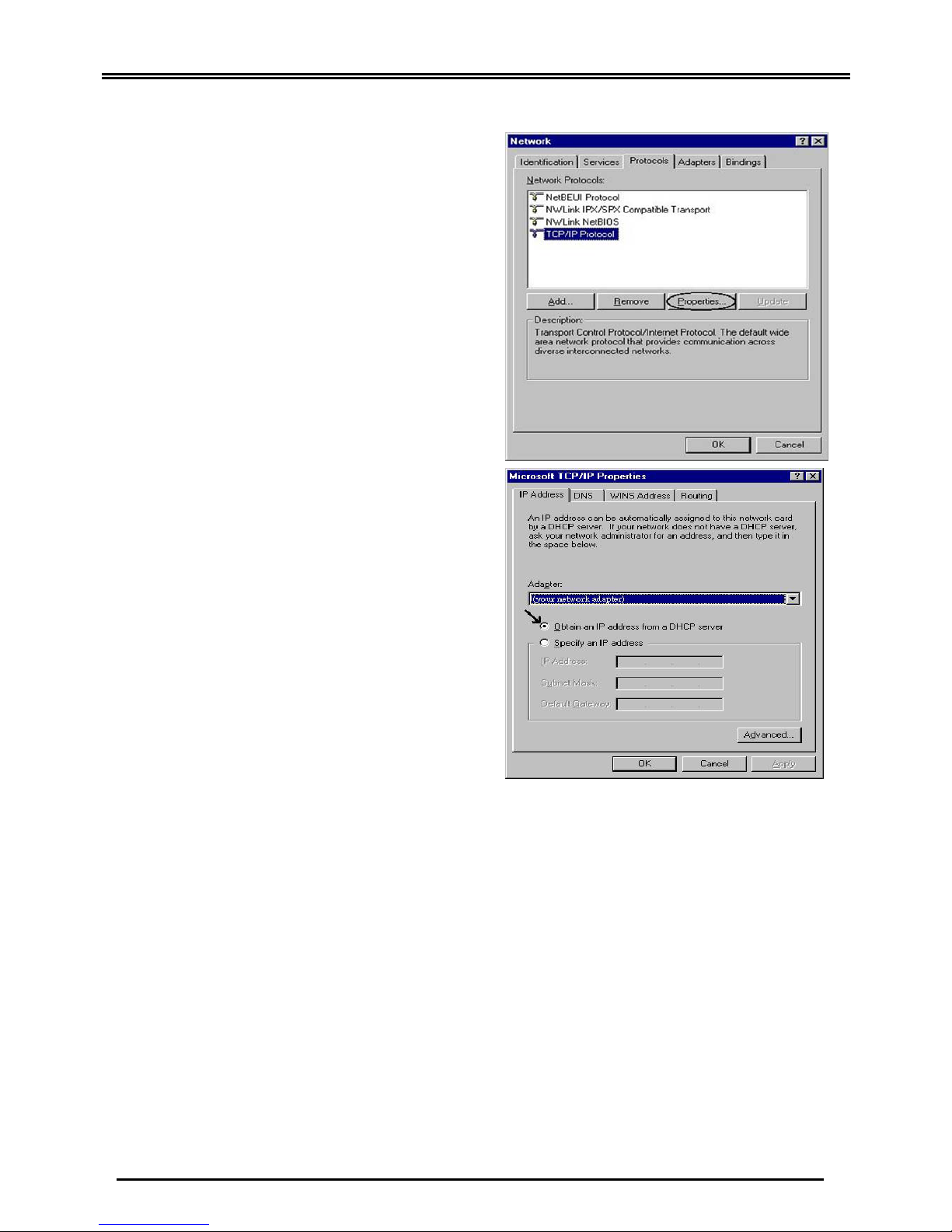
Configuring PC in Windows NT4.0
1. Go to Start / Settings / Control Panel. In
the Control Panel, double-click on Network
and choose the Protocols tab.
2. Select TCP/IP Protocol and click
Properties.
3. Select the Obtain an IP address from a
DHCP server radio button.
4. Now select the DNS tab and make sure that
no DNS is specified.
5. Click OK to close TCP/IP Properties.
6. Click OK again to close the Network
window.
9
Altri manuali per ADSL 5100
1
Questo manuale è adatto per i seguenti modelli
1
Indice
Altri manuali Telkom Router di rete
Manuali Router di rete popolari di altre marche

NETGEAR
NETGEAR FS526T - Switch Manuale utente

Korenix
Korenix JetNet 5710G Series Manuale utente

Automated Logic
Automated Logic ZN551 Manuale del proprietario

Cisco
Cisco ASR 1000 Series Manuale dell'operatore

EnGenius
EnGenius ESR-9710 Manuale utente

Cisco
Cisco 805 Series Istruzioni operative e di sicurezza