Tellur TLL331171 Manuale utente

WiFi Garage Door Control Kit
TLL331171 User manual
This manual is available in more languages on smart.tellur.com
Compatible with Alexa and Google Home

Product Diagram

Specifications
Input voltage: AC100-250V
Max current: 10A
Max power: 2200W
Remote control: Yes, using Tellur Smart app
Functions: Open/Close garage gate, Timer, Schedule
Wireless frequency: 2.4GHz
WiFi standard: IEEE 802.11b/g/n
Security: WPA-PSK/ WPA2-PSK /WPA/WPA2/WEP/WPS2/
WAPI
Encryption type: WEP/TKIP/AES
Compatibility: Devices with Android 4.1 / iOS 8 or higher
Package includes:1x Controller Kit, 1x 3M stickers, 1x Screws
2x Brackets,1x Ties and holders
Warnings!
1. Start the installation only after you successfully added the
product to Tellur Smart app;
2. Make sure to switch off the power supply before installing
or maintaining the product;
3. To avoid the risk of fire or electric shock, please make sure
you install the product following its electrical rating
(AC220-240V);
4. To avoid wiring damage or abrasion, do not expose the
wire to edges of metal or other sharp objects;
5. Please make sure your garage door is closed before
starting the installation.

How to reset?
(1) Press the reset button for 6 seconds until the LED
indicator is flashing rapidly. The device will enter EZ mode.
(2) Press the reset button again for 6 seconds until the LED
indicator is flashing slowly. The device turns to AP mode.
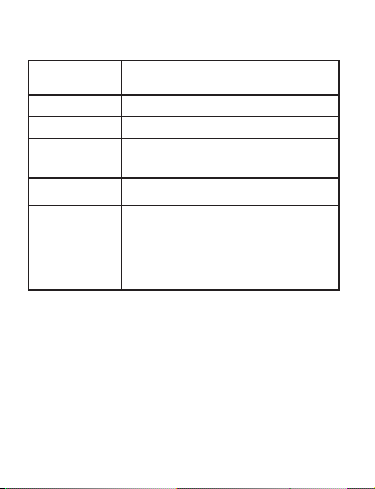
Device Status
EZ mode
AP mode
Triggered
Suspend mode
Reset
LED State
Indicator flashes quickly
Indicator flashes slowly
LED indicator will rapidly blink, and it
will turn OFF after the scheduled time
LED indicator is off
LED indicator lights up for 4 seconds;
once the LED turns off, the device
enters configuration mode.
LED State

Product features
• Remote control via Tellur Smart app
• Voice control via Google Assistant and Amazon Alexa
• Customizable, supports automation & smart scenarios
• Push notifications for device state
• Timer, schedule, history records
• Device sharing allows added family members to control the
device
Pairing with Tellur Smart app
Warning: The garage door will be activated when the kit is
registered successfully to Tellur Smart app. Start installing it
with the door closed first.
Download and install the Tellur Smart app for either iOS or
Android devices.

Once downloaded, the app will ask you
to register your device. Enter your
email, select the country you live in and
create a password for your Tellur Smart
account.
Turn on the controller and make sure the
red and blue lights are flashing
alternatively.
Open Tellur Smart app click "+" and select
Smart Garage Door Opener from the list.
Select your WiFi network and input the
network's password.
Once Tellur Smart app is installed on your device and you
have added your smart device to your app you will be able
to control it.

Failed to add device?
1. Make sure the device is powered on.
2. Check the WiFi connection of your phone.
3. Check if the device is in pairing mode.
Reset your smart device to enter pairing mode. Please
refer to the "How to reset device" section.
4. Check router or related:
If you use a dual-band router, select the 2.4GHz network to
add the device. You also need to enable the router's
broadcasting function. Set encryption method as WPA2-PSK
and authorization type as AES, or set both on "auto".
5. Check if the WiFi signal is strong enough.
To maintain the signal strong, keep your router and the
smart device as close as possible.
6. Wireless mode should be 802.11.b/g/n
7. Make sure you don't exceed the maximum number of
registered devices supported by the app (150).
8. Check if the router's MAC filtering function is enabled. If
so, remove the device from the filter list and make sure the
router is not prohibiting the device connection.
9. Make sure the WiFi password entered in the app is correct.
EZ and AP connection modes:
Smart devices can be connected using two modes:
EZ represents the easiest way of connecting and enabling a
smart device. You will need to have the device, active
wireless network through with login password and Tellur
Smart APP installed on a smartphone / tablet.
AP mode can be used to configure and enable a smart device
first with the smartphone / tablet and later with the Wi-Fi
network.
How to add device under EZ mode?
1. Make sure the LED indicator/light flashes quickly.
2. Make sure the phone is connected to WiFi.
3. Tap "Add device" in Tellur Smart app and enter the WiFi's
network password.
4. In the device list, select the device you want to pair and
add it.
How to add device under AP mode?
1. Make sure the LED indicator/light flashes slowly.
2. Tap "Add device" in Tellur Smart app and select "AP mode"
from the top-right corner. Connect to the device's hotspot
first and then proceed to connect it to the WiFi network.
3. Tap "Next" to add device.
Can I control the device with 2G/3G/4G network?
When adding the device for the first time, the device and the
phone need to be connected to the same WiFi network. Once
the device has been successfully paired with Tellur Smart
app, you can remotely control it via 2G/3G/4G networks.
How can I share my device with family?
Open Tellur Smart app, go to "Profile" -> "Device sharing" ->
"Sharing sent", tap "Add sharing" and share the device with
the added family members.
Notice - users must install the Tellur Smart app on their
device in order to see shared devices.
How can I manage the devices shared by others?
Open App, go to "Profile" > "Device Sharing" > "Sharings
Received", then you can find the devices shared by other
users. To delete a shared device, swipe left.
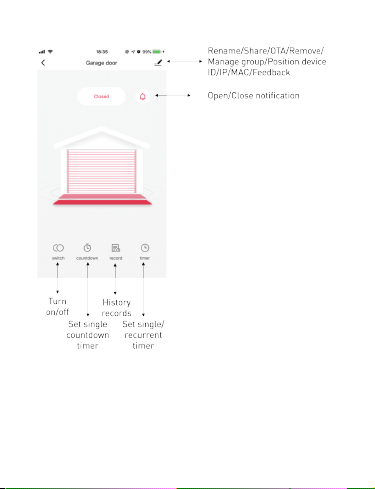
Features available in Tellur Smart app

Failed to add device?
1. Make sure the device is powered on.
2. Check the WiFi connection of your phone.
3. Check if the device is in pairing mode.
Reset your smart device to enter pairing mode. Please
refer to the "How to reset device" section.
4. Check router or related:
If you use a dual-band router, select the 2.4GHz network to
add the device. You also need to enable the router's
broadcasting function. Set encryption method as WPA2-PSK
and authorization type as AES, or set both on "auto".
5. Check if the WiFi signal is strong enough.
To maintain the signal strong, keep your router and the
smart device as close as possible.
6. Wireless mode should be 802.11.b/g/n
7. Make sure you don't exceed the maximum number of
registered devices supported by the app (150).
8. Check if the router's MAC filtering function is enabled. If
so, remove the device from the filter list and make sure the
router is not prohibiting the device connection.
9. Make sure the WiFi password entered in the app is correct.
EZ and AP connection modes:
Smart devices can be connected using two modes:
EZ represents the easiest way of connecting and enabling a
smart device. You will need to have the device, active
wireless network through with login password and Tellur
Smart APP installed on a smartphone / tablet.
AP mode can be used to configure and enable a smart device
first with the smartphone / tablet and later with the Wi-Fi
network.
How to add device under EZ mode?
1. Make sure the LED indicator/light flashes quickly.
2. Make sure the phone is connected to WiFi.
3. Tap "Add device" in Tellur Smart app and enter the WiFi's
network password.
4. In the device list, select the device you want to pair and
add it.
How to add device under AP mode?
1. Make sure the LED indicator/light flashes slowly.
2. Tap "Add device" in Tellur Smart app and select "AP mode"
from the top-right corner. Connect to the device's hotspot
first and then proceed to connect it to the WiFi network.
3. Tap "Next" to add device.
Can I control the device with 2G/3G/4G network?
When adding the device for the first time, the device and the
phone need to be connected to the same WiFi network. Once
the device has been successfully paired with Tellur Smart
app, you can remotely control it via 2G/3G/4G networks.
How can I share my device with family?
Open Tellur Smart app, go to "Profile" -> "Device sharing" ->
"Sharing sent", tap "Add sharing" and share the device with
the added family members.
Notice - users must install the Tellur Smart app on their
device in order to see shared devices.
How can I manage the devices shared by others?
Open App, go to "Profile" > "Device Sharing" > "Sharings
Received", then you can find the devices shared by other
users. To delete a shared device, swipe left.

Failed to add device?
1. Make sure the device is powered on.
2. Check the WiFi connection of your phone.
3. Check if the device is in pairing mode.
Reset your smart device to enter pairing mode. Please
refer to the "How to reset device" section.
4. Check router or related:
If you use a dual-band router, select the 2.4GHz network to
add the device. You also need to enable the router's
broadcasting function. Set encryption method as WPA2-PSK
and authorization type as AES, or set both on "auto".
5. Check if the WiFi signal is strong enough.
To maintain the signal strong, keep your router and the
smart device as close as possible.
6. Wireless mode should be 802.11.b/g/n
7. Make sure you don't exceed the maximum number of
registered devices supported by the app (150).
8. Check if the router's MAC filtering function is enabled. If
so, remove the device from the filter list and make sure the
router is not prohibiting the device connection.
9. Make sure the WiFi password entered in the app is correct.
EZ and AP connection modes:
Smart devices can be connected using two modes:
EZ represents the easiest way of connecting and enabling a
smart device. You will need to have the device, active
wireless network through with login password and Tellur
Smart APP installed on a smartphone / tablet.
AP mode can be used to configure and enable a smart device
first with the smartphone / tablet and later with the Wi-Fi
network.
How to add device under EZ mode?
1. Make sure the LED indicator/light flashes quickly.
2. Make sure the phone is connected to WiFi.
3. Tap "Add device" in Tellur Smart app and enter the WiFi's
network password.
4. In the device list, select the device you want to pair and
add it.
How to add device under AP mode?
1. Make sure the LED indicator/light flashes slowly.
2. Tap "Add device" in Tellur Smart app and select "AP mode"
from the top-right corner. Connect to the device's hotspot
first and then proceed to connect it to the WiFi network.
3. Tap "Next" to add device.
Can I control the device with 2G/3G/4G network?
When adding the device for the first time, the device and the
phone need to be connected to the same WiFi network. Once
the device has been successfully paired with Tellur Smart
app, you can remotely control it via 2G/3G/4G networks.
How can I share my device with family?
Open Tellur Smart app, go to "Profile" -> "Device sharing" ->
"Sharing sent", tap "Add sharing" and share the device with
the added family members.
Notice - users must install the Tellur Smart app on their
device in order to see shared devices.
How can I manage the devices shared by others?
Open App, go to "Profile" > "Device Sharing" > "Sharings
Received", then you can find the devices shared by other
users. To delete a shared device, swipe left.

Product installation
Indice