Teltonika RUT600 Manuale utente

RUT600 3G Wireless-N Router
User Manual v1.00

User manual
Dear Customer,
Thank you for choosing Teltonika!
RUT600 is a high speed Wireless Router, which complies with the latest standards and
provides high wireless receiving and transmitting rates. It enhances your connectivity
freedom wherever you are in the office, at home or at the remote location.
The instructions bellow will help you to know well your router.
Legal notice
Copyright © 2010 TELTONIKA Ltd. All rights reserved. Reproduction, transfer,
distribution or storage of part or all of the contents in this document in any form without
the prior written permission of TELTONIKA Ltd is prohibited. The manufacturer
reserves the right to modify the product and manual for the purpose of technical
improvement without prior notice.
Other product and company names mentioned herein may be trademarks or trade names
of their respective owners.

Attention
Before using the device we strongly recommend to read this user
manual carefully.
Do not disassemble the device.
Do not use the device if the device block is broken or its
connecting wires are without isolation.
All wireless devices for data transfer may be susceptible to
interference, which could affect performance.
The device is not water resistant. Keep it dry.
The device requires 230V AC voltage. Be careful!
Please use cable and the adapter provided with RUT600 device.
Teltonika is not responsible for any harm caused by using wrong
cable or wrong adapter for connection
Any operation during a lightning storm is under your own risk
and responsibility. It is strongly recommended to turn of the
device during lightning storm.
IM ORTANT NOTES!
It is mandatory to read the notes and user manual carefully before starting to use
the device.
Technical support contacts
If you face any problems related to the device, which you are not able to solve by yourself,
you are always welcome to address our technical support department by e mail
support@teltonika.lt. We will do our best assisting you.

Table of Content
CHA TER 1: RODUCT OVERVIEW.......................................................................................... 6
1.1 INTRODUCTION .................................................................................................................................................... 6
1.2 PACKAGE CONTENTS .......................................................................................................................................... 6
CHA TER 2: RUT600 HARDWARE, LED'S, CONNECTIONS AND FEATURES .................. 6
2.1 LED INDICATOR AND PORT DESCRIPTION ................................................................................................... 6
2.2 PRODUCT FEATURES ........................................................................................................................................... 8
CHA TER 3: HARDWARE INSTALLATION .............................................................................. 9
CHA TER 4: ROUTER CONFIGURATION .............................................................................. 11
4.1 CONNECT TO ROUTER WEB CONFIGURATION PAGE USING WIRED CONNECTION ............................. 11
4.2 CONNECT TO ROUTER WEB CONFIGURATION PAGE USING WIRELESS CONNECTION ........................ 11
CHA TER 5: WEB CONFIGURATION AGE INTERFACE STRUCTURE ........................... 12
5.1 WAN MEDIUM TYPE ........................................................................................................................................ 13
5.2 SETUP WIZARD ................................................................................................................................................... 13
1. 3G Broadband Connection ................................................................................................................................ 13
2. Wired Broadband Connection (Wired WAN) ................................................................................................. 13
3. Wireless Broadband Connection (Wireless WAN) ........................................................................................... 14
5.3 ADVANCED SETTINGS ...................................................................................................................................... 14
1. LAN Settings .................................................................................................................................................. 14
2. WAN Settings ................................................................................................................................................. 14
3. MAC Address Clone ....................................................................................................................................... 15
4. NS Settings ................................................................................................................................................... 16
5.4 WLAN SETTING ................................................................................................................................................ 17
1. Basic Settings .................................................................................................................................................... 17
2. Security Settings ................................................................................................................................................ 18
3. Advanced Settings ............................................................................................................................................. 19
4. WPS Settings ................................................................................................................................................... 20
5. W S Settings................................................................................................................................................... 21
6. Access Control .................................................................................................................................................. 21
7. Connection Status ............................................................................................................................................. 22
5.5 DHCP SERVER ................................................................................................................................................... 22
1. HCP Settings ................................................................................................................................................ 22
2. HCP List and Binding ................................................................................................................................. 22
5.6 VIRTUAL SERVER ............................................................................................................................................... 23
1. Single Port Forwarding ..................................................................................................................................... 23
2. Port Range Forwarding ..................................................................................................................................... 23
3. ALG Service Settings ....................................................................................................................................... 24
4. MZ Settings .................................................................................................................................................. 24
5. UPNP Settings ................................................................................................................................................ 24
5.7 TRAFFIC CONTROL ............................................................................................................................................ 25
1. Traffic Control .................................................................................................................................................. 25
2. Traffic Statistics ................................................................................................................................................ 25
5.8 URL MONITOR ................................................................................................................................................... 26
1. URL Monitor .................................................................................................................................................. 26
5.9 SECURITY SETTINGS .......................................................................................................................................... 26
1. Client Equipment Filtering Settings .................................................................................................................. 26
2. URL Filter Settings ......................................................................................................................................... 27
3. MAC Address Filter ....................................................................................................................................... 27
4. Prevent Network Attack .................................................................................................................................. 27
5. Remote Web Management ................................................................................................................................. 28
6. Local Web Management ................................................................................................................................... 28
7. WAN Ping ...................................................................................................................................................... 28
5.10 ROUTING SETTINGS ..................................................................................................................................... 28
1. Routing Table ................................................................................................................................................... 28
2. Static Routing ................................................................................................................................................... 28

5.11 SYSTEM TOOLS .............................................................................................................................................. 29
1. Time Settings .................................................................................................................................................... 29
2. NS ............................................................................................................................................................. 29
3. Backup/Restore Settings ................................................................................................................................... 30
4. Restore to Factory efault Settings .................................................................................................................... 30
5. Firmware Upgrade ............................................................................................................................................ 30
6. Reboot the Router .............................................................................................................................................. 31
7. Password Change .............................................................................................................................................. 31
8. System Log........................................................................................................................................................ 31
5.12 LOGOUT ......................................................................................................................................................... 31
CHA TER 6: TROUBLESHOOTING ......................................................................................... 32
CHA TER 7: COM ATIBLE 3G MODEMS LIST ...................................................................... 35

6
Chapter 1: roduct overview
1.1
Introduction
Teltonika 3G Wireless N Router provides WAN connectivity to wired and
wireless clients using the 3G and Ethernet data network. 3G Wireless Router is extremely
useful for mobile work teams or emergency crews that need access to the broadband
Internet but have no permanent base. Quickly set up a IEEE802.11 hotspot Internet
connection to check email and browse the web or share files.
1.2
ackage Contents
• Teltonika Wireless N 3G Router
• Power supply adapter
• WiFi antenna
Note: If any of the components is missing or damaged, please contact the retailer or
reseller from which this product was purchased.
Chapter 2: RUT600 Hardware, LED's, connections and features
2.1
LED Indicator and ort Description
LED indicator description on front panel: (from R to L)
• OWER
Always ON, indicates power connection.
• W S
Blinking indicates that device is negotiating with client in WPS mode.
• SYS
Blinking indicates that system runs well.

7
• USB
Always ON indicates successfully connected USB device; Blinking indicates data
transmission through USB port.
• WLAN
Wireless signal LED indicator. Blinking indicates that wireless function is enabled.
• WAN
Wide area network LED indicator. Always ON indicates successfully connected
Ethernet device; Blinking indicates data transmission through WAN port.
• LAN (4, 3, 2, 1)
Wired local network LED indicator. Always ON indicates successfully connected
Ethernet device; Blinking indicates data transmission through LAN port.
Ports and buttons description on back panel (from L to R)
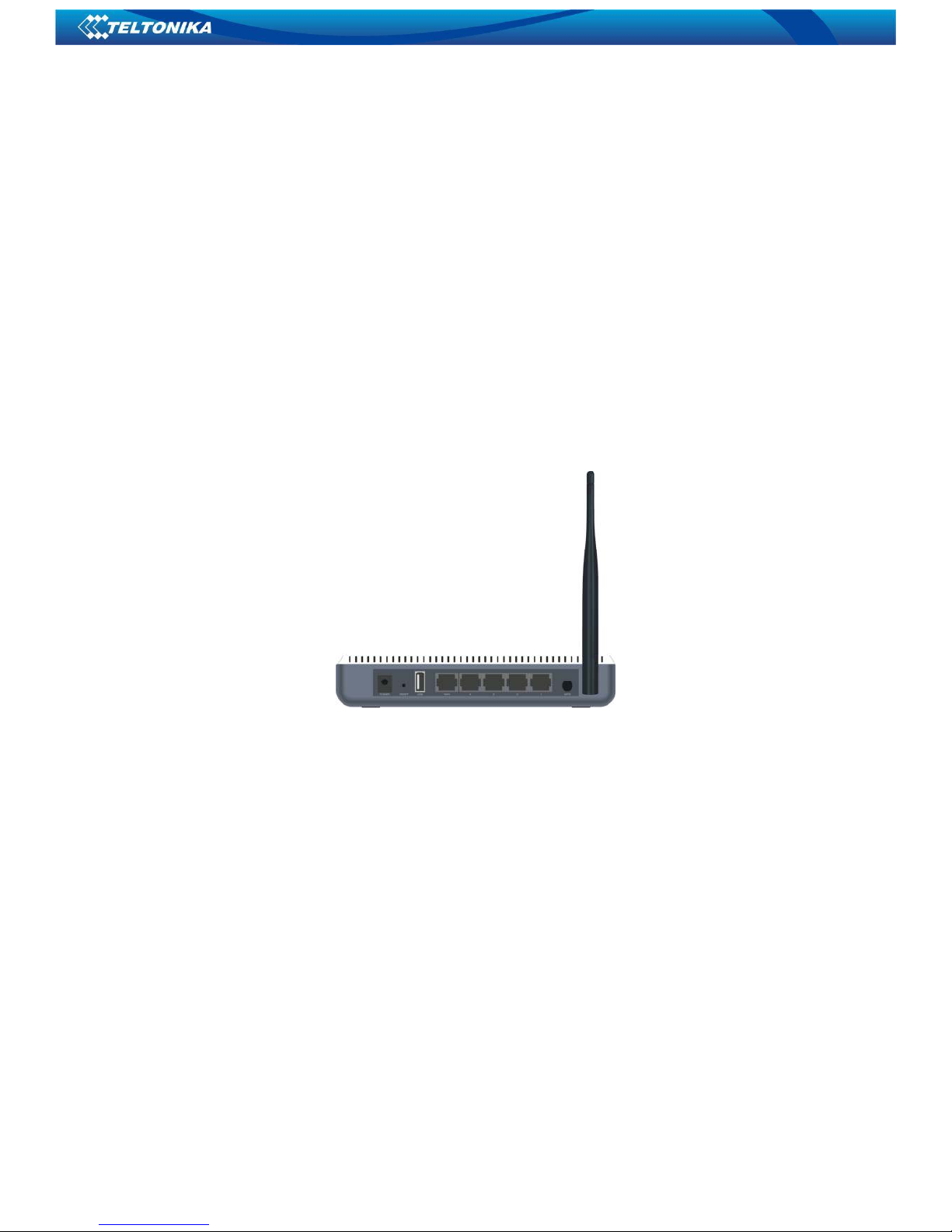
OWER
The port is used for the power adapter connection. Please use only the included
DC 9V 1A power adapter.
RESET
The system reset button. To restore settings to factory default, press this button
and hold for 7 seconds.
USB
The USB2.0 port provided for 3G modem.
WAN
Modem, Switch, Router or other Ethernet device can be connected to the 100Mbps
Ethernet port to access the Internet.

8
LAN (4, 3, 2, 1)
Ethernet switch, Ethernet router and NIC card can be connected to these 4
10/100Mbps Ethernet ports.
W S
Wi Fi Protected Setup button. Press it for 1 second to enable WPS.
2.2
roduct Features
Includes Wireless AP, Router, 4 Port Switch and Firewall in one
WPS (Wi Fi Protected Setup) encryption method
IEEE 802.11b/g/n, IEEE 802.3, IEEE 802.3u standards
64/128 bit WEP, WPA, WPA2, WPA&WPA2 encryption methods

RTS/CTS protocol and data partitioning function
1×10/100Mbps Ethernet WAN port
4×10/100Mbps Ethernet LAN ports
1 x USB2.0
Supports xDSL/Cable Modem, static and dynamic IP
Remote/local Web management
WMM (Wireless MultiMedia)
Wireless Roaming technology for high efficient wireless connections
SSID stealth mode and access control based over MAC address
Auto MDI/MDIX
System log to record the status of the Router
Auto negotiation/manual mode for IEEE 802.11b/g/n
UPnP and DDNS
LAN access control over Internet connection
SNTP
Virtual server and DMZ host support
Auto wireless channel selection
WDS wireless network extension
URL Monitor
QoS function
Firefox 1.0 and IE5.5 or above support

9
Chapter 3: Hardware Installation
After you unpack the box, please follow the steps below to connect the
device. For better wireless performance, please put the device in the middle of wireless
coverage area.
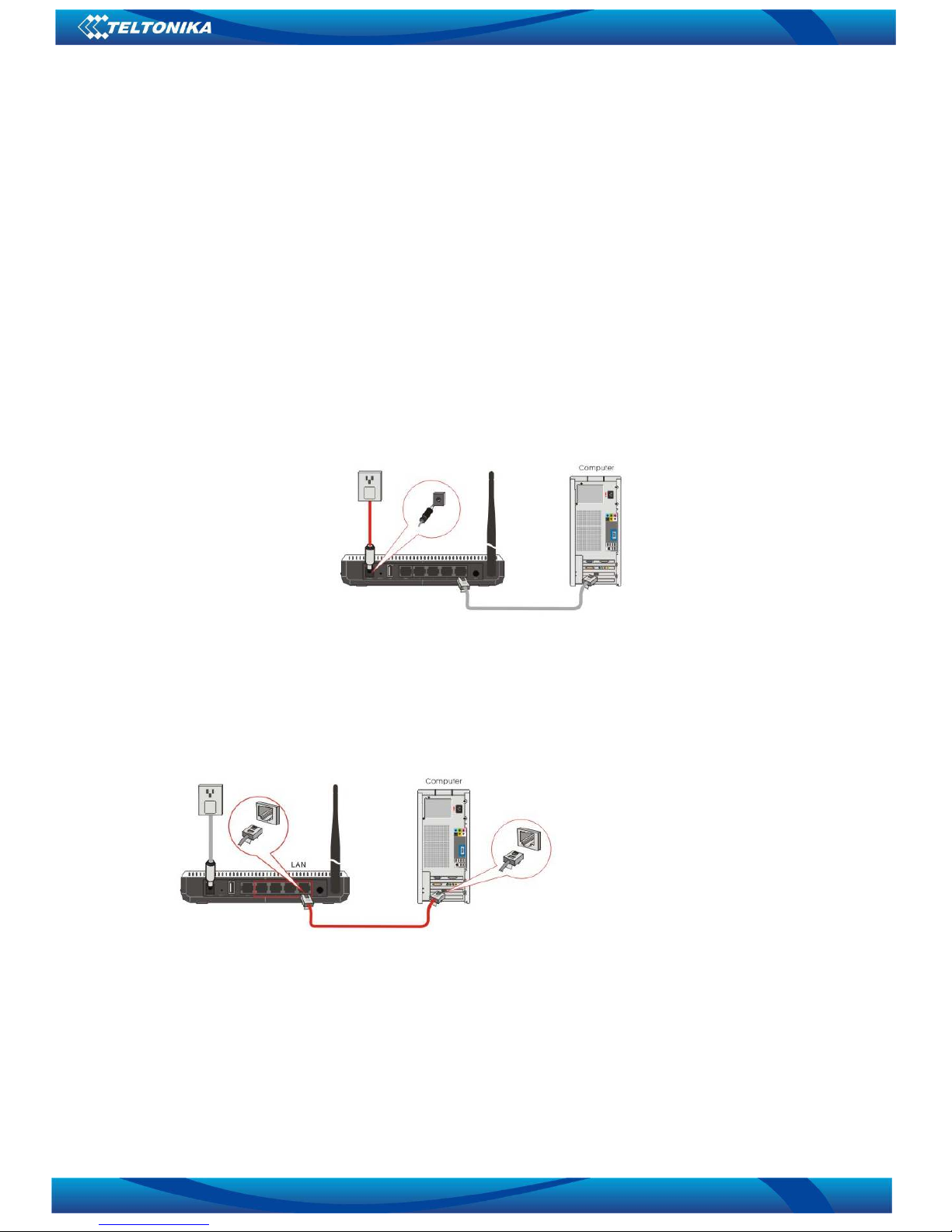
Please use the included power adapter to power on the Router.
! (IM ORTANT: Use of a wrong power adapter could cause damage and
void the warranty for this product).
! (IM ORTANT: when using 3G USB modem, first insert the modem and
then power on the device).
Please connect the LAN port of the Router to the network adapter of your
computer with a cable.
onnection between the Router and Network
If you have a 3G USB modem card, please connect it to the Router's USB
port.
! (IM ORTANT: when using 3G USB modem, first insert the modem
and then power on the device)

10
If you are provided with the wired broadband by your ISP to access the
Internet, please connect the Router's WAN port to the Internet access line.
If you are provided with the wireless broadband by your ISP to access the
Internet or you want to amplify wireless signals, please set the Router's
wireless WAN feature.
Altri manuali per RUT600
1
Indice
Altri manuali Teltonika Router wireless

Teltonika
Teltonika RUT230 Manuale utente

Teltonika
Teltonika RUT104 HSUPA Manuale utente

Teltonika
Teltonika RUT104 HSUPA Manuale utente

Teltonika
Teltonika RUT240 Manuale utente

Teltonika
Teltonika RUT100 Manuale utente

Teltonika
Teltonika RUTX11 Manuale utente

Teltonika
Teltonika RUT600 Manuale utente

Teltonika
Teltonika RUT240 Manuale utente

Teltonika
Teltonika RUT100 Manuale utente

Teltonika
Teltonika RUT750 LTE Manuale utente