
Thuraya FDU-3500 Manuale utente
FDU-3500
USER GUIDE
2
ㅣ
Thuraya
1. Introduction 4
2. Package Contents 4
3. Installation Instructions 5
3.1. Antenna Installation 5
3.2. Installing Satellite Antenna 6
3.3. Installing GPS Antenna 7
3.4. External Accessories 7
4. Getting Started 7
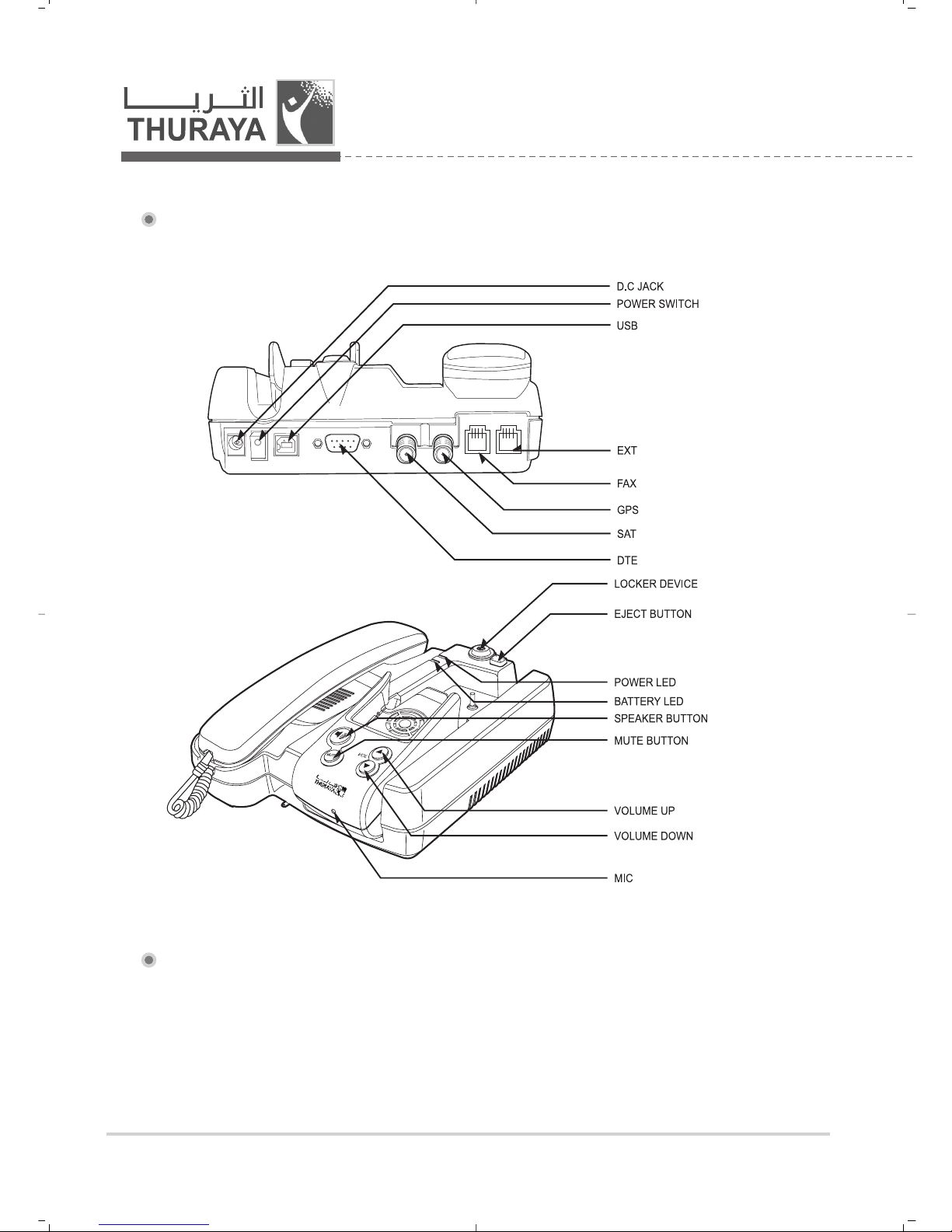
4.1. Connection Interface 8
4.2. Setting up FDU-3500 8
4.2.1. Fixing Docking part of FDU-3500 8
4.2.2. Using FDU-3500 as a desktop item 10
4.2.3. Using FDU-3500 as a wall mounted unit 10
4.2.4. Connecting Satellite Antenna 10
4.2.5. Connecting GPS Antenna 11
4.2.6. Connecting FDU-3500 to Power Supply Adapter 11
4.2.7. Connecting Extension phone to FDU-3500 12
4.2.8. Connecting Group 3 Fax Machine to FDU-3500 12
4.2.9. Connecting a PC to FDU-3500 through USB port or DTE port 12
4.2.10. Docking Thuraya Handset in FDU-3500 13
4.2.11. Undocking Thuraya Handset from FDU-3500 13
5. Receiving/Making Voice Calls 14
5.1. Receiving Voice Calls 14
5.2. Making Calls 15
5.3. Ending Calls 15
5.4. Transferring Calls 16
Thuraya
ㅣ
3
www.thuraya.com
5.5. Volume Control 16
5.6. Muting Microphone during Speakerphone Call 17
6. Receiving/Sending Fax Message 18
6.1. Receiving/Sending Fax through Fax machine 18
6.1.1. Receiving Fax 18
6.1.2. Sending Fax 18
6.2. Receiving/Sending Fax through PC 19
6.2.1. Receiving Fax 19
6.2.2. Sending Fax 19
7. Receiving/Sending Data Calls 20
7.1.1. Receiving Data Calls 20
7.1.2. Sending Data from PC 20
8. GmPRS Connection 21
9. Charging Thuraya Handset Battery 24
10. Code Locking Function 25
10.1. How to set up the code-locking function 25
10.2. How to make a call 26
10.3. In the case of Forgetting the PIN Code 26
11. Supplementary Services 26
12. Troubleshooting 27
12.1. Warnings 27
12.2. Care and Maintenance 27
12.3. Common Problems 28
13. LED Indications 29
14. Warranty 30
15. Specifications 31
Table of Contents
Table of Contents
4
ㅣ
Thuraya
1. Introduction
FDU-3500 provides additional flexibility and convenience when using your Thuraya
SO-2510 and Thuraya SG-2520 handsets.
FDU-3500 supports connections of Thuraya SO-2510 and Thuraya SG-2520
handsets in an indoor environmnet. In addition, FDU-3500 and its accessories are
designed to meet Thuraya’s superior specifications and world-class quality
standards.
This indoor enabler enhances the capabilities of your Thuraya handset to meet
your communication requirements, both in the home and in the office.
When a Thuraya handset is used with FDU-3500, the handset becomes a
communication center providing voice, fax and data communication.
The FDU-3500’s built-in battery charger allows users to charge your Thuraya
handset while using FDU.
(Please note that Thuraya handsets are available and sold separately from your
local Service Provider)
2. Package Contents
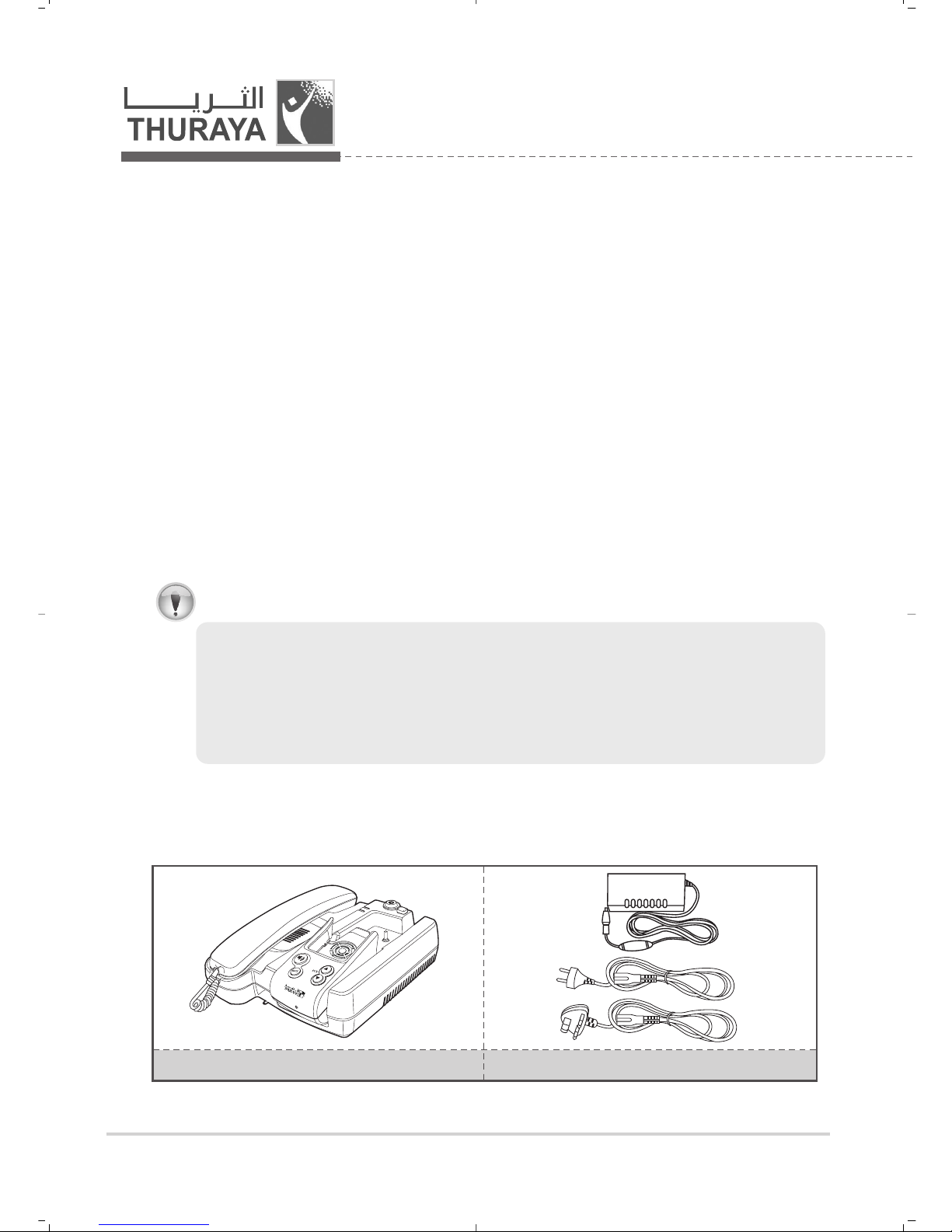
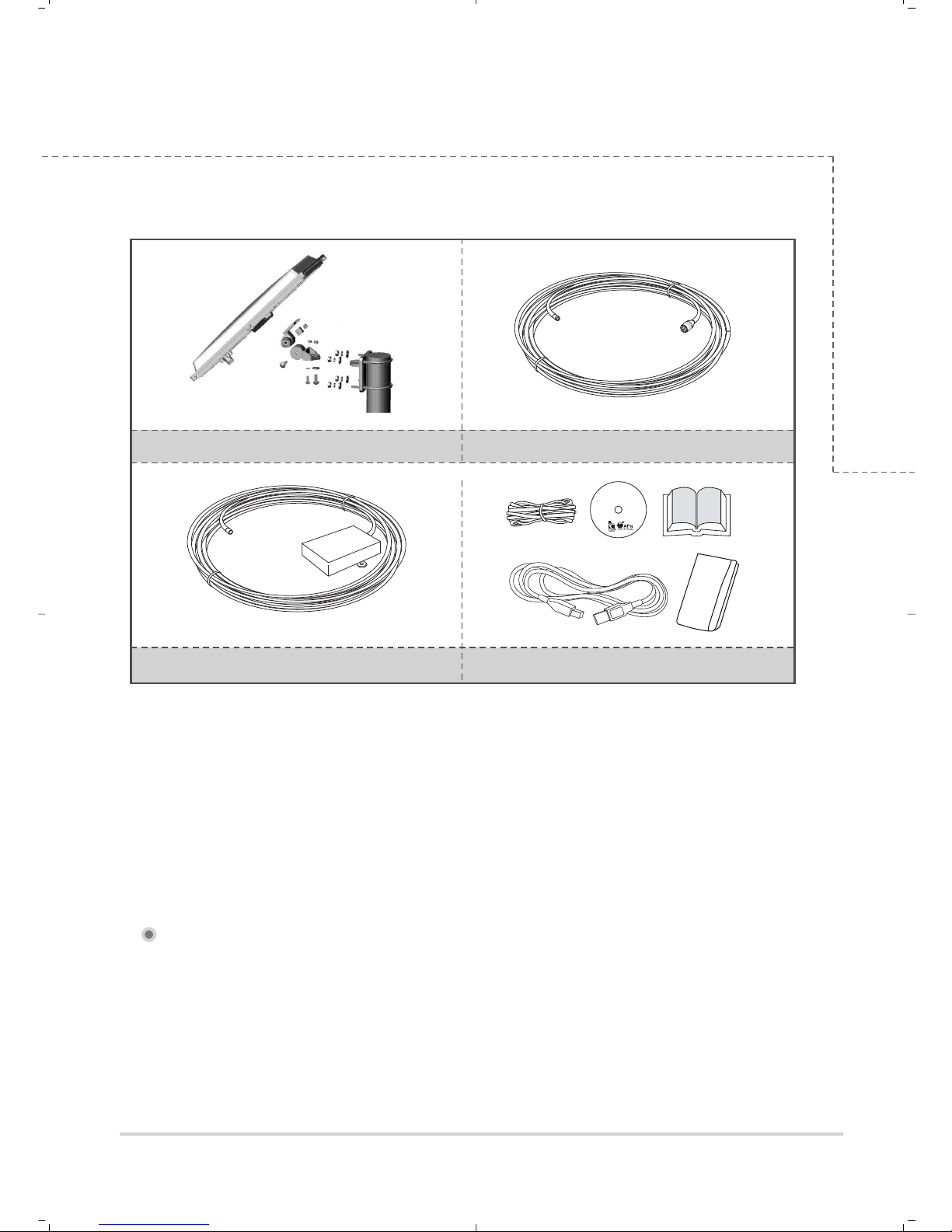
FDU-3500 package consists of the following items:
1. Do not connect FDU-3500 with other products such as PSTN or a general telephone line.
2. Please check the software version of the Thuraya handset. If the version is old, you may not be
able to dock your handset with FDU-3500. In this case, you must first upgrade the Handset
software by using the software provided on the CDROM included in the product gift box.
For more details on how to check the software version, please refer to the user’s guide of the
Handset product.
3. For a better performance of FDU-3500, it is recommended to replace with the provided battery.
Attention
FDU-3500 with an Auxiliary Handset AC/DC Power Adapter
Thuraya
ㅣ
5
www.thuraya.com
Satellite Antenna and Mounting Adapter Satellite Antenna Cable (25m)
GPS Antenna with Cable (25m)
Utility CD, USB Cable, RJ-11 Cable, FDU-3500
User’s Manual and Additional Battery
3. Installation Instructions
After unpacking, please make sure that FDU-3500 and all its accessories are fully
ready for installation. Please read the instructions carefully. If you encounter any
difficulty in installation, contact your Service Provider for assistance.
3.1. Antenna Installation
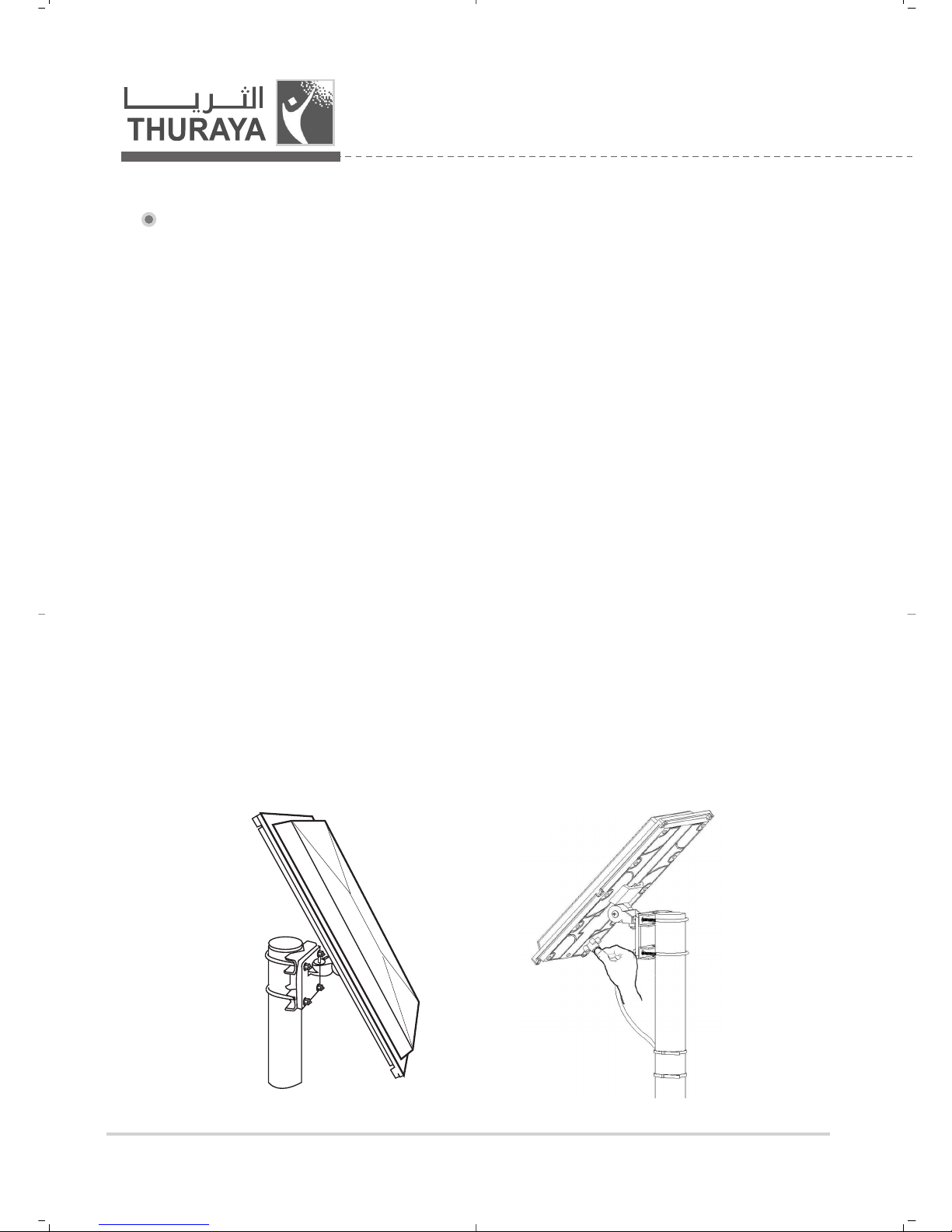
The FDU-3500 antenna set consists of the following components:
1. Satellite antenna with mounting adapter.
2. Satellite antenna cable to connect satellite antenna to FDU-3500 (25m).
3. GPS antenna with attached coaxial cable to connect to FDU-3500 (25m).
6
ㅣ
Thuraya
3.2. Installing Satellite Antenna
The satellite antenna is a rectangular patch antenna, and is supplied with a
mounting adapter.
The mounting adapter also has a function to adjust the elevation angle.
1. Mount the antenna onto any suitable fixture (mounting pole or wall) on the
rooftop using the mounting brackets and bolts provided.
The antenna should be facing skywards in the direction of the Thuraya
satellite at the correct angle.
The angle can be adjusted using the angular information provided on the
mounting adapter.
(Details are provided in the antenna installation guide book.)
2. Fix the antenna in such a way that the connector at the base is accessible
when mounted.
3. Connect the coaxial cable (marked “Satellite Antenna Cable”) to the antenna
connector located at the base of the satellite antenna and tighten it properly
by turning it clockwise. Leave enough length for a small loop and secure the
rest of the cable using the cable ties.
4. Connect the other end of the satellite antenna cable to the satellite antenna
connector marked “SAT” on FDU-3500 at the side of the connectors.
5. Adjust the azimuth and the elevation angle of the antenna according to your
location so that the highest reception quality is achieved as indicated on the
LCD display. (Details are provided in the antenna in satellite guide book.)
Thuraya
ㅣ
7
www.thuraya.com
3.3. Installing GPS Antenna
The GPS antenna comes with attached coaxial cable to connect to the
FDU-3500 unit.
1. Find an appropriate location on the rooftop to mount the antenna.
Make sure the antenna has a clear view of the sky.
2. Mark locations of the “screw holders” on the surface/rooftop for fixing the
antenna.
3. Drill holes of adequate depth on the surface.
4. Keep the antenna in place so that the drilled holes and the screw holders
line up.
5. Fix the antenna securely using the screws provided.
6. Connect the free end of the attached cable to the GPS antenna connector
marked “GPS” on FDU-3500.
Maintain a distance of between 0.5 and 1 meter between GPS and satellite antenna.
3.4. External Accessories
FDU-3500 needs to have external accessories for full functionality. Please make
sure that you have the following components:
1. Thuraya handset with an active SIM card.
2. Extension phone.
3. Group 3 Fax machine for sending/receiving fax.
4. Personal Computer (PC) for data transfer and PC fax.
5. Fax software for PC fax.
Note
The RJ-11 cable should be 2-wire inner at both ends.
Note
4. Getting Started
FDU-3500 is intended to be used as a desktop or wall-mounted phone while the
Thuraya handset is docked. Slots are provided at the base of the unit to allow
FDU-3500 to be hooked securely to a wall. Interfaces for connecting external
equipments such as Group 3 Fax machine and PC are provided at the back side
of the unit.
8
ㅣ
Thuraya
4.1. Connection Interface
4.2. Setting up FDU-3500
4.2.1. Fixing Docking part of FDU-3500
4.2. Setting up FDU-3500
FDU-3500 supports docking with the two types of Thuraya handset (SO-2510
and SG-2520).
Please check the type of Thuraya handset and then fix the docking position for
your FDU-3500.
Thuraya
ㅣ
9
www.thuraya.com
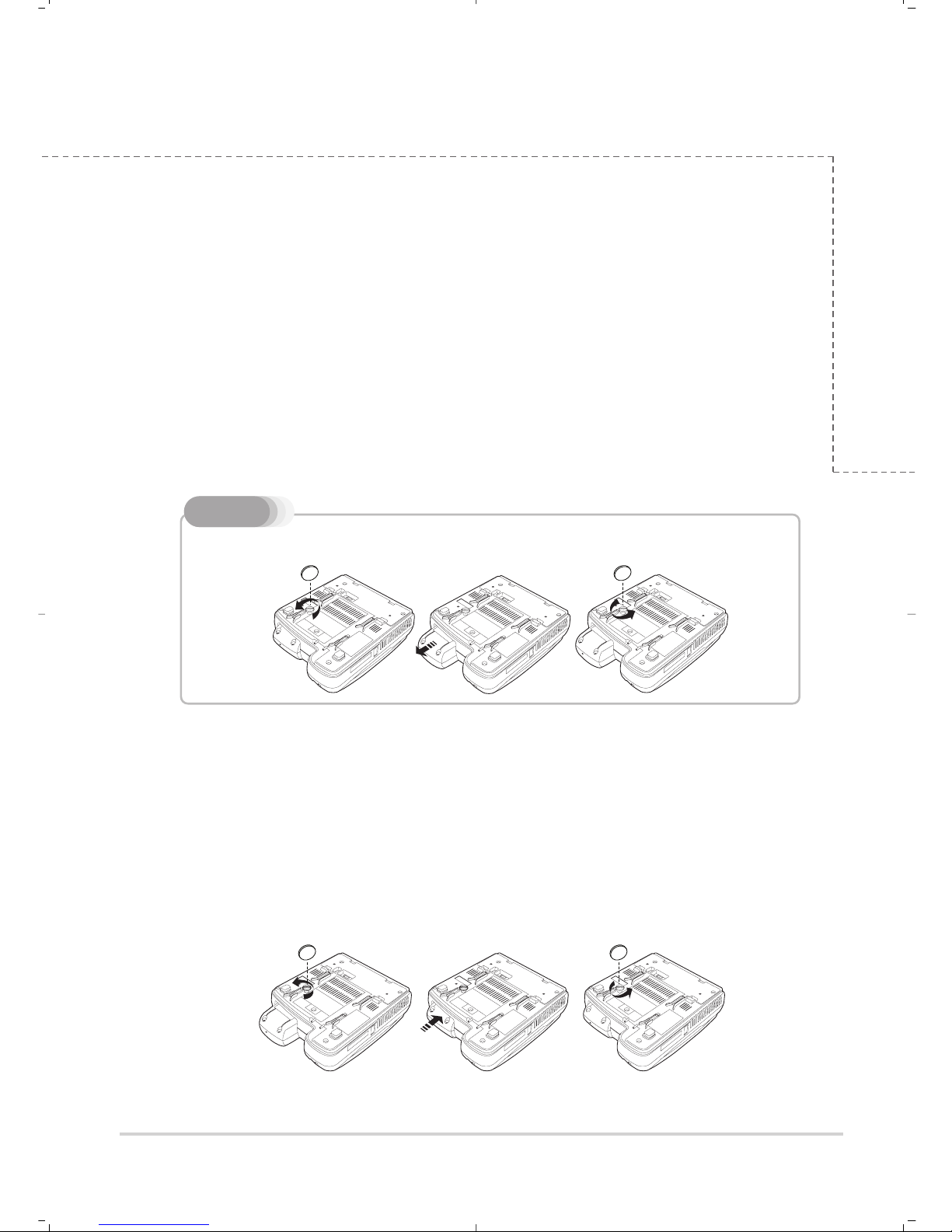
Switching from SG-2520 to SO-2510
If you want to use SO-2510 instead of SG-2520, you must follow the procedure
below to change the position of the docking area:
1. Release the fixing screw using Coin from the fixing hole of the docking
area located on the bottom of FDU-3500.
2. Place FDU-3500 in the correct orientation and then press the lower part of
the docking area slightly. Keep pushing it upward until it won’t move anymore.
3. Fasten the fixing screw using Coin again.
1. Release the fixing screw using Coin from the fixing hole of the docking area
located on the bottom of FDU-3500.
2. Place FDU-3500 in the correct orientation and then press the upper part of
the docking area slightly. Keep pushing it downward until it won’t move
anymore.
3. Fasten the fixing screw using Coin again.
When FDU-3500 is released by the manufacturer, its docking area is set for SO-
2510. If you want to use SG-2520, you must follow the procedure below to
change the position of the docking area.
Please be careful as the product may get damaged or broken if you use excessive force on it.
Note
Switching from SO-2510 to SG-2520
10
ㅣ
Thuraya
4.2.2. Using FDU-3500 as a desktop item
To use FDU-3500 as a desktop item, find an appropriate location on your
desktop where you can easily access the unit. Make sure that you have a socket
outlet nearby for powering up FDU-3500.
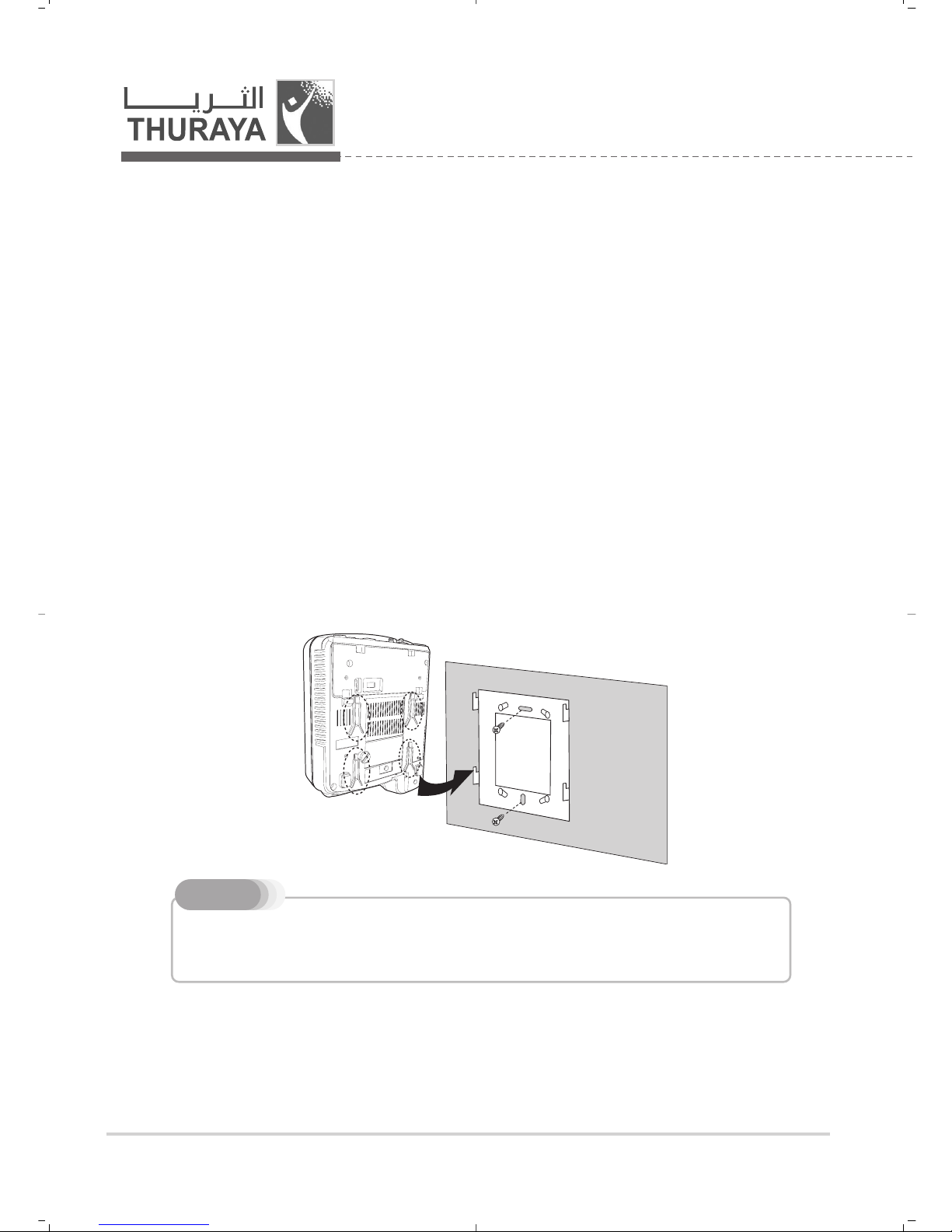
4.2.3. Using FDU-3500 as a wall mounted unit
FDU-3500 can be fixed on the wall by using the brackets. Slots for brackets are
provided on the back of FDU-3500.
1. Find an appropriate location on the wall for placing FDU-3500 as a mounted
unit.
2. Place the bracket on the fixing location and mark the location of screw hole.
3. Place a suitable-length screw on the wall for mounting FDU-3500.
4. Change the direction of Handset holder to a wall-mounted unit.
5. Hook FDU-3500 to the bracket on the wall.
4.2.4. Connecting Satellite Antenna
1. Connect the coupler at the free end of the coaxial satellite antenna cable with
the connector marked “SAT” on FDU-3500.
This product contains a fan. To ensure the fan’s normal operation, do not install the unit in a
dusty area.
Note
Indice
Altri manuali Thuraya Stazione di attracco


