
TieJus Bell-J9 Manuale utente
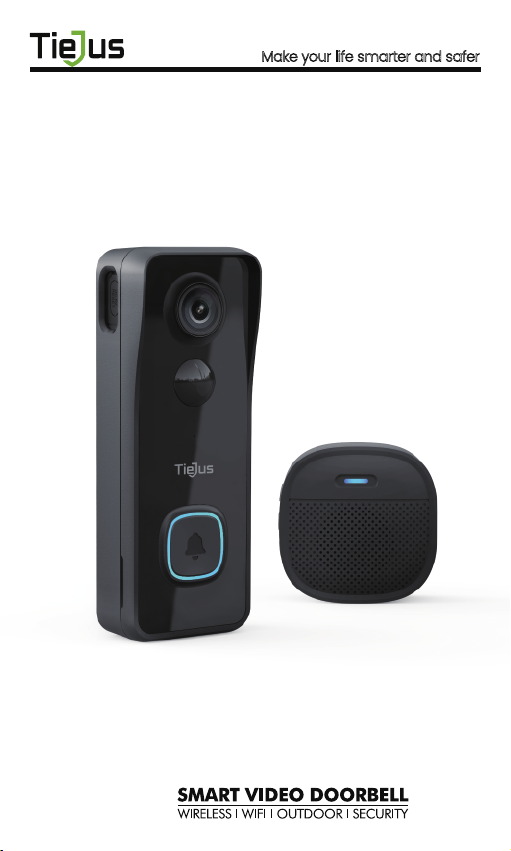
Bell-J9
QUICK START GUIDE
Make your life smarter and safer
Thanks for your shopping and trust.
We have been optimizing our products and improve
our lifetime customer service to offer you a better
shopping experience. If you have any problems,
please feel free to send us an E-mail. We will solve
your problems within 24 hours. In addition, your
advice or suggestions will be much appreciated
and welcomed.
Product Service
Email: [email protected]
Distributor: distributor@tiejus.com
More About Us
Web: www.tiejus.com
Facebook: www.facebook.com/zumimalloffice
Warranty Service

Brand Story
TieJus is a young and fresh security brand that
has attracted millions of technology enthusiasts in
just 6 months of establishment. TieJus is committed
to creating a smarter and easier modern lifestyle
for consumers. Let more consumers enjoy
convenient modern life without worrying about
information security.
At the beginning of 2022, combined with
advanced intelligent AI technology, TieJus launched
the first surveillance camera that combines artificial
intelligence and security system. We believe small
details make a big difference - that's why we
create quality, easy-to-use smart home products.
Choose TieJus - the new security weathervane.

INDEX PAGE
1. What’s in the Box ------------------------P1
2. Meet the Doorbell -----------------------P2
3. Meet the Chime ------------------------P3
4. Download and Install App ----------------P4
5. Account Registration --------------------P5
6. Add Camera to App --------------------P5
6.1 Preparations for Connection ------------P5
6.2 Connect Camera to App --------------P6
7. Charge your doorbell --------------------P8
8. Set up Doorbell -------------------------P9
9. Pair With Your Indoor Chime --------------P10
10. Install Your doorbell ---------------------P12
11. Tamper Alarm -------------------------P14
12. Product Specifications ------------------P15
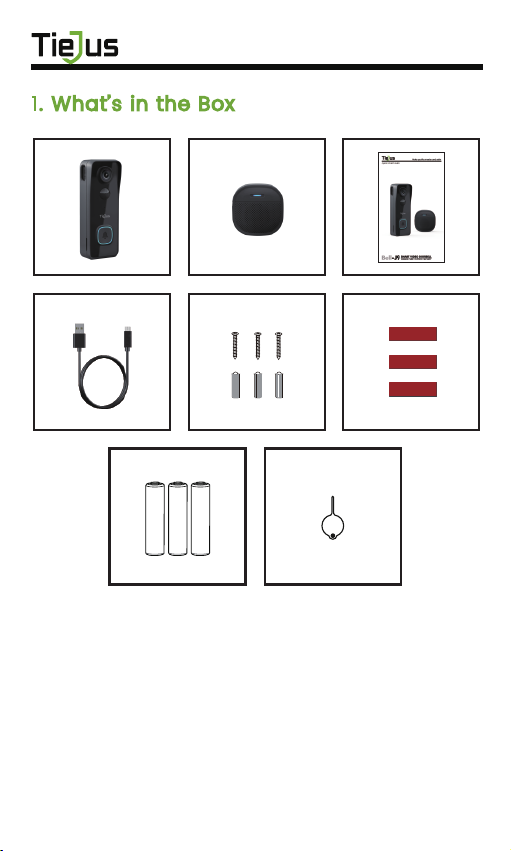
Doorbell*1 DingDong*1
Quick User Guide*1 USB Cable*1
Screws Set*1 3M Tape*3
AAA Batteries*3 Unlock Pin*1
1. What’s in the Box
NOTE: Micro SD card and power adapter are not included.
1
2
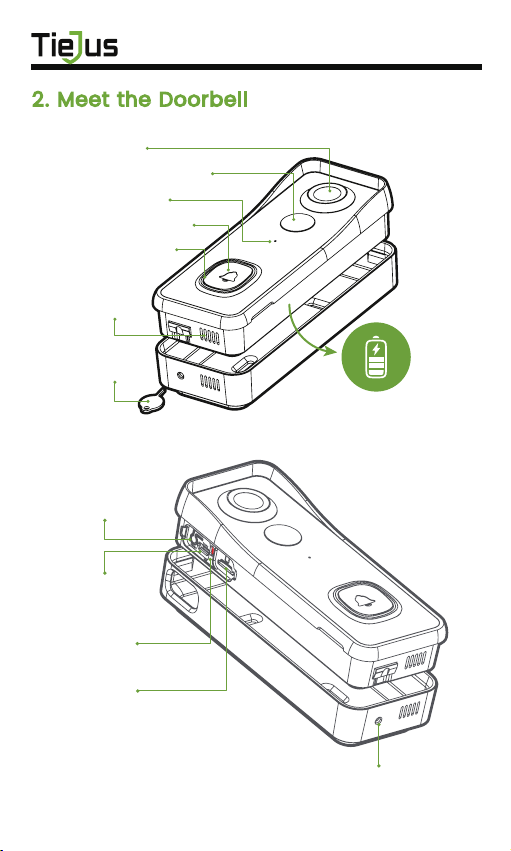
2. Meet the Doorbell
1080P Camera
PIR Motion Sensor
Microphone
Doorbell Button
LED Indicator
Speaker
Unlock Pin
Li-ion Battery
Built-in
Reset Button
Micro USB
Port
Micro-SD
Card Slot
Unlock hole
Charging
Indicator
3
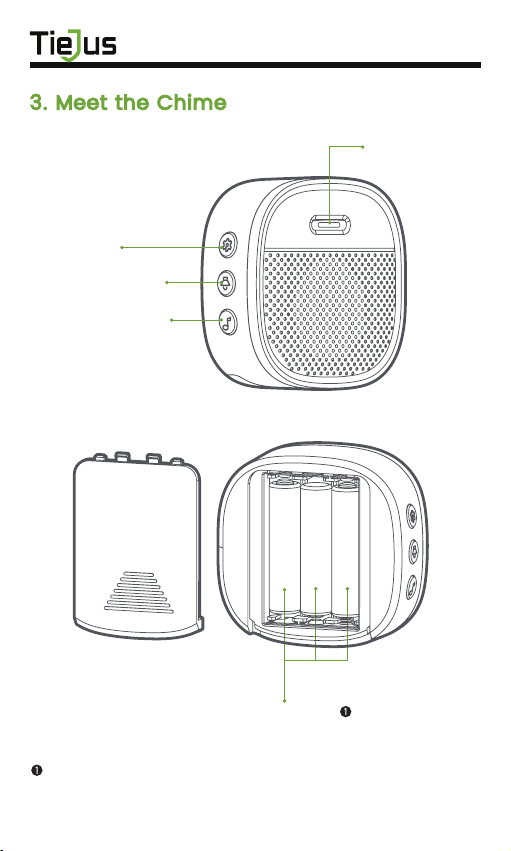
3. Meet the Chime
Please mind the battery polarities when installing.
LED Indicator
Settings
Volume Control
Select Ringtone
AAA Batteries
4
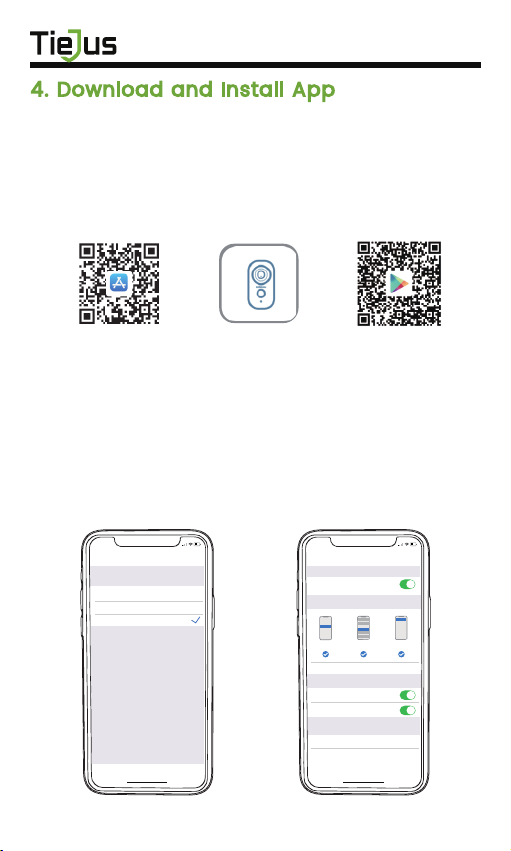
Download ZUMIMALL App from Google Play™ or
App Store™. Or scan the QR codes as below, with your
smart phone.
NOTE: Google Play™ is a trademark of Google Inc.
App Store™ is a service mark of Apple Inc.
NOTE: Please turn on both of the following permissions.
①Allow ZUMIMALL App to access mobile cellular data
and wireless LAN, otherwise it will fail to connect the
camera.
②Allow ZUMIMALL App to receive pushed messages,
otherwise, the phone will not receive alarms when
motion is detected.
4. Download and Install App
ZUMIMALL AndroidiOS
>
>
<
Notifications
ZUMIMALL
ALERTS
Allow Notifications
9:41
Lock Screen
Banner Style
Sounds
Badges
OPTIONS
When Unlocked(Default)
Show Previews
Temporary
>
>
Automatic
Notification Grouping
>
NotificationCenter Banners
5:51
<
ZUMIMALL
Wireless Data
ALLOW”WIRELESS DATA”TO USE DATA
Off
WLAN
WLAN & Cellular Data
5:51
5
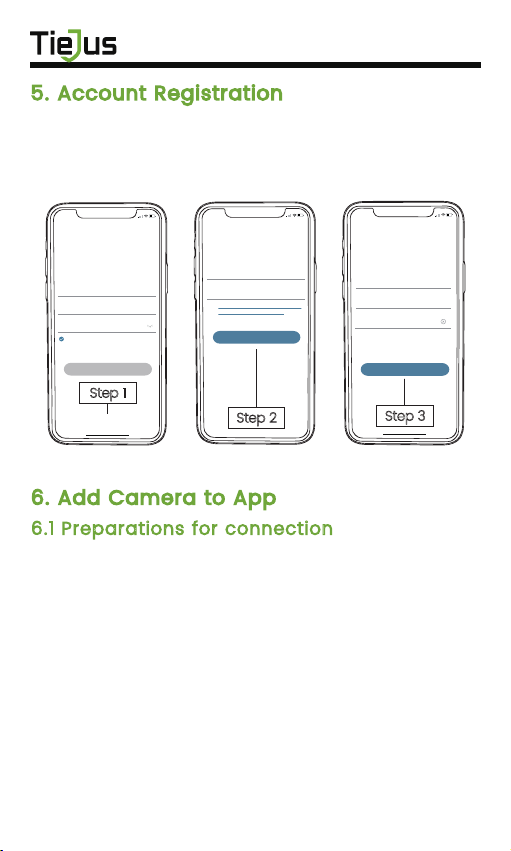
New user needs to sign up ZUMIMALL App with email
address. Click 'Sign up' to create a New Account and
follow the steps to complete registration.
5. Account Registration
6. Add Camera to App
6.1 Preparations for connection
①Insert a Micro SD Card into the camera to save video
clips or you can start the 7-day free cloud service.
Without Micro SD Card or cloud service, no video will
be saved.
②The camera only works with 2.4GHz Wi-Fi,
not support 5GHz.
③When connecting to the network, please take the
camera close to the router
(Recommended within 10-15ft).
Step 1
5:51
Log in
Forgot password?Remember password
Welcome
United States
Account
Passward
No account yet? Sign up now
Step 3
5:51
<
Account
Nickname
Password
Password: 8-16 digits, including two types of
numbers,upper or lower case letters and
characters at least
Sign Up
Done
Step 2
5:51
<
Registration means agreement with the user
agreement and privacy agreement.
Sign Up
United States
Email
Next

6
6.2 Connect Camera to App
Tap 'Add Device'
Reset the Camera Input Wi-Fi Password Prepare the Scanning
Select 'Battery Camera' Turn on the Camera
Home
Homepage Messages Search
5:48
All Devices
Me
Living room Bedroom
Add Device
Quick Guide
5:48
Battery
Camera
Smart
Doorbell
Smart Video Doorbell
Power Plug
Camera
Baby
Camera
Floodlight
Camera
Doorbell
Kits
Select Device
5:49
Add Battery Camera
Press the [battery camera] button to
wake the device if it is asleep.
Hold the device power button to start
the device.
<
Please stay near to your router for the
best signal.
Next
Press the [Bell] button, and tap Next
5:49
Install Doorbell
<
Next
5:50
Wi-Fi Setup
SELECT A 2.4GHZ WIFI NETWORK AND
ENTER Your Password
The Device Does Not Work with 5G Wifi NetWorks
Common Router Setup Methods
Junan
cam2019@
<
Next
Please remove all film from the lens.Tap
Next to show a QR code, and let your
device scan the code. Keep your phone
5-8 inches from the lens.
5:50
Operation Instructions
<
15-25cm
5-8 in
Next
Indice


