Timewatch ULtraFace671 Series Manuale utente

User Manual
ULtraFace671 Series Face Recognion Terminal

Contents
ix
ULtraFace 671 Series Face Recognion Terminal User Manual
Chapter 1 Overview .................................................................................................................... 1
1.1 Overview ................................................................................................................................ 1
1.2 Features ................................................................................................................................. 1
Chapter 2 Appearance ................................................................................................................ 3
Chapter 3 Installaon ................................................................................................................. 5
3.1 Installaon Environment ........................................................................................................ 5
3.2 Install with Gang Box ............................................................................................................. 5
3.3 Install without Gang Box ........................................................................................................ 8
Chapter 4 Wiring ...................................................................................................................... 14
4.1 Terminal Descripon ............................................................................................................ 14
4.2 Wire Normal Device ............................................................................................................. 16
4.3 Wire Secure Door Control Unit ............................................................................................ 17
Chapter 5 Acvaon ................................................................................................................. 19
5.1 Acvate via Device ............................................................................................................... 19
5.5.3 Acvate Device via Client Soware ...................................................................................... 22
Chapter 6 Basic Operaon ........................................................................................................ 23
6.1 Select Language ................................................................................................................... 23
6.2 Set Applicaon Mode .......................................................................................................... 23
6.3 Set Administrator ................................................................................................................. 25
6.4 Login .................................................................................................................................... 27
6.4.1 Login by Administrator ................................................................................................ 27
6.4.2 Login by Acvaon Password ...................................................................................... 28
6.5 Communicaon Sengs ...................................................................................................... 29
6.5.1 Set Wired Network Parameters .................................................................................. 30
6.5.2 Set Wi-Fi Parameters ................................................................................................... 30

6.5.3 Set RS-485 Parameters ................................................................................................ 32
6.5.4 Set Wiegand Parameters ............................................................................................. 32
6.6 User Management ............................................................................................................... 33
6.6.1 Add Face Picture ......................................................................................................... 33
6.6.2 Add Fingerprint ........................................................................................................... 35
6.6.3 Add Card ..................................................................................................................... 36
6.6.4 Add Password .............................................................................................................. 37
6.6.5 Set Authencaon Mode ............................................................................................ 38
6.6.6 Search and Edit User ................................................................................................... 38
6.7 Data Management ............................................................................................................... 39
6.7.1 Delete Data ................................................................................................................. 39
6.7.2 Import Data ................................................................................................................. 39
6.7.3 Export Data ................................................................................................................. 40
6.8 Identy Authencaon ........................................................................................................ 40
6.8.1 Authencate via Single Credenal .............................................................................. 40
6.8.2 Authencate via Mulple Credenal .......................................................................... 41
6.9 Basic Sengs ....................................................................................................................... 41
6.10 Set Biometric Parameters .................................................................................................. 43
6.11 Set Access Control Parameters .......................................................................................... 45
6.12 Time and Aendance Status Sengs ................................................................................ 47
6.12.1 Disable Aendance Mode via Device ....................................................................... 47
6.12.2 Set Manual Aendance via Device ........................................................................... 47
6.12.3 Set Auto Aendance via Device ................................................................................ 48
6.12.4 Set Manual and Auto Aendance via Device ............................................................ 50
6.13 System Maintenance .......................................................................................................... 51
6.14 Video Intercom .................................................................................................................. 52
6.14.1 Call Client Soware from Device ............................................................................... 52
6.14.2 Call Center from Device ............................................................................................ 53
x
ULTraFace 671 Series Face Recognion Terminal User Manual

6.14.3 Call Device from Client Soware ............................................................................... 53
6.14.4 Call Room from Device .............................................................................................. 54
xi
ULTraFace 671 Series Face Recognion Terminal User Manual

Chapter 7 Operaon via Web Browser ...................................................................................... 55
7.1 Login .................................................................................................................................... 55
7.2 Live View .............................................................................................................................. 55
7.3 Person Management ............................................................................................................ 56
7.4 Search Event ........................................................................................................................ 57
7.5 Conguraon ....................................................................................................................... 58
7.5.1 Set Local Parameters ................................................................................................... 58
7.5.2 View Device Informaon ............................................................................................. 58
7.5.3 Set Time ...................................................................................................................... 58
7.5.4 Set DST ........................................................................................................................ 59
7.5.5 Upgrade and Maintenance ......................................................................................... 59
7.5.6 Change Administrator's Password ............................................................................... 61
7.5.7 Network Sengs ......................................................................................................... 61
7.5.8 Set Video and Audio Parameters ................................................................................ 63
7.5.9 Set Video Intercom Parameters .................................................................................. 64
7.5.10 Set Access Control and Authencaon Parameters .................................................. 65
7.5.11 Set RS-485 Parameters .............................................................................................. 66
7.5.12 Set Wiegand Parameters ........................................................................................... 67
7.5.13 Set Image Parameters ............................................................................................... 68
7.5.14 Set Supplement Light Brightness .............................................................................. 69
7.5.15 Set Biometric Parameters ......................................................................................... 69
7.5.16 Set Noce Publicaon ............................................................................................... 71

Chapter 1 Overview
1.1 Overview
Face recognion terminal is a kind of access control device for face recognion, which is mainly
applied in security access control systems, such as logisc centers, airports, university campuses,
alarm centrals, dwellings, etc.
1.2 Features
Features of Normal Series
• 7-inch LCD touch screen
• 2 MP wide-angle dual-lens
• Adjusts supplement light brightness manually
• Face recognion distance: 0.3 m to 3 m
• Suggested height for face recognion: between 1.4 m and 1.9 m
• Deep learning algorithm
• 5,000 face capacity, 5,000 ngerprint capacity, and 50,000 event capacity
Note
Parts of the models support ngerprint module, refer to the actual products.
•Mulple authencaon modes
• Face recognion duraon < 0.2 s/User; face recognion accuracy rate ≥ 99%
• Transmits card and user data from or to the client soware via TCP/IP protocol and saves the
data on the client soware
• Imports pictures from the USB ash drive to the device or export pictures, events, from the
device to the USB ash drive
• Device management, log search, and parameter sengs via the device
• Stand-alone operaon
• Capture linkage and captured pictures saving
• Connects to one external card reader or access controller via RS-485 protocol
• Connects to external access controller or Wiegand card reader via Wiegand protocol
• Connects to secure door control unit via RS-485 protocol to avoid the door opening when the
terminal is destroyed
• Remote live view via RTSP protocol; encoding mode: H.264
• NTP, manually me synchronizaon, and auto synchronizaon
• Voice prompt
• Watchdog design and tamper funcon
1
ULTraFace 671 Series Face Recognion Terminal User Manual

Features of Advanced Series
• 7-inch LCD touch screen
• 2 MP wide-angle dual-lens
• Adjusts supplement light brightness manually
• Face recognion distance: 0.3 m to 3 m
• Suggested height for face recognion: between 1.4 m and 1.9 m
• Deep learning algorithm
• 20,000 face capacity, 5,000 ngerprint capacity, and 100,000 event capacity
Note
Parts of the models support ngerprint module, refer to the actual products.
•Mulple authencaon modes
• Face recognion duraon < 0.2 s/User; face recognion accuracy rate ≥ 99%
• Transmits card and user data from or to the client soware via TCP/IP protocol and saves the
data on the client soware
• Imports pictures from the USB ash drive to the device or export pictures, events, from the
device to the USB ash drive
• Device management, log search, and parameter sengs via the device
• Stand-alone operaon
• Capture linkage and captured pictures saving
• Connects to one external card reader or access controller via RS-485 protocol
• Connects to secure door control unit via RS-485 protocol to avoid the door opening when the
terminal is destroyed
• Connects to external access controller or Wiegand card reader via Wiegand protocol
• Remote live view via RTSP protocol; encoding mode: H.264
• NTP, manually me synchronizaon, and auto synchronizaon
• Voice prompt
• Watchdog design and tamper funcon
2
ULTraFace 671 Series Face Recognion Terminal User Manual

Chapter 2 Appearance
Refer to the following contents for detailed informaon of the face recognion terminal:
Figure 2-1 Face Recognion Terminal Diagram
Table 2-1 Descripon of Face Recognion Terminal
No. Name Descripon
1 Fingerprint Module For ngerprint recognion.
Note
Only parts of models support ngerprint
recognion funcon.
2 Card Swiping Area Swipe card within this area.
3 Display Screen 7-inch LCD touch screen.
4 Camera (IR Light) IR light camera for recording or capturing videos
or pictures in IR light.
5 Camera (White Light) White light camera for recording or capturing
white light videos or pictures.
6 Supplement Light (White Light) Supplement light for white light camera.
7 Supplement Light (IR Light) Supplement light for IR camera.
8 Supplement Light (IR Light) Supplement light for IR camera.
9 USB Interface Connect to USB ash drive.
3
ULTraFace 671 Series Face Recognion Terminal User Manual

No. Name Descripon
10 Network Interface Connect to Ethernet.
11 SIM Card Slot Reserved
12 Debugging Port The debug terminal is used for debugging only.
13 Power Interface Connect to power supply.
14 Wiring Terminals Connect to other external devices, including RS-
485 card reader, Wiegand card reader, door
lock, alarm input, alarm output, etc.
15 PSAM Card Slot Reserved
4
ULTraFace 671 Series Face Recognion Terminal User Manual

Chapter 3 Installaon
3.1 Installaon Environment
• Avoid backlight, direct sunlight, and indirect sunlight.
• For beer recognion, there should be light source in or near the installaon environment.
Note
For details about installaon environment, see Tips for Installaon Environment.
3.2 Install with Gang Box
Steps
1. According to the datum line on the mounng template, sck the mounng template on the wall
or other surface, 1.4 meters higher than the ground.
Figure 3-1 Mounng Template
5
ULTraFace 671 Series Face Recognion Terminal User Manual

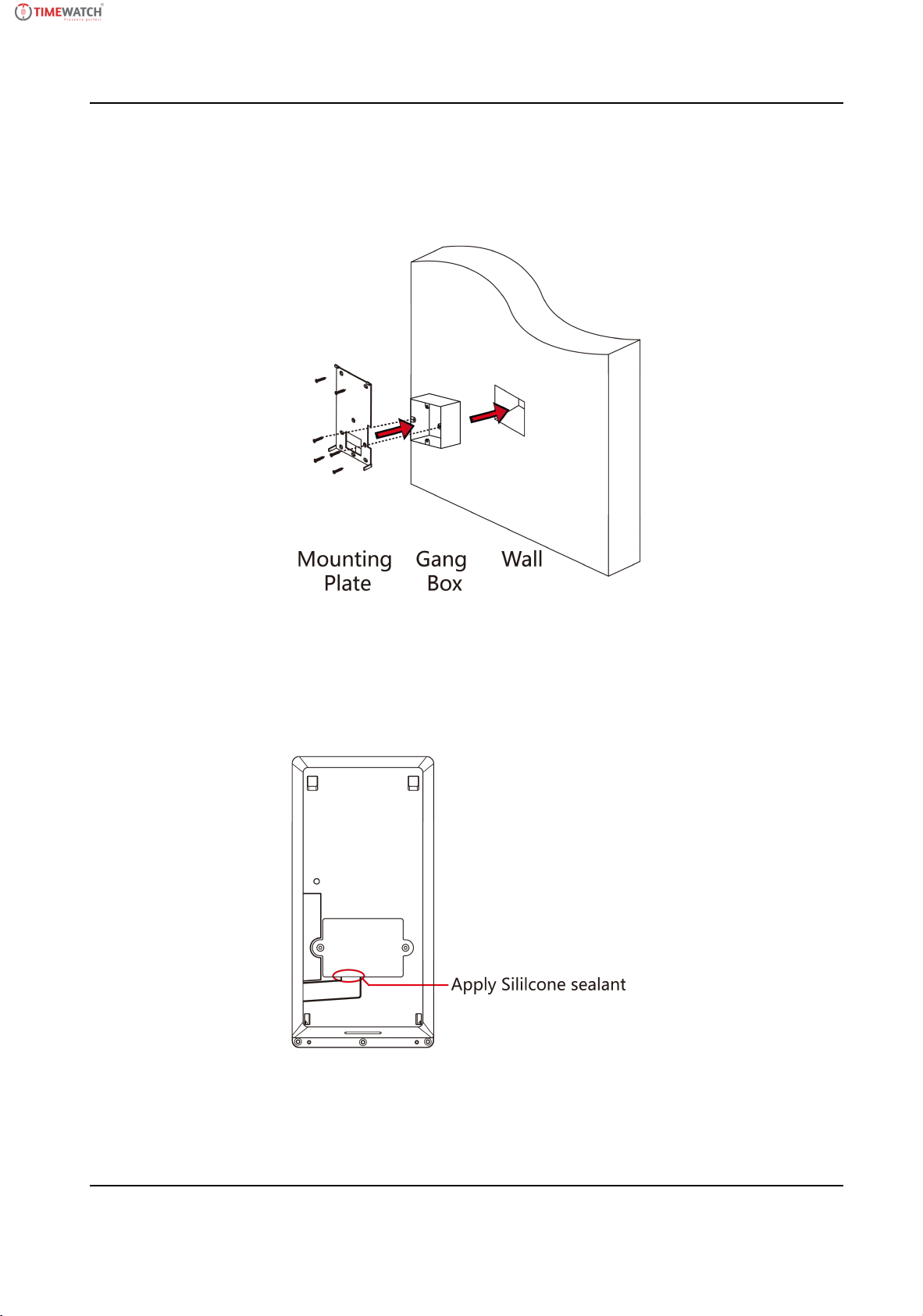
2. Drill holes on the wall or other surface according to the mounng template and install the gang
box.
3. Use two supplied screws (4_KA4 × 22-SUS) to secure the mounng plate on the gang box.
4. Use another four supplied screws to secure the mounng plate on the wall.
Figure 3-2 Install Mounng Plate
5. Remove the two screws on the rear panel and remove the sheet to display the wiring terminals.
6. Route the cable through the cable hole of the mounng plate, and connect to corresponding
external devices' cables.
7. Install the sheet back to the device with the two screws.
8. Apply Silicone sealant among the cable wiring area to keep the raindrop from entering.
Figure 3-3 Apply Silicone Sealant
9. Oponal: Insert the ngerprint module to the holes at the boom of the main part.
6
ULTraFace 671 Series Face Recognion Terminal User Manual
Indice
Altri manuali Timewatch Controllori di accesso IP