
Touch Revolution M17A Series Manuale utente
Rev.A
M17A Series
Touch Screen LCD Monitors
USER’s GUIDE

The information contained in this document is subject to change without notice.
This document contains proprietary information that is protected by copyright. All rights
are reserved. No part of this document may be reproduced,translated to another language
or stored in a retrieval system, or transmitted by any means, electronic, mechanical,
photocopying, recording, or otherwise, without prior written permission. Windows is a registered
trademark of Microsoft, Inc. Other brand or product names are trademarks of their respective
holders.
The test results show that this device meets the FCC rules. Those limits are set to protect
residential areas from the devices with harmful emission. This device will produce, use and
radiate radio frequency energy. In addition, failure to follow the user’s manual to install or use
this device might produce harmful interference with radio communication. Not withstanding
the foregoing, it does not guarantee that this type of harmful interference does not occur in
some special installations. The interference caused by this device to the reception of radio
or television signals may be verified by turning it on and off. Any changes or modifications to
this TFT LCD would void the user’s authority to operate this device.
Important Recycle Instruction:
LCD lamps inside this product may contain mercury. This product may contain
other electronic waste that can be hazardous if not disposed of properly. Recycle or
dispose in accordance with local, state, or federal Laws. For more information, contact
the Electronic Industries Alliance at WWW.EIAE.ORG. For lamp specific disposal information
check WWW.LAMPRECYCLE.ORG.

Table of Contents
Usage Notice
Precautions............................................................................................................................. 1
Introduction
About M17A Series................................................................................................................. 2
Touch Screen for M17A Series ............................................................................................... 2
Package Overview ................................................................................................................. 3
Installation
Product Overview ........................................................................................................ 4
Front View ............................................................................................................... 4
Bottom View (Without Stand) ................................................................................... 4
Start Your Installation .................................................................................................. 5
Connecting the Display(Figure 8.1).............................................................................. 7
(Figure 8.1) ............................................................................................................. 8
Kensington Security Slot.............................................................................................. 9
VESA Mount for Your Monitor .....................................................................................10
User Controls
Side Panel Controls....................................................................................................11
How to Use the OSD Menus .......................................................................................12
On-Screen Display Menus ..........................................................................................13
Appendix
Troubleshooting..........................................................................................................14
Warning Signal ...........................................................................................................15
No signal... ..............................................................................................................15
Going to sleep ........................................................................................................15
Out of range............................................................................................................15
Product Dimensions ...................................................................................................16
Compatibility Modes ...................................................................................................17
Touch Screen Driver Installation .................................................................................18
M17A Series Calibration Instructions ......................................................................18
Usage Notice
Precautions
Follow all warnings, precautions and maintenance as recommended in this user’s manual to
maximize the life of your unit.
Do:
• Turn off the product before cleaning.
• Touch screen surface may be cleaned using a soft clean cloth moistened with mild window
glass commercial cleaners or 50/50 mixture of water and isopropyl alcohol.
• Use a soft cloth moistened with mild detergent to clean the display housing.
Don’t:
• Do not touch the LCD Display screen surface with sharp or hard objects.
• Do not use abrasive cleaners.
• Do not operate the product under the following conditions:
- Extremely hot, cold or humid environment.
- Areas susceptible to excessive dust and dirt.
- Near any appliance generating a strong magnetic field.
- In direct sunlight.
! Warning -
To prevent the risk of fire or shock hazards, do not expose
this product to rain or moisture.
!
W
arn
i
n
g
-
Pl
ease
d
o not open or
di
sassem
bl
e t
h
e pro
d
uct as t
hi
s ma
y
cause
e
l
ec
tri
c
s
h
oc
k
.
1

Introduction
About M17A Series
The M17A Series is a 17" flat panel screen with an active matrix, thin-film transistor (TFT)
liquid crystal display (LCD).
Features include:
• Direct Analog signal input
• Active matrix TFT LCD technology
• 1280 x 1024 SXGA resolution
• 17" viewable display area
• 31.47 ~ 80 KHz horizontal scan
• 56 ~ 75 Hz high refresh rate
• 0.264mm x 0.264mm pixel pitch
• Auto adjustment function
• Multilingual OSD user controls
• Kensington security slot
• 75 mm / 100 mm VESA mount
• Removable base for flexible mounting solutions.
• M17A Series - Projected Capactive touch screen with USB controller
• Built-in speakers-1W x 2
Touch Screen for M17A Series
• Projected Capactive touch screen for finger input only
• Surface: Clear glass
• Interface: USB controller
• HID Multi-Touch: Windows 7
• HID Single Touch: Windows Vista, XP, 2000, ME, 98
• Driver Support: Vista and XP (TUIO), Linux – Certain Platforms, Mac OS 10.5.8 above
2
3
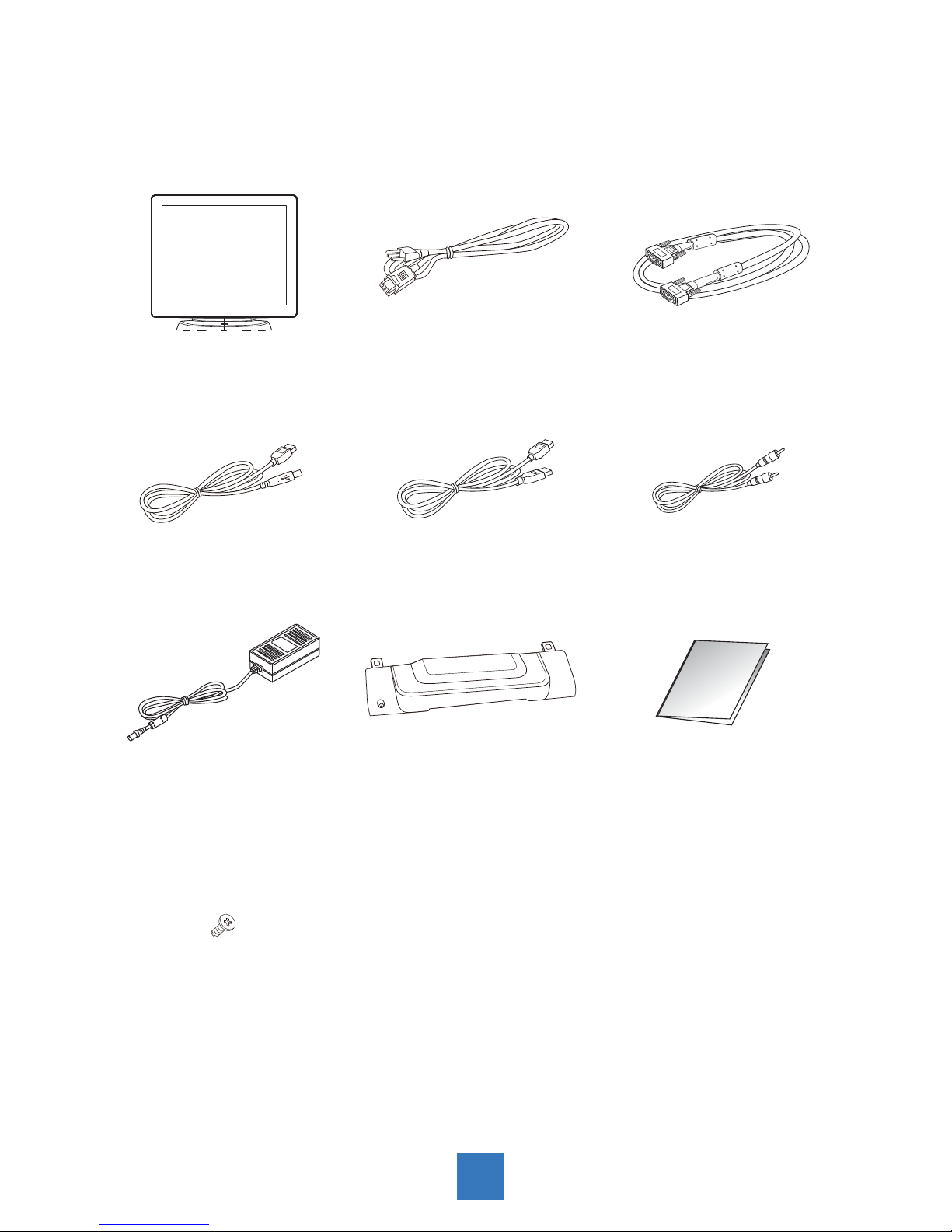
Package Overview
LCD Display Power Cord VGA Signal Cable
USB Cable (A to B) USB Cable (A to A)
(Option for MSR)
Audio-in Cable
DC Power Supply
(sold separately)
Cable Cover Quick Start Guide
Screw
Installation
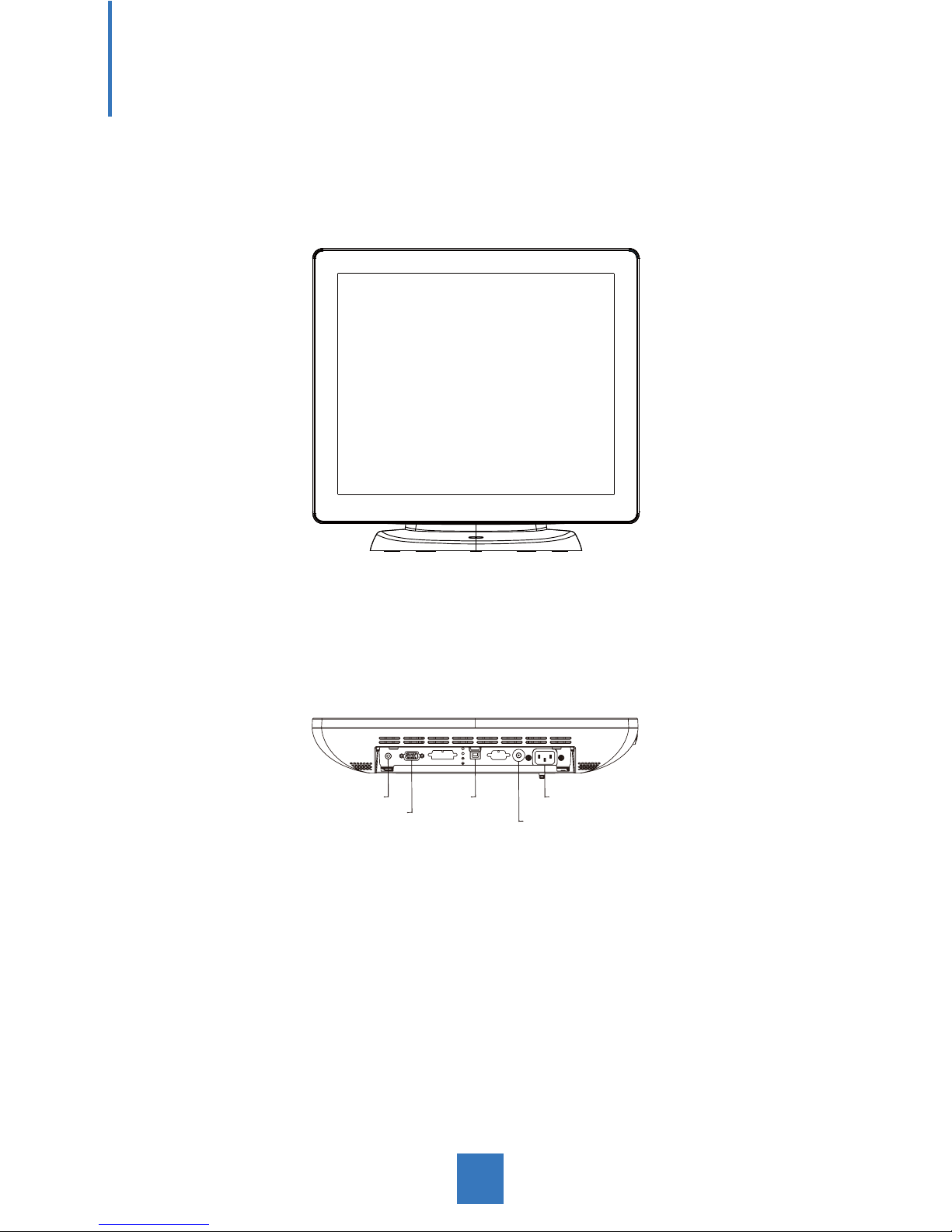
Product Overview
• Front View
• Bottom View (Without Stand)
VGA IN
AC IN
AUDIO USB
DC IN
4
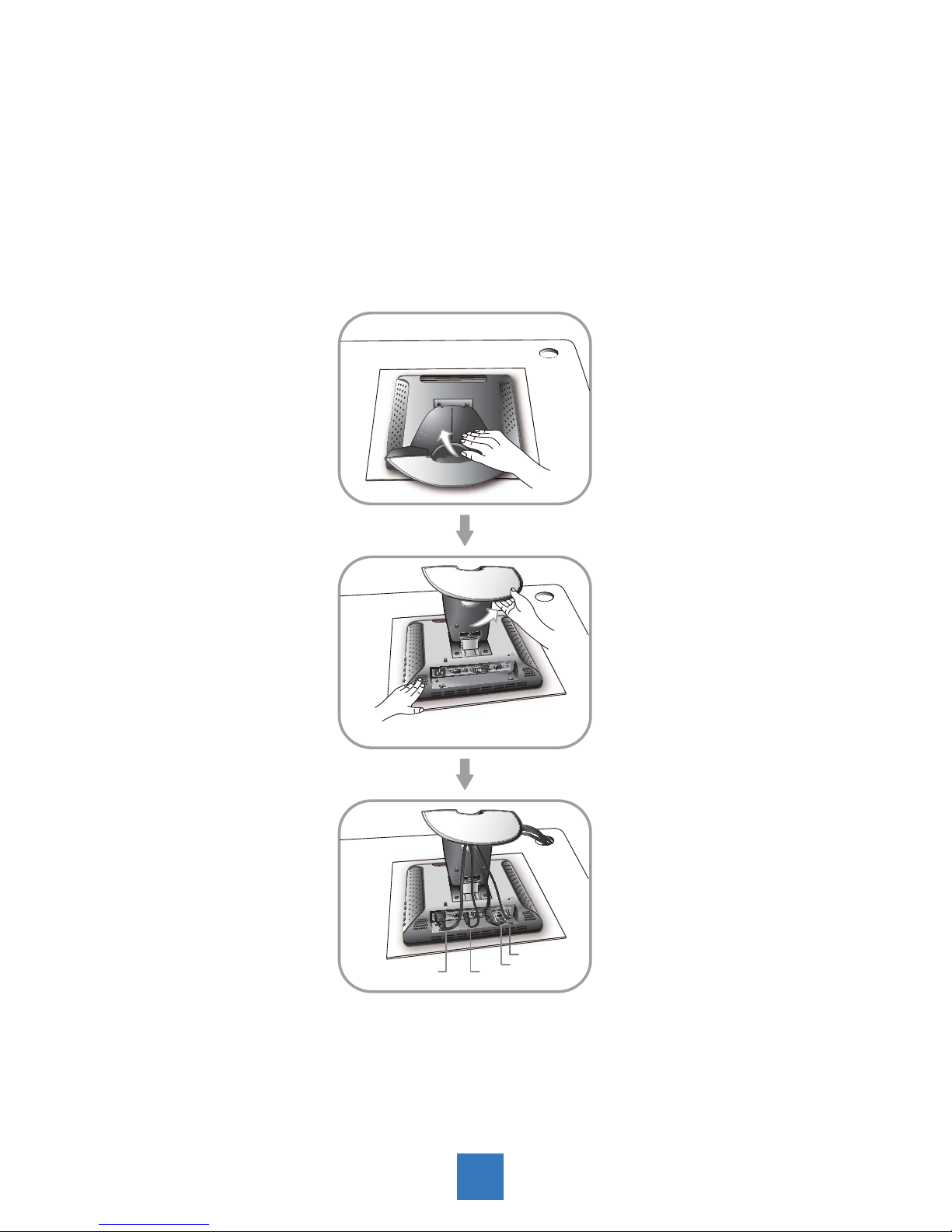
Start Your Installation
1. Lay the LCD flat on an even surface.
2. Remove the stand back cover by pulling in the direction of the arrow as seen in step 2
diagram.
3. Move the stand into position as seen in step 3 diagram.
4. Connect the cables to the appropriate connectors as seen in Step 4 diagram.
5
K
USB VGA
Power
Audio
Step 4
Step 2
K
Step 3
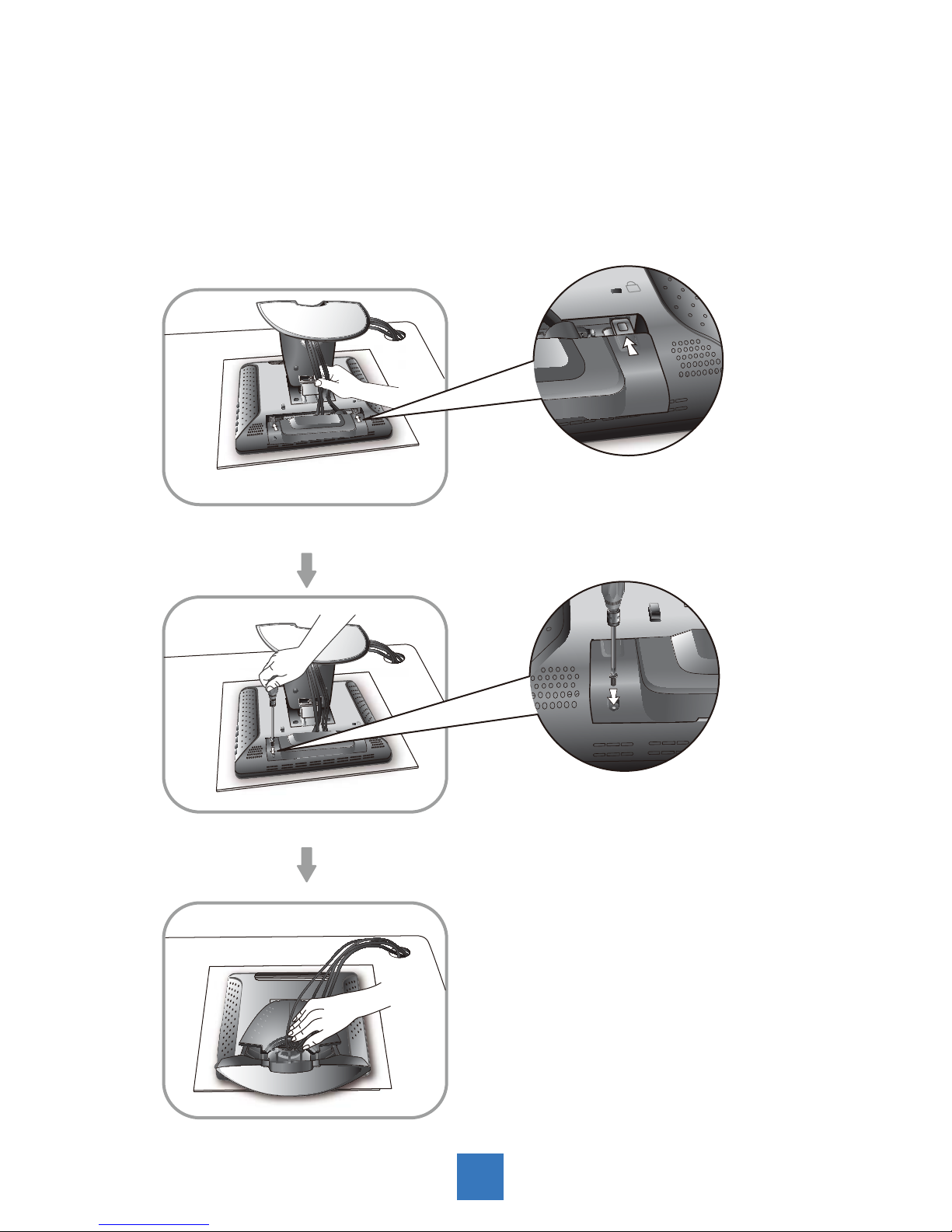
6
5. Take the optional cable cover and screw from the accessory box. Position all cables under
the cover lip as seen in the step 5 diagram.
6. Using a Philips Head screwdriver, insert the screw (CBM M3x6) into the cable cover and
monitor as seen in the step 6 diagram.
7. Re-attach the stand back cover to the LCD stand by pressing firmly until the tabs snap
into place as seen in the step 7 diagram. You may also keep the cables in order by using
the cable organizer.
K
Step 5
Step 6
K
Step 7
K

Connecting the Display (Figure 8.1)
To setup this display, please refer to the following figure and procedures.
1. Be sure all equipments are turned off.
2. Connect the AC power cord to the power connector on the monitor and the other end
into an electrical outlet (8.1).
3. Connect the D-SUB cable from the display’s VGA input connector to the D-SUB
connector of your host computer and tighten the screws (8.1).
4. Connect the Audio-In cable from the audio input port of your display to the Audio-out port
of your computer (8.1).
5. Connect the USB cable from the USB port of your display to the USB port (8.1) of your
computer.
6. Configure the touch screen. Refer to the “Touch Screen Driver Installation” section on
Page 18.
7. Once the touch screen is configured, the monitor is ready for use.
Notice!
To ensure the LCD display works well with your computer, please configure the
display mode of your graphics card to make it less than or equal to 1280 x 1024
resolution and make sure the timing of the display mode is compatible with the LCD
display.
We have listed the compatible “Video Modes” of your LCD display in the appendix
(on page 17) for your reference.
!
7
Indice
Altri manuali Touch Revolution Schermo tattile


Manuali Schermo tattile popolari di altre marche

Elecro Engineering
Elecro Engineering Poolsmart Plus Istruzioni per l'installazione

Johnson Controls
Johnson Controls IQ4 HUB Manuale utente

Elo TouchSystems
Elo TouchSystems ET2270L Manuale utente

Elo TouchSystems
Elo TouchSystems ET1002L Manuale utente

Elo TouchSystems
Elo TouchSystems 3201L Manuale utente

Duratec
Duratec S15 Manuale utente


