
Touchboards High Definition Digital Video Camera Manuale utente

High Denition
Digital Video Camera
User Manual

1
Contents
Section 1 Getting to Know Your Camera............................................2
Section 2 Getting Started.....................................................................5
Section 3 Record Mode........................................................................7
Section 4 Playback Mode...................................................................27
Section 5 Listening to MP3 Music.....................................................37
Section 6 Viewing Movie on PC ........................................................40
Section 7 Viewing Pictures and Movies on a TV.............................41
Section 8 Video File Converter .........................................................43
Section 9 Burning the Recorded Clip into DVD...............................47
Section 10 Uploading Video Files to YouTube...................................49
Section 11 Transferring Data to Computer.........................................52
Section 12 Specications and System Requirements......................54

2
Section 1
Getting to Know Your Camera
Overview
The camera with 5 Mega Pixel sensor can take H.264 movies. By way of using H.264 technology, more
videos can be taken within certain amount of memory. High quality images with up to 11 mega-pixels
can also be delivered smoothly. With a color LCD monitor, users can compose images and examine
them easily.
The Camera also features movie recording at HD resolution of 1280x720. You can also connect DV to
a HDTV by HDMI cable, and easily playback recorded high-denition videos on the wide screen of an
HDTV.
Exposure and color balance can either be adjusted automatically or allowed to be changed manually.An
8x digital zoom increases user control over the movies and pictures you take. The camera is also ideally
suited for using as a PC camera hooked up to your computer via high speed USB 2.0 port.
Biult-in memory allows you to take pictures and movies without memory card. The memory card slot
allows users to increase the storage capacity.
Note
Partial memory of the built-in memory is used for Firmware code.
Standard Accessories
Unpack the package and make sure all standard accessories listed are included:
Camera•
USB Cable•
AV Cable•
HDMI Cable•
Adaptor•
Lithium-ion Rechargeable Battery•
Quick Guide•
CD-ROM (Driver, ArcSoft Software and User Manual)•
Earphone•
Strap•
Pouch•
3
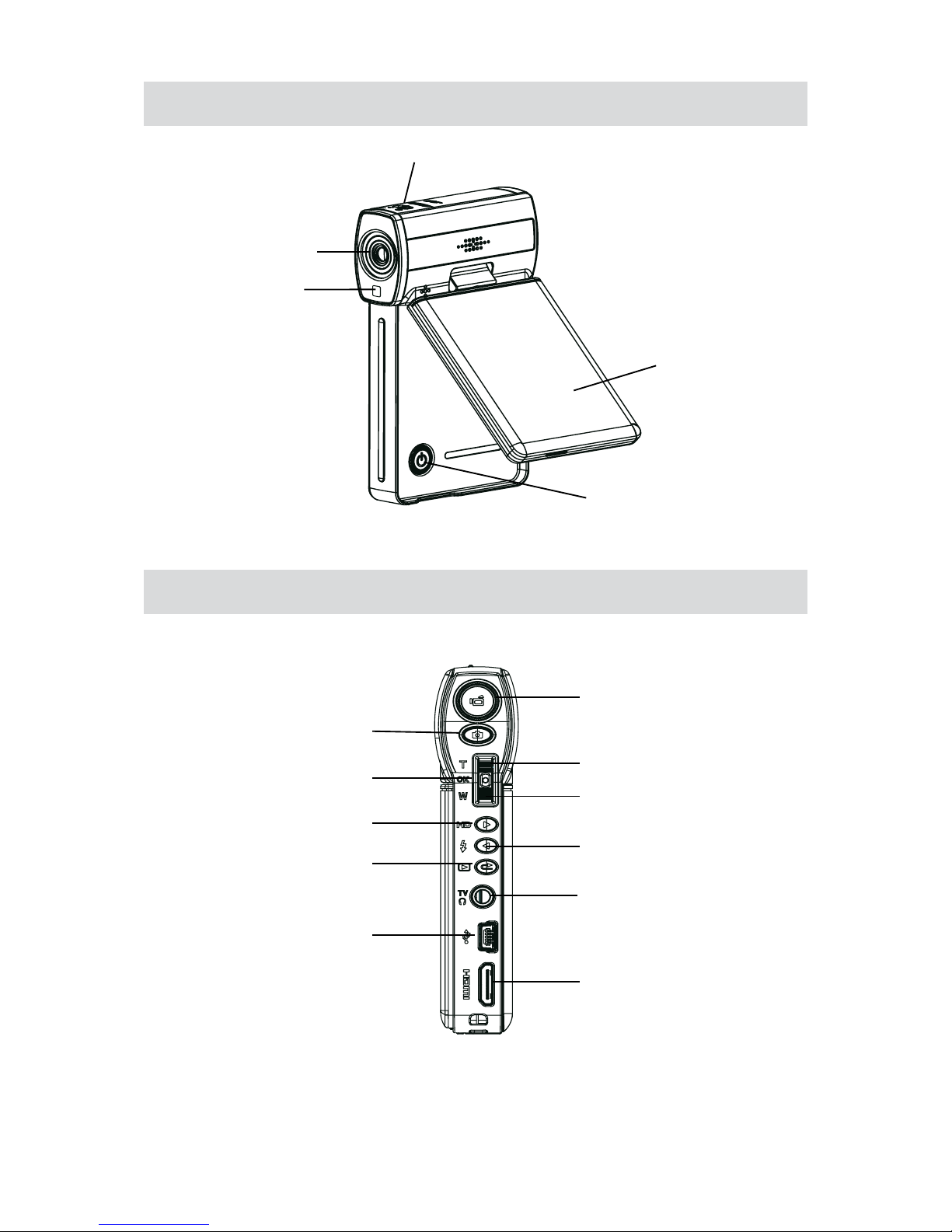
Front View
LCD Panel
Power Button
Lens
Light
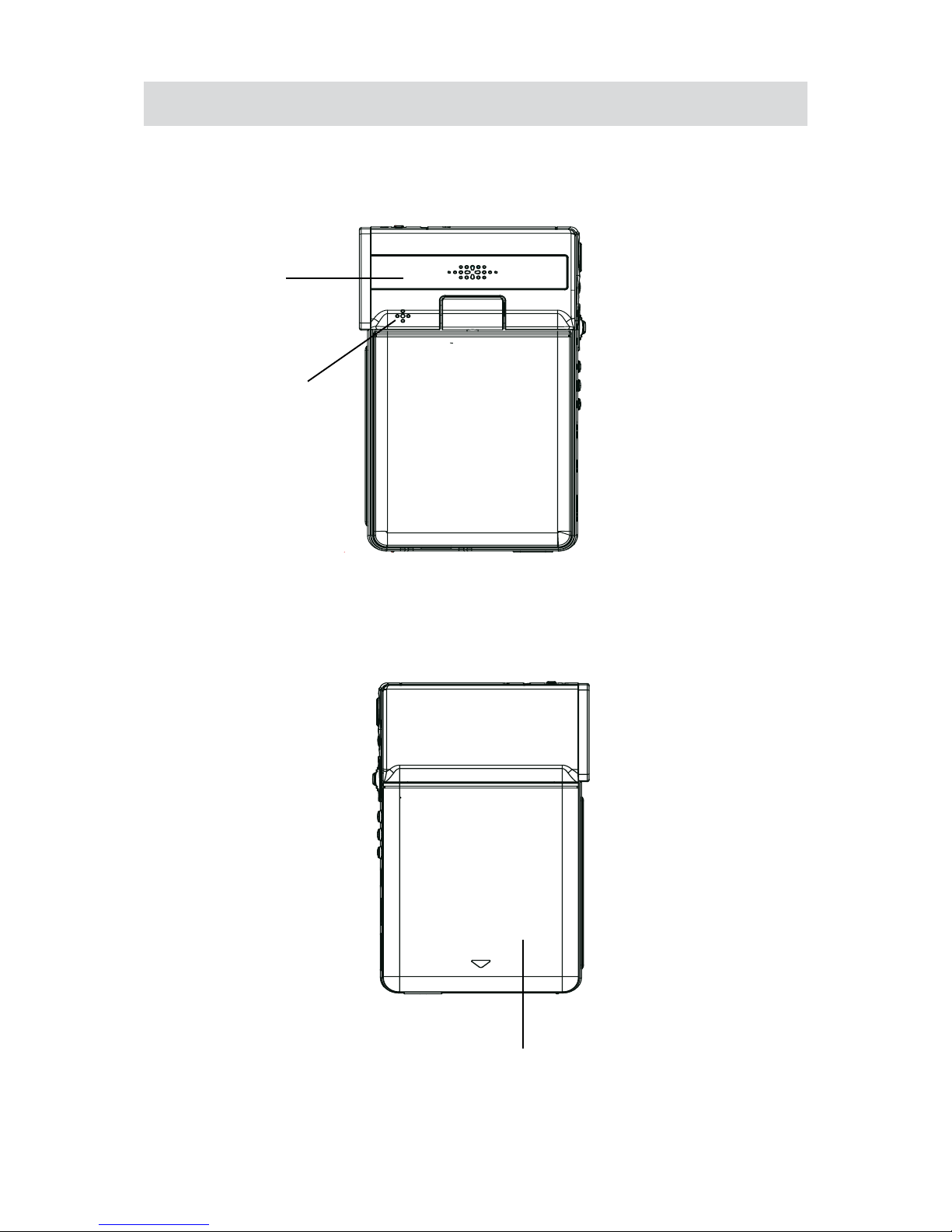
Rear View
Movie Shutter Button
Tele Button (Up Button)
Wide Button (Down Button)
Left Button
TV/Earphone Port
OK Button
Picture Shutter Button
Right Button
RECORD/PLAY Button
Mini USB 2.0 port
HDMI Port
Marco Switch
4
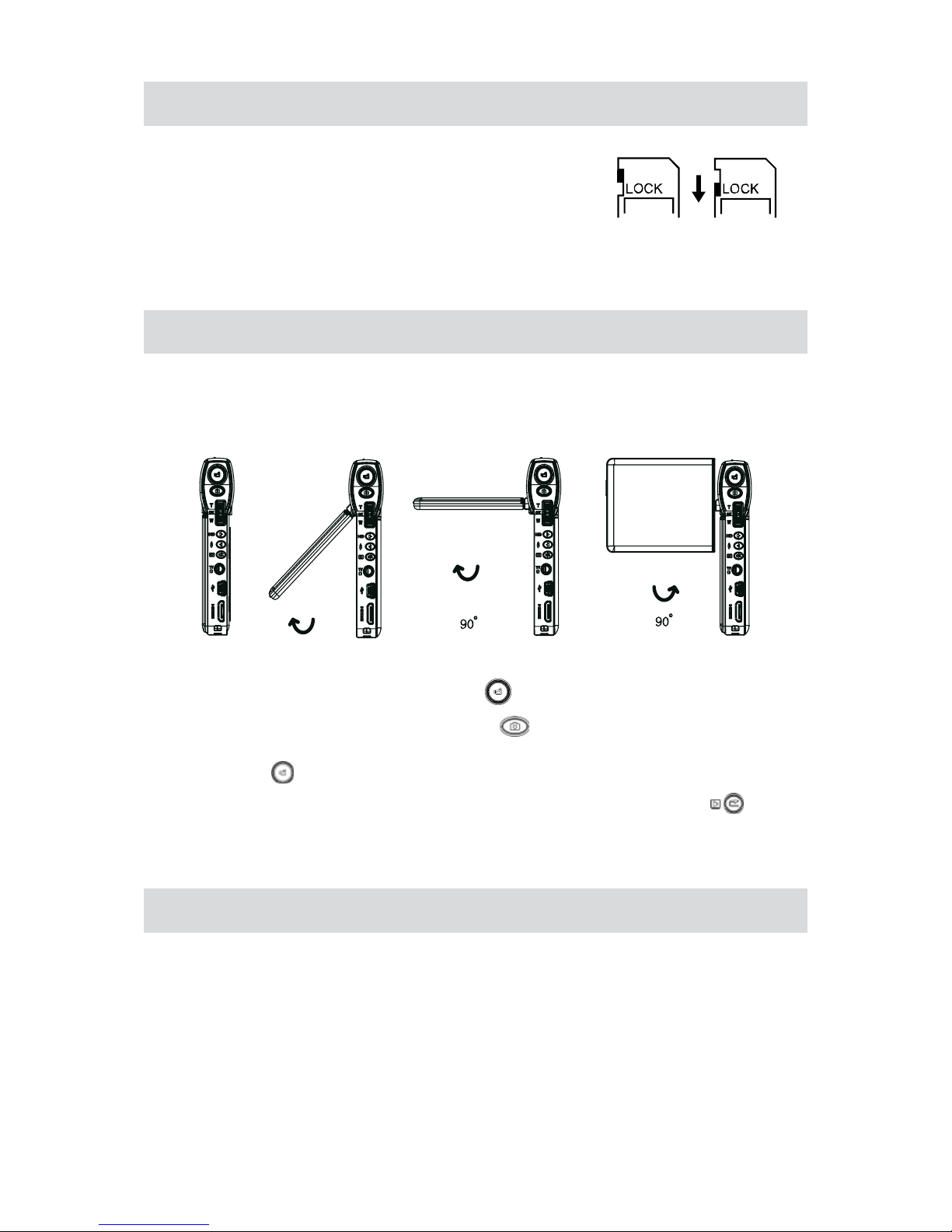
Side View
Battery Cover
Speaker
Microphone

5
Section 2
Getting Started
Loading the Battery
Before using the camera, users must load NP 60 Battery.
Follow the arrow direction and slide to eject the battery1. cover.
Insert the battery according to the correct polarity marks2. ( + or -).
Close the battery cover rmly.3.
Inserting and Removing an SD Card (Optional)
The camera comes with internal memory which allows you to store pictures, movies and music. You can
expand the memory capacity by using an optional SD memory card. To insert a memory card, refer to
the gure as below:
Insert the memory card into the right position.1.
To remove an installed SD card, press the card inwards2. to release it.
When the card pops out, gently remove it from its slot.3.
Note
When a memory card is tted, movies and pictures are saved on card rather than on the built-in
memory.
Eject
6
Protecting Data on an SD Card
SD card is read-only by locking the SD card. No pictures and
movies can be recorded when the SD card is locked. Make sure
the lock is on writeable position before recording.
Turning the Camera On and Getting Started
To turn on the camera:
Flip out the LCD panel; the camera will turn on automatically.1.
Or press Power Button for one second to turn on it.2.
90
。
90
。
To take a movie, press the Movie Shutter Button (• ).
To take a picture, press the Picture Shutter Button (• ).
To take movie at HD resolution, press Right Button to switch to HD mode, then press the Movie•
Shutter Button ( ).
To view stored movies, pictures, listen to stored MP3, press RECORD/PLAY Button (• ) once to
switch to Playback Mode. Press a second time to return to Record Mode.
Turning the Camera Off
To turn off the camera, you can either press the Power Button for one second, or you can place the LCD
panel back to its original position.
Writeable
position Write-Protected
Position

7
Section 3
Record Mode
Button Function
Right Button: HD Mode
Left Button: Light ON / OFF
Tele Button (Up Button): Digital Zoom In
Wide Button (Down Button): Digital Zoom out
OK Button: Menu ON
Power Button: Press down for one second to turn on or turn
off the camera.
RECORD/PLAY Button functions:
Switch between Record /Playback Mode.1.
Return to the previous page.2.
Quick review3.
Movie Shutter Button:
Start to take movie.1.
To stop recording, press it again.2.
Picture Shutter Button: Start to take picture.
Macro switch: Switch between Macro Mode and Normal
Mode.

8
LCD Monitor Information
The indicator shows below may display on LCD when movies and pictures are recorded:
Record Mode
Movie Record Mode
Picture Record Mode
Stabilization
Scene Mode
Night Mode
Backlight Mode
(1)
Resolution
Movie:
HD
HD /
D1
D1 / VGA / QVGA
Picture: High / Standard/ Low
(2) Number of images or recording time of movie that can still be taken at current resolution.
(3) SD card inserted
(4) Macro Position Focusing
(5) White Balance
(6) Battery indicator: full power / medium power / low power / power empty
(7) Light on
(8) Selftimer enabled
(9) 8X digital zoom
(10) Motion Detection

9
(11) Intelligent Lighting On
H.264 Movie Recording
Press Movie Shutter button ( ) to start recording. When a movie is recording, a time indicator will
display on LCD monitor. To stop recording, press Movie Shutter Button ( ) again. Press RECORD/
PLAY Button to view the recorded movie.
Four resolution settings are available:
Quality
HD
HD
D1
D1
VGA
QVGA
Picture Recording
Press the Picture Shutter Button ( ) to take a picture.
Press RECORD/PLAY Button to view the picture.
Three resolution settings are available:
Image Quality
High Quality
Standard Quality
Low Quality
Indice


