
Transcend PF810 Manuale utente
User’s Manual
Digital Photo Frame
PF810

Table of Contents
Introduction︱
︱︱
︱.........................................................................................................................3
Package Contents︱
︱︱
︱...............................................................................................................3
Features︱
︱︱
︱...............................................................................................................................3
System Requirements︱
︱︱
︱........................................................................................................4
Safety Precautions︱
︱︱
︱..............................................................................................................5
General Use..............................................................................................................................5
Cleaning....................................................................................................................................5
Backing Up Data.......................................................................................................................5
Getting Started︱
︱︱
︱....................................................................................................................6
Installing the FM Antenna........................................................................................................ 7
Using a memory card or USB flash drive ............................................................................... 8
Built-in speakers and headphones .........................................................................................8
Menu Buttons ...........................................................................................................................8
On Screen Display (OSD).........................................................................................................9
Remote Control ........................................................................................................................9
Connecting to a Computer︱
︱︱
︱...............................................................................................11
Windows®
2000, XP and Vista............................................................................................... 11
Mac®OS 10.0 or later ............................................................................................................ 12
Linux®
Kernel 2.4 or later...................................................................................................... 13
The Home Menu︱
︱︱
︱................................................................................................................14
Photo....................................................................................................................................... 14
Video....................................................................................................................................... 14
Music....................................................................................................................................... 14
Radio....................................................................................................................................... 14
Calendar.................................................................................................................................. 14
Settings................................................................................................................................... 15
Photo︱
︱︱
︱..................................................................................................................................15
Thumbnail Mode..................................................................................................................... 15
Photo View Mode.................................................................................................................... 17
Slideshow Mode..................................................................................................................... 19
Video︱
︱︱
︱..................................................................................................................................21
Video Explorer........................................................................................................................ 21
Video Player............................................................................................................................ 22
MUSIC︱
︱︱
︱................................................................................................................................23
Music Explorer........................................................................................................................ 23
Music Player ........................................................................................................................... 24
Radio︱
︱︱
︱..................................................................................................................................26
Selecting a Radio Station ...................................................................................................... 27
Adjusting the Volume............................................................................................................. 29

2
Calendar︱
︱︱
︱............................................................................................................................30
Settings︱
︱︱
︱..............................................................................................................................32
Troubleshooting︱
︱︱
︱................................................................................................................37
Specifications︱
︱︱
︱...................................................................................................................39
Ordering Information︱
︱︱
︱........................................................................................................40
Transcend Limited Warranty︱
︱︱
︱...........................................................................................40

3
Introduction︱
Congratulations on purchasing Transcend’s Photo Frame. Now you can easily display your entire photo
collection at home or at the office. The Photo Frame includes a built-in FM radio and can conveniently
playback videos, photos and music from a variety of sources: USB flash drives, memory cards, or the Photo
Frame’s own on-board memory. You can operate the Photo Frame by using the lighted touch-sensitive
menu buttons t on the front of the Photo Frame or with its full-featured wireless remote control. The Photo
Frame is also equipped with a rotation sensor that automatically adjusts your pictures to portrait or
landscape position when you turn the Photo Frame. The Photo Frame’s 2GB of built-in storage space lets
you save your favorite videos, pictures and music inside Photo Frame for instant playback without even
having to use a memory card. You can also connect the Photo Frame to a PC via the USB port for direct
access to its internal memory or any memory cards that are plugged into it. This User’s Manual will give you
step-by-step instructions and advice to help you get the best experience from your new device. Please read
it in carefully before using the Photo Frame.
Package Contents︱
Upon purchasing your Transcend Photo Frame, please make sure each of the following is included:
Photo Frame
Remote Control (battery included)
Tabletop Stand
DC Power Adapter
USB Cable
FMAntenna Cable
User’s Manual CD
Quick Start Guide
Warranty Card
Features︱
Bright 8” (4:3) high-resolution color TFT LCD panel
Built-in stereo speakers and headphone jack
View photos with background music from MP3s or the radio
Supports USB flash drives and SD/SDHC/MMC/MS/ CF memory cards
2GB of internal memory – works even without a memory card
Built-in FM radio with programmable station presets
Full motion video playback
Automatic rotation sensor for easy Landscape or Portrait setup
Fully compliant with Hi-Speed USB 2.0 and backwards compatible with USB 1.1
Direct USB connection to your PC for easy file transfers
Select multiple photos for convenient one-step transfer to internal memory
Slideshow, thumbnail, still picture, and zoom-in viewing options
Attractive frame themes and animations to accent your pictures
Important date/event reminder

4
Clock, alarm and calendar functions
Automatic Power-ON/OFF and Sleep timers
Custom alarm clock settings - wake up to your favorite FM radio station or MP3 song
User-selectable Color Modes to enhance the look of your photos
Touch-sensitive menu buttons with LED indicator lights
System Requirements︱
System requirements for connecting Photo Frame to a computer:
100~240V voltage power outlet for the DC adaptor
Desktop or notebook computer with a working USB port
One of the following Operating Systems:
•
Windows®
2000
•
Windows®
XP
•
Windows Vista®
•
Mac®
OS 10.0 or later
•
Linux®
Kernel 2.4 or later

5
Safety Precautions︱
These usage and safety guidelines are IMPORTANT! Please follow them carefully to ensure your own
personal safety and help protect your Photo Frame from potential damage.
General Use
•
For indoor use only.
•
Avoid using or storing the Photo Frame in an extreme temperature environment.
•
Never allow the Photo Frame to come in contact with water or any other liquids.
•
Do not use this product in environments with strong magnetic fields or excessive vibration.
•
Only use the Transcend provided DC adapter with the Photo Frame. Use of other adapters may
cause fire or explosion.
•
Never cover or seal any of the holes on the Photo Frame.
•
Unplug the Photo Frame if you do not plan to use if for an extended period of time. This prevents
accidental damage or corrosion.
•
To protect your health and your hearing, keep the Photo Frame’s music volume below 80
decibels and do not listen for an extended period of time.
Cleaning
•
The screen is very delicate and can be damaged by pressing on it with excessive force.
•
Use a soft non-abrasive cloth, such as for cleaning camera lenses to gently wipe the screen
Backing Up Data
•
Transcend does NOT take any responsibility for data loss or damage during operation. If
you plan to plug a memory card or USB pen drive into Photo Frame, we strongly advise that you
first backup the data in those storage devices to a computer or other storage medium before
using them in Photo Frame.
•
To ensure Hi-Speed USB 2.0 data transfer rates when connecting your Photo Frame to a
computer, please check that the computer has the relevant USB drivers. If you are not sure how
to check this, please consult the computer or motherboard User’s Manual for USB driver
information.

6
Getting Started︱
1.
8” LCD Panel
2.
Touch-Sensitive Menu Buttons
3.
SD/SDHC/ MMC/ MS Slot
4.
CF Slot
5.
DC Power Input
6.
Stand Holes
7.
Wall-Hanging Holes
8.
Recover Switch
(For Service Use)
9.
Headphone Jack
10.
Antenna Input
11.
Mini-B USB Port (PC
Connection)
12.
USB Port (Flash Drives)
13.
Built-in Speakers
Setting Up the Photo Frame
1.
Attach the Tabletop Stand to the back of the Photo Frame using the stand holes shown above.
2.
Connect the power adapter cable to the DC power input jack on your Photo Frame.
3.
Plug the power adapter into a wall outlet.

7
4.
The Photo Frame will automatically turn on. If it is already plugged in, press the power button on the
back of Photo Frame, or press on the remote control.
5.
To remove the Tabletop Stand, simply slide it downward until it pulls freely out of its socket.
Installing the FM Antenna
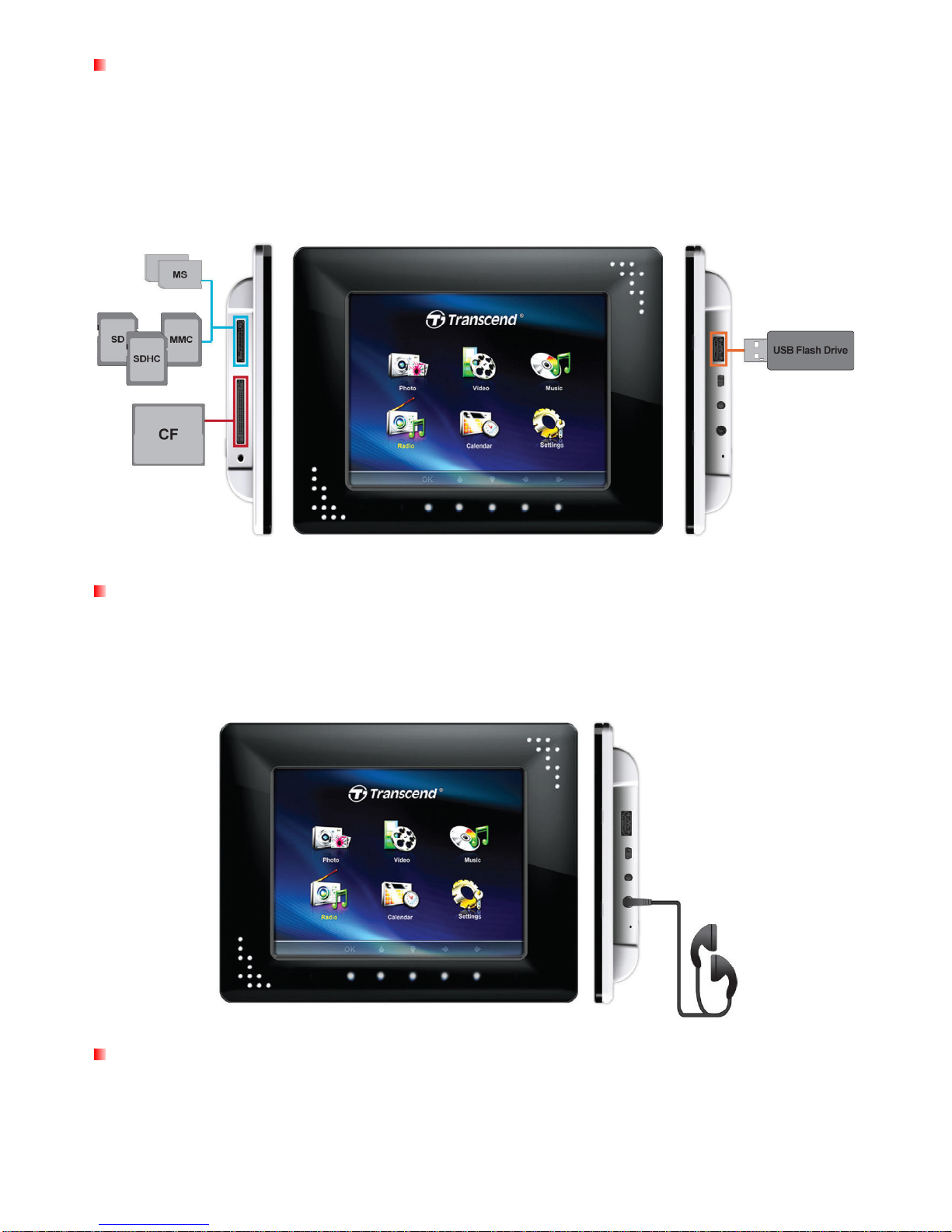
If you plan on using the Photo Frame’s FM Radio feature, you must plug in the FM Antenna to assure
adequate reception quality. Plug the included FM Antenna into the small 2.5mm jack located on the right
side of the Photo Frame.
8
Using a memory card or USB flash drive
1.
Insert a memory card into its appropriate card slot on the left-hand side of the Photo Frame or plug a
USB flash drive to the USB port on the right-hand side.
2.
Once a memory card or USB flash drive is plugged in, the Photo Frame will automatically begin
slideshow playback of all photos available on your memory card or flash drive.
The Photo Frame will revert to the Home menu if you unplug a memory card or USB flash drive while in use.
Built-in speakers and headphones
The Photo Frame includes built-in speakers for playing back background music during slideshows, or for
listening to MP3 music or watching videos. To enjoy your music more personally you can plug your own
headphones into the headphone jack located on the right side of the Photo Frame. The built-in speakers will
be disabled while headphones are plugged in.
Menu Buttons
On the front of the Photo Frame, there are eight convenient touch sensitive menu buttons that illuminate
when pressed These buttons, which are represented in this manual with capital letters (ex: EXIT), can be
used for browsing through menus, selecting files, and accessing the Photo Frame’s numerous features.

9
The function of each menu button varies depending on the icon displayed directly above it in the OSD.
On Screen Display (OSD)
The On-Screen Display menu will appear on the bottom of the screen whenever the touch-sensitive
menu buttons on the front of the Photo Frame is pressed. Each option is mapped to a menu button
located directly underneath it. All icons like shown in this User’s Manual and in the Quick
Start Guide represent OSD menu button functions. The OSD menu will disappear after 10 seconds
without button input.
Remote Control
Your Photo Frame comes with a compact, easy-to-use remote control. You can fully operate your
Photo Frame with either the menu buttons on the front of the Photo Frame or by using the remote
control. Note that when using the remote control you should always aim it directly at the front of
your Photo Frame and make sure there are no obstacles in the way. All icons like shown in this
User’s Manual and the Quick Start Guide represent functions that you can access directly from the
remote control for easy, straightforward operation of your Photo Frame.
Altri manuali per PF810
1
Indice
Altri manuali Transcend Cornice digitale

Transcend
Transcend PF705 Manuale utente

Transcend
Transcend PF700 Manuale utente

Transcend
Transcend PF830 Manuale utente

Transcend
Transcend T Photo 720 Manuale utente

Transcend
Transcend T.photo 710 Manuale utente

Transcend
Transcend T.photo 720 Manuale utente

Transcend
Transcend PF830 Manuale utente

Transcend
Transcend PF710 Manuale utente

Transcend
Transcend PF 730 Manuale utente

Transcend
Transcend PF 730 Manuale utente


