
TransLite TL-HWR-13 Manuale utente

P a g e | 1
PRODUCT MODEL NUMBER: TL-HWR-13 1200Mbps
Dual Band Smart Wireless Router
ABOUT THIS MANUAL
DISCLAIMER
No part of this document may be reproduced in any form without the written permission of the copyright
owner.
The contents of this document are subject to revision without notice due to continued progress in
methodology, design and manufacturing. TRANSLITE GLOBAL LLC shall have no liability for any error or
damage of any kind resulting from the use of this document.
COPY WARNING
This document includes some confidential information. Its usage is limited to the owners of the
product that it is relevant to. It cannot be copied, modified, or translated in another language
without prior written authorization from TRANSLITE GLOBAL LLC

P a g e | 2
INDEX
TABLE OF CONTENTS
CHAPTER 1 OVERVIEW.............................................................................................................. 3
1.1 INTERFACE ............................................................................................................................ 3
1.2 LED LIGHTS............................................................................................................................ 3
1.3 CONNECT ROUTER WITH PC .............................................................................................. 4
CHAPTER 2 LOGIN TO THE WEB .............................................................................................. 5
CHAPTER 3 WEB GUI CONFIGURATION .................................................................................. 8
3.1 USER MANAGER ................................................................................................................... 9
3.2 SETUP WIZARD ................................................................................................................... 10
3.3 WiFi SETTINGS .................................................................................................................... 13
3.4 LAN SETTINGS..................................................................................................................... 16
3.5 WAN ...................................................................................................................................... 17
3.6 URL FILTER .......................................................................................................................... 19
3.7 TIME REBOOT...................................................................................................................... 20
3.8 DEVICE AND ADVANCED SETTINGS ................................................................................. 20

P a g e | 3
CHAPTER 1
OVERVIEW
1.1 INTERFACE
P1 Router Interface
1.2 LED LIGHTS
LED Indicator Instruction
LED
Status
Description
Power LED
Blue
Power On
WAN
Green
Ethernet Connected
LAN
Green
LAN Connected
Internet
Green/Blue
Internet Link Up: Green; Internet
Link down: Blue
P a g e | 4
1.3 CONNECTING ROUTER WITH PC
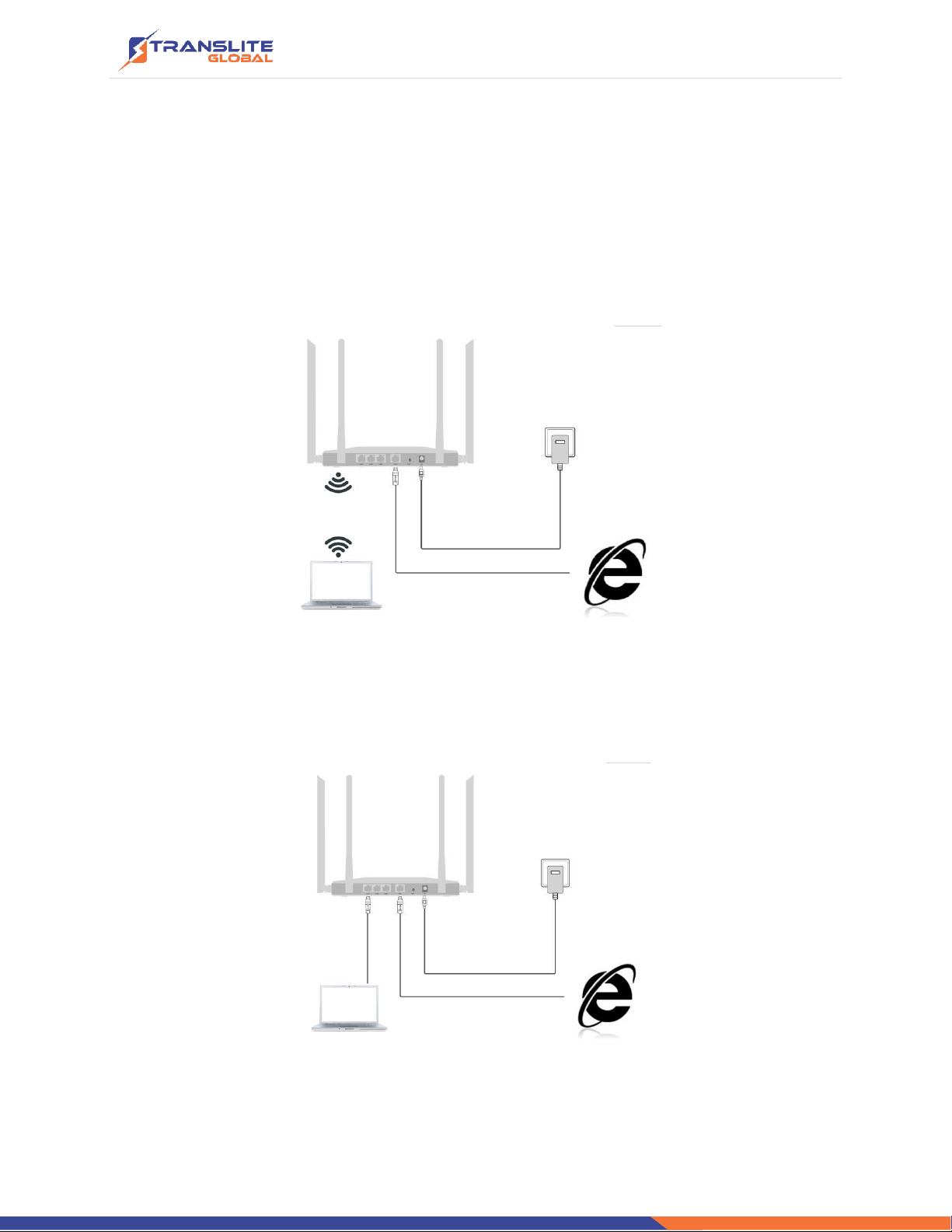
User can connect the PC with wireless router by Wireless SSID and LAN cable:
The diagram of wireless connection showed as follow:
Please note: the default SSID is Wireless2.4G, SSID’s password is 66666666
Connect router with PC in Wi-Fi
The diagram of LAN cable connection showed as follow:
Connect router with PC in LAN Port
P a g e | 5
CHAPTER 2
LOGIN TO THE WEB
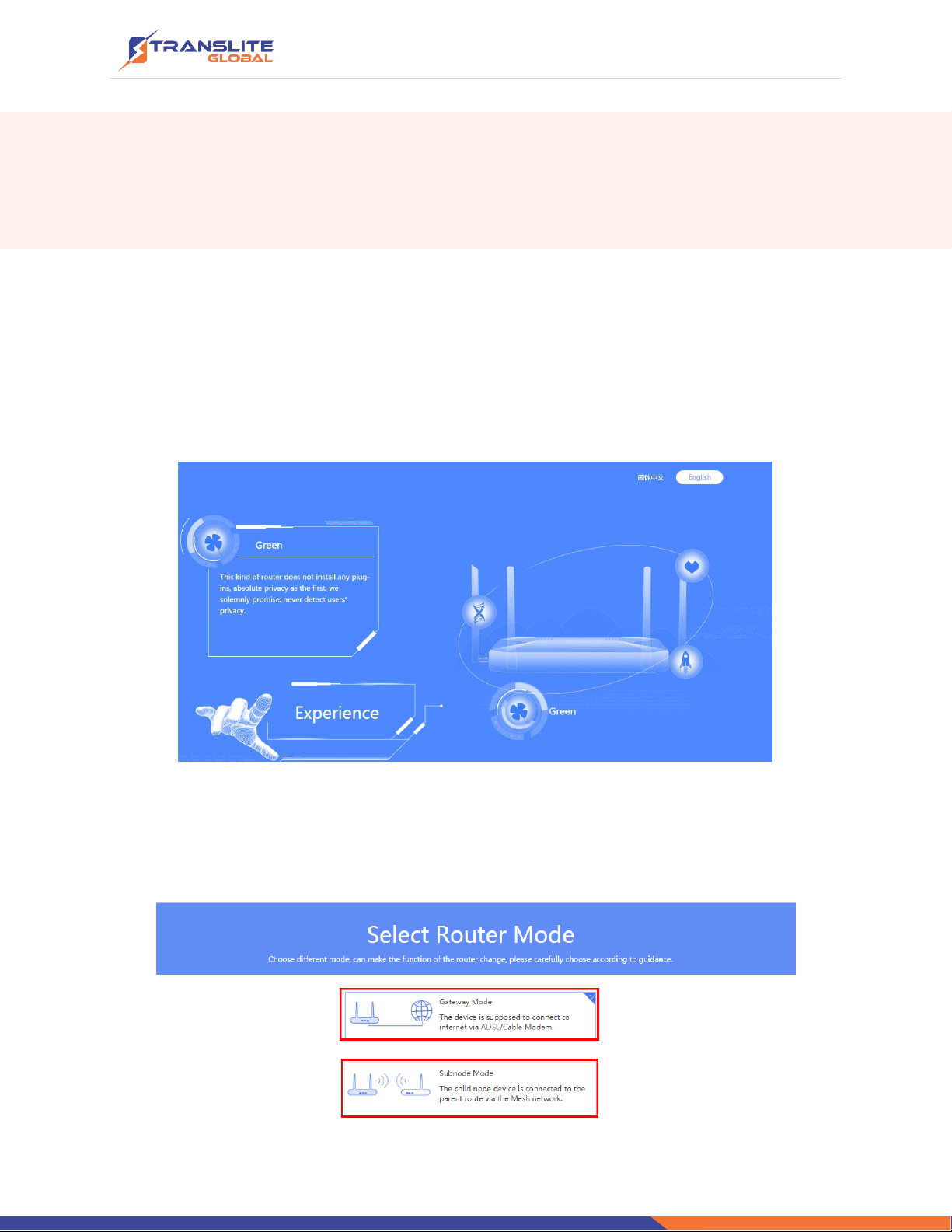
2.1 Power on this wireless router, connect PC with wireless router as chapter 1
connection.
2.2 Click Internet Explorer and input 192.168.188.253 on the address bar, then press
Enter, following page will pop up.
Click Experience to go on, the router will pop up a window ask for select router mode –
the options are Gateway mode and Sub-node Mode(Mesh Mode).
P a g e | 6
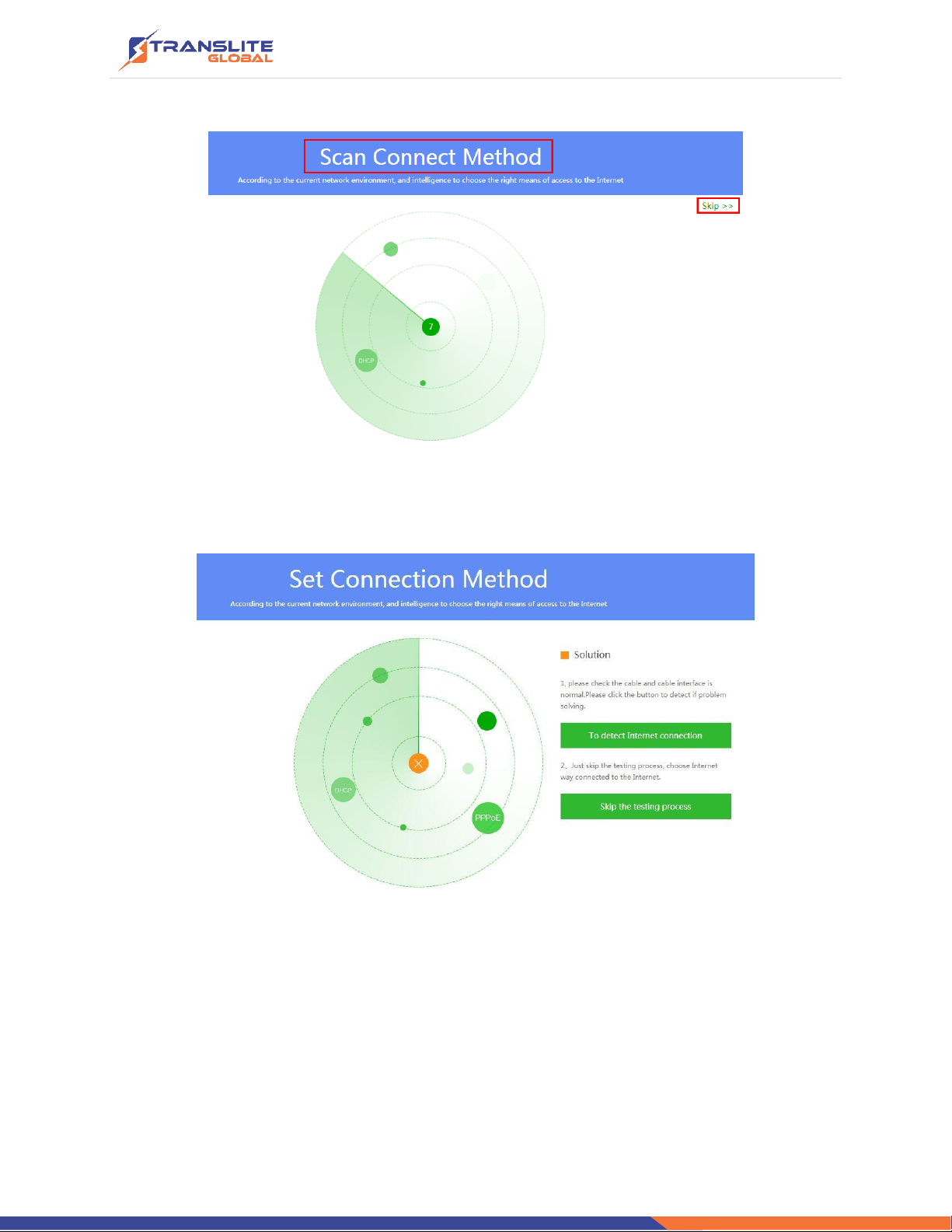
When you choose Gateway mode, it will scan the Internet connected method at first
If the scan fails, the user will be prompted to wither detect the connection or skip the
step.
P a g e | 7
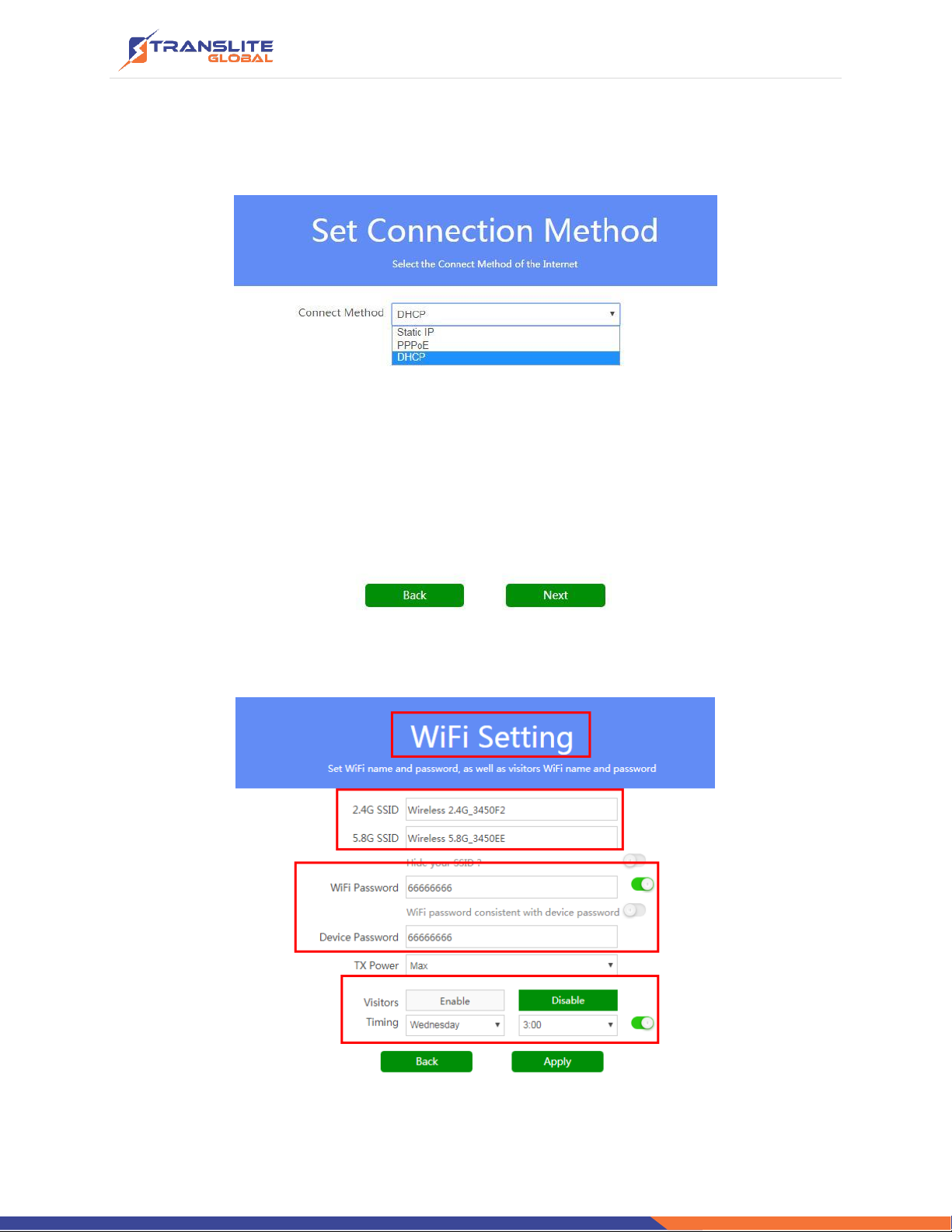
If the user skips the testing process, the following is the next step where the connection
method will have to be chosen:
Click Next to continue to the Wi-Fi setting:
Apply to finish, a login page will pop up, input Device Password, then click Login to Enter.

P a g e | 8
CHAPTER 3
WEB GUI CONFIGURATION
Once logged in, the following home page will be displayed:
Home page
Click ‘I know’to continue:
The below topics show how to configure User Manager, Setup Wizard, Wi-Fi Setting, LAN
Setting, WAN Setting, URL Filter, Timed Reboot and advanced functions.

P a g e | 9
3.1. User Manager
In user manager section, one can manage the network behavior of family members and visitors.
Config: To control the Ethernet behavior or Ethernet time, configuration showed as follow

P a g e | 10
3.2. Setup Wizard
There are three operation modes in this router: Gateway, Wi-Fi Repeater and AP Mode.
3.2.1Gateway Mode
The device is supposed to be connected to internet via ADSL/Cable Modem; for this part,
please check more information from Chapter 2.
3.2.2Sub node Mode
In sub node mode, the user can extend the existing wireless signal to boost Wi-Fi range through
wireless connection, even if one of sub node breaks down, the other sub nodes will work fine
still.
Before selecting this mode, kindly ensure that you have two units of mesh wireless routers on
hand.
In addition, you will have to set one of the mesh wireless routers in Gateway mode.
Indice
Altri manuali TransLite Router di rete

Manuali Router di rete popolari di altre marche


NETGEAR
NETGEAR FS526T - Switch Manuale utente

Korenix
Korenix JetNet 5710G Series Manuale utente

Automated Logic
Automated Logic ZN551 Manuale del proprietario

Cisco
Cisco ASR 1000 Series Manuale dell'operatore

EnGenius
EnGenius ESR-9710 Manuale utente

Cisco
Cisco 805 Series Istruzioni operative e di sicurezza