ViewSonic ViewBoard VS18189 Manuale utente

ViewBoard® Cast Button
VS18189
User Guide
Brugervejledning
Handleiding
Käyttöopas
Manuel utilisateur
Bedienungsanleitung
Manuale utente
Brukerveiledning
Podręcznik użytkownika
Руководство пользователя
Guía del usuario
Användarguide
Kullanım Kılavuzu
Panduan Pengguna
Uživatelská příručka
使用指南
使用指南

2
Device Requirements
• Windows 7/8/10/11 and vCast.
• MacOS 10.10 or above
• ViewSonic IFP/CDE series device with vCast installed and
acvated.
• VB-WPS-001: Device(s) supports fully-featured USB Type-C
funcon cover USB & DP port
• VB-WPS-003: Device(s) support HDMI & USB Type-A
NOTE:ᅠFor BYOM feature: ViewSonic IFP/CDE series
device connected with VB-CAM-201 webcam.
Pairing
Windows PC and MacBook Pairing
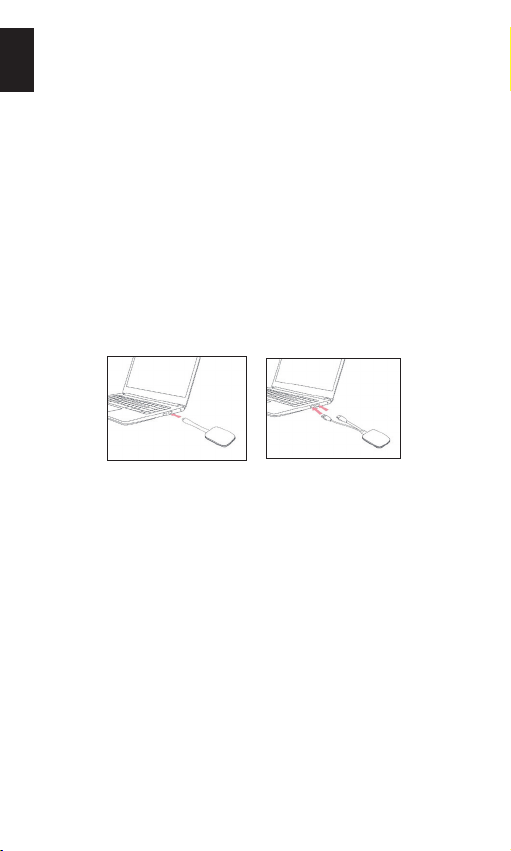
VB-WPS-001
Figure 1 VB-WPS-003
Figure 2
1. Plug-in the ViewBoard® Cast Buon into your Windows
PC or MacBook to pair.
• For VB-WPS-001: Please plug-in to the USB Type C
port (Figure 1).
• For VB-WPS-003: Please plug-in to both the HDMI out
and USB Type A ports (Figure 2).
2. If it is the rst me to pair the ViewBoard® Cast Buon
with your Windows PC, please double click “ViewBoard
Cast.exe” in: PC > CD Drive > ViewBoard Cast.
NOTE:ᅠIf running on a MacBook, please enter the user
password to access the applicaon installaon
permission.
English

3
3. For PC, with the applicaon installed, ViewBoard® Cast
will launch automacally aer the ViewBoard® Cast
Buon is plugged into the PC.
4. The pairing dialogue box will pop up on your PC. Please
enter the Network Name, Password, and the vCast IP
address shown on the IFP/CDE device(s) home screen.
5. Click OK to complete the pairing of the ViewBoard® Cast
Buon and the IFP/CDE device(s) (Figure 3).
Figure 3
6. Remove the ViewBoard® Cast Buon and then plug it in
again to start sharing (Figure 4).
Figure 4

4
7. If the ViewBoard® Cast Buon has been paired, and you
would like to pair it with another IFP/CDE device, please
click the “Pairing-Switch Buon” at the boom right
corner (Figure 5) and re-enter the network informaon
to re-pair the ViewBoard® Cast Buon (Figure 6). Aer
the ViewBoard® Cast Buon is re-paired, please remove
it and plug it in again to start sharing.
Figure 5 Figure 6
ViewBoard IFP/CDE Pairing
You can also plug-in the ViewBoard® Cast Buon into IFP/
CDE device(s) to pair if the IFP/CDE device(s) is connected to
a LAN (Ethernet cable).
For VB-WPS-001:
1. Aach the USB Type C to USB Type A adapter to the VB-
WPS-001 ViewBoard® Cast Buon (Figure 7).
2. Then plug the ViewBoard® Cast Buon into the IFP/CDE
device’s USB port for pairing.
Figure 7
NOTE:ᅠThe USB Type C to USB Type A adapter is for
oponal IFP/CDE device pairing only.

5
For VB-WPS-003:
1. Plug the USB Type A cable into the IFP/CDE device’s USB
port for pairing.
2. A “Pairing” dialogue box will appear.
3. Enter the Network Name and Password, then select
Save to pair (Figure 8).
Figure 8
Screen Sharing
Figure 1
Figure 3 Figure 4
Figure 2
NOTE:ᅠEnsure the ViewBoard® Cast Buon is plugged
into your Windows PC/MacBook.

6
1. When the ViewBoard® Cast Buon is connecng to
your device, the LED indicator will be ashing blue.
Your device is ready for screen sharing when the LED
indicator changes to stac blue (Figure 1).
2. Tap the buon of the ViewBoard® Cast Buon to
share your device’s screen to another display. The
LED indicator will change from blue to white when it’s
successfully connected and sharing (Figure 2).
3. If the LED indicator only ashes white and fails to
connect, please ensure the IFP/CDE device(s) are
working correctly and that the pairing informaon is
entered correctly (Figure 3 and 4).
BYOM
Introducon
ViewBoard Cast Buon’s advanced feature of BYOM (Bring
your Your Own Meeng) lets you use your own laptop to
host a video conference with your preferred conferencing
soware (e.g., Microso Teams, Zoom, and Google Meet).
You can extend your meeng to a ViewSonic IFP/CDE series
device, opmizing workplace producvity.
Tap to share screen
In-room Participants
USB Type-A / Type-C
RJ45
Organization Network
Remote Participant
Remote Participant
NOTE:ᅠViewSonic IFP/CDE series device with built-in or
external USB VB-CAM-201 webcam is required
to use this feature.

7
How to Use the BYOM feature
1. Plug the ViewBoard Cast Buon into your laptop.
2. Start the vCast or the vCastPro and wait for the
ViewBoard Cast Buon to connect with the camera.
NOTE:ᅠConnecon to the camera is established when
the camera icon on the ViewBoard Cast changes
from gray to white.
Figure 1 Figure 2
3. Start a meeng on Microso Teams, Zoom, or Google
Meet from your laptop.
4. Tap the ViewBoard Cast Buon to share content onto
the ViewBoard IFP/CDE device.
5. Select “ViewBoard Cast” as your Microphone/Speaker
source and “ViewBoard Webcam” as your Camera
source from the conferencing soware
NOTE:ᅠRefer to the screenshots on the next page.

8
Conferencing
Software Audio and Video Settings
Microsoft Teams
Audio
Video
Google Meet
Audio
Video
Zoom
Audio
Video

9
Network informaon
• Wi-Fi: 802.11ac 5GHz channel for table on non-DFS
channels in your country.
NOTE:ᅠIn the USA, channels are 36~48 and 149~165.
• Bandwidth: At least 10Mbps in a typical deployment.
Latency shall be less than 50ms for HD video streaming,
more than 10Mbps is required.
• Ports:
TCP 56789, 25123, 8212, 8000, 8600
UPD 48689, 25123
• Port and DNS for acvaon:
Port: 443
DNS: hps://vcastacvate.viewsonic.com
• OTA service:
Server Port: TCP 443
Server FQDN Name:
hps://vcastupdate.viewsonic.com

10
Appendix
Troubleshoong
This secon describes some common problems that you may
experience when using the ViewBoard Cast Buon.
NOTE:ᅠPlease contact your sales representave or IT
department if you are experiencing any further
problems.
Problem or Issue Possible Solutions
ViewBoard Cast
Buon is not pairing
with IFP/CDE device
• Check that the ViewBoard Cast Buon is
plugged into your laptop.
• Check that the LED indicator changes to
stac blue.
LED indicator is only
ashing white
• Check that the IFP/CDE device is working
correctly.
• Verify that the pairing informaon is
entered correctly.
IFP/CDE device cannot
be found in the
conferencing soware
• Re-plug the USB webcam into the IFP/CDE
device and restart the IFP/CDE device.
Audio and/or video is
not outpung from
the IFP/CDE device
• Check the device sengs of the
conferencing soware.
• Check the volume sengs of the laptop
and the IFP/CDE device.
• Restart the IFP/CDE device.
Audio and/or video
stops working during
the conference
• Check that the network signal is strong.
• Check device sengs in the conferencing
soware.
• Re-pair the ViewBoard Cast Buon with
the IFP/CDE device.
• Restart the vCast or vCastPro and
reconnect your laptop to the IFP/CDE
device.
Indice
Lingue:
Altri manuali ViewSonic Hardware di rete
Manuali Hardware di rete popolari di altre marche

Matrix Switch Corporation
Matrix Switch Corporation MSC-HD161DEL Manuale utente

B&B Electronics
B&B Electronics ZXT9-IO-222R2 Manuale utente

Yudor
Yudor YDS-16 Manuale utente

D-Link
D-Link ShareCenter DNS-320L Manuale utente

Samsung
Samsung ES1642dc Istruzioni per l’uso

Honeywell Home
Honeywell Home LTEM-PV Istruzioni per il montaggio