
Visonicom WiFi Display Adapter for Mac OS Manuale utente
EZCast WiFi Display Adapter Instruction Manual for Mac OS
www.ezcast-wifidisplay.com
Page 1/ 17
Instruction Manual for Mac OS
EZCast Universal WiFi Display Adapter
Ver. 1.1
EZCast WiFi Display Adapter Instruction Manual for Mac OS
www.ezcast-wifidisplay.com
Page 2/ 17
Visonicom EZCast WiFi display adapters support Mac OS (Mac PC), iOS (iPhone and iPad), Android (Android
smart phone and tablet PC) and Windows (Windows desktop PC and laptop PC),. So there are 4 versions of
user’s manuals: EZCast manual for Mac OS, EZCast manual for iOS, EZCast manual for Android, and EZCast
manual for Windows. There are slight differences in operation for users running different operation
systems/devices.
This is the Mac OS version for Mac PCs.
The manual will be updated without prior notice.
For general purpose, the Quick Installation Guide is enough for all users.
EZCast WiFi Display Adapter Instruction Manual for Mac OS
www.ezcast-wifidisplay.com
Page 3/ 17
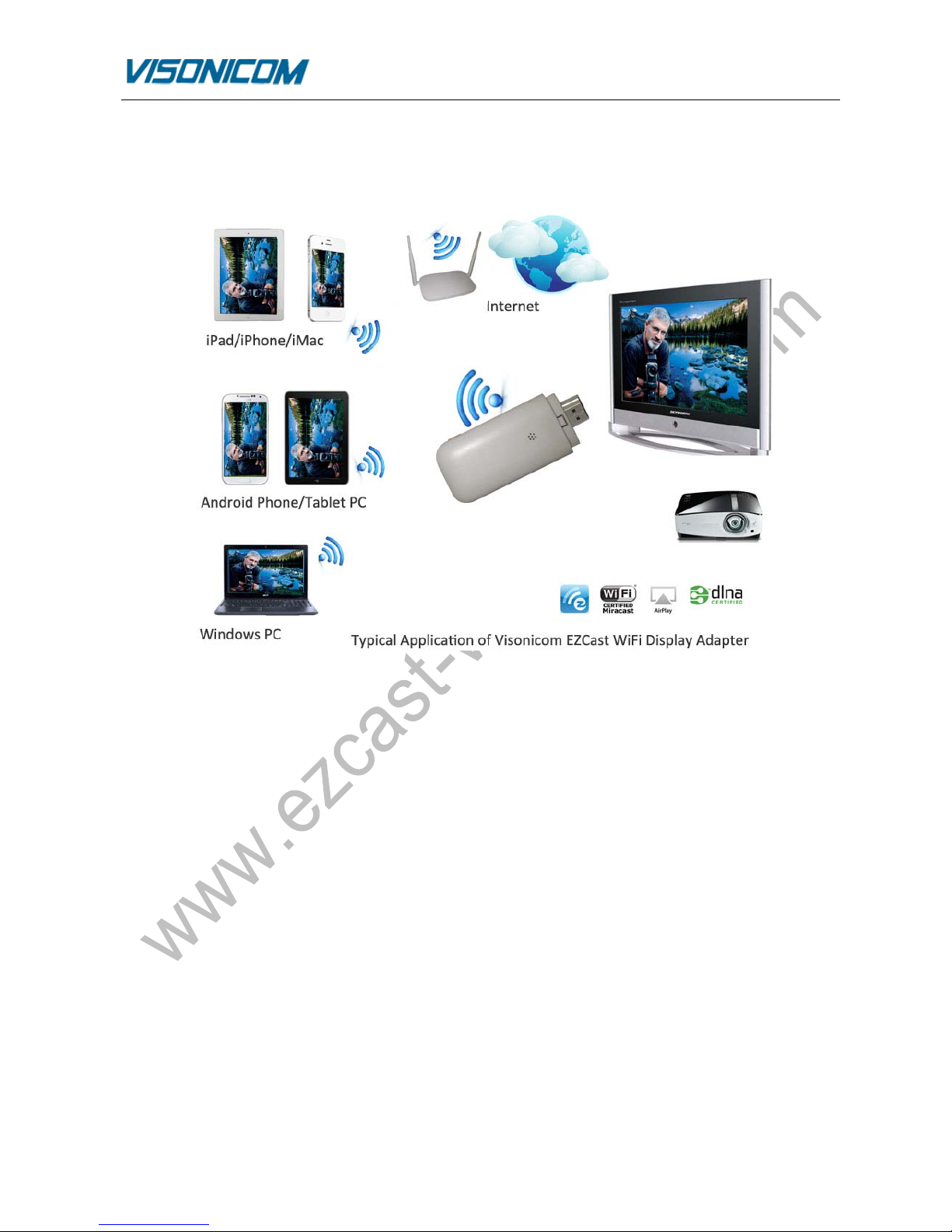
Visonicom EZCast WiFi display dongle series are the first universal cross platform (Mac OS, iOS, Android,
Windows) WiFi display HDMI adapters that support Airplay, WiFi direct Miracast, and DLNA all-in-one
simultaneously, with EZCast WiFi display adapters users can easily cast the videos, photos, games and files
from iPAD/iPhone, Android phones/tablet PCs, PC/Notebook, to HDTV or projector through HDMI port
wirelessly(Run EZCast for all users, or EZAir for iPAD/iPhone users, or Miracast for Android phone/Android
pad users), or push all the video, photo, and files to from the above mentioned devices to HDTV or projector
(DLNA).
Index:
1. Basic Features…………………………………………………………………………………………………………… 4
2. Physical Connection………………………………………………………………………………………………….. 4
3. Operation Tutorial…………………………………………………………………………………………………….. 4
3.1 EZCast Utility Installation……………………………………………………………………………………….. 4
3.2 Get Connected………………………………………………………………………………………………….. 10
3.3 Run EZCast……………………………………………………………………………………………………………. 11
3.4 DLNA……………………………………………………………………………………………………………………. 12
3.5 EZAir (Airplay)………………………………………………………………………………………………………. 12
4. Settings……………………………………………………………………………………………………………………….. 13
4.1 Resolution………………………………………………………………………………………………………….. 13
4.2 Password……………………………………………………………………………………………………………… 14
4.3 Internet Access…………………………………………………………………………………………………….. 14
4.4 Language Setting…………………………………………………………………………………………………… 15
4.5 System Upgrade……………………………………………………………………………………………………. 15
5. Specification……………………………………………………………………………………………………………… 16
6. Troubleshooting………………………………………………………………………………………………………… 16
EZCast WiFi Display Adapter Instruction Manual for Mac OS
www.ezcast-wifidisplay.com
Page 4/ 17
1. Basic Features
Multi OS support: Android, iOS, Windows, Mac OS
Multimode support: Miracast, DLNA, Airplay
Highly integrated Actions SoC (600MHz/1GHz)
Simple to operate
Most compact size and lower consumption under 2w
Fast connection & low latency for superior user experience
H.264 1080P full HD video decode
LPCM Audio Decode
HDMI v1.3 video output
HDCP 2.x
Auto channel selection with high quality video stream
Build in WiFi support IEEE 801.11 b/g/n up to 150Mbps data transfer rate with WiFi Direct capability
Flexible power using TV standard USB port (5V/400mA) or external USB power supply
2. Physical Connection
Simply connect the HDMI port of the EZCast universal WiFi Display Adapter VMD-EZ151 (hereafter refers to
EZCast adapter, EZCast WiFi Display Dongle, the adapter or the dongle) with HDTV, use a HDMI cable in case
of necessary.
Connect the micro USB power port of EZCast adapter with a USB charger or USB port of TV for power supply.
The adapter starts to boot up.
Turn on TV and select current HDMI port. The TV screen will display the booting up status of EZCast dongle.
3. Operation Tutorial
3.1 EZCast Utility Installation
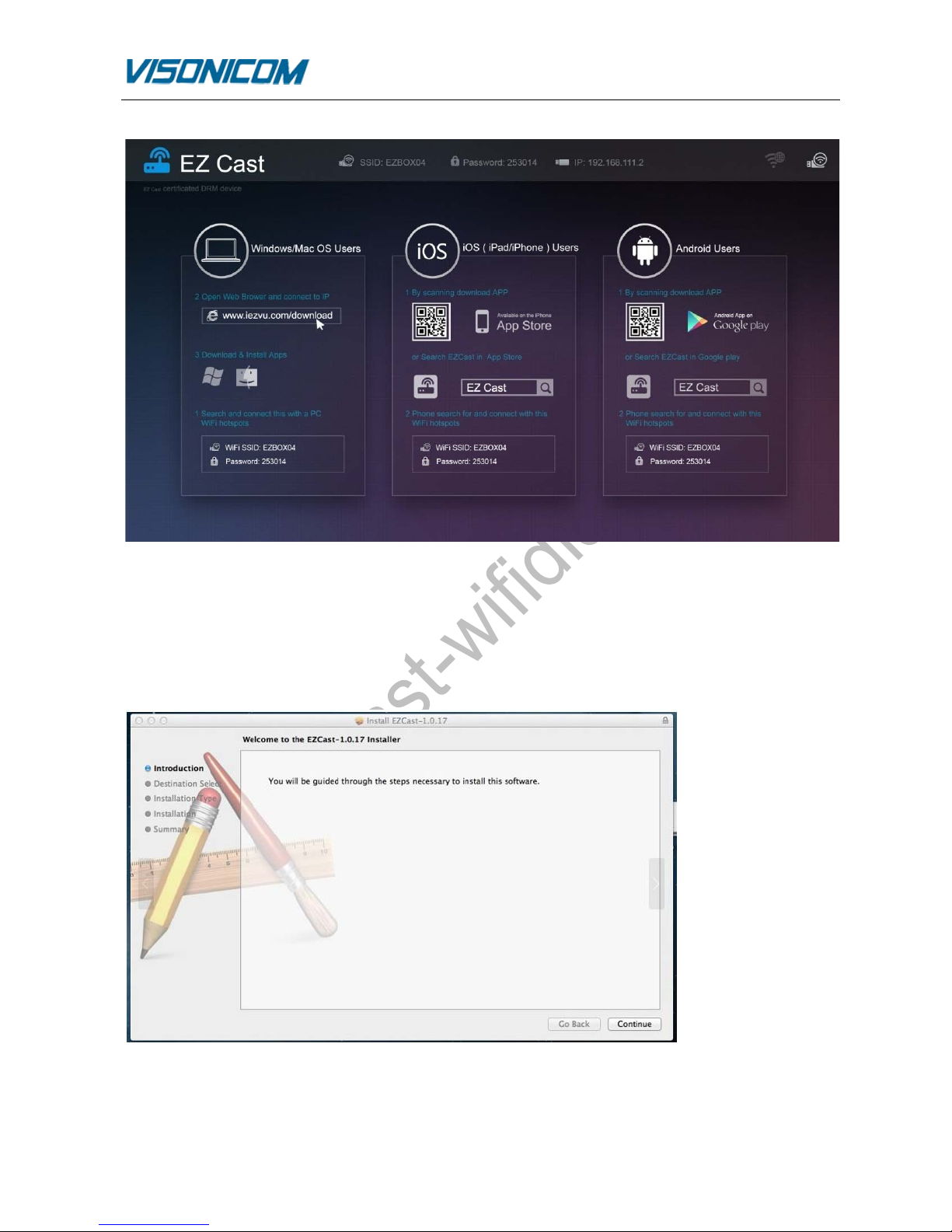
The HDTV screen shows the boot up information. It is the universal display for all OS.
EZCast WiFi Display Adapter Instruction Manual for Mac OS
www.ezcast-wifidisplay.com
Page 5/ 17
From the Screen we can find the EZCast WLAN Info: SSID, Password, and IP address. For instance, the
parameters are SSID (EZBOX04), Password (253014), IP address (192.168.111.2) for the EZCast WiFi display
dongle used for the manual.
Run your browser of your PC; download the EZCast package from our website as prompt on the TV screen.
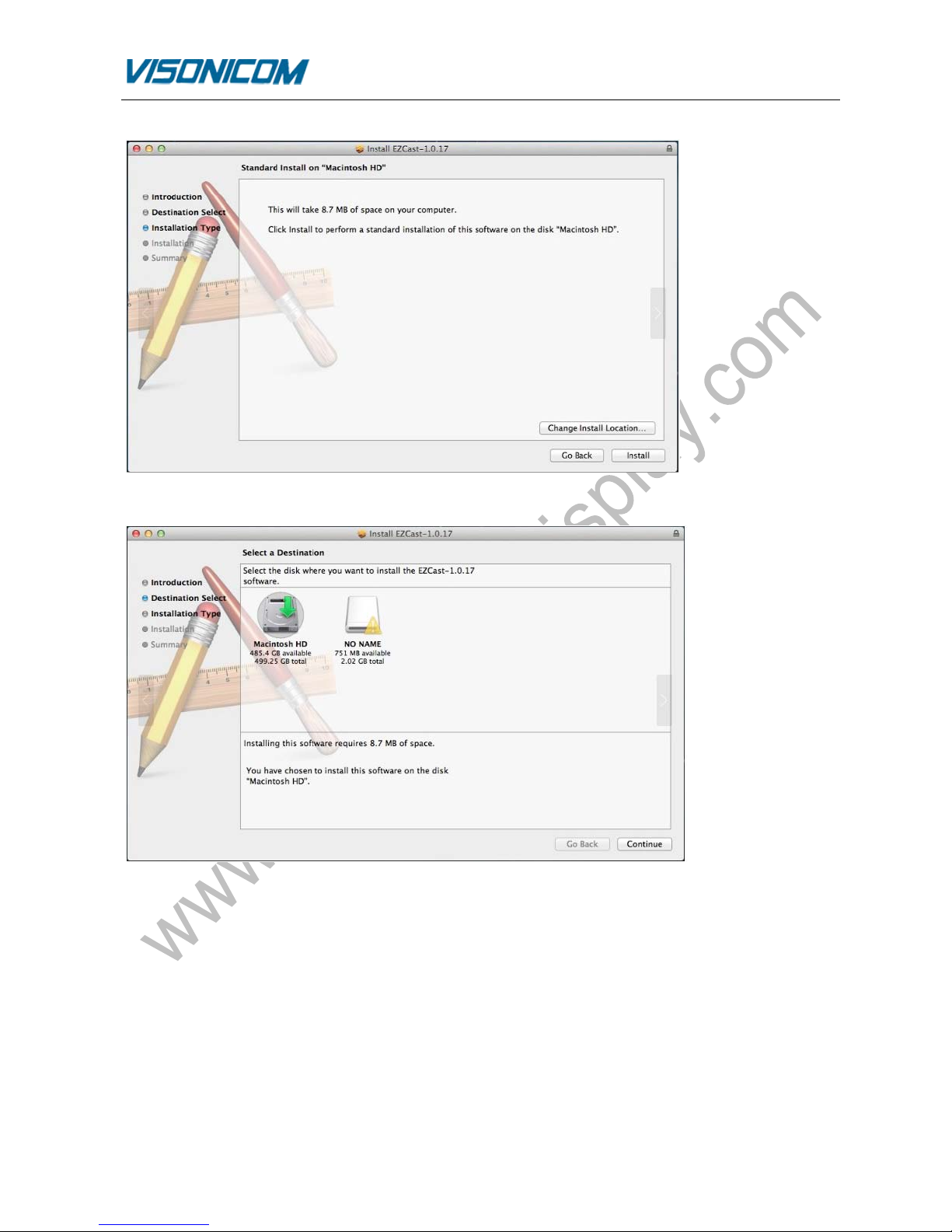
Execute it while the download is done. Now follow the installation procedure on your PC.
Click [Install]
EZCast WiFi Display Adapter Instruction Manual for Mac OS
www.ezcast-wifidisplay.com
Page 6/ 17
Select [Macintosh HD] and click [Continue]
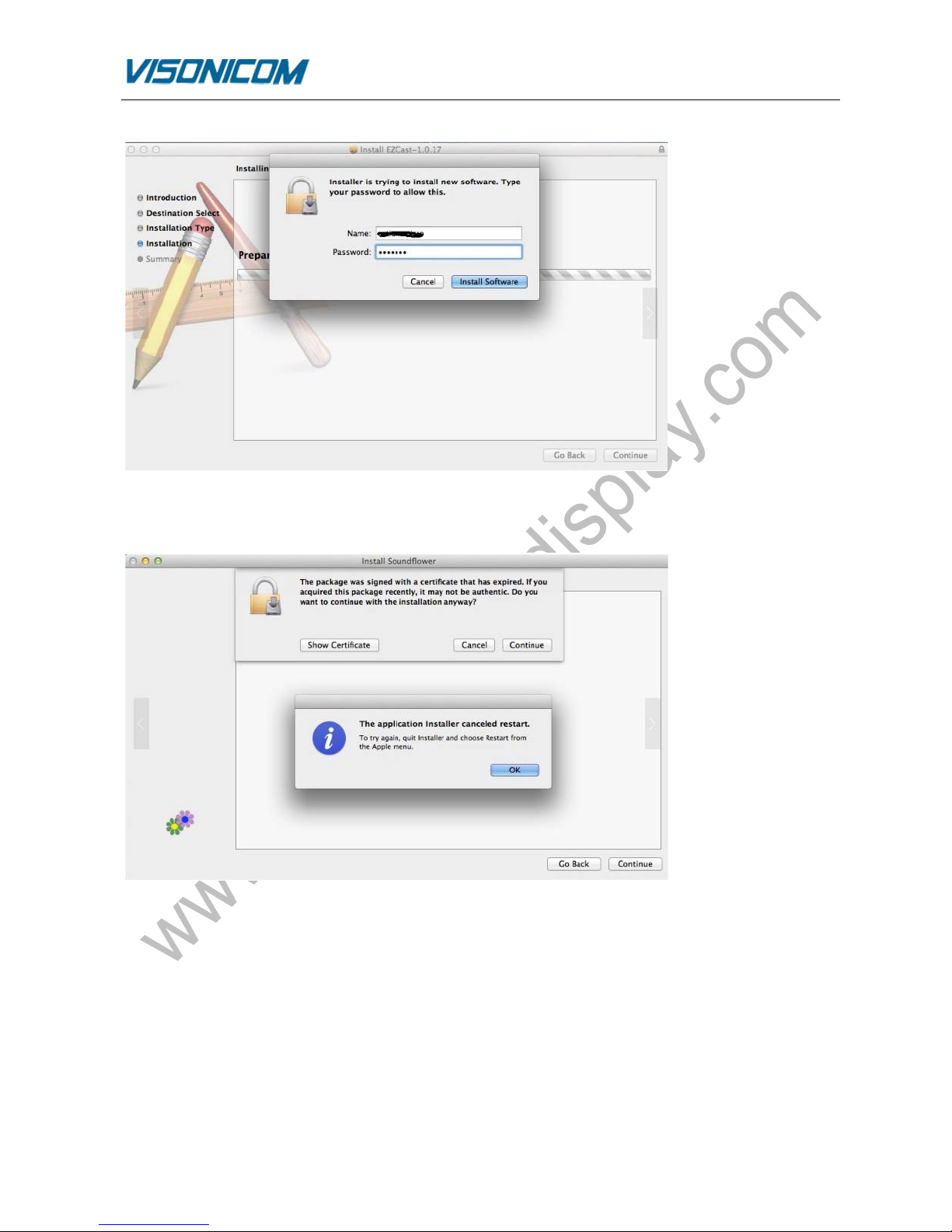
Type the system user name and password to allow the installation
EZCast WiFi Display Adapter Instruction Manual for Mac OS
www.ezcast-wifidisplay.com
Page 7/ 17
Click [OK] and [Continue] to install Soundflower to enable audio cast from Mac PC to EZCast WiFi display
dongle
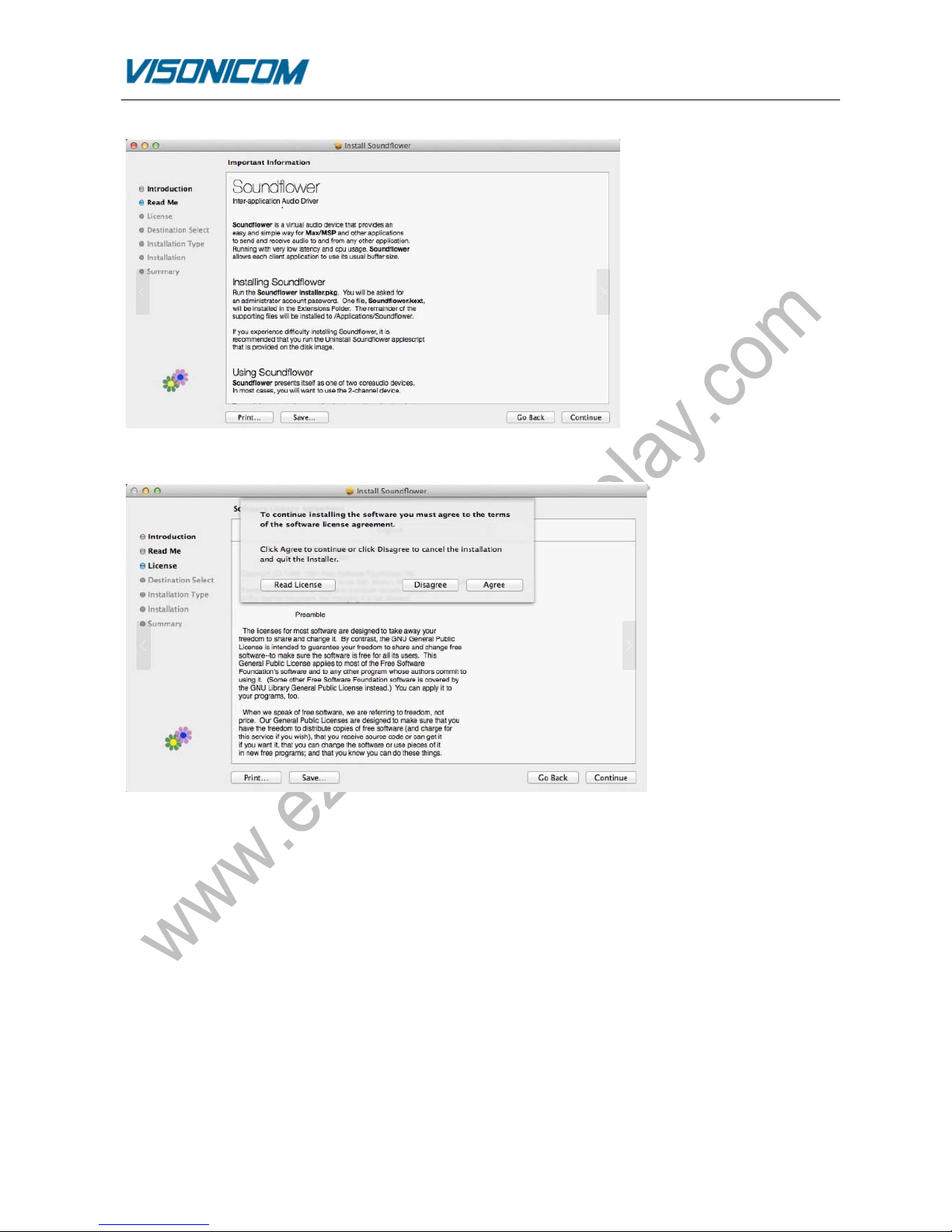
Click [Continue] to install Soundflower
EZCast WiFi Display Adapter Instruction Manual for Mac OS
www.ezcast-wifidisplay.com
Page 8/ 17
Agree License agreement
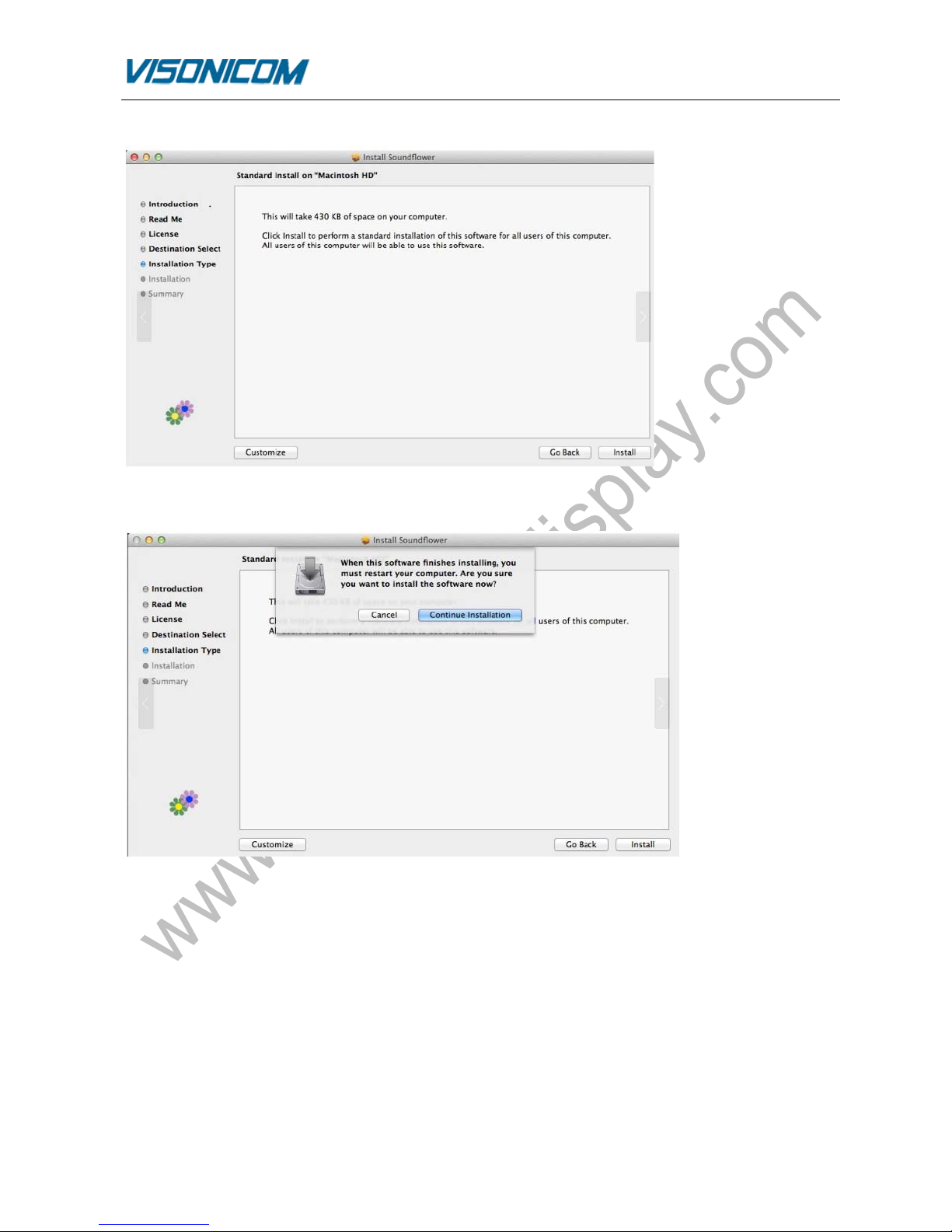
Click [Install]
EZCast WiFi Display Adapter Instruction Manual for Mac OS
www.ezcast-wifidisplay.com
Page 9/ 17
Click [Continue Installation]
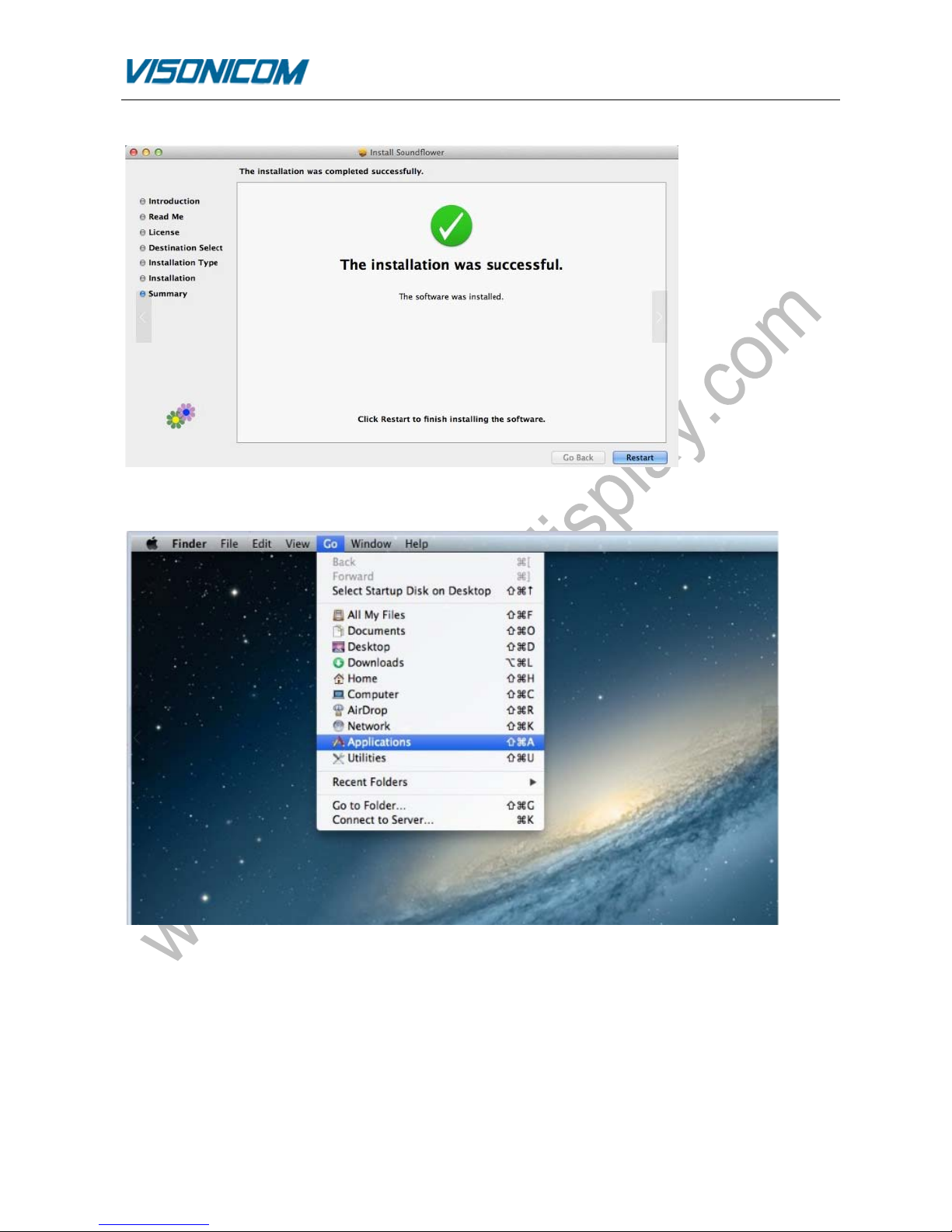
Installation finish. Click [Restart] to allow system restart
EZCast WiFi Display Adapter Instruction Manual for Mac OS
www.ezcast-wifidisplay.com
Page 10 / 17
After restart, you can go to application
3.2 Get Connected
Questo manuale è adatto per i seguenti modelli
1
Indice


