
Vivitar ACTIVE LIFE Manuale utente

FOR ITEM: V80031PDQ-NOC
SKU#2102247
SMART WATCH \ TRUE WIRELESS EARPHONES BUNDLE

INTRODUCTION
1.
Thank you for purchasing the Vivitar Active Life Smart Watch and
True Wireless Earphones Bundle, item V80031PDQ-NOC. You can use
your device to track steps, distance and calories. In order to get the
best results, please read this manual first before using your device.
FEATURES
Smart Watch (SMRTW20-BLK)
-Answer or dial calls directly from the watch connected to a
smartphone via Bluetooth®.
-Built-in heart rate sensor that supports heart rate & sleep
quality monitoring.
-Activity tracker has various sport modes to record your fitness
data.
-Compatible with smartphones that use iOS 8.0/Android OS 4.4
or above.
-Notifications from the smartphone will show up on the watch’s
display for convenience.
True Wireless Earphones (V40088W-NOC)
-Automatic pairing for easy set-up
-Up to 3.5 hours playtime
-Comfort fit
-Answer calls
PACKAGE CONTENTS
-Bluetooth Smart Watch
-True Wireless Earphones Bundle
-Charging Clip with Attached USB Cable
-User’s Manual with Warranty Information
ATTENTION
!
This device is not a
substitute for medical
devices. Always consult a
physician for medical advice.

A QUICK LOOK
2.
When wearing your smart watch, make
sure that the band is tight enough so that
the sensor is making contact with your
skin, but not so tight that it is
uncomfortable.
SMARTWATCH SPECIFICATIONS
-Screen: 1.59” TFT
-Battery: 3.7V, 180mAh Lithium Polymer Battery
-Bluetooth Version: Bluetooth 5.0
-Charging Time: ~1.5 Hours
-Working Time: ~3 Days*
-Compatibility: Android 5.0 and Higher, iOS 9.0 and Higher
*Working time may vary depending on product usage.
DISPLAY
SCREEN
POWER
BUTTON
SMART WATCH

CHARGING
3.
To charge your activity tracker, follow the steps below:
1. Take o your smart watch and fit the back of the head onto the
charging clip. Make sure to connect the charging contacts.
2. Slide the USB plug into a USB port on your computer, or a suitable
DC 5V, 1A USB charging adapter.
3. Once fully charged, the battery status indicator on the display
screen will go from empty to full.
EMPTY FULL
-When connecting to USB port, make sure plug
is inserted correctly.
-If charging icon does not appear, make
sure that the charging clip is fitted properly.
!WARNING
NOTE: Smart Watch Features may not be accessible while device is
charging. Bluetooth may not connect while battery is insucient.

APP INSTALLATION
4.
In order to use your smart watch, you will first need to download the
FitPro App, which is available on the Google Play Store and on the
iPhone App Store.
OR
iPhone Android
Install
FitPro App
App

BLUETOOTH SETUP
5.
To use your smart watch with your smartphone, you will first need to
setup a Bluetooth connection between both devices. To do so, follow
the steps below:
1. Press the power button
on the side of your smart
watch to turn it on.
3. Open the FitPro software
application on your phone
and create an account.
4. If the app’s home page
opens, press the “Set” icon
to access device binding
options.
2. Make sure that your
phone’s Bluetooth is turned
on.

BLUETOOTH SETUP
6.
5. View if your smartphone is paired with your smart watch.
If not, press here to connect.
The app will automatically list any nearby Bluetooth
devices. Select your watch “SMRTW20” to bind it with the app.
6. When the Bluetooth pairing dialog appears, press “Pair”.
“SMRTW20”
“SMRTW20”
7. Open your phone’s Bluetooth setting’s menu and select
the device named “SMRTW20” to connect. Note that you will now
have two SMRTW20 Bluetooth connections. One connection sends
data between your watch and your phone, the other connection is
for audio.

USER SETUP
7.
In order to get the best possible results when using the FitPro App,
enter your personal data before using. To do so, follow the steps
below.
1. Press the “Me” icon in
the lower right hand
corner of the screen.
2. In the user settings menu
you can explore the following
settings:
Personal Information:
Change Avatar and
Nickname. Input your Sex,
Age, Height, Weight, and
Target settings. Change the
units of measurement for
Height and Weight.
Change Password:
Change your FitPro account
password.
About Us:
QR code that leads to the
FitPro app in the app store.
Feedback:
If you have concerns about
your smart watch, FitPro app
or connecting your device,
send feedback.

ACTIVITY
8.
When you open the FitPro software
application, the main activity panel will
appear, showing your distance traveled,
calories and goal status for the day.
Press each panel to
get a health rating,
blood pressure or
sleep measurements.
Press the “Healthy habits”
panel to manage and keep
track of your healthy habits.
Disclaimer:
App is not a substitute for medical or health advice. For
medical and health advice seek a medical professional.
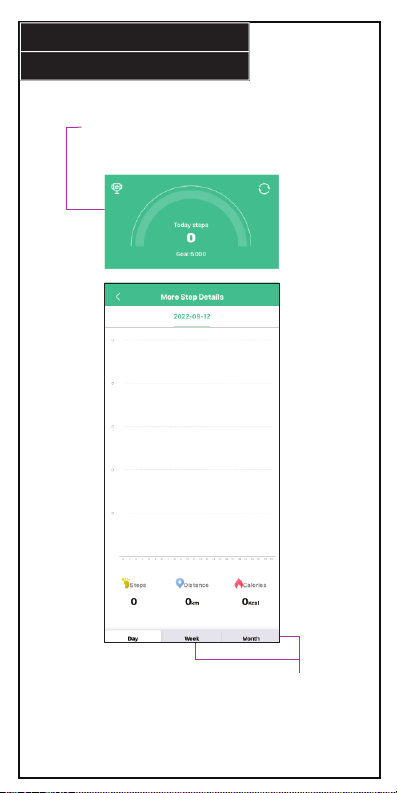
Press the top panel to
get a more detailed
report of your activity
with daily, weekly and
monthly tracking.
Press the week and
month buttons at the
bottom for an average
reading of steps,
distance and calories.
ACTIVITY
9.
Questo manuale è adatto per i seguenti modelli
2
Indice
Altri manuali Vivitar Orologio


