
Voyage Audio Dante Manuale utente
Spatial Mic Dante
User Guide
Version 1.0

Voyage Audio Spatial Mic
User Guide
Package Contents 3
Introduction 3
Requirements 4
Getting To Know Spatial Mic Dante 6
Mounting 6
Power Over Ethernet (PoE) 6
Outputs 7
Using Your Microphone 8
Positioning 8
Care & Maintenance 8
Thermal 8
Dante Setup 9
About Dante 9
Dante Controller 9
MicNet Control 10
Overview 10
Using MicNet Control 10
Software Installation 15
Spatial Mic Converter 17
Overview 17
Specifications 18
Warranty 20
Certifications 20
Support & Contact 22
Third Party Tools & Notices 23
2

Voyage Audio Spatial Mic
User Guide
Package Contents
● Spatial Mic Dante
● ¼-20 to ⅝’’ mini swivel ball hard-mount
● Foam windscreen
● For Download:
○ Spatial Mic Converter VST®plugin (Mac OSX & Windows) and AAX (Mac OSX)
○ MicNet Control app (Mac OSX & Windows)
○ User Manual
Introduction
Thank you for purchasing Spatial Mic Dante. With 8 capsules, Spatial Mic Dante precisely
captures the entire soundfield while providing output flexibility for critical recording and live
broadcast using built-in Dante audio networking. Using Voyage Audio’s MicNet Control
application, Spatial Mic Dante can directly output 1st order Ambisonics, 5.1, 5.1.2, or 7.1
surround sound, virtual mic stereo or mono pairs and the raw unprocessed audio from the
capsules. For the most flexibility and highest quality, the Spatial Mic Converter plugin can be
3

Voyage Audio Spatial Mic
User Guide
used with the unprocessed audio from Spatial Mic to open up more output options like 2nd
Order Ambisonics, 7.1.4 surround sound, and a wider variety of virtual mono/stereo microphone
outputs including mid-side.
Spatial Mic captures the entire soundfield - letting you focus on recording immersive audio for
VR, surround sound, spatial music, concert recording, live broadcasts and much more.
● Enhanced spatial resolution, pattern decoding, directivity & optimal listening area vs mics
with fewer capsules
● Easy connectivity and routing using Dante™ audio networking
● Configurable output for surround sound, ambiX & virtual mics
● Dante audio network interface up to 32-bit / 192 kHz
● Capture quiet nature sounds or loud concerts with capsule SNR of up to 78dB-A and
136 dB Max SPL
● Individually calibrated for balanced array
● Professional quality analog to digital conversion, high resolution Skyworks clocking
scheme and built-in 32-bit XMOS Processor
● DAW plugin (VST & AAX) and MicNet Control app for remote configuration
Streamlining the spatial audio workflow when dealing with multi-channel microphone arrays was
a top priority during the development of Spatial Mic Dante. Dante audio networking utilizes
standard IP networks to transmit high-quality, uncompressed audio with near-zero latency. It's
the most economical, versatile, easy-to-use audio networking solution, and is scalable from
simple installations to large-capacity networks running thousands of audio channels. With Dante
audio networks routing audio is simple as a few mouse clicks.
Continuing with our tradition of single cable connected products, Dante replaces multiple analog
or multicore cables with a single affordable Ethernet cable to transmit high-quality multi-channel
audio safely and reliably. Dante is the audio networking choice of nearly all professional audio
manufacturers. With thousands of Dante-enabled audio products available Spatial Mic Dante
can be natively connected to a large and growing audio networking ecosystem.
We are excited for you to start working with Spatial Mic Dante. Please read this user manual
and get to know everything this microphone package has to offer.
Requirements
● Power: Network switch or injector that provides Power over Ethernet (PoE) supporting
IEEE 802.3af.
● Cat5e (or better) Ethernet cable
●Dante Controller for routing the audio signal (available for free)
●MicNet control and Spatial Mic Converter plugin software installed on a computer
4

Voyage Audio Spatial Mic
User Guide
○ Spatial Mic Converter plugin and MicNet control have been tested to work on
Apple Intel and M1 machines running Mac OSX 10.11 and higher or Windows 10
○ Spatial Mic Dante can also work stand alone and will recall the last saved
settings
● For recording, a DAW supporting multi-channel audio tracks like Reaper,Pro Tools
Studio,Pro Tools Flex or Nuendo
5
Voyage Audio Spatial Mic
User Guide
Getting To Know Spatial Mic Dante
Mounting
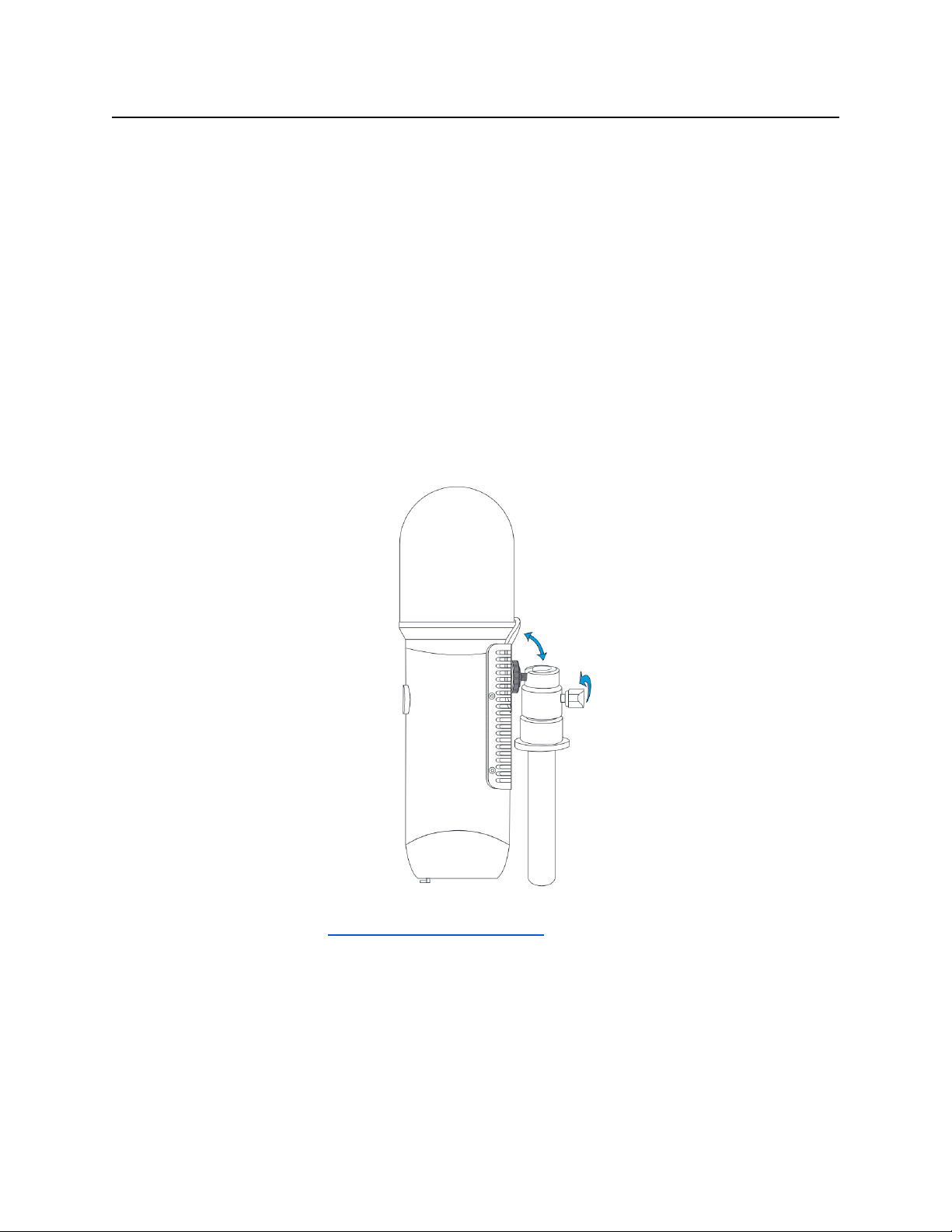
A ¼-20 thread mount on the back of the mic allows for a multitude of mounting options. The
included mount enables mounting to a standard microphone stand.
1. Screw the included ¼-20 to ⅝’’ mini swivel ball hard-mount into the ¼-20 threads on the
back of Spatial Mic.
2. Screw the bottom of the mount into a microphone stand.
3. Use the ball mount to adjust the angle of the microphone.
Note: This method does not provide acoustic isolation from the mic stand.
For acoustic isolation, use a Rycote InVision shockmount (sold separately). Place Spatial Mic
Dante in the shockmount so that the mounting screws do not come in contact with the heat sink.
Ensure the microphone cannot slip out of shockmount.
Power Over Ethernet (PoE)
This device requires Power Over Ethernet (PoE) to operate and is compatible with IEEE 802.3af
Class 0 power sourcing equipment that uses Alternative A (power on data pair) or Alternative B
6

Voyage Audio Spatial Mic
User Guide
(power on spare pair) options. Power over Ethernet is most commonly delivered by a network
switch or injector.
To power the mic simply plug a PoE compatible CAT5E or better ethernet cable into the
microphone and the other end into a switch or injector. After a moment, the lights on the bottom
of the mic should become active indicating the microphone is receiving power.
Outputs
Use the locking RJ45 etherCON jack on the bottom of Spatial Mic Dante to connect a Cat5e (or
better) Ethernet cable for single wire connectivity to a Dante™ audio network or AES67 RTP
network.
7

Voyage Audio Spatial Mic
User Guide
Using Your Microphone
Positioning
The VA badge on Spatial Mic Dante indicates the front or ‘zero’ degree position. This
corresponds to the direction the ‘head’ image is facing in Spatial Mic Converter Plugin when in
its default state. When recording audio for 360 video, you will probably want to orient the front of
the microphone to correspond to the front of the camera (normal orientation), but please note
that the Spatial Mic Converter plugin ‘orientation’ button can change the orientation of the mic
after recording to be ‘end-fire’ or ‘inverted’.
Care & Maintenance
● Spatial Mic features robust mechanical, however you should always try to handle the
microphone carefully and avoid dropping or sudden shocks.
● Clean microphone body with a clean, dry cloth. With the headbasket detached, you may
clean both sides with a slightly damp cloth and re-attach when dry.
● Keep working distance at least 6 inches from the microphone.
● Avoid leaving Spatial Mic in extreme temperatures, humidity or direct sunlight for
extended periods of time.
● Use the included windscreen to protect the capsule array from wind and moisture as
needed.
● Do not over-bend cables as this may cause them to break or become intermittent.
● Spatial Mic Dante is factory calibrated before shipping
Thermal
Like many network devices, Spatial Mic Dante generates heat and is cooled by natural
convection using an aluminum heat sink. It is recommended to not touch the heat sink during
operation.
The maximum temperature of the operating environment should not exceed 45 degrees Celsius.
It is recommended to power down Spatial Mic when not in use and keep away from prolonged
exposure to direct Sun.
8

Voyage Audio Spatial Mic
User Guide
Dante Setup
About Dante
Developed by Audinate, Dante enables digital audio distribution over standard Ethernet
networks. Dante allows audio, control, and all other data to coexist on the same network in an
ultra-low latency environment and with near-perfect synchronization. The Dante Controller
software and network management features make even the most complex network
configuration quick and easy.
Dante Controller
Dante Controller is a software application provided by Audinate which allows users to configure
and route audio and video around Dante networks. All settings such as clock, sample rate,
routing, streams and, etc. are all done within the Dante Controller. Dante Controller is free
software available for Windows and Mac, and can be downloaded on Audinate’s Website.
Dante Controller offers automatic device discovery, one-click signal routing, device status
information, real-time network monitoring including device-level latency and customized event
logging. At startup Dante Controller scans the network for connected Dante devices and shows
them automatically in the Network View.
User guides, FAQs, technical documentation, and more about Dante and the Dante
Controller software is available at https://www.audinate.com/support
9

Voyage Audio Spatial Mic
User Guide
MicNet Control
Overview
The MicNet Control application enables users to monitor and adjust the output settings of
Spatial Mic Dante from a computer connected to the same network as the microphone. Note
that MicNet control does not process audio itself - it controls the audio processing within a
connected microphone. The microphone’s output can be changed between raw unprocessed
audio, 1st order Ambisonics, surround sound, and virtual mic stereo or mono pairs. MicNet also
includes mic gain control, level metering, mic orientation, mute, network status, as well as
sample rate and bit depth information.
MicNet Control communicates with the microphone through the same Ethernet cable used to
supply PoE and stream audio data over the network. After configuring Spatial Mic Dante with
MicNet control you can stream or record over a Dante™ audio network or AES67 RTP network.
Features
● Adjust multiple Spatial Mics from a single application
● Configure the internal microphone DSP to transform the array output for streaming or
recording directly from the mic
● Output formats:
○ Unprocessed (raw audio signals that will later be transformed with the Spatial Mic
Converter plugin)
○ 1st order Ambisonics in ambiX format
○ 5.1, 5.1.2, or 7.1 surround
○ First order virtual mic pattern decoding: cardioid through figure-8 (mono) and
stereo X/Y to Blumlein (crossed fig-8)
● Mic gain control, orientation correction and mute controls
● Level meters with clip indication of audio on the Dante network
● Network status indication
● ID Spatial Mic visually (flashes the gigabit and network active LEDs on bottom of mic)
● Lock the output selection to guard against unwanted changes during a performance
Using MicNet Control
Launch MicNet Control from a computer connected to the same Dante™ audio network as the
microphone you want to control.
10
Indice
Altri manuali Voyage Audio Microfono


