
Waves Hear Back PRO Manuale utente

Hear Back PRO
SoundGrid Card
User Guide

Hear Back PRO SoundGrid Card / User Guide
2
Contents
INTRODUCTION................................................................................................................................................................. 3
HARDWARE AND CONNECTIONS ................................................................................................................................... 4
GETTING STARTED........................................................................................................................................................... 5
Connect the Hardware ..................................................................................................................................................... 5
One I/O......................................................................................................................................................................... 5
Add I/Os ....................................................................................................................................................................... 6
Download and Install Software ........................................................................................................................................ 7
Configure the System ...................................................................................................................................................... 8
Manual Device Configuration ....................................................................................................................................... 9
Automatic Device Configuration ................................................................................................................................... 9
Device Firmware ........................................................................................................................................................ 10
Identify a Device on the SoundGrid Network.............................................................................................................. 10
HEAR BACK PRO SOUNDGRID CARD CONTROL PANEL............................................................................................ 11
Clock Page .................................................................................................................................................................... 12
System Info Page and About Page................................................................................................................................ 14
Presets.......................................................................................................................................................................... 14
USING AN I/O DEVICE WITH A DAW .............................................................................................................................. 15
RESETTING THE UNIT .................................................................................................................................................... 16
Waves Inc
2800 Merchants Drive, Knoxville, TN 37912 USA
1-865-909-9200
www.waves.com

Hear Back PRO SoundGrid Card / User Guide
3
Introduction
The Hear Back PRO Waves SoundGrid card enables a Hear Back PRO Hub to communicate with any pro audio
equipment on a Waves SoundGrid network, including directly out of a PC or Mac using only its Ethernet port. Each card
connects 16 channels of simultaneous audio input and output. Two cards can be used per Hub to allow A/B input
switching between two banks of 16 channels over standard Ethernet network connections.
The card supports sampling rates of 44.1 kHz, 48 kHz, 88.2 kHz, and 96 kHz.
SoundGrid is the Waves high-speed networking protocol for moving audio, clock, and other information between a host
system and I/O devices—and between I/O devices themselves. A SoundGrid host manages the network and assigns
servers and I/O devices to mix, process, and record, depending on the host. All SoundGrid devices connect to the host
with standard Ethernet cable.
SoundGrid is scalable. Connect one I/O device to a DAW and you have a high-quality sound card. Add more I/Os and
your system becomes more flexible and powerful. Depending on the host application, a SoundGrid host can assign up to
sixteen I/O devices. Complete SoundGrid systems can be networked together to share devices.
Add a server to a SoundGrid system to offload plugin processing from the host CPU to a SoundGrid DSP server. This
dramatically increases processing power and enables greater plugin counts—it also provides very low system latency.

Hear Back PRO SoundGrid Card / User Guide
4
Hardware and Connections
The SoundGrid port (Ethernet)
connects to the SoundGrid Network.
There are two LEDs on the port itself,
and a third LED to the right of it.
The two LEDs on the port itself
indicate network status:
Link/Activity = flashing green
GigE connection = solid orange
The STATUS LED to the right indicates card status:
SoundGrid network found = blue
SoundGrid network not found = flashing red
Firmware update in progress = yellow
Hardware error = white
Device ID mode = revolving colors
Recovery/reset button

Hear Back PRO SoundGrid Card / User Guide
5
Ethernet
SoundGrid
Getting Started
Configure SoundGrid and assign your devices as follows, however large or small your system.
Connect the hardware.
Install the software.
Configure your system.
Connect the Hardware
One I/O
In this example, one Hear Back PRO SoundGrid interface card is used to connect a Hear Back PRO hub to the
SoundGrid host. The SoundGrid ASIO/Core Audio driver can be used for plugin processing and/or DAW
playback/recording. The interface is connected directly to the host using a Cat 5e Ethernet cable or better.
SoundGrid Host computer
Hear Back PRO Mixer
Hear Back PRO Hub
Hear Back PRO Waves SoundGrid card
The host computer’s LAN port that’s connected to the SoundGrid network should be used for SoundGrid only. Do not
share this port with the internet or other networks.
In this configuration, all plugin processing is carried out on the host computer. The speed and power of the host defines
overall latency.

Hear Back PRO SoundGrid Card / User Guide
6
SoundGrid
Ethernet
Add I/Os
Adding SoundGrid I/O devices not only increases the number of I/O channels, but lets you have separate devices for
stage and FOH, or live room and control room. When you have more than one device in the SoundGrid network, use a
"star" network configuration with a 1GB Ethernet switch. Only use switches tested and approved by Waves.
Host computer
Hear Back PRO mixer
Hear Back PRO Hub
Hear Back PRO Waves SoundGrid card
SoundGrid I/O device
1 GB Ethernet switch
See this support article for a list of supported
switches.
You can connect and assign up to 16 SoundGrid I/O devices to the network, depending on the SoundGrid Host
Application. All SoundGrid I/O devices, hosts, and servers are connected through the Ethernet switch. You can also add
more computers to enable streaming between hosts. Two Hear Back PRO cards can be populated per Hub to allow A/B
input switching between two banks of 16 channels and up to four cards can be populated to allow A/B input switching, as
well as a second set of dedicated SoundGrid outputs.
ADD A SERVER
To add a server to your SoundGrid system, just connect it to the Ethernet switch and configure it in your host application.
This moves all DSP processing from the host computer to the server, which provides a higher plugin count and enables
the eMotion LV1 and ST mixers. Visit the waves.com hardware pages to learn more about SoundGrid servers. Consult
your SoundGrid host application’s user guide to learn about using servers.

Hear Back PRO SoundGrid Card / User Guide
7
Download and Install Software
INSTALLING A NEW SOUNDGRID HOST SYSTEM
Installing the Waves SoundGrid host application will also install the SoundGrid ASIO/Core Audio driver and applicable
device drivers. Your devices will appear in the Inventory of your host system. If a device is not visible in the Inventory,
you may need to install a specific driver from Waves Central—please see below. First, however, check the device’s
connections and power.
ADDING AN I/O DEVICE TO AN EXISTING SOUNDGRID HOST SYSTEM
If you are already using a Waves SoundGrid host application and your device does not appear in the Network Devices
list, use Waves Central to update the host application, which also updates the device drivers—or install just the missing
device driver from Waves Central.1
Waves Central
All Waves software is downloaded and installed via the Waves Central application. To install a specific device
driver, launch Waves Central and follow these steps:
Choose All Products
Search for the driver by name
Choose the driver and click Install
If you are new to Waves products, begin by downloading the Waves Central installer from the Waves Download
Page. See the Waves Central User Guide for instructions on how to install drivers, plugins, and applications.
LICENSES
You do not need a license to use this device. However, many hosts or specific host configurations do require a license.
Refer to your host’s product page for details.
1The SoundGrid QRec host is installed with any I/O.

Hear Back PRO SoundGrid Card / User Guide
8
Configure the System
A SoundGrid network is configured and devices are assigned in a host’s Setup window. At the heart of this window are
racks where devices are assigned. Any compatible device that’s part of the host’s SoundGrid network will be available for
assignment. This collection of devices is called the Inventory. Setup is similar with all hosts: identify the host’s LAN port,
select a device slot, and use the drop-down menu to choose an available device. Please consult the user guide of your
host application for specific instructions
All SoundGrid devices are configured in a very similar manner. Throughout this section, we show DiGiGrid IOS as
an example.
SoundGrid QRec
SoundGrid Studio Setup Window

Hear Back PRO SoundGrid Card / User Guide
9
Manual Device Configuration
You can assign, remove, and manage a device manually. Click on the plus or arrow
symbol in a device slot to open its the Device Menu. Select a device.
Any device not already used will be available for assignment. If no other devices are
assigned, the current device will become your clock master. Drivers and servers are
assigned in the same manner.
See the user guide of your host system for specific instructions on device
assignment and I/O channel patching.
Automatic Device Configuration
Certain SoundGrid hosts—including SoundGrid Studio, eMotion LV1 or SuperRack SoundGrid—offer an Auto-
Config tool. Once your devices are connected and powered up, click Auto Config to start the configuration.
Auto-Config chooses the correct LAN port on the host computer and scans the SoundGrid network for devices. It then
patches the devices to the host. We recommend that you let Auto-Config take care of things, at least when you are
getting started. If later you add, remove, or swap a device, Auto-Config will reconfigure your inventory and re-patch.
Note that SoundGrid Studio assigns the SoundGrid driver automatically. SuperRack SoundGrid and eMotion LV1
require that the SoundGrid ASIO/Core Audio driver is assigned manually.
SoundGrid QRec
SoundGrid Studio
Hear Back PRO SoundGrid Card / User Guide
10
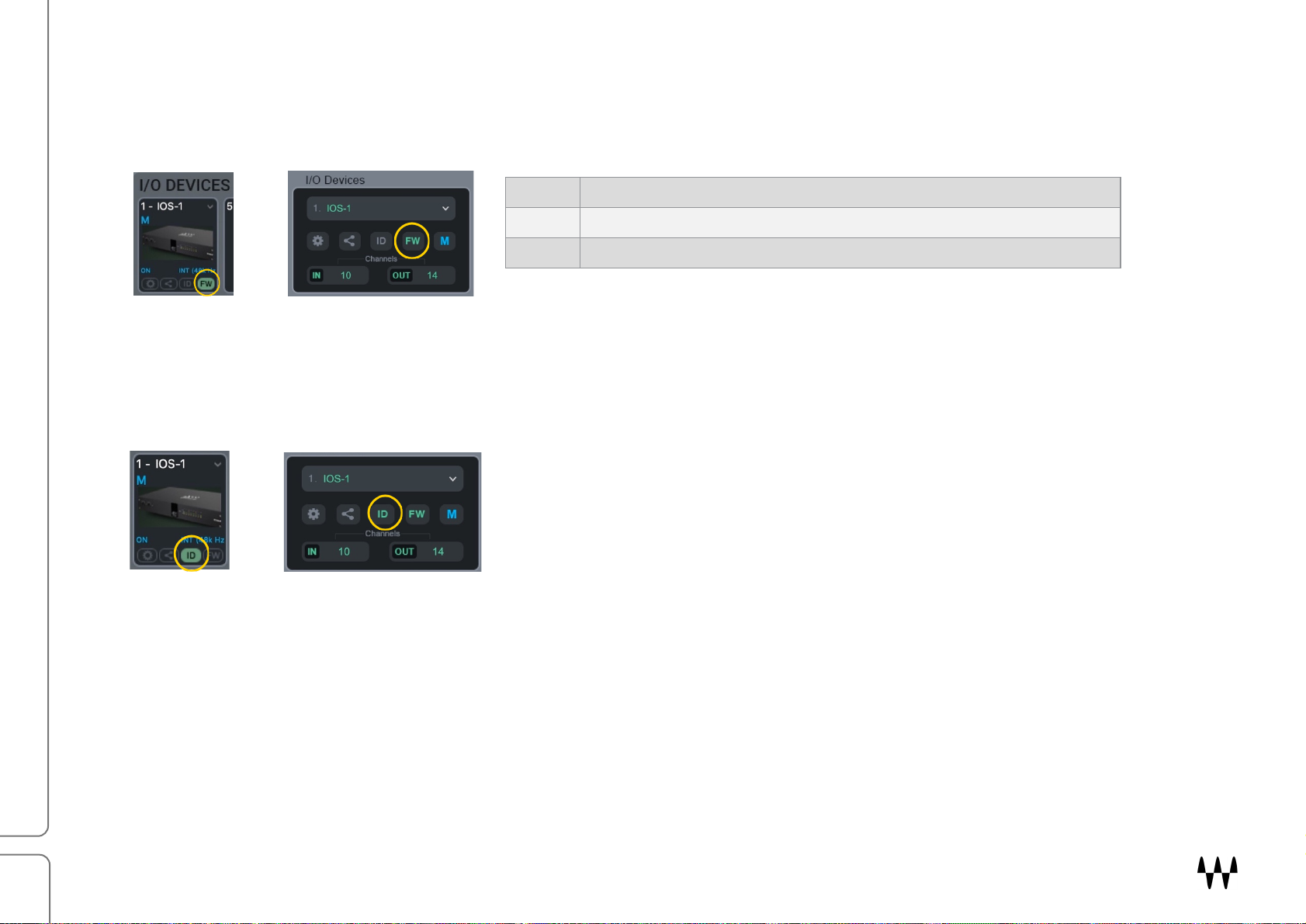
Device Firmware
An I/O that is using outdated or incompatible firmware will not work properly in a SoundGrid network until its firmware is
updated. The color of the FW button in a device slot indicates the current firmware status.
If a device requires updated firmware, click on the FW button to start a hardware scan. Do not disconnect the device or
turn off the computer before Done appears. Once the update is ready, turn the device off and on to reset.
Identify a Device on the SoundGrid Network
Click on the ID button to activate a hard-to-miss LED on the panel of the
corresponding hardware device. You can also activate the LED from the top
bar of the device’s control panel.
Grey Compatible firmware
Blue Compatible firmware, but a newer version exists
Red Firmware not compatible and must be updated in order to use
SoundGrid QRec
SoundGrid Studio
SoundGrid QRec
SoundGrid Studio
Indice
Manuali Sistema di altoparlanti popolari di altre marche


Sondpex
Sondpex Active Speaker System and Digital Music... Manuale utente

JVC
JVC NX-PN7 Manuale utente

Marshall Amplification
Marshall Amplification AR-DM61-BT Manuale utente

Yamaha
Yamaha NX-A01 - Speaker Sys Manuale utente

SE Audiotechnik
SE Audiotechnik I-LINE Manuale utente

Gemini
Gemini WRX-843 Series Manuale utente