WePresent SharePod WHE-100 Manuale utente

1
wePresent
SharePod
User's Manual
Model : WHE-100
Version: 0.5

2
Table of Contents
1 OVERVIEW .......................................................................................................................................... 3
2 PACKAGE CONTENTS.............................................................................................................................. 4
3 PHYSICAL DETAILS ................................................................................................................................. 4
4 WHAT YOU NEED ................................................................................................................................. 5
5 WEPRESENT SHAREPOD PAIRING.............................................................................................................-5
5.1 AUTO PAIRING ................................................................................................................................ 5
5.2 MANUAL PAIRING............................................................................................................................ 6
6 WEPRESENT SHAREPOD MIRRORING ........................................................................................................ 7
6.1 SHAREPOD MIRRORING.................................................................................................................... 7
6.2 ADVANCED COLLABORATION WITH WEPRESENT..................................................................................... 8
7 WEB ADMIN........................................................................................................................................ 9
7.1 LOGIN ADMIN PAGE......................................................................................................................... 9
7.2 SYSTEM STATUS............................................................................................................................... 9
7.3 DEVICE SETUP .............................................................................................................................. 10
7.4 NETWORK SETUP .......................................................................................................................... 11
7.5 WIFI SETUP ................................................................................................................................. 11
7.6 CHANGE PASSWORDS ..................................................................................................................... 12
7.7 RESET TO DEFAULT......................................................................................................................... 13
7.8 FIRMWARE UPGRADE ..................................................................................................................... 13
7.9 REBOOT SYSTEM ........................................................................................................................... 15
7.10 LOGOUT ...................................................................................................................................... 15


3
1Overview
wePresent SharePod is a unique pairing solution to wirelessly connect an HDMI source
to a wePresent device, enabling seamless collaboration in meetings and classrooms.
Connecting an HDMI cable to the SharePod allows full mirroring of audio and video
from supported HDMI sources to a display or projector, without any software
installation or other configuration required.
Furthermore, you can utilize the advance features on the wePresent device such as the
4-to-1 projection, Annotation, WebSlides and Conference Control for better meeting
room or classroom collaboration.
Key Features
Wireless audio/video mirroring from HDMI video source. (Up to 1080p 30FPS)
WiFi 802.1a/b/g/n (5G/2.4G WiFi Station Mode)
Auto Pairing through USB.
Support wePresent 4-to-1 quadrant projection.
Support wePresent Conference Control feature.
Support wePresent WebSlides feature.
Support wePresent Annotation feature.
Web Management and Web Firmware Upgrade.

4
2Package Contents
wePresent SharePod device
Power Adapter (DC +5V, 1.2A)
Setup Guide
Warranty Card
CE DoC
3Physical Details

5
Description
Play/Stop Button Press button to start/stop mirroring.
HDMI In HDMI source input.
Micro USB USB 2.0 port for device pairing.
Ethernet 10/100M RJ-45 port.
Power Jack Power Jack 5V/1.2A
Reset Button Hardware reset to factory default settings.
4What You Need
wePresent WiPG device
Projector or display with VGA or HDMI interface
HDMI source such as Document Camera, Digital Microscope,
Laptop, or DVD Player.
Micro USB cable, HDMI Cable
5wePresent SharePod pairing
5.1 Auto Pairing
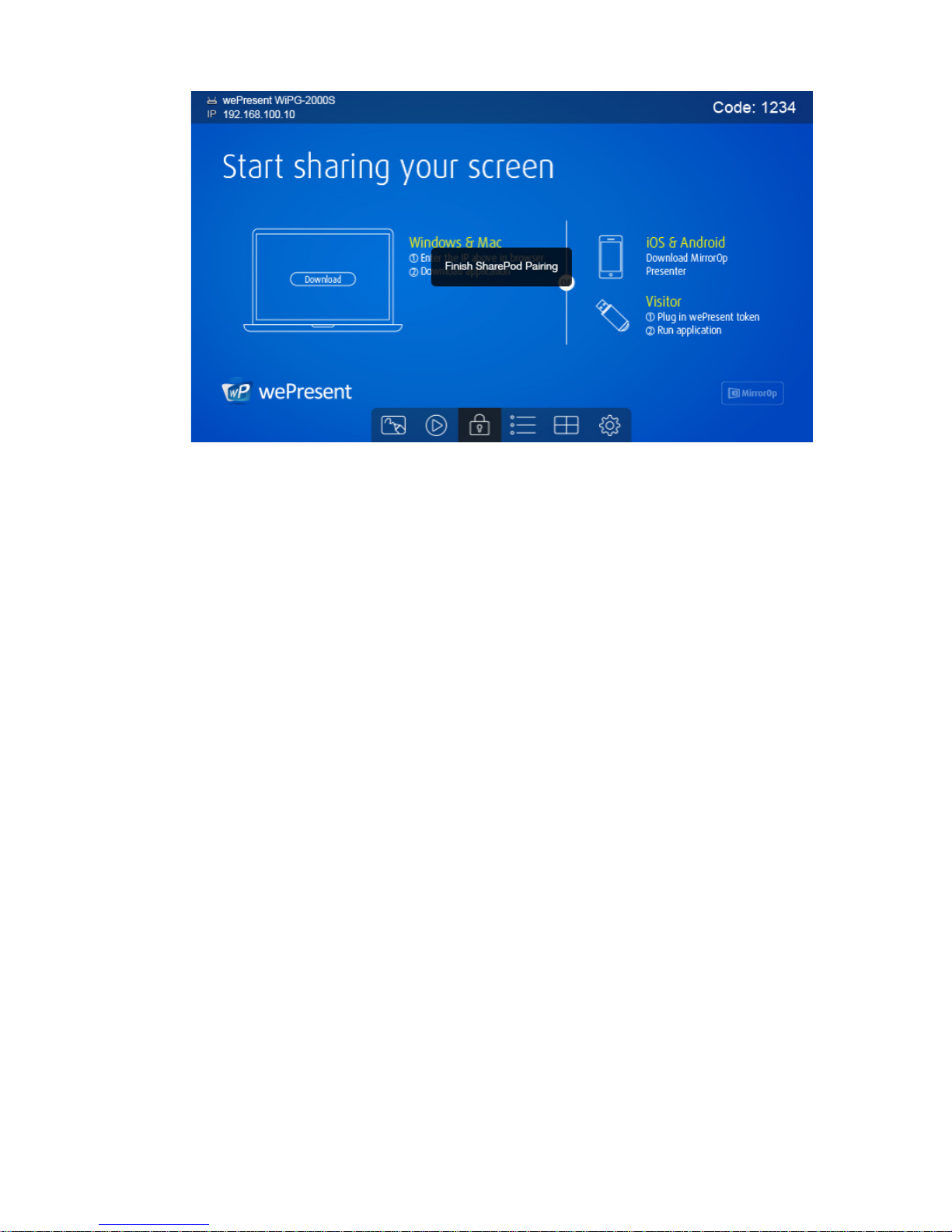
Plug in the micro USB cable from SharePod to the wePresent device, and pairing will
begin automatically. The SharePod LED will show a long flashing red light while pairing
is in process. Please wait until you can see the “Pairing successful” message on the
wePresent start screen, and then remove the USB cable to complete the pairing.
Note:
a. Supports wePresent WiPG-1000, WiPG-1500, and WiPG-2000.
b. Ensure the wePresent device firmware is updated to the latest version.
c. Average pairing time is 20 seconds.

6
5.2 Manual pairing
Plug in the micro USB cable from SharePod to laptop and launch the configuration tool
from the USB storage, and then begin configuring the pairing information manually as
below.
Receiver
•IP Address: the IP address of target wePresent device
•Login Code: the login code of target wePresent device
WiFi
•Name
:
the WiFi name of target WiFi Access Point device
•Security Type
:
WiFi Security type, such as WEP/WPA-PSK/WPA2-PSK
•Key
:
Security key of target WiFi device
MirrorOp Sender
•Sender Name
:
The name of SharePod device
•Image Quality
:
High / Normal
<Save>
<Cancel>
<Go to Device Admin>: Go to SharePod web admin page.

7
6wePresent SharePod Mirroring
6.1 SharePod Mirroring
1) After powering on the SharePod, it will then connect to the target wePresent
device. The short blinking blue LED indicates the system is trying to connect to
target wePresent device. It will switch to static blue LED when it is connected.
2) Plug in the HDMI cable to the supported HDMI source, and mirroring will begin
automatically if the wePresent device is in standby mode, or you can press the PLAY
button to manually begin mirroring. The blue LED indicates that the system is ready
for mirroring and it will switch to red LED when mirroring.
Note:
a. Please pair the SharePod with target wePresent device before the connection.
b. Please use the power adaptor to supply the power to SharePod device.
c. Supports HDMI 720p, 1080i/1080p.
d. Does not support HDCP content.
e. If interference causes the SharePod to stop the connection to the wePresent,
please press the button again to resume the connection.
f. LED behavior and troubleshooting:
LED Description Troubleshooting
Blue Ready for Mirroring

8
Red Mirroring
Short Blinking Blue
(0.5 sec)
Connecting
Pairing with wePresent
device.
Long Blinking Blue
(2 sec)
Waiting for HDMI Check HDMI source.
Short Blinking Red
(0.5 sec)
Error
(Wrong login code or
rejected by Conference
Control)
Pair with wePresent
device again, or disable
the Conference Control.
Long Blinking Red
(2 sec)
Pairing Mode
6.2 Advanced Collaboration with wePresent
1) Conference Control:
Choose the SharePod screen from wePresent Web Conference Control page or OSD
to start the full screen/4-to-1 projection. The meeting host or teacher can
moderate the meeting in an efficient way.
If SharePod is rejected by Conference Control mode while pressing the Play button,
the LED will switch to short blinking red LED to notify the u se r.
2) 4-to-1 projection:
Choose the SharePod screen from wePresent Web Conference Control page or OSD
to start the 4-to-1 projection.
3) WebSlides:
Broadcast and browse the SharePod screen from WebSlides page. This also allows
saving a screenshot locally.
4) Annotation:
Make annotation on SharePod screen from wePresent pen menu (if available) and
save the screenshot to local USB drive.

9
7Web Admin
7.1 Login Admin Page
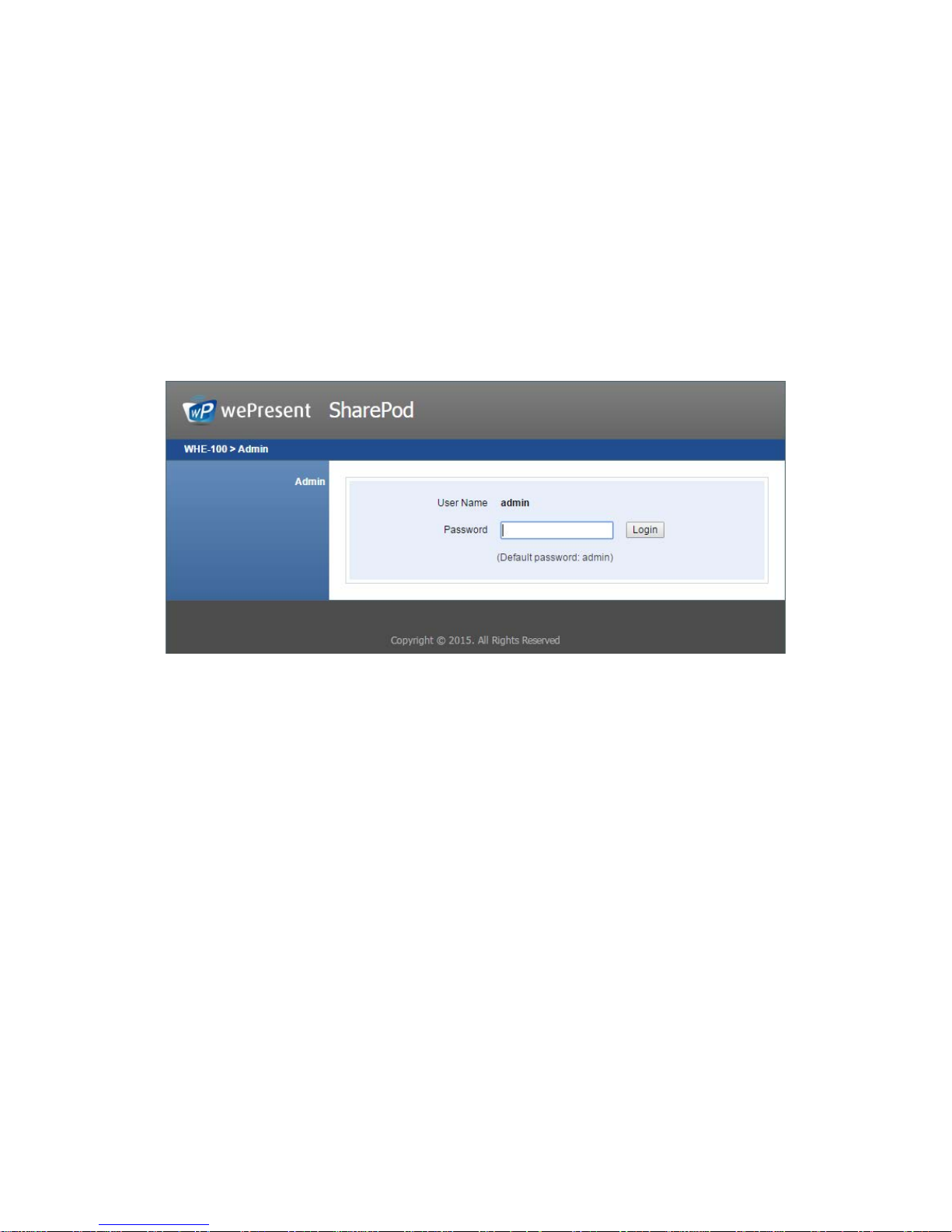
1) Connect the SharePod to the same network of your laptop, then open a browser
window to visit the SharePod web admin page.
2) Enter the password to login the admin page. (default password: admin)
7.2 System Status
1) Click on “System Status” option, it will show current system status.
Model Name: Product model name
Versions:
Firmware version no.: Product firmware version number.
Network Status:
IP address
:
IP address of SharePod device.
Subnet Mask
:
subnet mask
Default Gateway
:
default gateway
Wireless MAC address
:
wireless MAC address
Wire MAC address
:
wire MAC address
WiFi Information:
WiFi Station Status
:
Current status or the connected WiFi AP name.

10
7.3 Device Setup
1) Click on “Device Setup” option, it will show the device setting items.
<Receiver IP Address>: The IP address of target wePresent device.
<Login Code>: The login code of target wePresent device.
<Sender Name>: The name of the connected SharePod
<Image Quality>: Normal / High.
Indice
Altri manuali WePresent Adattatore