
Wildgame V12i7-7 Manuale utente

Infrared Digital Scouting Camera
User’s Manual Model # V12i7-7

Includes
page 1
User Manual Camera Unit
Adjustable Strap

RESOLUTION
FLASH
FLASH RANGE
SENSOR
SENSOR RANGE
IMAGE FORMAT
MEMORY
USB
IMAGE RESOLUTION
POWER SUPPLY
BATTERY LIFE
ONBOARD POWER
HOUSING
MOUNTING
MAX: 12 MP
27 High Intensity IR LED’s
up to 75 feet
Passive Infrared Sensor (PIR) Motion and Heat
up to 60 feet
JPEG - Digital Stills/ AVI-Digital Video
up to 32GB SD Card (not included and required)
Class 4 and above recommended
5-PIN Micro USB style - not included
High (12 MP)
Medium (8 MP)
Low (5 MP)
8 AA batteries (not included and required)
Alkaline recommended
Estimated up to 1 year or 30,000 photos
Built in capacitor to retain Date and Time
Weather resistant with rubber gaskets
Adjustable Strap - included
page 2
Features

Installing Batteries
1. Open the door at the bottom of the
camera by unlatching the locking
tab.
2. With the camera facing open, open
the battery compartment cover by
sliding the latch to the left.
page 3
3. With the bottom of the camera to-
wards you, Make sure to insert the
batteries into the camera with the
positive ends towards you where
marked positive and the negative
ends towards you where marked
negative.
NOTE:
Do not mix old and new batteries. Do
not mix alkaline, standard (carbon-
zinc) or rechargable (ni-cad, ni-mh,
etc) batteries.
page 4
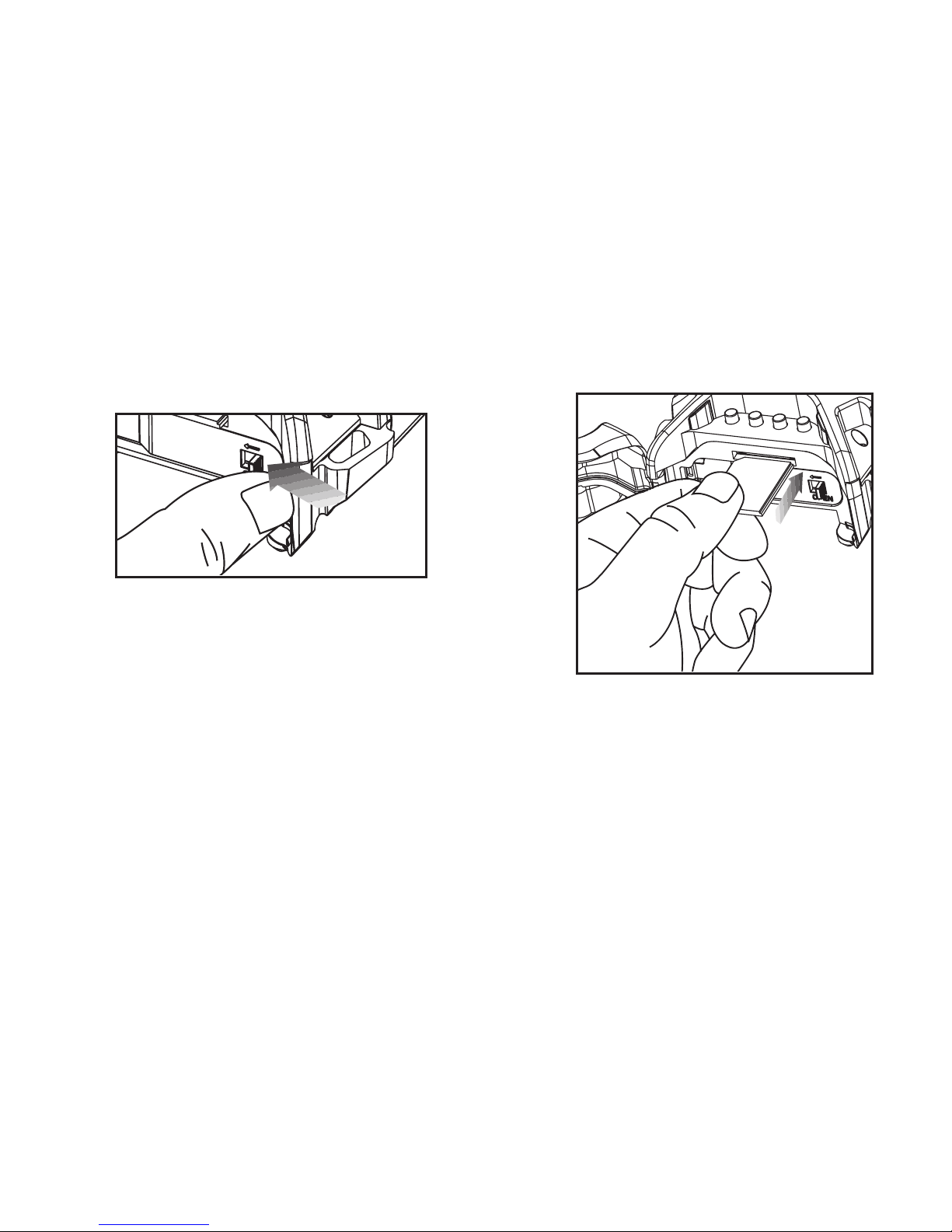
4. Close battery compartment cover.
To latch the cover simply pull the
latch slightly to the left as you close
the battery compartment cover.
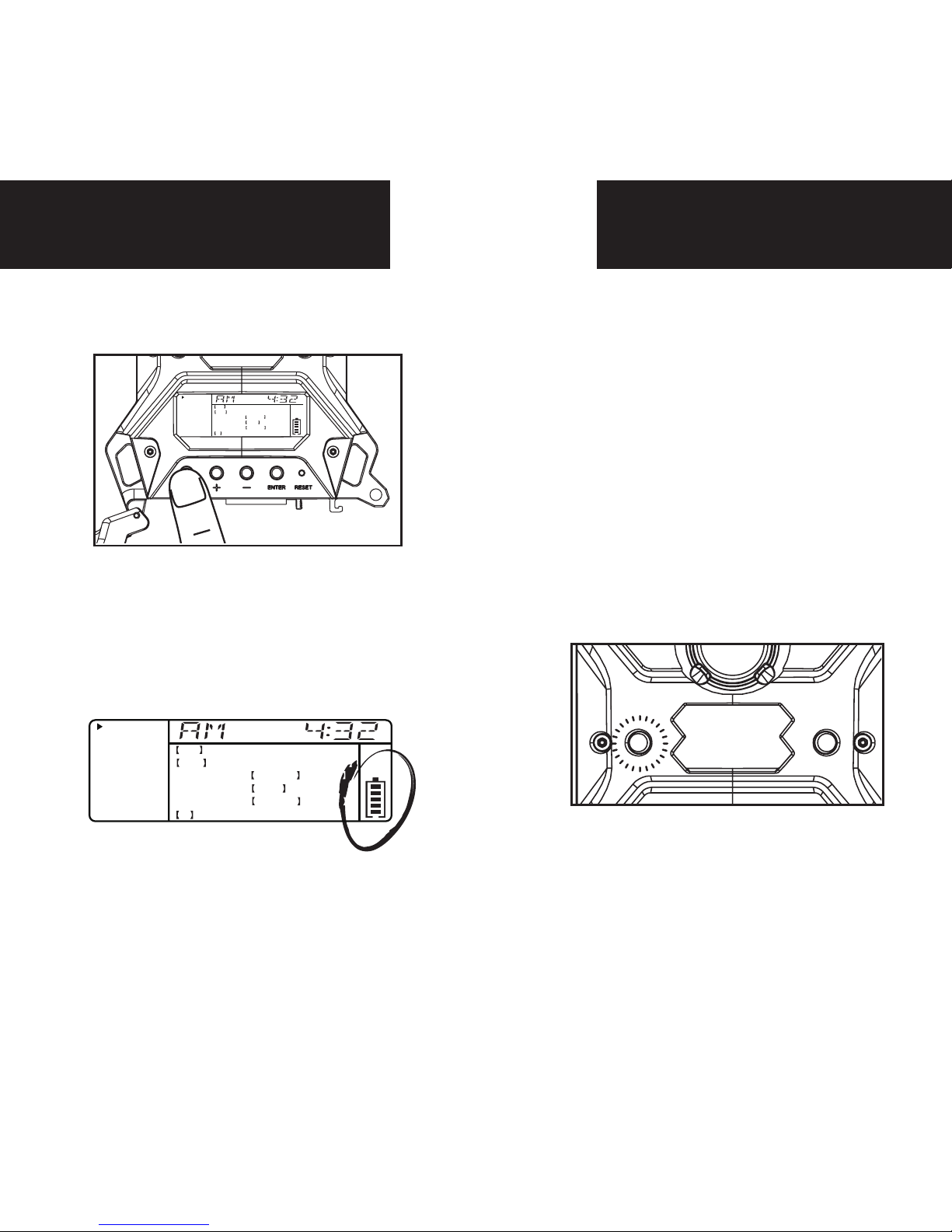
IMPORTANT:
Make sure the camera is powered off
before removing or installing an SD card.
If you are using an SD card from other
cameras, please make sure to format the
SD card in your computer prior to use in
your camera. New cards are ok to use
straight from the package.
5. Load SD memory card (up to 32GB
not included) into the SD card slot
with the connectors facing up.
page 5
Power On Test Mode
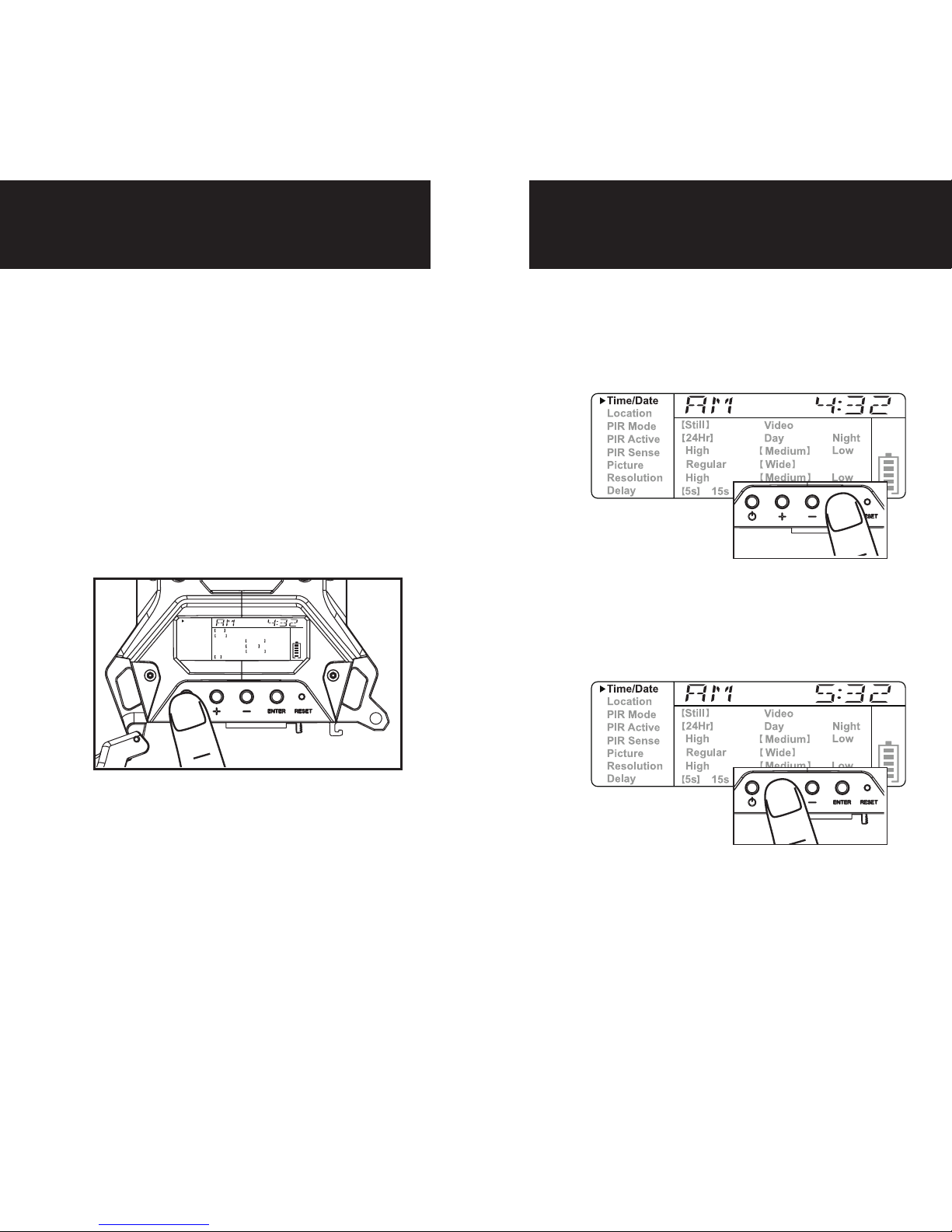
1. To turn the unit ON press and
release the power button.
2. Check the battery level icon
to ensure the batteries just
installed contain the proper
charge level. If so, you are ok to
proceed with camera use.
NOTE: LCD cycle through camera
information. PIR picture number >
Remaining pictures > Time .
Time/Date
Location
PIR Mode
PIR Active
PIR Sense
Picture
Resolution
Delay
Still
24Hr
High
Regular
High
5s
15s
30s
1m
5m
10m
Video
Day
Medium
Wide
Medium
Night
Low
Low
Time/Date
Location
PIR Mode
PIR Active
PIR Sense
Picture
Resolution
Delay
Still
24Hr
High
Regular
High
5s
15s
30s
1m
5m
10m
Video
Day
Medium
Wide
Medium
Night
Low
Low
1. LCD Ready Mode: The camera will
automatically enter Ready Mode if a
button is not pressed for greater than
30 seconds.
2. LED Status Light: During the first
30 seconds of the LCD Ready Mode,
the red light will illuminate when a
PIR event is triggered. After the LCD
turns off, the red light will blink 2-3
seconds when photo is taken. After
2 minutes, all indicator lights will
turn off until a button is pressed.
page 6
Power Save Setting Time
1. After 30 seconds without any buttons
being pushed, the LCD will turn off
and camera enters into Power Save
or Ready Mode.
2.The LCD screen can be awakened by
pressing the Power button briefly.
Note: The LCD will not “wake up”
when camera is writing to memory.
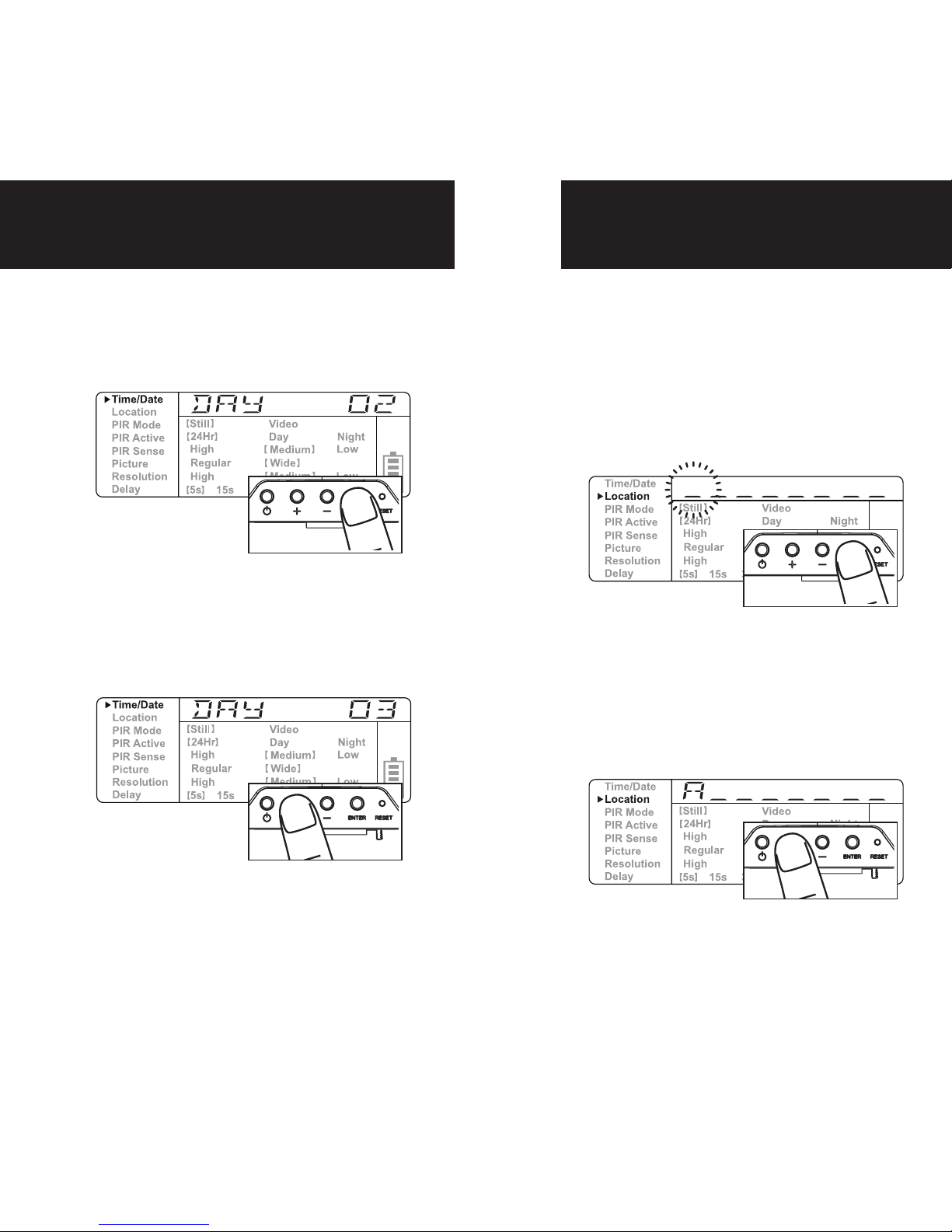
1. To change date and time, start by
pressing and release the enter
navigation button to set the hour.
2.Press the + or - navigation button
to go up or down in sequence.
3.When the hour is set, repeat
steps 1 and 2 to set the minutes.
Time/Date
Location
PIR Mode
PIR Active
PIR Sense
Picture
Resolution
Delay
Still
24Hr
High
Regular
High
5s
15s
30s
1m
5m
10m
Video
Day
Medium
Wide
Medium
Night
Low
Low
page 7
Setting Date
1. Press the enter navigation but-
ton after setting the minute to
change the Date.
2.Press the + or - navigation button
to go up or down in sequence.
3.When the DAY is set, repeat steps
1 and 2 to set the Month and Year.
Location
1. Press the enter navigation button
while Location is selected. The
first character will be blinking.
Save the location of the area the camera
was installed. This is for your reference
and is optional. If you do not wish to name
your location skip to the next step.
2. Press the + or - navigation but-
ton to go up or down in sequence.
Press the enter navigation button
when the character shown is what
you want and move to the next
character.
3. Repeat steps 1 and 2 to set the rest
of the characters. Press the enter
navigation button to skip spaces
and save the location name.
page 8
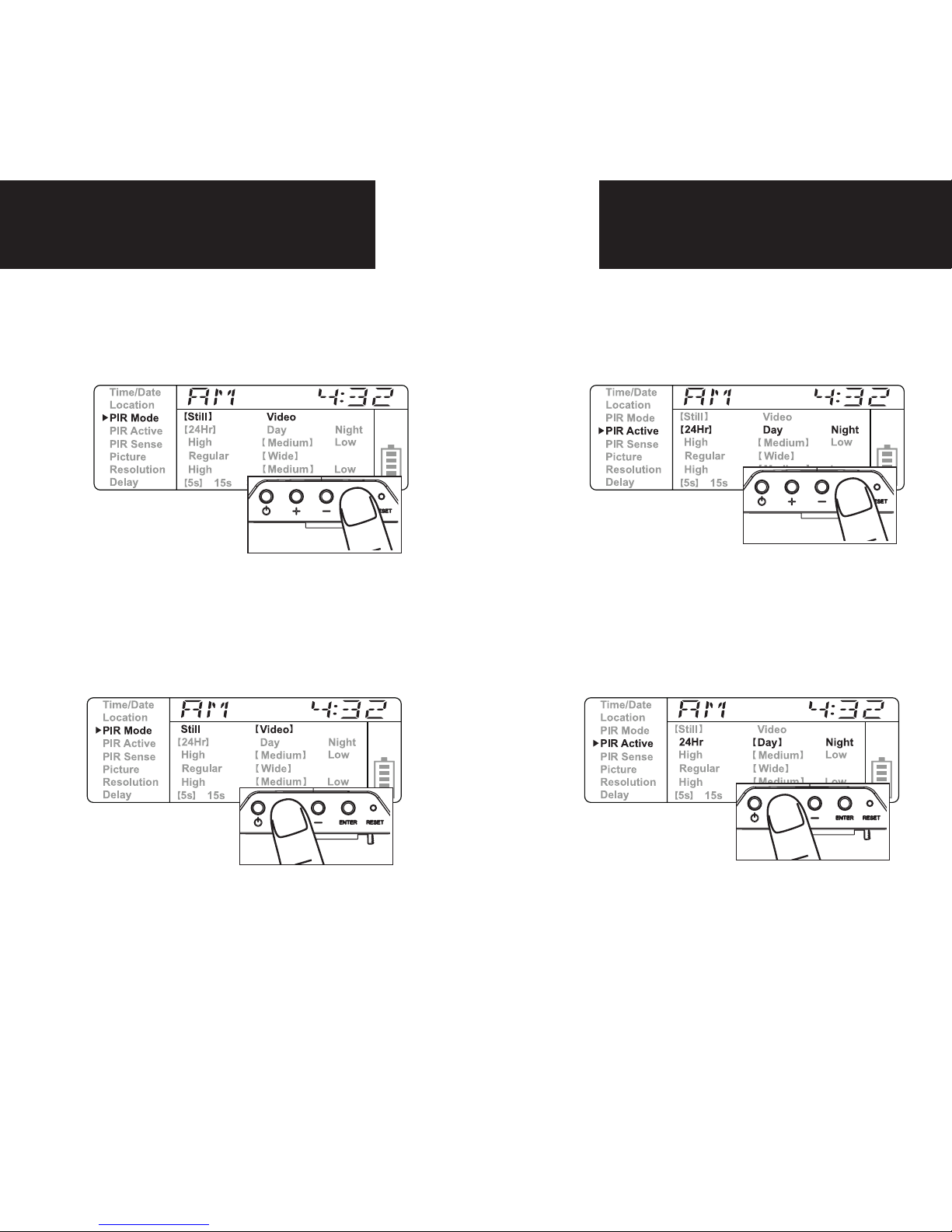
PIR Mode PIR Active
1. Press the enter navigation button
while PIR Active is selected. The
highlighted option will be blinking.
2. Press the + or - navigation but-
ton to move to different options.
Press the enter navigation button
to save the setting.
PIR ACTIVE:
24 HR: The PIR can be active at all times.
DAY: The PIR can be active in daylight
hours only.
NIGHT: The PIR can be active in nighttime
hours only.
1. Press the enter navigation button
while PIR Mode is selected. The
highlighted option will be blinking.
2.Press the + or - navigation but-
ton to move to different options.
Press the enter navigation button
to save the setting.
PIR MODE:
STILL: The camera takes still photographs.
VIDEO: The camera takes 30 second videos.

page 9
PIR Sensitivity Picture
Press the enter navigation button
while PIR Sense is selected. The
highlighted option will be blinking.
Press the + or - navigation but-
ton to move to different options.
Press the enter navigation button
to save the setting.
PIR SENSE:
HI: The PIR detects the smallest movement.
MED: (Default) The PIR detects most common
size movements.
LO: The PIR detects only larger movements.
1.1. Press the enter navigation but-
ton while Picture is selected. The
highlighted option will be blinking.
2.2. Press the + or - navigation but-
ton to move to different options.
Press the enter navigation button
to save the setting.
PICTURE:
REGULAR: Images taken will be in regular
angle or 4:3 aspect ratio.
WIDE: Images taken will be in wide angle
or 16:9 aspect ratio.
Indice


