Wildix SuperVision Manuale utente

SuperVision User Guide
SuperVision User Guide Page 1 of 24
Oct 07, 2020 21:22
SuperVision User Guide - English
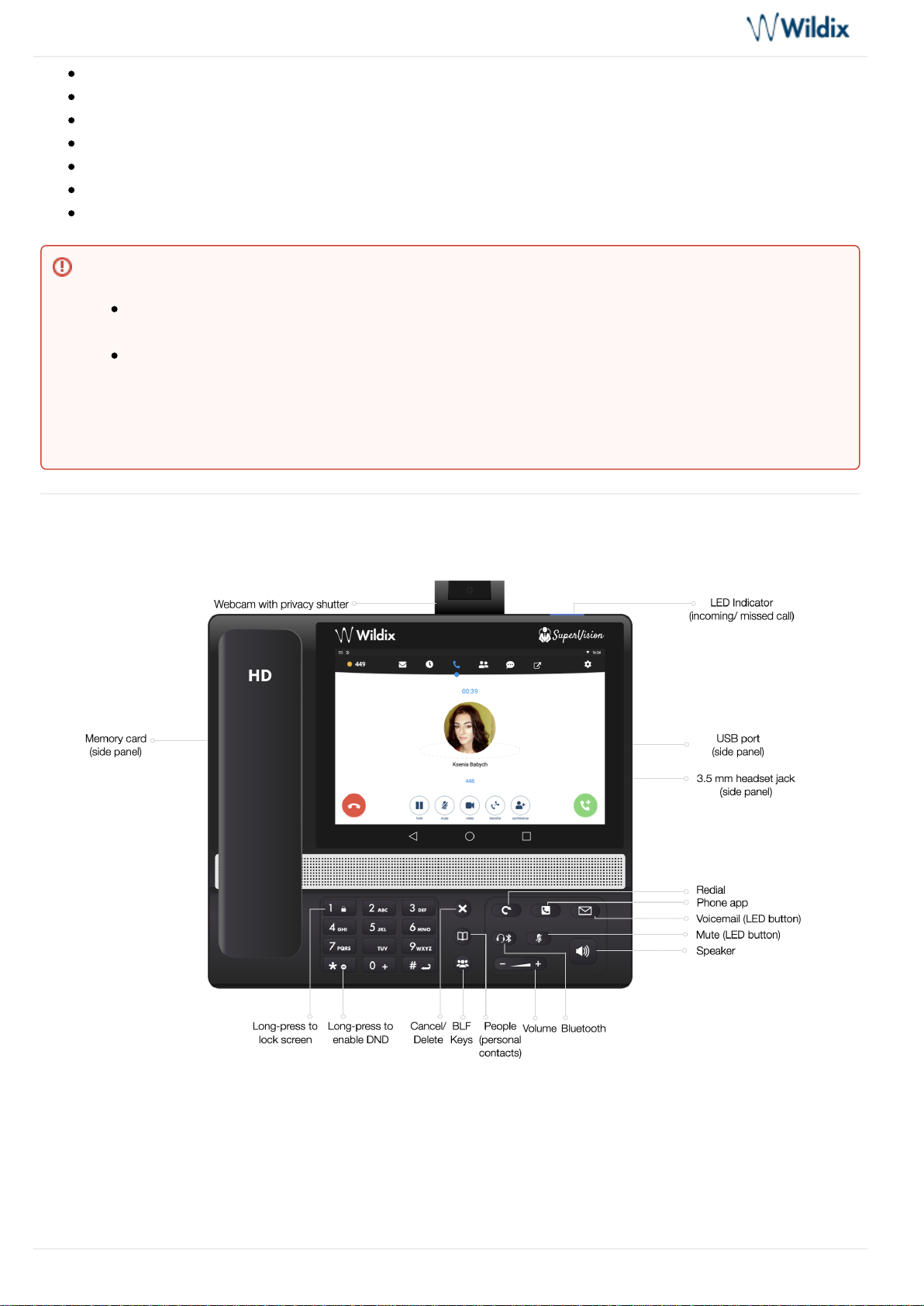
Phone overview
First time login
Change language
Network connection
Login to Wildix Phone application
Wildix Phone application
Status
Voicemail
History
Dialpad
Live search
Place a call
Call management
Blind / Attended call transfer
Blind / Attended call transfer via BLF keys
BLF keys
Chat Join Wizyconf Videoconference
Web application Integration
Settings
Personal and Account settings
Upload the ringtone
Call features (Call forwarding, call waiting, mobility) for each call class
Advanced Settings and Phone upgrades
Developer Settings
About
This User Guide explains how to use SuperVision and Wildix Phone App.
Other useful links:
End user brochures are available at this link: VoIP Phones and Accessories - End User Brochures
Datasheets: , VoIP Phones - Datasheets VoIP Phones Accessories - Datasheets
HW Version: 73.145.2.114
Android app Version: 5.1.1
Created: April 2019
Updated: July 2020
Permalink: https://confluence.wildix.com/x/voBpAg

SuperVision User Guide
SuperVision User Guide Page 2 of 24
Appendix 1. Phone settings
Appendix 2. Supported Headsets and Speakerphone
Appendix 3. Integration with intercoms
Appendix 4. Phone recovery
Appendix 5. Sync of contacts
Appendix 6. Set up Google account
Appendix 7. Use People menu
Phone overview
Home screen:
Current limitations:
It is not possible to create a new conference room from the App, it is only possible to enter a
conference if you were invited
Impossible to login to PBX via Google sign-on from the first attempt (it’s necessary to make a
second try)
SuperVision Changelog: https://www.wildix.com/new-releases-and-updates/supervision-
changelog/

SuperVision User Guide
SuperVision User Guide Page 3 of 24
1 – People (personal phonebook)
2 – Wildix Phone app
3 – Applications folder
4 – Chrome browser
5 – Phone settings
6 – Notification drawer and status bar
First time login
Change language
Go to SuperVision -> ->Settings Personal Language & input
Tap Language
Select the language from the list
Network connection
Go to SuperVision ->Settings Wireless & networks
Select the network:
Ethernet
Wi-Fi
Ethernet
-> enable the optionEthernet : the phone automatically receives the IP address from the DHCP ServerIP address

SuperVision User Guide
SuperVision User Guide Page 4 of 24
In case the phone has not received an IP address automatically, you can set up the Static IP:
Go to selectEthernet Ip mode -> static
Enter the IP address manually
Wi-Fi
-> enable the optionWi-Fi
Select the Network from the list and enter the password (if necessary)
Tap Connect
Login to Wildix Phone application
Use your Collaboration credentials to access the App:
: PBX IP address or domain name Domain
Note: After the phone has booted, the Phone app opens automatically.

SuperVision User Guide
SuperVision User Guide Page 5 of 24
: extension number or email address of user (login via user name is no longer supported inUser name
WMS 4.0X)
user WEB passwordPassword:
Or
You can either use Google/ Office 365 credentials for single sign-on.
Go to App -> -> In case there is a new version available, follow theSettings Advanced Check for Updates.
instructions on the screen to update.
Wildix Phone application
1 – Status
2 – Voicemail
3 – History
4 – Dialpad
5 – BLF Keys
6 – Chat
7 – Web application Integration (this menu becomes visible only if you have configured it in App Settings ->
Advanced ). More details in-> Integration URL Web application Integration
8 – Settings
Status
Tap user status to:
Note: You can enter the PBX name, wildixin.com domain is added automatically; if you leave
this field blank, auto.wildixin.com is automatically added.
Current limitation: Impossible to login to PBX via Google sign-on from the first attempt. It’s necessary to
make a second try.
Note: You can swipe between the Phone app menu tabs by swiping with the finger on the phone screen
to the right / to the left.

SuperVision User Guide
SuperVision User Guide Page 6 of 24
Set your status to DND / Away and set expiry time for this status (optional)
Set the status message (optional)
Voicemail
This menu allows you to:
Listen to Voicemails: tap iconPlay
Delete Voicemails: tap iconTrash
tap iconMark Voicemails as Read: Eye
You can also tap on a voicemail message to display the drop-down list: a user who left a message,Call Mark as
or it.read Delete
History
This menu allows you to:
See the list of all the calls and call duration (synced with Wildix PBX)
View user contact details including status
Listen to call recordings/ view faxes

SuperVision User Guide
SuperVision User Guide Page 7 of 24
Make calls/ start chats
Archive/ delete calls
Dialpad
This menu allows you to search for contacts in PBX phonebooks, place and manage calls.
Live search
Live search is performed in all the shared phonebooks; first colleagues that match the searched criteria are
displayed, then phonebook contacts.
Start entering a number or a name into the Search field:
Place a call
Enter the number and tap the green button
Otherwise start entering a number or a name into the Search field, then tap on the contact that appears
below the Search field. Tap on a number you wish to call:
You can also tap and hold an entry to display the drop-down list: call the user, archive or delete the call.
Note: The number you entered is automatically dialed after the timeout of 5 seconds, if the
handset is in off-hook position.

SuperVision User Guide
SuperVision User Guide Page 8 of 24
Call management
1 – Hang up
2 – Hold / Resume
3 – Mute / Unmute
4 – Video
5 – Transfer
6 – Conference (in case there are more than one active calls)
7 – New call
Note: You can also use keypad buttons to mute/ unmute, hold/ resume, hang up and transfer. Refer to
.Phone overview

SuperVision User Guide
SuperVision User Guide Page 9 of 24
Blind / Attended call transfer
During a call tap Transfer
Enter the number for the transfer into the Search field:
1 – Tap for Attended transfer (call recipient is notified): new call starts, tap button again from CallTransfer
window to complete the transfer
2 – Tap for Blind transfer (call recipient is not notified)
3 – Tap to cancel transfer
Blind / Attended call transfer via BLF keys
Transfer a call to a colleague / a call group configured as BLF key
During a call, go to BLF keys menu
Tap the BLF key of colleague / call group
Tap for blind transfer (without notification)Transfer
Tap for attended transfer (with notification): new call starts, tap button again fromCall Transfer
Call window to complete the transfer

SuperVision User Guide
SuperVision User Guide Page 10 of 24
BLF keys
Monitoring and management of colleagues and features.
Configure BLF keys
BLF keys must be configured in Collaboration -> -> / or in WMS (more info: Settings Fn keys Collaboration User
)Guide
Example of BLF keys configuration in Collaboration:
Supported BLF Keys
Colleague
Monitor status (ringing/in call; dnd/away)
Call (tap the element and select )Call
Call pickup (no possibility to check who is calling and audio notification; tap the element while the
status is “ringing” and select )Pickup
Transfer a call (tap the element and select during a call)Transfer
Speed Dial
Call number configured as speed dial
Trunk Monitor status for BRI/FXO/GSM (green/red)
Call through this trunk (if green)
Timetable
Note: Max 120 elements can be added for monitoring (features and colleagues). Swipe on the screen to
the left/to the right to move between the pages of Feature keys.
You can customize the size of the BLF keys in this menu in Phone App -> >Settings Advanced Settings
“X keys per page”. (More info: Advanced Settings)
Note: you can use any shortcut based on Feature codes with Speed Dial function key,
example: enter the value “cgmanager*2*[call_group_ID]” into the field for dynamic call group
login / logout.
Indice
Altri manuali Wildix Telefono IP

Wildix
Wildix WP600ACG Manuale utente

Wildix
Wildix WP400 Manuale utente

Wildix
Wildix W-AIR 70 Manuale per l'uso e la cura

Wildix
Wildix WP410 Manuale utente

Wildix
Wildix WP480 Manuale utente

Wildix
Wildix WP410 Manuale utente

Wildix
Wildix Vision Manuale utente

Wildix
Wildix WP490 Manuale utente

Wildix
Wildix WP600 Manuale utente

Wildix
Wildix WP480G Manuale utente