
Xview XV7WSMR Manuale utente

XV7WSMR
USER MANUAL
Xviewdrive.com.au
For more information
on the Xview range go
to our website
VIEW
7” Monitior, Type-C power adapter, AUX cable, Surface mount
bracket, Surface mount adhesive pad, Reverse camera and 6M
camera cable

CONTENTS
Intoduction..............................................................................2
Interface display......................................................................3
Audio output settings (FM transmitter)....................................4
Audio output settings (AUX output).........................................5
Audio output settings (Monitor speaker)..................................5
Audio output settings (Apple CarPlay & Android Auto)............6
Connecting via Apple CarPlay.................................................7
Connecting via Android Auto...................................................8
Connecting via Apple Airplay..................................................9
Connecting via Android Mirror Cast.......................................10
Bluetooth Music....................................................................11
Bluetooth ..............................................................................11
Media player.........................................................................12
Settings................................................................................13
Camera input........................................................................14
Reverse guideline calibration...............................................14
Inclusions.............................................................................15
Product features...................................................................15
Technical assistance............................................................15
1
The XV7WSMR is a 7-inch Capacitive Touch-screen Multimedia
player designed to seamlessly integrate with your smartphone.
This innovative device serves as a second display on your
dashboard, seamlessly integrating Android Auto and Apple CarPlay
for effortless smartphone connectivity. With wireless smartphone
connectivity via Bluetooth & WiFi, you can effortlessly sync your
smartphone to the XV7WSMR, and enjoy audio playback using a
variety of options such as the FM transmitter function using your car's
sound system or high-quality audio playback through Auxiliary Audio
Out. You can even utilise the inbuilt speaker. Plus, for added
convenience and safety, this exceptional device comes equipped with
a reverse camera feature.
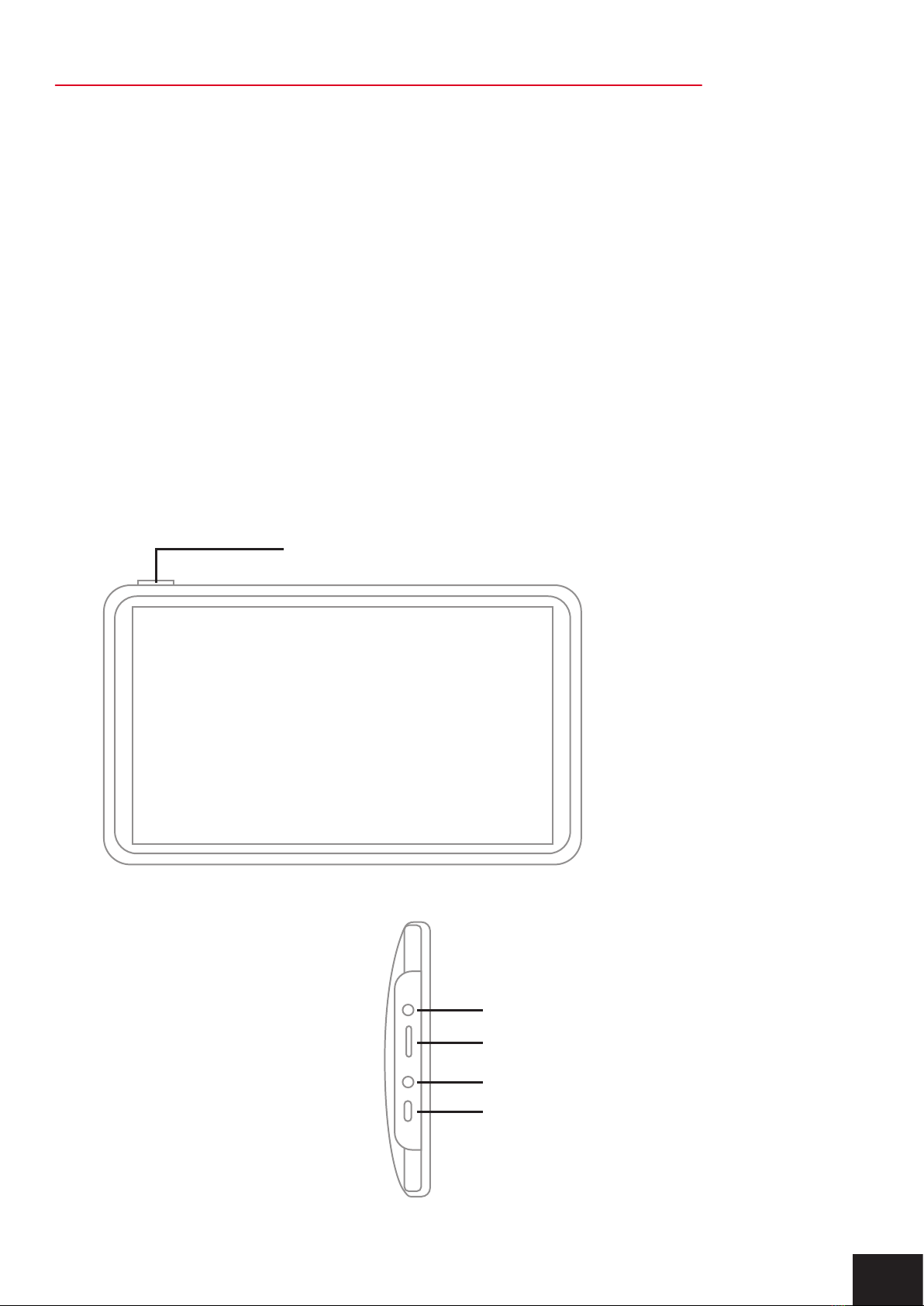
AUX output
Power button (Press & hold to turn ON/OFF)
SD card input
Rear camera input
Power input
INTRODUCTION
2

1. Screen off: Tap to turn off the screen.
2. Brightness: tap to adjust screen brightness
3. Camera/Connection shortcut: Click to view inputs
4. Volume/FM Transmit/Bluetooth/AUX: Changes with inputs
5. Settings: Click to enter the settings interface
6. Previous song: Click to switch to the previous song
7. Play/Pause: Tap to play/pause music
8. Next song: Click to switch to the next song
9. Apple CarPlay: Special connector for iPhone
10. Mirror Cast: Android phone can mirror screen
11. Android Auto: Special connector for Android mobile phone
12. Media Player: Click to play video or music
13. AirPlay: Apple mobile phone can mirror screen
14. FM Transmitter: When turned on, the device will transmit the
sound to the original vehicles head unit
INTERFACE DISPLAY
3

Use the FM transmitter mode if you want to listen to audio on your
cars sound system without connecting any wires.
1. Tap the Audio output icon on the home screen. Select the FM icon
to use FM transmitter function.
2. Turn on the factory head unit and tune it to the same frequency as
the monitor.
NOTE: You must always be on the same frequency as the FM
Transmitter as the unit will not automatically switch in the event of a
call or playing music.
If you have issues with interference, try changing the FM frequency
to one that isn't being used to broadcast radio stations.
AUDIO OUTPUT SETTINGS (FM TRANSMITTER)
4

5
Output audio over auxiliary to your factory head unit system.
1. Tap the Audio Output icon on the home screen and select AUX
along the bottom.
2. Plug in an AUX cable between the monitor's AUX output and the
AUX input of your head unit.
AUDIO OUTPUT SETTINGS (AUX OUTPUT)
Use the internal speaker to output audio from the monitor.
1. Tap the Audio Output icon on the home screen and select the
Speaker icon along the bottom.
NOTE: In this mode, you can adjust the volume by pressing the
speaker icon along the bottom on the home screen.
AUDIO OUTPUT SETTINGS (MONITOR SPEAKER)

The CarPlay/Auto feature allows you to use the CarPlay features on
the display whilst streaming audio to your factory audio system over
Bluetooth if supported.
1. Make sure that the CarPlay/Auto feature is selected.
2. Then connect your device via CarPlay/Android Auto to the 7 inch
monitor using the instructions in this manual.
3. Once your phone is connected, your device will automatically
disconnect to the bluetooth from the 7 inch monitor. You must then
connect your smartphone to the head unit's Bluetooth. Once
connected audio from CarPlay/Android Auto will start playing
through your vehicle's factory sound system over bluetooth.
NOTE: You can also adjust the bluetooth volume from your phone
using this method.
Not all factory/aftermarket head units will support this feature and you
may encounter disconnections or poor audio quality depending on
your vehicle/device.
Music may not automatically start playing in this mode and may need
to be played manually.
We do not recommend this feature for head units that support
Wireless CarPlay or Wireless Android Auto.
6
AUDIO OUTPUT SETTINGS (APPLE CARPLAY & ANDROID AUTO)

CONNECTING VIA APPLE CARPLAY
SHORTCUT SCREEN ICONS
1. Tap the Apple CarPlay icon on the home screen to activate the
Apple CarPlay function.
2. Before using Apple CarPlay wirelessly, turn on the Bluetooth and
WiFi function on the compatible device.
3. Navigate to the Bluetooth settings on your compatible device and
select XV7WSMR for pairing
4. A pair message and a pairing request code may appear on your
compatible device and head unit. Click allow to accept
5. Apple CarPlay should now display on screen and will now
automatically connect to the last paired device when powered on. If
you do not want your phone connected to the unit, simply turn off
Wi-Fi and Bluetooth.
When using Apple CarPlay or Android
Auto a white circle shortcut icon will
appear on the top right. Pressing this
will show a list of icons allowing quick
acess to features.
(This can be disabled in settings)
7

1. Tap the Android Auto icon on the home screen to activate the
Android Auto function.
2. Before using Android Auto wirelessly, turn on the Bluetooth and
WiFi function on the compatible device.
3. Navigate to the Bluetooth settings on your compatible device and
select XV7WSMR for pairing.
4. A pair message and a pairing request code may appear on your
compatible device. Click allow to accept.
5. Follow on-screen instructions that may appear on your smartphone
and display.
6. Android Auto should now automatically display on screen and will
now automatically connect to the last paired device when powered
on.
7. Follow on-screen instructions that may appear on your device and
head unit. If you do not want your phone connected to the unit, simply
turn off Wi-Fi and Bluetooth.
CONNECTING VIA ANDROID AUTO
8
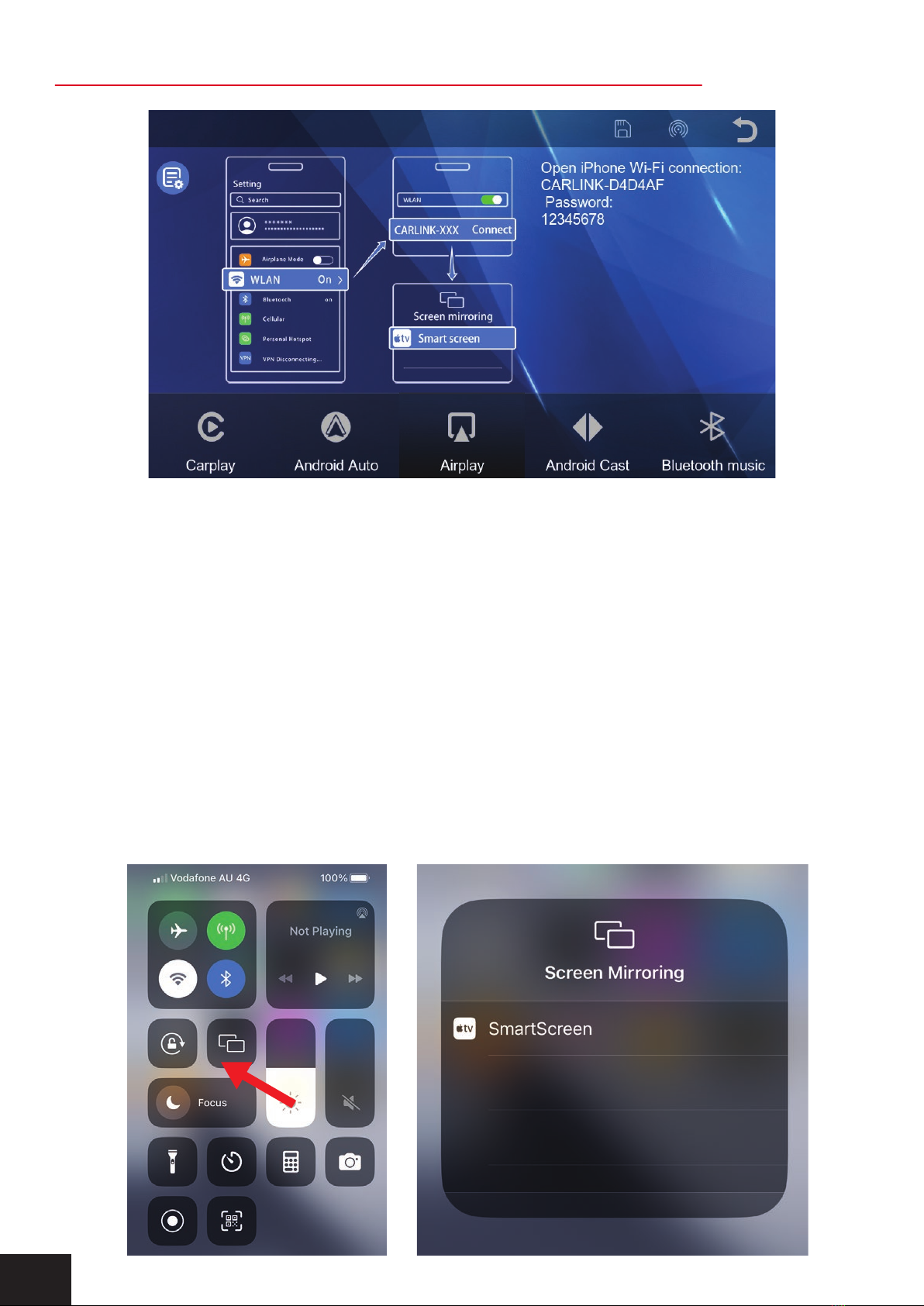
1. Tap the Apple AirPlay icon on the home screen to activate Apple
AirPlay function.
2. Connect a compatible Apple phone to the Wi-Fi displayed on your
screen. Typically starts with CARLINK-XXXXX. The password is
‘12345678’.
3. Once connected go to the ‘Control Centre’ on your iPhone by
typically swiping down from the top right-hand corner of your screen
or swiping up from the bottom centre and navigate to the ‘Screen
Mirroring’ icon.
4. Select ‘SmartScreen’ on your device to mirror your screen to the
display.
9
CONNECTING VIA APPLE AIRPLAY
Indice


