
365id Scanner Manuale utente

MANUAL
365id Scanner

2
USER MANUAL
Table of contents
USER MANUAL
General 3
Scanning identity cards and driving licenses 4
Scanning passports 6
Scanning digital identity cards and driving licenses – additional service 8
Scanning results 10
Flashing indicators 11
Indicator lights 12
Validation in external databases - additional service 13
Requesting a scanned document - additional service 13
Contact persons and other contact information 13
INSTALLATION MANUAL
General 14
Placement 15
Cleaning 15
What’s in the box 15
Installing 365id Scanner with network cable 16
Installing the 365id Scanner using Wi-Fi – additional service 17
Connecting barcode scanner to the 365id Scanner – additional service 18
Portable 365id Scanner – additional service 19
Installing Portable 365id Scanner – additional service 20
Internet sharing via Android phones 21
Internet sharing via iPhone 22
Frequently asked questions 23
Technical specications 24

3
USER MANUAL
General
General
Congratulations on your choice of system for ID verication and customer data
streamlining. In a few minutes, you will be able to enjoy one of the world’s most
ecient systems for verifying ID documents and handling personal data.
In this manual there are a few sections which refer to various additional
services. Please check your agreement with 365id for which services that
are available to you.
We strongly suggest that you set up routines describing what your staff shall do
depending on the different results of a scanned document (green, yellow and red)
and a routine of what to do upon suspected fraud attempts.
If you need assistance in setting up routines, don’t hesitate to contact us.
If you have any questions regarding the installation or use of the 365id Scanner, we
are happy to assist you via phone +46 10-12 21 999 or by e-mail support@365id.
com.
Now, enjoy a smoother customer process and stop ID fraud.

4
USER MANUAL
Scanning identity cards and driving licenses
2b
2c
2d
1. Identication
Compare the persons face with that on the identity card/
driving license.
2. Scanning identity cards and driving licenses
a. Make sure the identity card/driving license is not
dirty, changed or damaged.
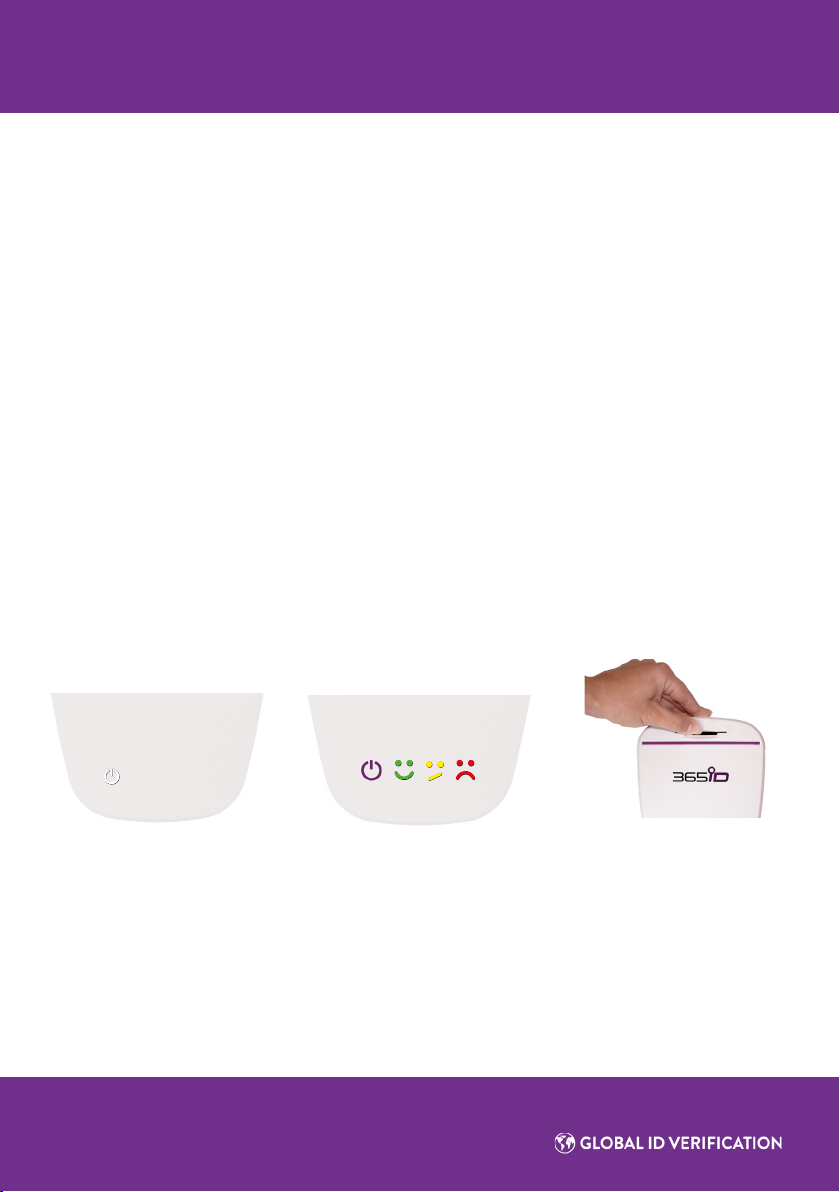
b. The 365id Scanner is ready to use when the purple
indicator is lit.
c. Insert the identity card/driving license with the
photo and personal data towards you.
d. Insert the identity card/driving license fully, so that
it locks in place with the latches on both sides.
Let the card remain still during the scanning process.
5
USER MANUAL
Scanning identity cards and driving licenses
3. Scanning completed
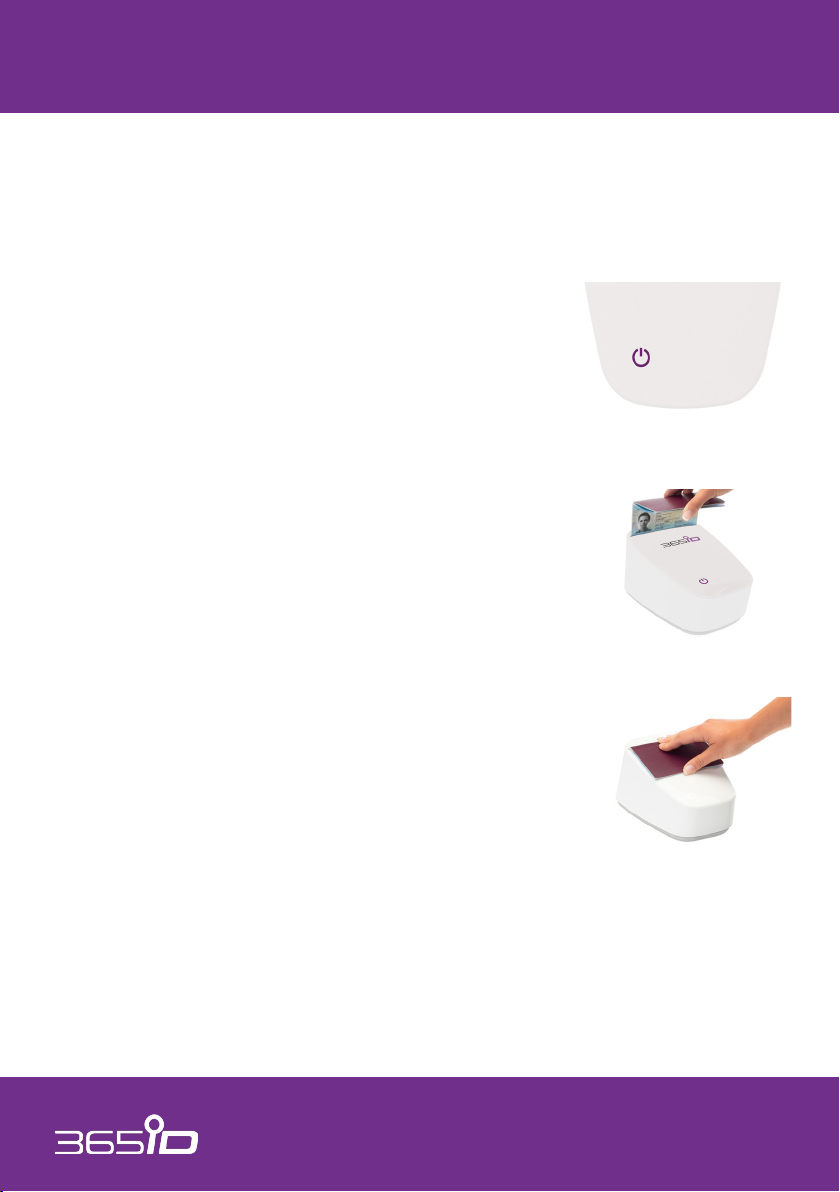
a. The scanning process is complete when the white indicator is lit.
b. The result is presented on the scanner as green, yellow or red.
c. Remove the identity card/driving license by pushing it down and away from
you, the card will be released from the latches and can easily be pulled out.
d. You can start a new scanning process as soon as the purple light is lit.
Note!
If you remove the identity card/driving license too early or touch it during the
scanning process, the result may be incorrect (yellow or red indication). If so,
remove the card and start over.
3a
3a 3b 3c
6
USER MANUAL
Scanning passports
Note:
Be extra careful with passports that have a thin data page to ensure it is not
damaged.
2b
2c
2d
1. Identication
Compare the persons face with that on the passport.
2. Scanning a passport
a. Make sure the passport is not dirty, changed or
damaged.
b. The 365id Scanner is ready to use when the purple
indicator is lit.
c. Insert the passport with the photo and personal
data towards you along with the passports front
cover.
d. Insert the passport all the way until it stops.
Let the passport remain still during the scanning
process.

7
USER MANUAL
Scanning passports
3b
3. Scanning complete
a. The scanning process is completed when the white indicator is lit.
b. The result is presented on the scanner as green, yellow or red.
c. Remove the passport from the 365id Scanner by pulling it up out of the
scanner.
d. You can start a new scanning process as soon as the purple light is lit.
Note:
If you remove the passport too early or touch it during the scanning process, the
result may be incorrect (yellow or red indication). If so, remove the passport and
start over.
3a 3c

8
USER MANUAL
Scanning digital identity cards and driving licenses – additional service
2a
2b/c
2d
1. Identication
Compare the persons face with that on the digital identity
card/driving license.
2. Scanning digital identity cards and driving licenses
a.The 365id Scanner is ready to use when the purple
indicator is lit.
b. Use the barcode scanner by pointing it at the
device with the digital document.
c. Press the trigger on the barcode scanner to read
the digital document.
d. Place the barcode scanner back in its rack.

9
USER MANUAL
Scanning digital identity cards and driving licenses – additional service
3. Scanning completed
a. The scanning process is completed when the white indicator is lit.
b. The result is presented on the scanner as green, yellow or red.
c.You can start a new scanning process as soon as the purple light is lit.
3b3a

10
USER MANUAL
Scanning results
Green indication
Document has been veried in the system, and is
determined to be authentic and not expired.
Yellow Indication
The system was unable to verify the document.
A yellow result may be due to the document being
unknown, wrong side scanned, dirty, broken, have too
poor security features for authentication or an unknown
forgery.
Clean the document and scan it again to verify the result.
Red Indication
Document has been veried in the system, and is
determined to be invalid.
A red result can be due to the document being expired,
dirty, broken, modied or forged.
Clean the document and scan it again to verify the result.
Altri manuali per Scanner
1
Indice


