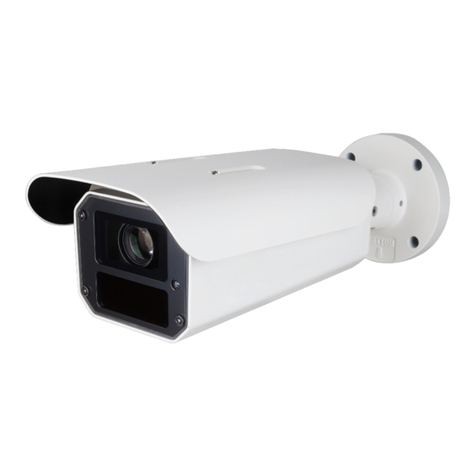
Ability AI-Vue VS1NL70 Manuale utente

AI-Vue Camera
User Manual
VS1NL70 / VS6NLB0
VS6NN60 / VS1NN60
VS2MLX0
Copyright © Ability Enterprise Co., Ltd.
All rights reserved.
Quick Start Guide
Ver:01

Ability AI-Vue Camera
User's Manual - 1
Table of Contents
1Camera Installation.............................................................................................4
1.1 Note...........................................................................................................4
2Connect the Camera...........................................................................................4
2.1 Single Camera.........................................................................................4
2.2 Multi Camera............................................................................................4
3Web Interface.......................................................................................................5
3.1 Log In ........................................................................................................5
3.2 Transport Layer Security........................................................................7
3.3 User Permissions for Web/HTTPS.......................................................7
3.4 Auto Logout............................................................................................12
3.5 Auto play Policy.....................................................................................13
4Live View ............................................................................................................14
4.1 Overview.................................................................................................14
4.2 Microphone.............................................................................................15
4.3 Volume....................................................................................................15
4.4 Snapshot.................................................................................................16
4.5 Full Screen.............................................................................................17
4.6 Zoom In & Zoom Out............................................................................17
4.7 Focus.......................................................................................................18
4.8 Iris............................................................................................................19
4.9 Audio Renderer Error ...........................................................................19
5Device.................................................................................................................20
5.1 Camera Name........................................................................................20
5.2 Backup & Restore.................................................................................20
5.3 Reboot.....................................................................................................24
5.4 Digital I/O................................................................................................25
5.5 SD Card..................................................................................................26
6Overlay................................................................................................................31
6.1 Stamp......................................................................................................31
6.2 Overlay Preview ....................................................................................32
6.3 Basic Setting..........................................................................................32
6.4 Add photo...............................................................................................33
6.5 Position...................................................................................................35
6.6 Display on the Live View After Setting...............................................37
7Image Parameters.............................................................................................37
7.1 Image Adjustment .................................................................................37

Ability AI-Vue Camera
User's Manual - 2
7.2 White Balance........................................................................................38
8Image Configs....................................................................................................39
8.1 Rotate View............................................................................................39
8.2 Exposure Mode & Advanced...............................................................40
9Stream Configs..................................................................................................40
9.1 Web Stream ...........................................................................................40
9.2 Main Camera Stream............................................................................40
9.3 Second Camera Stream.......................................................................42
10 Privacy Mask..................................................................................................44
10.1 Mask Status............................................................................................45
10.2 The Mask Rule.......................................................................................45
10.3 Mask Preview.........................................................................................46
10.4 Priority of Overlay and Mask...............................................................47
11 Audio...............................................................................................................48
11.1 Microphone.............................................................................................48
11.2 Speaker...................................................................................................48
11.3 Synchronized with the Live View........................................................48
12 Basic................................................................................................................49
12.1 Different Display Types.........................................................................49
12.2 Type Change DHCP IPv4 to Static IPv4 or Static IPv4 to DHCP
IPv4 50
13 Advanced........................................................................................................52
13.1 Device Discovery...................................................................................52
14 Storage............................................................................................................52
14.1 Storage Setting......................................................................................52
14.2 File List....................................................................................................53
14.3 Delete the Files......................................................................................54
14.4 Download the Files ...............................................................................56
14.5 Pagination in web..................................................................................57
14.6 Refresh....................................................................................................58
15 Administration................................................................................................59
15.1 Firmware Update...................................................................................59
15.2 Factory Reset.........................................................................................63
15.3 SSH Server ............................................................................................64
15.4 Port..........................................................................................................65
15.5 Modify Password...................................................................................67
15.6 Public Key File.......................................................................................68
16 Password........................................................................................................71

Ability AI-Vue Camera
User's Manual - 3
16.1 Change Password.................................................................................71
16.2 The appearance of Change Password Page....................................72
16.3 Error of Change Password ..................................................................72
16.4 Password Not Match.............................................................................73
17 Log Out...........................................................................................................73
17.1 There are 5 ways to log out the Web Viewer:...................................73

Ability AI-Vue Camera
User's Manual - 4
1 Camera Installation
1.1 Note
1.1.1 Make sure the device in the package is in good condition and all the assembly
parts are included.
1.1.2 Please refer to Quick Guide for camera installation.
2 Connect the Camera
2.1 Single Camera
STEP 01
The IP segments, Subnet mask and
default gateway must be same for
both IP camera and computer.
Ensuring IP camera and computer
are in the same router.
STEP 02
Accessing via Web Browser with
default IP address
(https://192.168.0.11), then login
with default account (user name:
admin, password: AbAi.Camera1)
information.
2.2 Multi Camera
All IP cameras were configured with a same IP address. When multiple IP
cameras are connected to the router, an IP conflict occurs. To solve this
problem, you need to set a unique IP address for each of cameras.

Ability AI-Vue Camera
User's Manual - 5
Default IP address
User name
Password
https://192.168.0.11
admin
AbAi.Camera1
STEP 1
Login the web Browser with default account information connect Camera A.
STEP 2
Go to System, then choose Network, you can change the IP address for
the camera.
*Each camera needs a unique IP address.
3 Web Interface
3.1 Log In
In web browser, type the IP address of the Network Camera in address
field can enter the Login Screen.

Ability AI-Vue Camera
User's Manual - 6
STEP 1
Click Sign in to login the camera web interface.
Step 2
Since your camera is used for the first time, enter “admin” as the user
name, and “AbAi.Camera1” as the password.
Step 3
1. At initial login to the device, the user will must be register new account.
2. The default account cannot login after new account (Administrator or
User) is registered.
3. Click on the words in the blue area (Account Rules) to see more
information about account rules.
4. The new account rules are as follows:

Ability AI-Vue Camera
User's Manual - 7
3.2 Transport Layer Security
3.3 User Permissions for Web/HTTPS
Administrator Add a new tab (Administration)

Ability AI-Vue Camera
User's Manual - 8
Operator can access all network/camera resources except Administration
tab
User can see live view web page only

Ability AI-Vue Camera
User's Manual - 9
*See More Information
Altri manuali per AI-Vue VS1NL70
3
Questo manuale è adatto per i seguenti modelli
4
Indice
Altri manuali Ability Telecamera di sicurezza

Ability
Ability VS12100 2M Manuale utente

Ability
Ability AI-Vue VS6NLB0 Manuale utente

Ability
Ability VS68210 Manuale utente

Ability
Ability VS18211 Manuale utente

Ability
Ability VS12112 Manuale utente

Ability
Ability VS18200 Manuale utente

Ability
Ability VS18210 Manuale utente

Ability
Ability AI-Eye VS18201 Manuale utente

Ability
Ability VS68211 Manuale utente

Ability
Ability AI-Vue VS1NL70 Manuale utente