
Acuma Labs De-Esser Manuale utente

USER’S GUIDE
DSR-1
DE-ESSER“
™
®
Plug-in for Mackie Digital Mixers
™

2
Acuma DSR-1 De-Esser
Iconography
“Mackie” and the “Running Man” figure are trademarks or
registered trademarks of Mackie Designs Inc. All other brand
names mentioned are trademarks or registered trademarks of
their respective holders, and are hereby acknowledged.
Part No. 0000651 Rev. A 12/2001
© 2001 Mackie Designs Inc. All Rights Reserved.
This icon identifies a description of how to
perform an action with the mouse.
This icon identifies a description of how to
perform an action from the console.
This icon will lead you to some further
explanations of features and practical tips.
This icon marks information that is very
important, so please make sure you have a read.
This icon does not appear in this guide.
Note:Note:
Note:Note:
Note: Any future revisions of this guide will be available for viewing and
downloading from our website: www.mackie.com.
Further plug-in details and preset downloads can be obtained from
www.acumalabs.com.

User’s Guide
3
Contents
Iconography -----------------------------------------------------2
Introduction ---------------------------------------4
About Acuma Labs----------------------------------------------4
About the D8B UFX Card --------------------------------------5
About the DSR-1 (De-esser) ----------------------------------- 5
Main Features ------------------------------------- 6
Let’s Get Started ---------------------------------- 6
Requirements----------------------------------------------------6
Using the DSR-1 ------------------------------------7
Front Panel Overview------------------------------------------7
The Status Block ----------------------------------------------- 8
Global Controls Block -----------------------------------------9
I/O Levels ------------------------------------------------------- 11
Controls Block--------------------------------------------------12
Meters (S-BAND and GAIN)----------------------------------14
Specifications -------------------------------------15
DSR-1 Factory Presets --------------------------- 16

4
Acuma DSR-1 De-Esser
Introduction
Thank you for purchasing the DSR-1 (De-esser) from Acuma
Labs. One of the exciting members of the new family of 24-bit
plug-ins for the D8B, the DSR-1 has been specifically designed
for the Mackie Universal Effects (UFX) card.
The DSR-1 plug-in for the Mackie D8B is a highly accurate,
frequency controlled, three-band dynamics processor. It enables
you to quickly isolate and correct unwanted sibilance in vocal
recordings of singers and speakers. The DSR-1 reduces
annoying sibilant and popping sounds that are often found in
recordings without losing the crisp top-end clarity. Don’t let the
simple chicken-head controls and the funky retro-look fool you.
The DSR-1 is a highly professional tool that is ideal for editing
vocals, instrumentals, and other sources. The DSR-1 is an
invaluable plug-in for your D8B that can save a great recording
by removing troublesome frequencies.
About Acuma Labs
Acuma Labs develops real-time embedded systems for
professional audio applications to create high-quality products
for the music and pro-audio industries. Acuma specializes in
digital audio effects using DSP, real-time operating systems,
graphical user interfaces, and digital hardware design.

User’s Guide
5
About the D8B UFX Card
The Mackie UFX card provides robust processing power for
computation-heavy plug-ins. The UFX card is a 4-in/4-out
architecture, which means that it supports four mono plug-ins or
two mono and one stereo, or two stereo plug-ins simultaneously.
Up to four UFX cards can be installed in the D8B, allowing up to
sixteen simultaneous single-channel effects, eight stereo plug-
ins, or combinations there of.
About the DSR-1 (De-esser)
The DSR-1 employs mid- or high-frequency compression. The
frequency and bandwidth controls are used to isolate the
problematic frequency range. No external keying device is
required. The ess band Key Listen feature allows you to solo (or
listen) to the isolated frequency range. The DSR-1 can also help
to compress shrill, high-pitched sounds that may accompany
acoustic instruments. The DSR-1 includes a high-pass filter that
helps you to clean up other artifacts such as microphone pops.
The DSR-1 includes a series of great male and female vocal,
instrument, and spoken word presets that can make the
toughest job easy to correct. As with all D8B plug-ins, all of
DSR-1’s parameters are automatable, and can be saved as user
presets.
Note: Earlier D8Bs were fitted with 16 MB of memory. It is recommended that
you increase this to 32 MB (as fitted in newer D8Bs) if you install more than one
UFX card. Memory upgrade instructions are supplied with each UFX card.

6
Acuma DSR-1 De-Esser
Requirements
• One or more Mackie UFX cards
• Mackie Real Time OS 3.0 Software
• Plug-in Software
We will assume you have successfully installed a Mackie UFX
card and Mackie Real Time OS 3.0 software upgrade. If you have
encountered problems with the installation of hardware or
software, please see their associated user guides or contact
Mackie support (www.mackie.com).
Please see the Licensing section of the Digital 8•Bus version 3.0
owner’s manual for information on both authorizing the plug-in,
and the unlock procedure.
Please see Appendix C of the Digital 8•Bus version 3.0 owner’s
manual for information on configuring the plug-in.
Let’s Get Started
Main Features
•Frequency dependant de-essing reduces problematic esses
without loss of clarity
•High-pass FILTER helps to clean up unwanted artifacts such as
microphone pops
•FREQ/WIDTH sets the frequency range for exact de-esser
processing
•Built in DC filter eliminates DC offset from the input signal
•LISTEN enables you to hear the isolated ess frequency band
•Vintage look has a funky, easy-to-use interface
•WRITE button automates your edits into the D8B session
•Memory A/B are two convenient storage banks for A/B
comparison
•ENABLE/Disable bypasses processing
•MENU has Load Preset, Save, Save As, Cut, Copy, Paste, etc.
•Factory/User Presets are Male, Female Vocal, Instrumental, etc.
•THRESHOLD adjusts the band energy level at which ess band
compression starts occurring
•RATIO adjusts the amount of compression applied to the band
•Individual input, output, S-band, and gain reduction meters.
User’s Guide
7
Using the DSR-1
Front Panel Overview
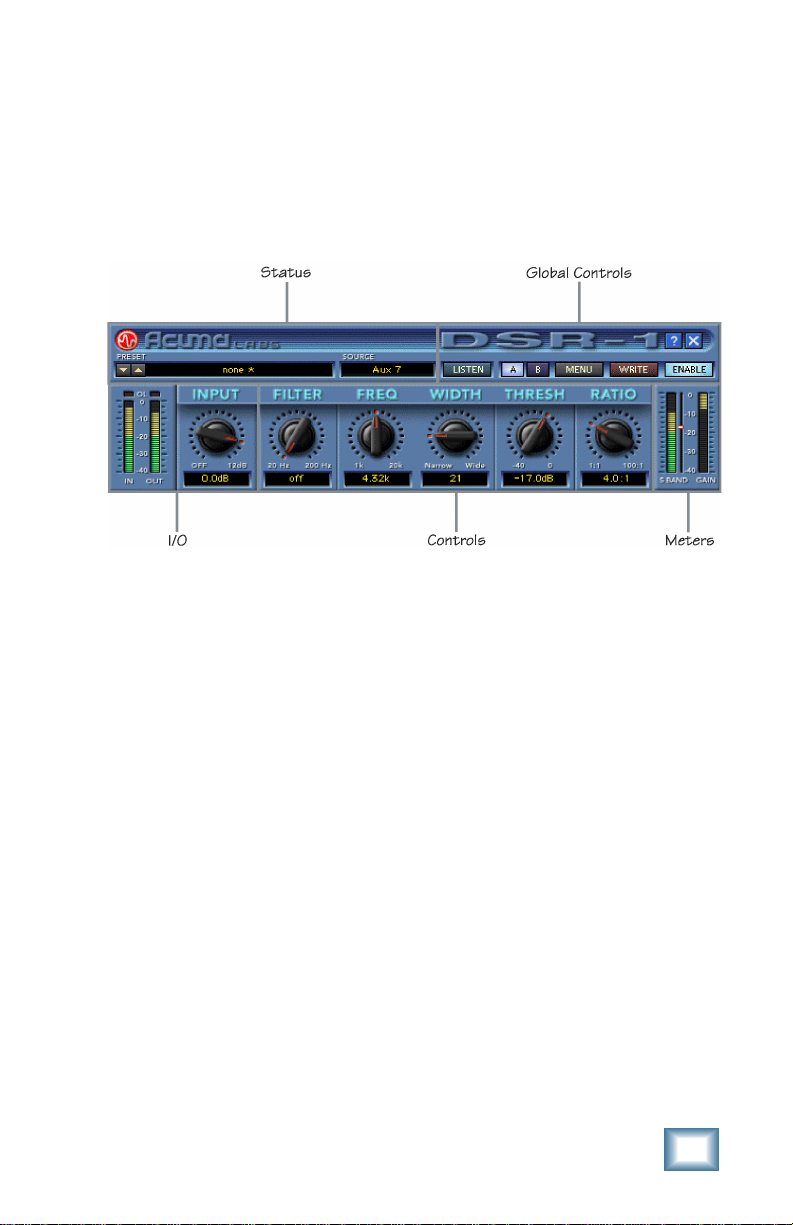
You can think of the DSR-1 as being broken into five basic areas:
the status block, global block, I/O block, controls, and meters.
DSR-1 Block break down overview
Status Block (See page 8)
The status block includes the PRESET up/down toggle buttons,
Preset Title window, and SOURCE (input select).
Global Controls Block (See page 9)
The global controls include: ess band (key) LISTEN, Mem A and
B select buttons, MENU, WRITE, ENABLE, HELP, and minimize
buttons.
I/O Levels Block (See page 11)
The I/O block is comprised of the input (IN) and output (OUT)
meters and the INPUT level adjustment ranging from off to
+12 dB.
Controls Block (See page 12)
The controls block is the heart of DSR-1. It includes the high-pass
FILTER, as well as FREQuency and bandWIDTH control for
selecting the ess band (ess range 1k to 20k). The controls block
also includes the THRESHold control (–49 dB to 0 dB), and the
RATIO control (1:1 to 100:1).

8
Acuma DSR-1 De-Esser
Meters (See page 14)
There are separate meters to indicate the ess-band level and the
ess-band gain reduction amount.
The Status Block
DSR-1 Status Block
Preset Toggle Buttons
The PRESET up/down arrows, located just to the left of the
preset window, enable you to scroll up or down through either
the factory or user presets.
Tip: In most vocal recordings, there are usually a number
of areas that could be improved with the DSR-1. However,
there is not necessarily one overall optimum setting that
will work throughout the track. Building user presets is a
good way to have multiple De-esser settings that can be
quickly accessed. You can then apply these settings to
various regions of your track. There is no delay time in
loading presets. You might try building performances by
stacking user presets and toggling between them using
the up/down arrows. These are located at the left side of
the preset window. You could also insert a load preset
event in the mix editor.
For example, you can quickly switch from a Verse Ess to
Chorus Ess preset and back. This would eliminate
problematic spots in your recording. Additionally,
pressing the WRITE button automates your changes as
part of the D8B session.
Note: See the section on the WRITE button for more information on how this
works. The user preset list sorts alphabetically. If you want your user presets
to come up in a certain order, use letters at the beginning of the preset names.
(I.e. Aesss, Besss, Cesss, etc.).

User’s Guide
9
PRESET Title Window
The PRESET Title window is located at the top of the control
bar. It displays the currently selected preset corresponding to
the existing DSR-1 settings. Click on the window to access the
pull-down menu where you choose between factory or user
presets.
Note: It is possible to save presets to the User Preset folder, which is the
default folder, or a folder of your own making. The user presets point to
the last folder you’ve saved or recalled presets from.
SOURCE
The input select is located directly to the right of the PRESET
Title window. Use your mouse to select from pre/post insert,
auxiliary, or master insert inputs. In general, the DSR-1 is
intended to be used as a channel insert.
Global Controls Block
DSR-1 Global Controls Block
LISTEN
The LISTEN button acts like a solo that lets you hear (solo) the
frequency band set with the FREQ and WIDTH pots in the
Controls block. Selecting LISTEN isolates (or solos) this range.
This should help you zero in on annoying sibilance by using your
ears to identify where the problem is occurring.
Memory A/Memory B
The Mem A and Mem B buttons temporarily store DSR-1
settings to allow comparative referencing. You can also copy and
paste settings from one memory location to another.

10
Acuma DSR-1 De-Esser
MENU
Pressing the MENU button opens a pull-down menu. This menu
performs familiar functions such as load, save as, cut, copy, and
paste. It also displays the plug-in’s build number and version.
WRITE
WRITE enables the D8B’s automation so all the changes you
make in the DSR-1 plug-in are recorded as part of the D8B
session. This works similarly to a channel’s write button. To
record automation for a plug-in, ALL must be turned on in the
automation section of the D8B. Automation must also be out of
Bypass. Plug-in parameter edits are recorded when the D8B is
recording, but only if the plug-in’s WRITE button is on, or if
Auto Touch is turned on. Auto Touch is located in the
automation section. When you press stop, the plug-in’s WRITE
button turns off.
ENABLE
The ENABLE button either enables or bypasses the DSR-1.
Help Screen (?)
Pressing the help screen (?) button brings up a quick-start
screen to quickly get you using the plug-in. It’s also useful for
quick reference.
The Help Screen
Minimize Button (X)
The minimize button (X) in the top-right corner hides the screen.
However, the screen is still active until it is disabled in the D8B
Plug-ins window.
Questo manuale è adatto per i seguenti modelli
1
Indice
Altri manuali Acuma Labs Software


Manuali Software popolari di altre marche


PS Audio
PS Audio PowerPlay Manuale del proprietario

Brady
Brady LOCKOUT PRO 3.0 Manuale di servizio

Avaya
Avaya Interaction Center Manuale utente

Texas Instruments
Texas Instruments TI-83 Plus Silver Edition Manuale

Novell
Novell GROUPWISE 8 - INTERNET AGENT Manuale utente

Oracle
Oracle Application 9i Manuale utente

Acer
Acer RDM Manuale utente

Canon
Canon Vixia HF21 Manuale utente

Canon
Canon ZR950 Manuale utente

Samsung
Samsung Auto Backup Manuale utente

Polycom
Polycom Vortex EF2201 Istruzioni per l'installazione e il funzionamento

Brocade Communications Systems
Brocade Communications Systems Brocade 8/12c Manuale utente