
Aerpro AERA10D Manuale utente

aerpro.com
USER GUIDE
AERA10D
10” MULTIMEDIA RECEIVER

AERA10D
2aerpro.com
TECHNICAL ASSISTANCE:
If you need assistance setting up or using your
Aerpro product now or in the future, call Aerpro
Support. Australia. Mon-Fri 9am – 5pm AEST
TEL: 03 – 8587 8898
FAX: 03 – 8587 8866
Please retain this user guide for future reference.
If you would like to download a digital copy of
this manual, or other Aerpro manuals/software,
please visit the Aerpro.com website and search
for information on your model or scan the QR
code below.
Visit aerpro.com
for updates and further detailed information.
Apple CarPlay is a trademark of Apple Inc
Use of the Apple CarPlay logo means that a
vehicle user interface meets Apple performance
standards. Apple is not responsible for the
operation of this vehicle or its compliance with
safety and regulatory standards. Please note
that the use of this product with iPhone, iPod, or
iPad may affect wireless performance.
“Made for iPod,” “Made for iPhone,” and
“Made for iPad” mean that an electronic
accessory has been designed to connect
specically to iPod, iPhone, or iPad, respectively,
and has been certied by the developer to
meet Apple performance standards. Apple is
not responsible for the operation of this device
or its compliance with safety and regulatory
standards. Please note that the use of this
accessory with iPod, iPhone, or iPad may affect
wireless performance. iPad, iPhone, iPod nano,
and iPod touch are trademarks of Apple Inc.,
registered in the U.S. and other countries.
DAB+ and all related marks and logos
are trademarks of WorldDAB.
All rights reserved.
Android, Android Auto, Google Play and
other marks are trademarks of Google
LLC.
The Bluetooth word mark and logos are
registered trademarks owned by
Bluetooth SIG, INC. and any use of such
marks by AAMP Global is under license.
HDMI, the HDMI Logo, and High-Denition
Multimedia Interface are trademarks
or registered trademarks of HDMI
Licensing LLC in the United States and
other countries
TM

AERA10D
3
aerpro.com
CONTENTS
The Basics.................................4
Getting Started........................6
AM/FM Radio...........................8
Bluetooth Phone......................9
Pairing a Device..................10
BT Device Settings................11
Contacts/Call Log...............12
Bluetooth Music.....................13
DAB+ Digital Radio
................
14
DAB+ Channels/Settings.....16
USB Media..............................17
Apple CarPlay
®
......................18
Android Auto™
......................19
iPod.................................
.
........20
HDMI...................
.................
....21
AV In........................................21
Cameras.................................22
Hema Maps Navigation........23
Display Off...........
................
...24
Settings....................................24
Clock.....................................24
System Settings.....................24
Illumination............................25
Backgrounds.........................26
Display...................................26
Tabs........................................26
Camera.................................27
Reset Button............................27
Sound Settings.........................28
Equalizer.................................29
Factory EQ.............................29
Crossover...............................30
Time Correction....................31
Toslink.....................................32
Gain/Volume........................32
Reset Button............................33
Trouble Shooting.....................33
Specications.
........................
34
AERA10D
4aerpro.com
THE BASICS
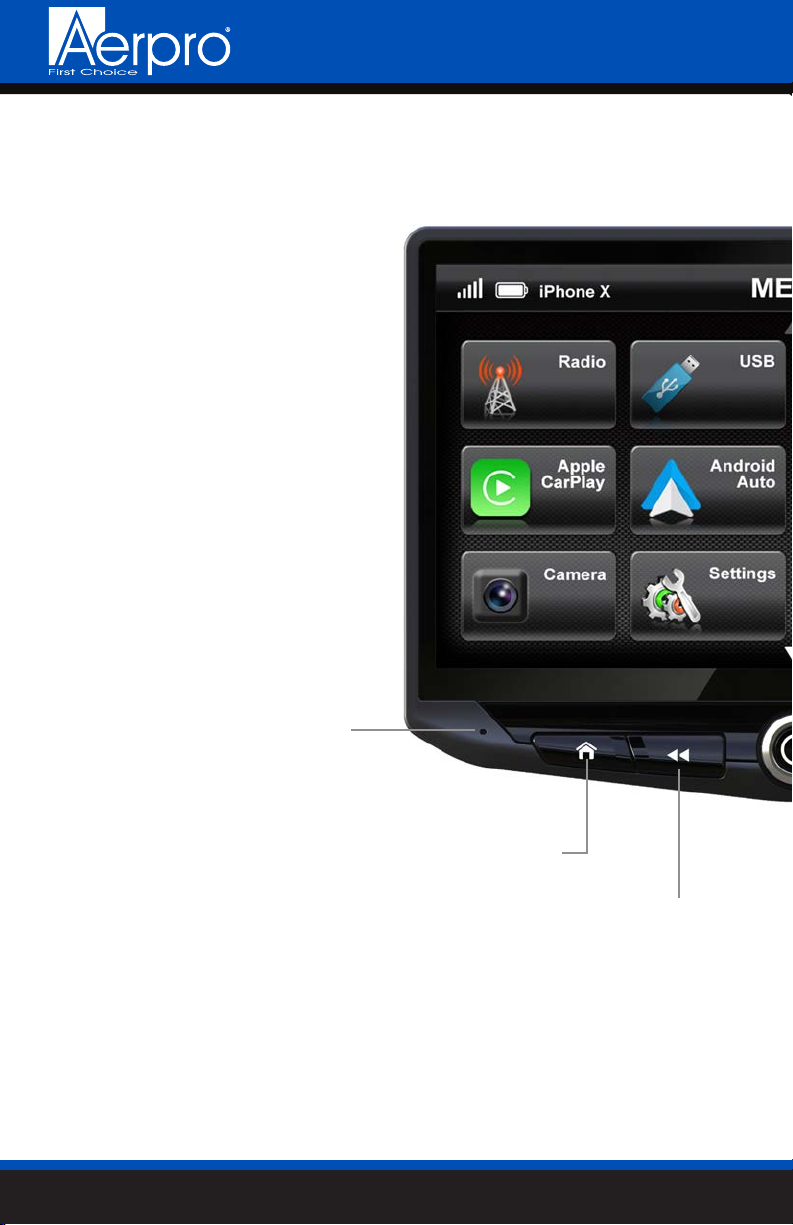
Internal
Microphone
Multifunction Knob
Press & Hold to Power On/Off
Turn to adjust Volume Up/Down
Press to Mute/Unmute
Home Button
Jump to the Home Menu
Tune/Track Down Button
Media control Previous, Back, Seek
Press & hold function in select sources

AERA10D
5
aerpro.com
Reset
Button
Multifunction Knob
Press & Hold to Power On/Off
Turn to adjust Volume Up/Down
Press to Mute/Unmute
Voice Button
Launches voice control
Tune/Track Up Button
Media control Next, Forward, Seek
Press & hold function in select sources

AERA10D
6aerpro.com
GETTING STARTED
POWER UP!
With vehicle ignition in the ON or ACC
position, Press and Hold the knob for 2
seconds to power ON/OFF.
The source will automatically default to
the last source used prior to powering
down.
You can adjust the audio volume at
start-up in Sound Settings on page 32.
The Information Bar is located at the
top of the screen. Depending on the
SOURCE, it will provide information
or content sensitive controls. Also,
displays time, phone info and may
contain BACK ARROW and EXIT
buttons.
Customizable TABS can be accessed by
swiping the up arrow at the bottom
of the screen. Tabs give direct access to
sources/settings and can be customized
in Settings > Tabs on page 26.
The active Tab will be highlighted and
sources that are not available will be
dimmed out. Once the Tabs are opened,
the will auto-close after 5 seconds or press
the down arrow to close the tabs.
Information Bar Source/Info Time
Power
ON/OFF
Swipe Up
To Open TABS
HOME
Button
AERA10D
7
aerpro.com
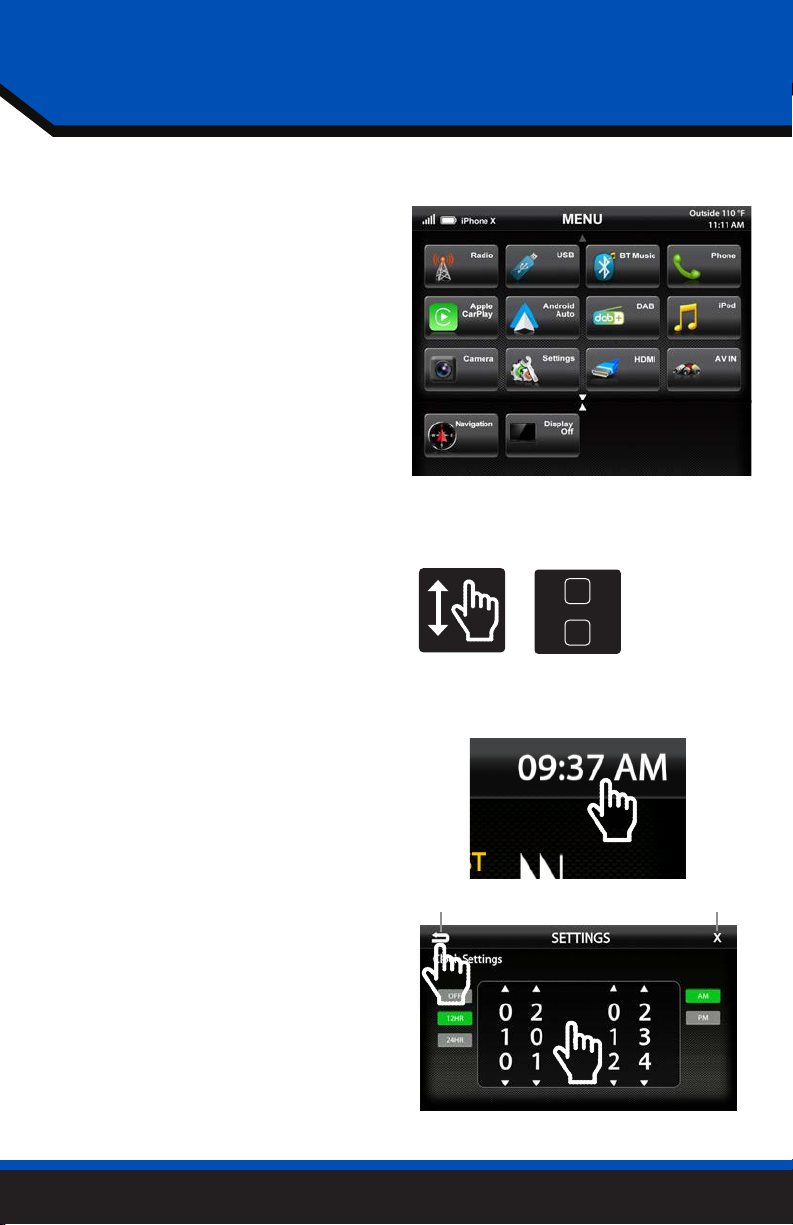
SELECTING A SOURCE
Back Arrow Exit
There are multiple ways to scroll...
Swiping Up/Down, Up/Down Arrows
SETTING THE TIME
1) Touch and Hold the Time Display
on the Information Bar for 2 seconds
to access the clock settings.
2) Swipe or click arrows to set time
and format.
3) Touch the BACK ARROW or EXIT
to save and exit.
2
3
1
To select a source, press the HOME
button.
The HOME MENU displays all Sources,
along with Settings, Audio, Display
and Camera options.
SOURCES that are not currently
available are grayed out.
QUICK TIP

AERA10D
8aerpro.com
AM/FM RADIO
Station Presets - To assign a preset,
go to desired station, press and hold
a preset location until preset button
highlights and station frequency
appears. A total of 18 FM and 12 AM
stations can be stored in memory.
AM/FM - Press to cycle through AM/FM
presets (FM1-FM2-FM3-AM1-AM2)
PTY Program Type - Indicates radio
station type.
Tune/Seek Down - Press and release to
Tune Down. Press and hold to Seek the
next available radio station.
Station Display - Displays current
frequency.
ST Indicator - Indicates when current
radio station is in Stereo.
Tune/Seek Up - Press and release to
Tune Up. Press and hold to Seek the
next available radio station.
Preset Bank - Indicates current preset
bank.
RT Info- station/title/artist information
DX/LOC - changes the radio tuner
sensitivity. Touch to toggle between
Distant (DX) and Local (LOC).
Auto Preset - Touch to automatically
set the 6 presets with current location
radio stations.
2
1
6
1
5
2
6
3
7
4
8
9
10
11
39
8
Press the HOME BUTTON > Radio to select the Radio
11
10
45
7

AERA10D
9
aerpro.com
Bluetooth PHONE
Number Pad - Touch to launch
the number pad for dialing phone
numbers.
Speaker/Phone - Switches phone calls
between the car speakers and the
phone handset.
Clear - Clear/delete last number
entered.
Call/Answer - Dials the number entered
on the phone or on the number pad.
Answers incoming call.
End/Decline - Press to end active call
or decline incoming call.
Device Info - Displays the name of
the currently paired device, signal
strength and battery status.
Favorites - Customizable list of
favorite contacts.
Contacts - List of contacts from
paired phone. Not supported by all
phones.
Settings - List of devices and settings.
Add or Delete devices.
Call Log - Recent Dialed, Received
and Missed calls.
123
6 7 8
10
9
1
5
2
6
3
7
4
8
10
9
4
5
Press the HOME BUTTON > Phone to select the Phone

AERA10D
10 aerpro.com
Bluetooth PHONE
Select Settings from the Phone main
menu to go to BT Device Settings.
Select Devices on the BT Device
settings page.
Place your device in Discoverable Mode.
Select ADD on the Devices page
Select your device from the list.
If your device does not appear in the
device list, conrm it is discoverable
and select Retry
NOTE!
2
4
1
3
5
Pairing a Device
Select Connect to initiate pairing
2
1
3
4
5
Altri manuali per AERA10D
2
Indice
Altri manuali Aerpro Ricevitore


