
Akaso FOCUS Manuale utente

Quick Start Guide
AKASO FOCUS Mini Video Projector
V1.3
CONTENTS
01 - 13English
27 - 39日本語
14 - 26Español
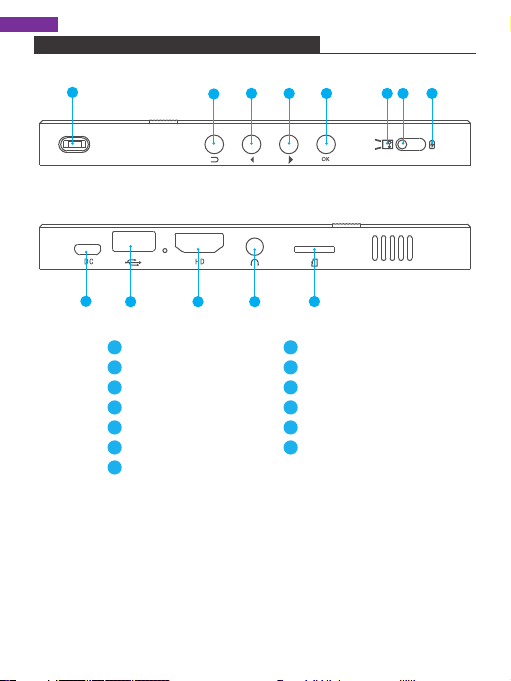
PROJECTOR BUTTONS & FUNCTIONS
123456 7 8
Note:
When in the EZWire/EZCast/HDMI interface, the button function is changed.
Forward: Change to volume +
Backward: Change to volume -
910 11 12 13
1
2
3
4
5
10
Focusing Wheel
Return
Forward
Backward
OK
Projection Mode
Power Button
6
7
8
9
Power Bank Mode
DC
USB
HDMI
Earphone
Memory Card Port
11
12
13
1
English
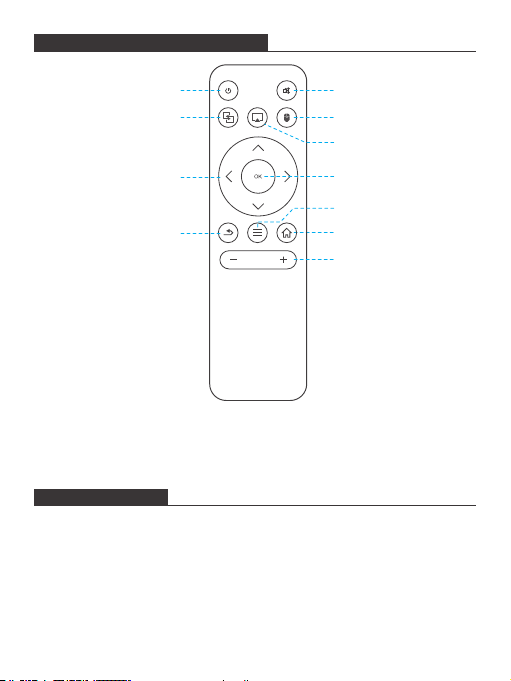
INFRARED REMOTE CONTROL
POWER ON/OFF
Note:
When using the IR remote control, you should aim at the projector rather
than screen.
1. Pull the power button to the left and hold it for about four seconds until the
green indicator on the projector bottom is lit up, then the projector starts to
work.
2. Turn the power button to the left again and hold it for about two seconds to
shut down the projector.
3. Turn the power button to the right to lock the button, then the projector can be
used as a power bank.
OK
Return
Menu
Vol +/-
Directions
Home
EZCast Operation No Function
HDMI Operation
On/Off Mute
2
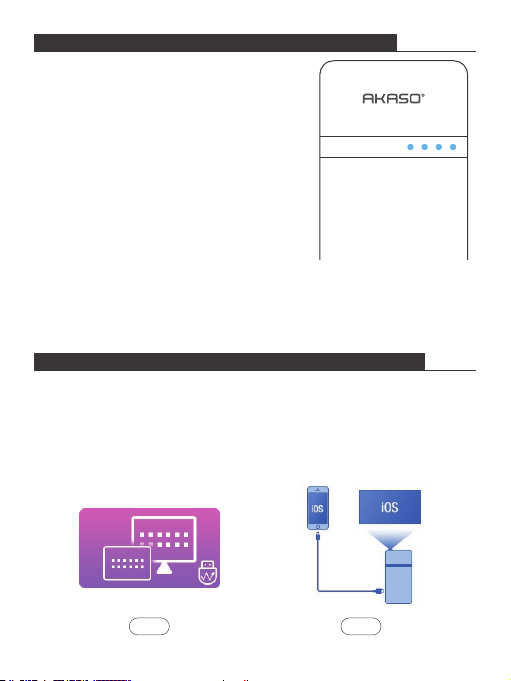
POWER BANK MODE AND CHARGING METHOD
1. When the projector is in power bank mode/
projection mode, the projector can charge other
devices via USB port.
2. In order to improve charging efficiency, please
charge the projector with the original power
adapter in power bank mode.
3. The number of indicators represent remaining
capacity of battery.
a. When the 4 indicators are all on and without
flashing, the capacity of battery is full.
b. When there is only one indicator on, the
projector is in low power status and can be
used as power bank for emergency.
c. If there is only one indicator flashing, it means all the power is used up and
the projector needs to be charged.
EZWIRE: SCREEN-SHARING VIA WIRE CONNECTION
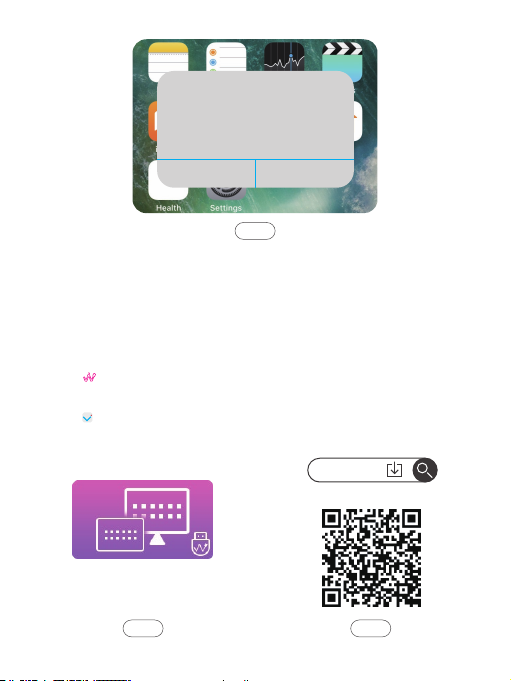
iOS Device:
1. Select and click EZWire icon in the main projector interface.
2. Connect the projector and iOS device with USB cable.
3. The iOS device will pop up a prompt, as shown in the figure below "Step 3".
Select “trust” and then wait a moment, the screen content on the iOS device will
be displayed on the projector screen.
EZWire
1
Step 1 Step 2
3
Android Device:
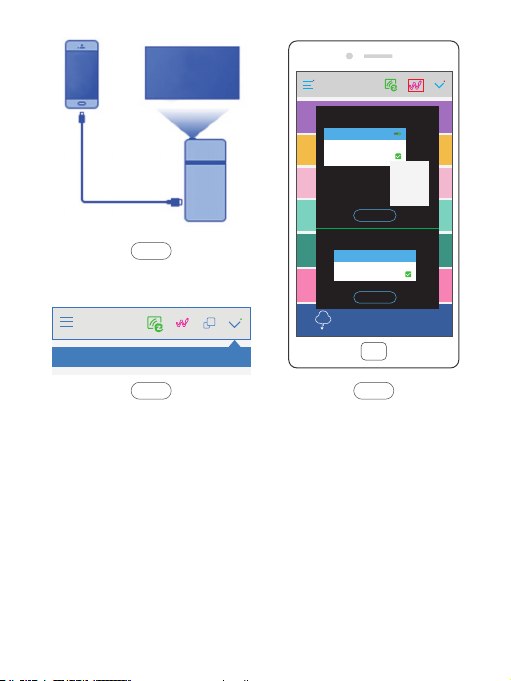
1. Select and click EZWire icon in the main projector interface.
2. Download “EZCast” app by scanning the below QR code/scanning the QR code
on the EZWire interface/searching for “EZCast” in App Store/Google Play/official
website www.ezcast.com, etc.
3. Connect the projector and Android device with USB cable.
4. Select in the “EZCast” app, then follow the prompts to turn on the USB
debugging mode and USB tethering in the settings of the Android device.
5. Select on the top left corner of the “EZCast” app, then select projector ID
“AKASO_FOCUS_ ******” to connect your Android device to the projector.
Trust This Computer?
Your settings and data will be
accossible from this computer when
connected
Trust Don’t Trust
EZWire
Step 3
EZCast
Google Play
Step 1 Step 2
4
Note:
1. Please make sure your Android device supports USB tethering.
2. Since the different Android device systems are different, the way to open USB
debugging mode and USB tethering is different. You can search for “How to
open the USB debugging mode and USB tethering of XXXXX Android device” in
Google.
AKASO_FOCUS_******
Cloud Storage
No device
Developer options
Debugging
USB debugging
Tethering & portable hotspot
USB tethering
Tethered
Allow USB debugging?
USB debugging is intended
for developement purposes
only, Use it to copy doto
oetween your computer
and your device, install
opps on your device
witnout notificotion, and
reod log date.
CANOL OK
Option 1:
Turn on USB Debugging mode to mirror
usb debugging mode need to turn on only one tinme
Option 2:
Turn on USB Tethering to mirror
Connect
Connect
AndroidAndroid
Step 3
Step 4Step 5
5
EZCAST: SCREEN-SHARING VIA WIRELESS CONNECTION
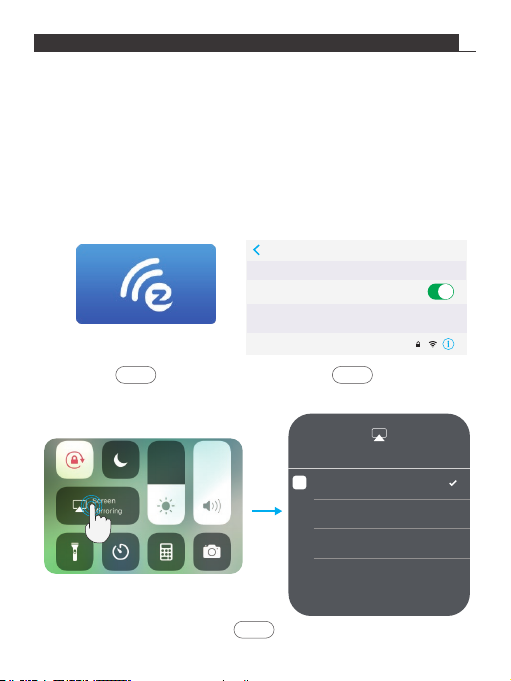
Air Play Wireless Connection:
1. Select and click EZCast icon in the main projector interface.
2. Connect iOS device with the Wifi hotspot “AKASO_FOCUS_ ******” provided by
EZCast interface, the password is “87654321”.
3. Open Air Play (Screen Mirroing) in the settings of the iOS device, select projector
ID “AKASO_FOCUS_ ******” in Air Play list, then wait a moment, the screen
content on the iPhone will be displayed on the projector screen.
(If iOS device and projector are already connected with the same Wifi, there is
no need to connect with the hotspot provided by the EZCast interface)
EZCast
Settings Wi-Fi
Wi-Fi
AKASO_FOCUS-781C01081
CHOOSE A NETWORK...
Screen Mirroing
Stop Mirroring
AKASO_FOCUS-781C01081
TV
Step 2Step 1
Step 3
6
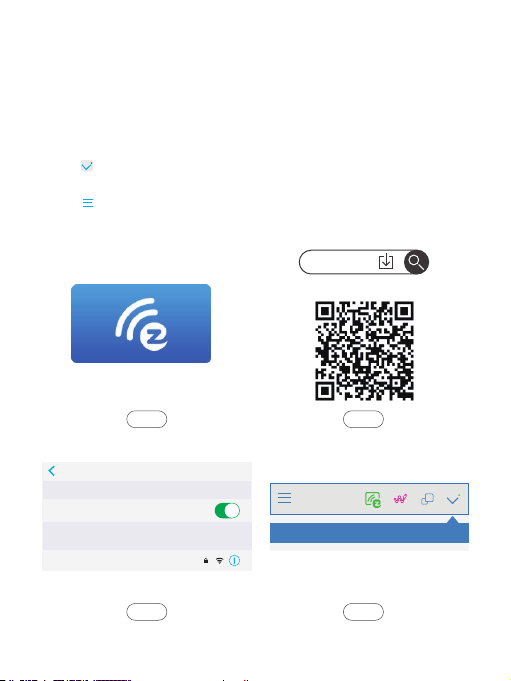
Other devices EZCast connection:
1. Select and click EZCast icon in the main projector interface.
2. Download “EZCast” app by scanning the below QR code/scanning the QR code
on the EZWire interface/searching for “EZCast” in App Store/Google Play/official
website www.ezcast.com, etc.
3. Connect your device with the Wifi hotspot “AKASO_FOCUS_ ******” provided
by EZCast interface, the password is “87654321”.
4. Select on the top left corner of the “EZCast” app, then select projector ID
“AKASO_FOCUS_ ******” to connect your device to the projector.
5. Select on the top left corner of the “EZCast” app, select “Mirror Off” to turn
on the Mirror function. Then wait a moment, the screen content on the iPhone
will be displayed on the projector screen.
EZCast
Settings Wi-Fi
Wi-Fi
AKASO_FOCUS-781C01081
CHOOSE A NETWORK... AKASO_FOCUS_******
EZCast
App Strore | Google Play
Step 2Step 1
Step 4Step 3
7
EZChannel
Photo
Camera
Music
Video
Web
Cloud Storage
Sign in
AKASO_FOCUS-781C0181
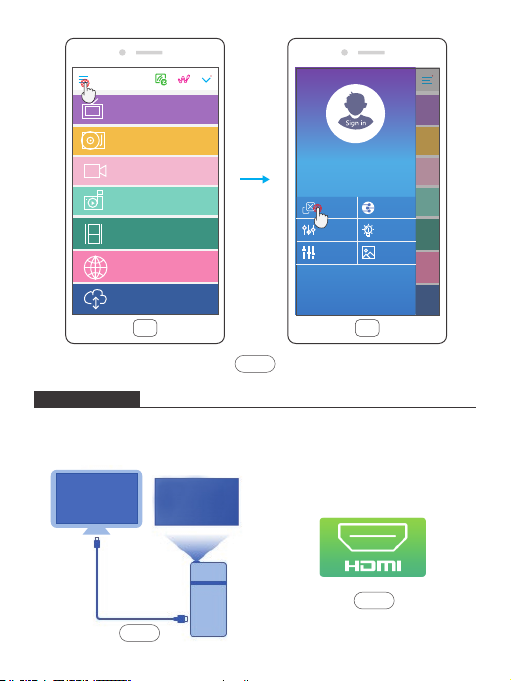
HDMI INPUT
1. Connect the projector and your device with HDMI cable.
2. Select and click HDMI icon in the main projector interface. Then wait a moment,
the screen content on your device will be displayed on the projector screen.
Mirror Off
Settings
Settings(App)
DLNA
Help
THEME
2
PC
PC
Step 5
Step 1
Step 2
8
Altri manuali per FOCUS
1
Indice
Altri manuali Akaso Proiettore


