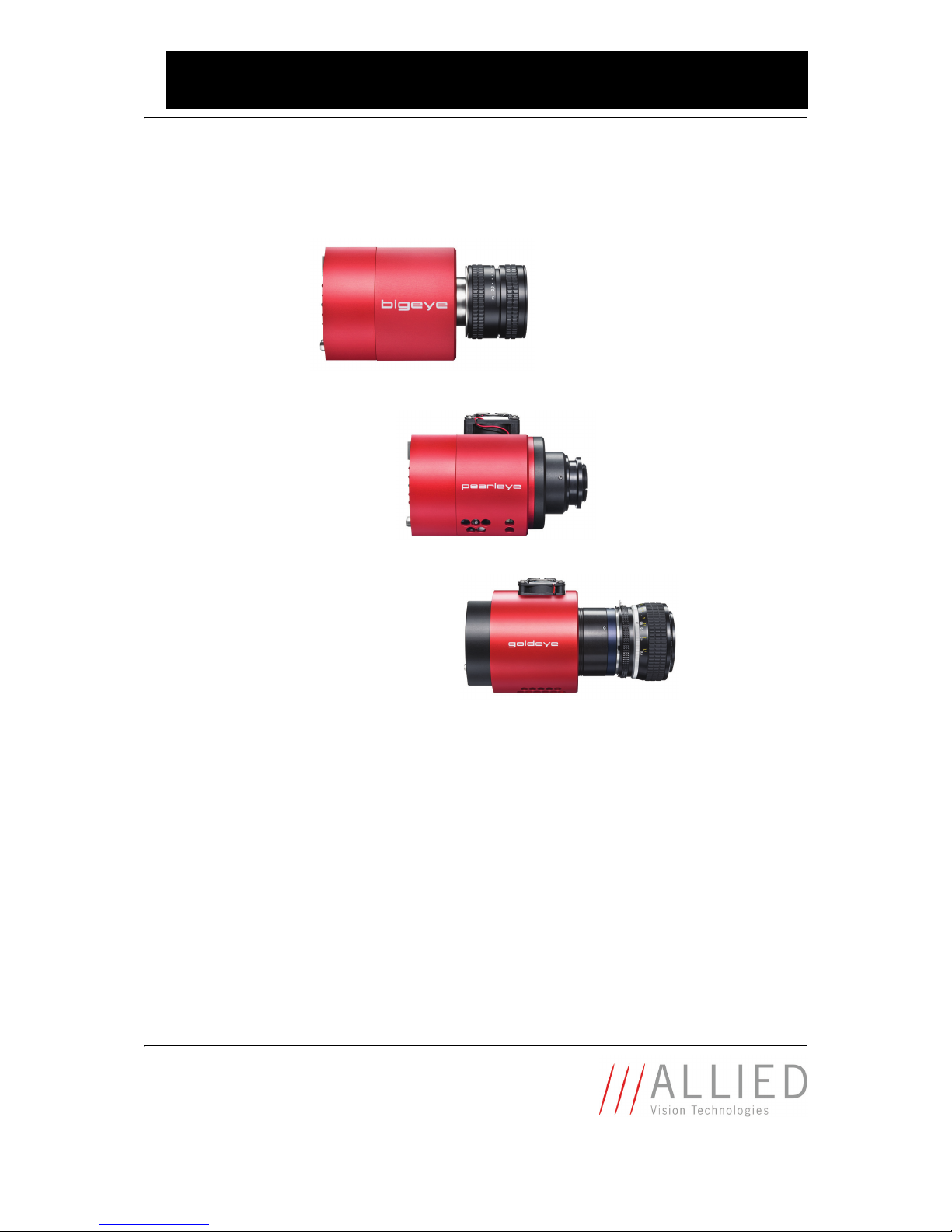
Allied Vision Technologies AVT GigEBigeye Manuale utente

How to install a GigE camera
Bigeye/Pearleye/Goldeye
V2.0.0
03 November 2011
Allied Vision Technologies GmbH
Taschenweg 2a
D-07646 Stadtroda / Germany
AVT GigE (Bigeye/Pearleye/Goldeye)

How to install a GigE camera (Bigeye/Pearleye/Goldeye) V2.0.0
2
Legal notice
Trademarks
Microsoft, Windows, Windows 7, Windows Vista, and Windows XP are either registered trademarks
or trademarks of Microsoft Corporation in the United States and/or other countries.
Unless stated otherwise, all trademarks appearing in this document of Allied Vision Technologies
are brands protected by law.
Warranty
The information provided by Allied Vision Technologies is supplied without any guarantees or
warranty whatsoever, be it specific or implicit. Also excluded are all implicit warranties concern-
ing the negotiability, the suitability for specific applications or the non-breaking of laws and pat-
ents. Even if we assume that the information supplied to us is accurate, errors and inaccuracy may
still occur.
Copyright
All texts, pictures and graphics are protected by copyright and other laws protecting intellectual
property. It is not permitted to copy or modify them for trade use or transfer, nor may they be used
on web sites.
Allied Vision Technologies GmbH 11/2011
All rights reserved.
Managing Director: Mr. Frank Grube
Tax ID: DE 184383113
Headquarters:
Taschenweg 2A
D-07646 Stadtroda, Germany
Tel.: +49 (0)36428 6770
Fax: +49 (0)36428 677-28
e-mail: [email protected]

How to install a GigE camera (Bigeye/Pearleye/Goldeye) V2.0.0
3
Contents
Contacting Allied Vision Technologies ................................................... 5
Introduction ............................................................................................................ 6
Document history............................................................................................................ 6
Manual overview ............................................................................................................. 6
Conventions used in this manual ........................................................................................ 7
Styles ....................................................................................................................... 7
Symbols.................................................................................................................... 7
Before operation............................................................................................................. 8
Safety warnings .............................................................................................................. 8
Cleaning instructions ....................................................................................................... 9
IP-based camera access: background...................................................10
IP settings: preliminary considerations ................................................12
Obtain an IP address automatically (DHCP)......................................................................... 12
Link Local Address (LLA)................................................................................................. 12
Static IP address ........................................................................................................... 13
Static Persistent IP address ............................................................................................. 13
Static Persistent IP for GigE Vision camera ..................................................................... 14
General tips for setting IP addresses ....................................................16
Installing GigE driver from Pleora ............................................................18
Hardware connection and first power up ............................................19
LED states for different camera models.......................................................................... 19
Display camera live images..........................................................................20
Using AcquireControl ..................................................................................................... 20
Select the grabber..................................................................................................... 20
Select the IP address ................................................................................................. 21
Select the camera ..................................................................................................... 22
Select the image processing chain................................................................................ 22
Start the continuous snap........................................................................................... 23
Advanced operations ..................................................................................................... 23
Exposure control ...................................................................................................... 23
Pseudo Color & Contrast Enhancement .......................................................................... 28
Background Correction .............................................................................................. 29
Statistics & histogram................................................................................................ 29
Using Pleora Coyote....................................................................................................... 30
Using Pleora GEVPlayer................................................................................................... 32
Using Bigeye/Pearleye/Goldeye cameras with 3rd party solutions........................................... 32

How to install a GigE camera (Bigeye/Pearleye/Goldeye) V2.0.0
4
Using National Instruments software ............................................................................ 32
Performance optimization.............................................................................35
Using AcquireControl ..................................................................................................... 36
Using 3rd party solutions................................................................................................ 36
Adjusting firewall settings............................................................................37
Troubleshooting ..................................................................................................38
Appendix ..................................................................................................................40
GigE Vision register description........................................................................................ 40
DeviceInformation .................................................................................................... 40
ImageSizeControl ..................................................................................................... 41
AcquisitionControl .................................................................................................... 42
AnalogControls ........................................................................................................ 42
CameraSpecialFeatures................................................................................................... 43
CameraSpecialFeatures\TwoPointCorrection................................................................... 45
CameraSpecialFeatures\BackgroundCorrection............................................................... 45
CameraSpecialFeatures\LUT........................................................................................ 46
CameraSpecialFeatures\IntegratorAndImageStore .......................................................... 46
CameraSpecialFeatures\BadPixelCorrection ................................................................... 46
GigE Vision timer calculations.......................................................................................... 47
Feature mapping........................................................................................................... 48
Index...........................................................................................................................49

Contacting Allied Vision Technologies
How to install a GigE camera (Bigeye/Pearleye/Goldeye) V2.0.0
5
Contacting Allied Vision Technologies
Info
•Technical information:
http://www.alliedvisiontec.com
•Support:
support@alliedvisiontec.com
Allied Vision Technologies GmbH (Headquarters)
Taschenweg 2a
07646 Stadtroda, Germany
Tel.: +49 36428-677-0
Fax.: +49 36428-677-28
e-mail: info@alliedvisiontec.com
Allied Vision Technologies Canada Inc.
101-3750 North Fraser Way
Burnaby, BC, V5J 5E9, Canada
Tel: +1 604-875-8855
Fax: +1 604-875-8856
e-mail: info@alliedvisiontec.com
Allied Vision Technologies Inc.
38 Washington Street
Newburyport, MA 01950, USA
Tel.: +1 978-225-2030
Fax: +1 978-225-2029
e-mail: info@alliedvisiontec.com
Allied Vision Technologies Asia Pte. Ltd.
82 Playfair Road
#07-02 D’Lithium
Singapore 368001
Tel: +65 6634-9027
Fax: +65 6634-902
e-mail: info@alliedvisiontec.com

Introduction
How to install a GigE camera (Bigeye/Pearleye/Goldeye) V2.0.0
6
Introduction
This Manual describes in depth the installation of the AVT GigE cameras (Big-
eye/Pearleye/Goldeye).
Document history
Manual overview
This manual overview outlines the contents of each chapter of this manual.
•ChapterContacting Allied Vision Technologies on page 5 lists AVT contact
data (phone numbers and URLs) for both:
– Technical information / ordering
– Commercial information
•ChapterIntroduction on page 6 (this chapter) gives you the document his-
tory, a manual overview (short description of each chapter) and conven-
tions used in this manual (styles and symbols).
•ChapterIP-based camera access: background on page 10 gives you back-
ground information when working with IP-based cameras.
•ChapterInstalling GigE driver from Pleora on page 18 gives you installing
descriptions when working with the GigE driver from Pleora.
•ChapterHardware connection and first power up on page 19 describes the
hardware installation procedures.
•ChapterDisplay camera live images on page 20 describes in general how
to get live images from IP-based cameras and display them.
•ChapterPerformance optimization on page 35 describes how to optimize
your system.
Note
Please read through this manual carefully.
For more information, see
http://www.alliedvisiontec.com/emea/support/downloads/
product-literature.html
Version Date Description
V2.0.0 03.11.11 New Manual How to install a GigE camera (Bigeye/Pearleye/
Goldeye)
Table 1: Document history

Introduction
How to install a GigE camera (Bigeye/Pearleye/Goldeye) V2.0.0
7
•ChapterAdjusting firewall settings on page 37 describes how to configure
the firewall settings.
•ChapterTroubleshooting on page 38 helps you when you get in trouble.
•ChapterIndex on page 49 gives you quick access to all relevant data in
this manual.
Conventions used in this manual
To give this manual an easily understood layout and to emphasize important
information, the following typographical styles and symbols are used:
Styles
Symbols
Style Function Example
Bold Programs, inputs or highlighting
important things
bold
Courier Code listings etc. Input
Upper case Register REGISTER
Italics Modes, fields Mode
Parentheses and/or blue Links (Link)
Table 2: Styles
Note
This symbol highlights important information.
Caution
This symbol highlights important instructions. You have to
follow these instructions to avoid malfunctions.
www
This symbol highlights URLs for further information. The URL
itself is shown in blue.
Example:
http://www.alliedvisiontec.com

Introduction
How to install a GigE camera (Bigeye/Pearleye/Goldeye) V2.0.0
8
Before operation
We place the highest demands for quality on our cameras.
Target group This Technical Manual is the guide to detailed technical information of the
camera and is written for experts.
Safety warnings
Note
Please read through this manual carefully before operating
the camera.
Caution
Before operating any AVT camera read the following safety
instructions and ESD warnings.
Caution
Electrostatic discharge
The camera contains sensible electronic components which can
be destroyed by means of electrostatic discharge.
Use sufficient grounding to minimize the risk of damage.

Introduction
How to install a GigE camera (Bigeye/Pearleye/Goldeye) V2.0.0
9
Cleaning instructions
Note
Dark spots on the image, especially at nearly closed aperture,
are mostly caused by dust on the sensor of the camera.
Allied Vision Technologies GmbH cleans the sensors around the
lens mount thread with pure air in a clean room class 1000.
After a careful test in the clean room a seal is affixed on the lens
mount aperture.
To receive a dust-free overall system the opening of the seal
and the fitting of the optic should also be done in a dust-free
environment (clean room class better than 1000).
Therefore also a dust-free optic is necessary or rather the optic
has to be cleaned with pure air first.
If, despite of all precaution, dust is on the sensor, the sensor-
area should be blown out with pure air. Therefore compressed
air aerosols are suitable (dust-off-sprays), e.g. „Druckluft 76“
from CRC Industries, D-76473 Iffezheim, Tel.: 0049-7229-
3030.
When using the air-sprays pay attention that the sprays are not
moved or shaken. Otherwise it comes to an emission of fluid
(propellant).
Caution
Do not touch the sensor with tough objects. The glass is often
scratched and the sensor gets damaged.

IP-based camera access: background
How to install a GigE camera (Bigeye/Pearleye/Goldeye) V2.0.0
10
IP-based camera access: background
In order to access a camera (or any other device) in the network, it is necessary
that the camera and also the Network Interface Card (NIC) have a valid IP
address. Every device in the network must have a unique IP address.
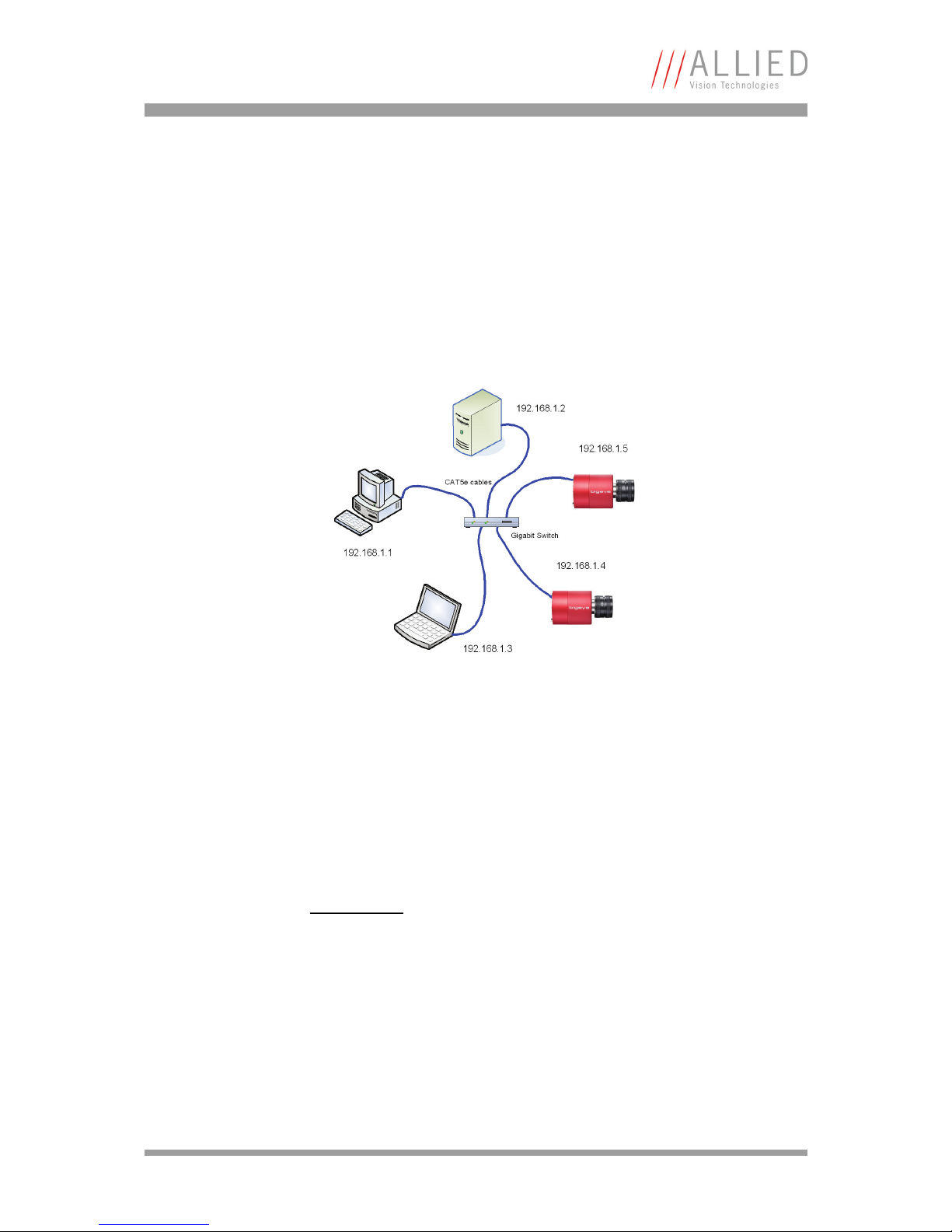
The following graphic illustrates the assembling of such network:
The chosen IP addresses and the way the devices are connected in the illustra-
tion above are just an example. It is also possible to connect the camera directly
to a PC/notebook.
The following subchapters describe what IP addresses can be used and how they
are obtained.
In order to work properly with a AVT GigE camera please take care of the follow-
ing:
Figure 1: Network with IP-based cameras
Note
• AVT recommends doing machine vision applications on
standalone computers not used for internet
applications, and not networked for non-vision uses.
Mixed uses may be possible, but this adds complexity,
requires involving your corporate IT team, and may yield
sub-optimal results.
• Firewalls may block the communication with the camera.
In these cases ask your local IT department about
possibilities like disabling the firewall for one NIC.
Similar things may happen with antivirus solutions.
Questo manuale è adatto per i seguenti modelli
5
Indice
Altri manuali Allied Vision Technologies Telecamera IP

Allied Vision Technologies
Allied Vision Technologies Goldeye P-008 SWIR Manuale utente

Allied Vision Technologies
Allied Vision Technologies Pearleye P-007 LWIR Manuale utente

Allied Vision Technologies
Allied Vision Technologies Prosilica GX GX3300 Manuale utente

Allied Vision Technologies
Allied Vision Technologies GigE Cameras Manuale utente

Allied Vision Technologies
Allied Vision Technologies AVT Stingray Manuale utente

Allied Vision Technologies
Allied Vision Technologies Prosilica GE1900 Manuale utente