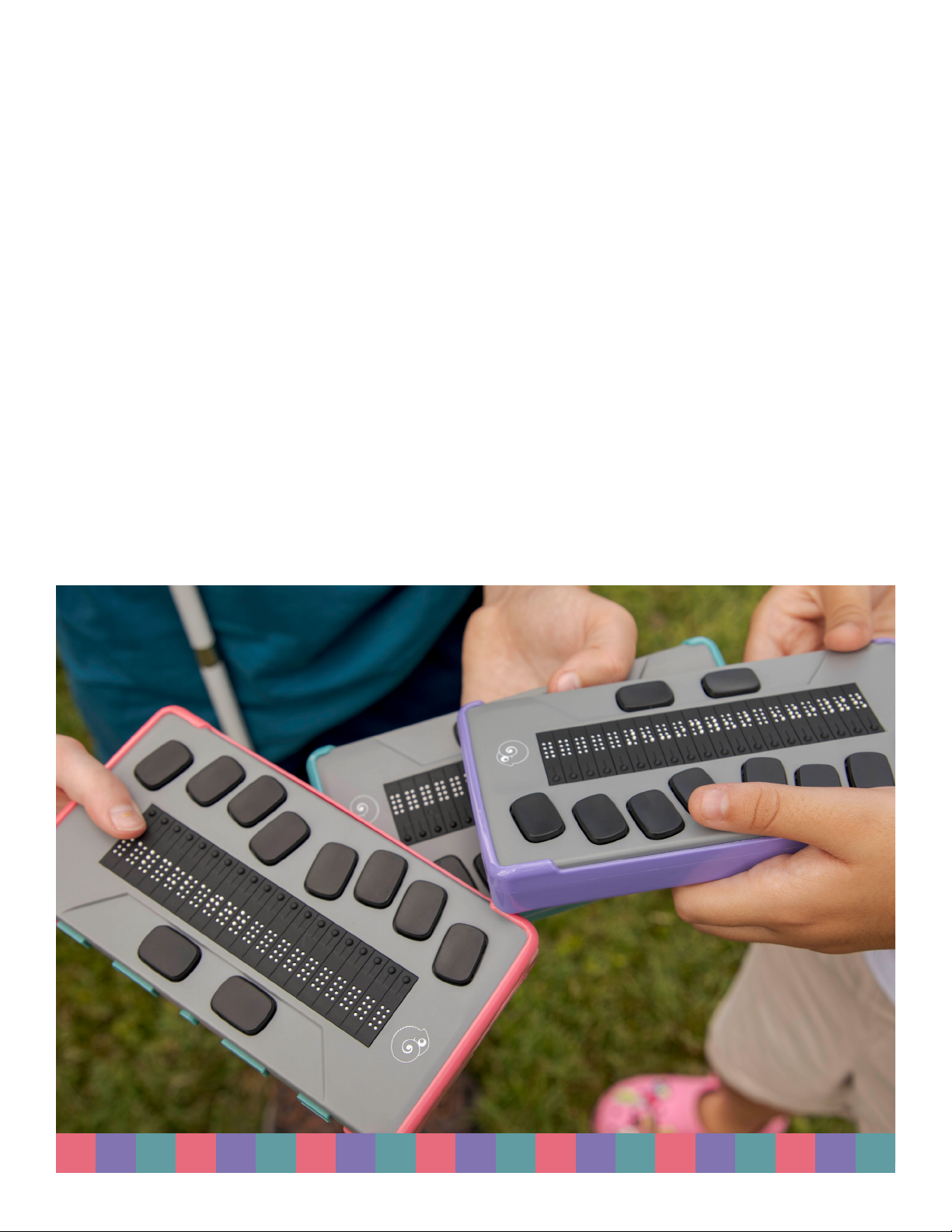
APH Chameleon 20 Manuale utente

User Guide

Copyright 2020. All rights reserved, APH.
This User Guide is protected by copyright belonging to APH, with all rights
reserved. The User Guide may not be copied in whole or in part without
written consent from APH.

Contents
Getting Started 7
In the Box 7
Orientation of Chameleon 20 7
Top Face 7
Front Edge 8
Left Edge 8
Right Edge 8
Rear Edge 9
Bottom Side 9
Charging Chameleon 20 9
Powering On and Off 9
Adjusting the Sleep Mode 10
About the About Menu 10
Navigating and Using Menus 11
Navigating the Main Menu 11
Panning Text on the Braille Display 11
Using the Context Menu for Additional Functions 11
Navigating by First Letters of Words 12
Using Shortcuts/Key Combinations to Navigate 12
Using the Editor Application 14
Create a File 14
Open a File 14
Close a File 14
Save a Text File 15
Auto Scrolling Through Written Text in the Editor 15
Modifying Auto Scroll Speed 15

Finding Text in a File 15
Finding and Replacing Text 15
Cutting, Copying, and Pasting Text 16
Using the Read Mode 16
Editor Commands Table 17
Using the Library Application 18
Navigating the Book List 19
Searching for Books 19
Accessing Recently Opened Books 19
Managing Your Books 19
Navigating and Accessing Additional 20
Information in Books 20
Changing the Navigation Level for Books 20
Navigating by Page, Heading, Percentage, or Bookmarks 21
Auto-Scrolling Through Text in Books in the Library App 21
Finding Your Current Position in a Book 21
Navigating to the Beginning or End of a Book 22
Searching for Text in a Book 22
Accessing Additional Book Information 22
Adding, Navigating, Highlighting, and 22
Removing Bookmarks 22
Inserting a Bookmark 23
Navigating to Bookmarks 23
Highlighting Bookmarks 23
Removing Bookmarks 24
Library and Reading Commands Table 25
Using Terminal Mode 26
Connecting and Exiting Terminal Mode 27
Determining Chameleon 20 Compatibility 27

Waking Your iOS Device Using the Chameleon 27
Connecting by USB 27
Connecting by Bluetooth 28
Navigating Between Connected Devices 28
Using the File Manager 29
Browsing Files 29
Selecting a Drive in the File Manager 29
Accessing File and Folder Information 30
Displaying the Current File Path 30
Searching for Files and Folders 30
Sorting Files or Folders 30
Modifying Files and Folders 31
Creating a New Folder 31
Renaming Files or Folders 31
Selecting Files or Folders for Applying Additional Actions 32
Copying, Cutting, and Pasting Files or Folders 32
Deleting Files or Folders 33
File Manager Commands Table 33
Using the Calculator Application 34
Operating the Calculator 34
Calculator Commands Table 35
Using the Date and Time Application 35
Displaying the Time and Date 36
Setting the Time and Date 36
Setting User Preferences 37
Setting Options Table 37
Adding, Configuring, and Deleting Braille Profiles 38
Adding a Braille Profile 38
Configuring or Deleting a Braille Profile 38

Using a Wi-Fi Network or Bluetooth 39
Connecting to a Wi-Fi Network 39
Wi-Fi Settings Table 40
Choosing Bluetooth Mode Options 40
Accessing and Using Online Services 41
Activating Bookshare and Downloading Books 41
Configuring, Managing, and Syncing an NFB 42
Newsline Account 42
Updating the Chameleon 20 42
Customer Support 43
Proper Trademark Notice and Attributions 43
End User License Agreement 44
Warranty 44

7
Getting Started
Welcome to your new Chameleon 20™ Braille display.
This user guide provides instructions for orientation, usage, navigation,
and updating of the device. For more information please refer to the
Chameleon 20 product page on the APH website or call APH Customer
Service at 1(800) 223-1839.
In the Box
The box contains the following items:
• Chameleon 20™ braille display
• USB-C to USB-A cable
• USB to AC adapter
• Three thermoplastic polyurethane (TPU) bumper cases in
pomegranate, purple, and teal
• Nylon carrying case with lanyard
• Sheet of various bug stickers and logos
• Print and Braille Getting Started guides
Orientation of Chameleon 20
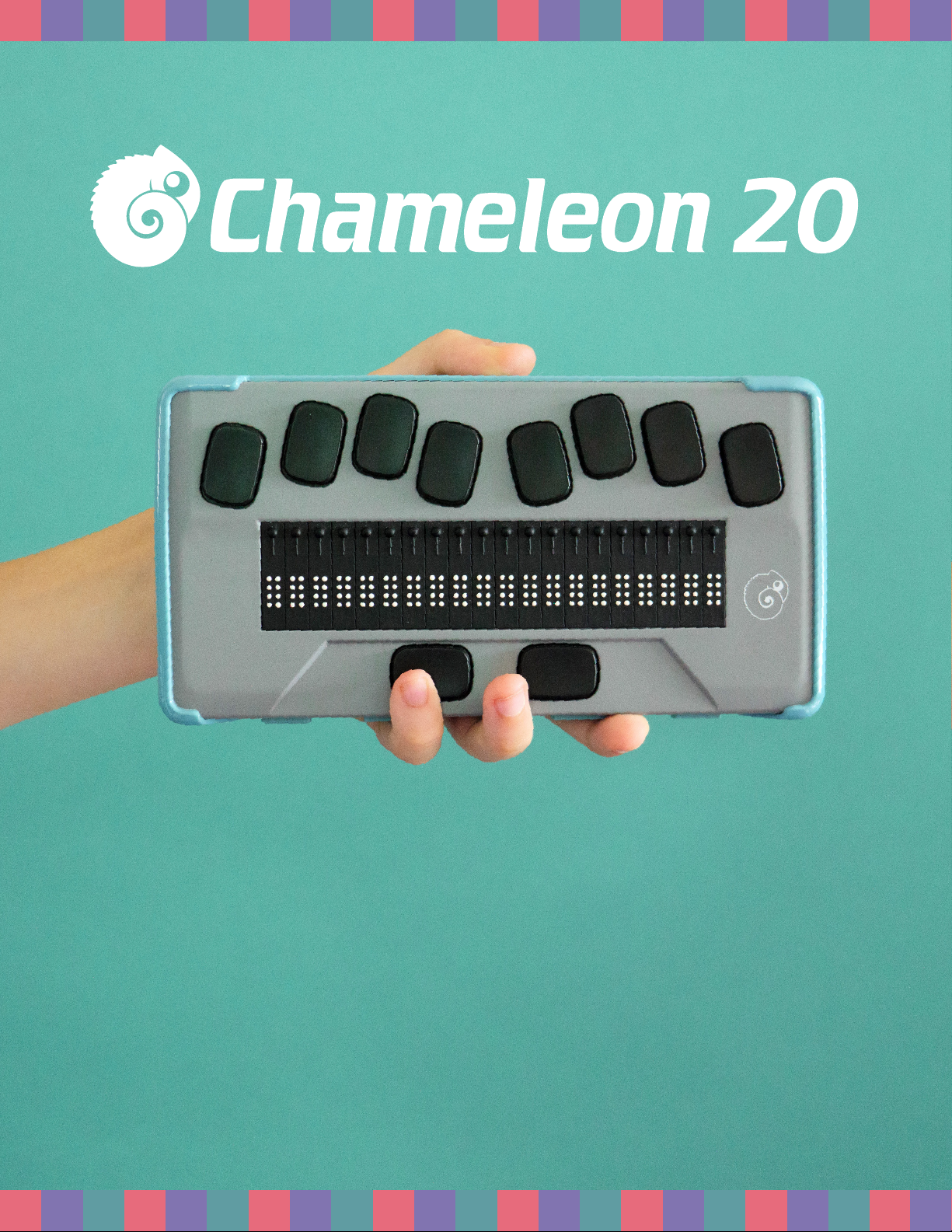
The Chameleon has a 20-cell braille display, a Perkins-style keyboard, two
Space bars, a Home button and four thumb keys for navigation.
Top Face
The top face of the Chameleon can be divided into two sections: front
and rear.
The front section of the top face consists of a refreshable braille display
containing 20 braille cells and 20 cursor routing buttons. Each cursor routing
button is associated with the braille cell directly below it. When editing text,
pressing one of the cursor routing buttons moves the editing cursor to the
associated braille cell.
When you are not editing text, any cursor button activates a selected item.

8
The rear section of the top face includes a Perkins-style braille keyboard
where each key represents a Dot on a braille cell. The keys under your left
hand represent Dots 1, 2, 3, and Backspace, where Dot 1 is located under
your index finger and Backspace under your little finger. The keys under
your right hand represent Dots 4, 5, 6, and Enter, where Dot 4 is located
under your index finger and Enter under your little finger.
Front Edge
On the front edge of the Chameleon are five buttons. From left to right, the
buttons are as follows:
• Previous thumb key
• Left thumb key
• Home button (circular shape) – used to return to the Main menu or exit
Terminal mode
• Right thumb key
• Next thumb key
Left Edge
On the left edge, from front to back are the following:
• USB-A port
• Power button – press and hold this button for 2 seconds to turn the
device ON.
• Green LED – visually indicates the status of the device
• USB-C port – use the cable that came with your Chameleon to connect
it to a power outlet or a PC.
Right Edge
On the right edge, from front to back are the following:
• Two volume buttons (Currently not active)
• 3.5m Audio jack (Currently not active)

9
Rear Edge
The rear edge only contains an SD card port located near the left edge of
the device. This port allows you to insert SD cards for external storage.
Bottom Side
In each corner underneath your Chameleon are four anti-slip pads.
In the middle, closer to the front edge is a slightly indented rectangle with
a different texture. In this rectangle is a sticker containing printed hardware
information about your Chameleon. Above the sticker, there is a braille label
containing the serial number of your device.
Towards the back left of the device is the battery compartment. It is closed
and secured with two Phillips-head screws.
Charging Chameleon 20
Prior to using your Chameleon, make sure it is charged completely.
Connect the USB-C end of the recharge cable to the USB-C port located on
the left edge of your Chameleon. Minimal effort is required and forcing the
connection can damage the cable or the device.
Connect the USB-A end of the recharge cable to the power adapter, then
plug the power adapter into a power outlet. Use the provided power adapter
for optimal recharge.
Alternatively, you can charge the device using your computer and the
USB-A to USB-C recharge cable, but note that this method of charging is
slower than charging with a power adaptor.
Powering On and Off
The Power button is on the left edge of the Chameleon. It is oval-shaped
with a raised Dot in the center.
If your device is charged, press and hold the Power button for approximately
2 seconds to power on the Chameleon. There is a quick vibration and

10
“starting” appears on the braille display along with a tactile loading
animation that circles during start-up.
After a few seconds, the start-up is complete and “editor” appears on the
braille display. Your Chameleon is now ready for use.
To power Off, press and hold the Power button for approximately 2 seconds.
A confirmation message appears on the braille display. Select Ok by
pressing the Previous or Next thumb key, then press Enter or a
Cursor-routing key.
Alternatively, you can follow these steps to power Off the Chameleon:
1. Press P to reach the Power Off menu item.
2. Press Enter or a cursor routing key.
3. Select Ok by pressing the Previous or Next thumb key.
4. Press Enter or a cursor routing key.
Adjusting the Sleep Mode
To preserve the battery, Chameleon goes into Sleep mode after 5 minutes
of inactivity. You can adjust the length of time in the settings. You can also
manually put your device into Sleep mode by a short press of the power button.
To wake up the device, press the Power button.
About the About Menu
The About menu provides various information about your device, such as
version numbers, model number, serial number, licenses, and copyright.
To open the About Menu:
1. Go to the Main menu.
2. Select Settings.
3. Press Enter.
4. Go to the About item.
5. Press Enter.
Alternatively, you can use the shortcut Space + I to open the About dialog.
Indice