Argox PT-90 Manuale utente

PT-90 Series WLAN Guide
Nov. 2010
Version 1.0

Doc. No. PT-90 Series WLAN Guide 2/24
TABLE OF CONTENTS
CHAPTER 1 ESTABLISHING WLAN CONNECTION ............................................................. 3
1.1 NETWORK SETTING................................................................................................................. 3
1.2 TCPIP SETTING .................................................................................................................... 10
1.3 WLAN TRAY ICON ............................................................................................................... 11
CHAPTER 2 USING WLAN SETTING FILE ........................................................................... 12
2.1 FLOW CHART ........................................................................................................................ 12
2.2 SETTING FILE DESCRIPTION .................................................................................................. 12
2.2.1 WLAN Section ......................................................................................................... 12
2.2.2 Network Section ...................................................................................................... 13
2.2.3 TCPIP Section ......................................................................................................... 13
2.2.4 Performance Section .............................................................................................. 14
2.3 WLAN SETTING FILE EXAMPLE ............................................................................................ 15
CHAPTER 3 USING WLAN SETTING ..................................................................................... 17
3.1 MAIN WINDOW..................................................................................................................... 18
3.2 PROFILE WINDOW................................................................................................................. 19
3.3 PERFORMANCE WINDOW....................................................................................................... 23

Doc. No. PT-90 Series WLAN Guide 3/24
Chapter 1 Establishing WLAN Connection
This chapter will show that how to establish WLAN connection step by step. Related network
and TCPIP setting are also provided in this chapter.
1.1 Network Setting
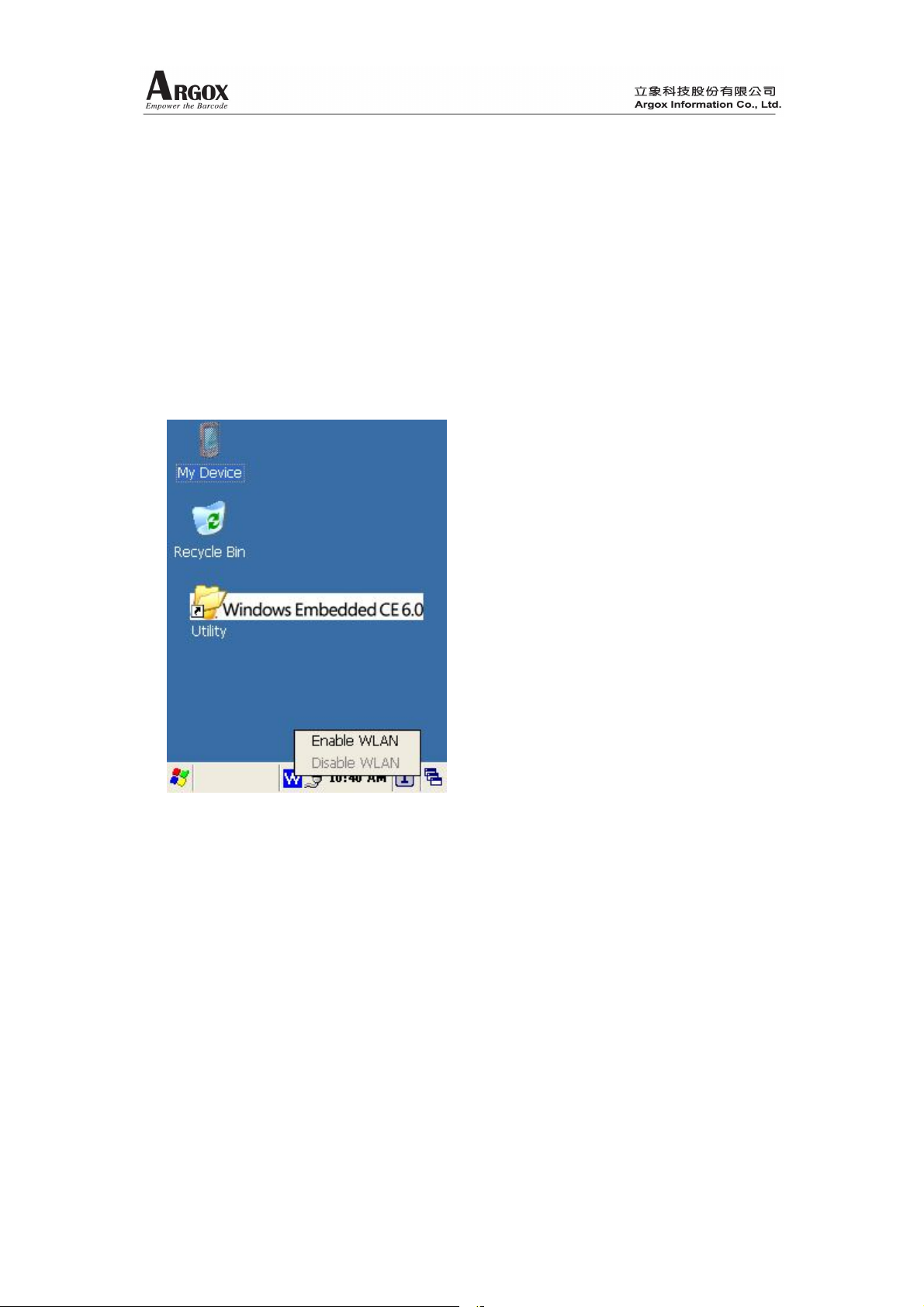
1. Ticking on icon “W” then select ”Enable WLAN”. Please refer to Fig1.1 as shown below.
Fig 1.1 Enable WLAN
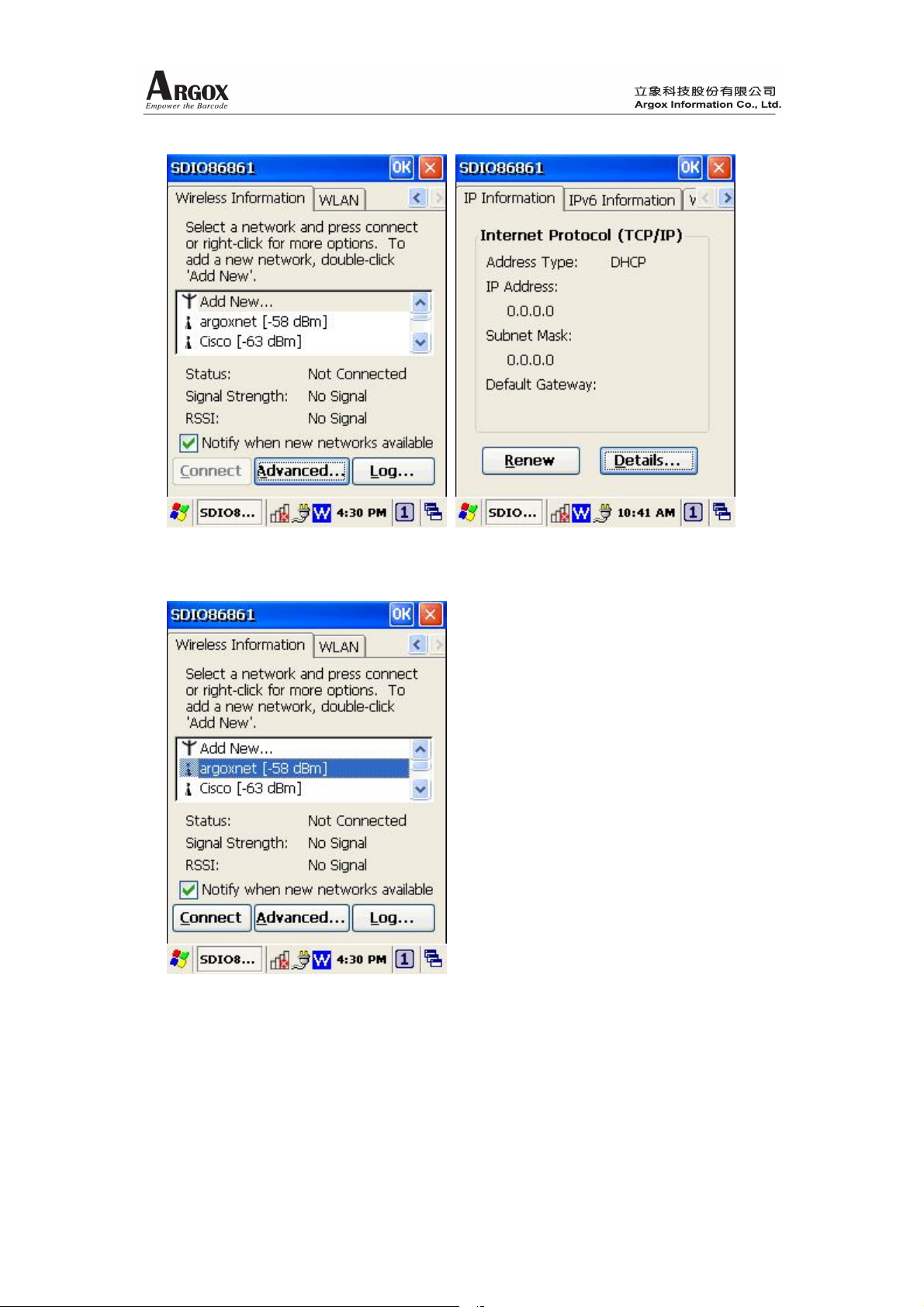
2. After enabling WLAN, screen display will be like Fig1.2 if there are no network setting. Or
double click WLAN tray icon to open network setting like Fig1.3. A list of Access Point and
signal strength ( the larger the value the better ) detected will be displayed in the middle
part of the screen. Ticking on the Access Point to be connected and select “Connect”
( please refer to Fig1.4 ).

Doc. No. PT-90 Series WLAN Guide 4/24
Fig1.2 Wireless Information Fig1.3 Network setting
Fig1.4 Access point selection

Doc. No. PT-90 Series WLAN Guide 5/24
3. Configuration of the Access Point:
a. Has the WLAN and configuration function been enabled?
b. Is there any limitation set on MAC address?
c. Is there any limitation set on connections been made?
d. Is there any special connection configuration needed?Is there any special
authentication installation needed on PT-90?
e. If using DHCP:has the DHCP function been enabled?if DHCP function has been
enabled, can correct IP address be acquired ( if connections made limitation or IP
address range limitation is reached, correct IP address will not be acquired )?
f. If using static IP:have correct IP address, subnet mask, and gateway been set
correctly? Is there any conflict on the IP address specified?
(All these AP configurations are critical to WLAN connection!)
g. When the AP configuration function been selected, all AP-related properties will be
displayed, i.e. Encryption、Authentication、Network、Key index、EAP type and
properties setting ( as shown in Fig1.5 ~ Fig1.8 ).
Fig1.5 Access point property setting (1) Fig1.6 Access point property setting (2)

Doc. No. PT-90 Series WLAN Guide 6/24
Fig1.7 Access point property setting (3) Fig1.8 Access point property setting (4)
4. Example: Properties of the AP ( named argoxnet ) are:
Encryption = WEP
Authentication = Open
Network Key ( or Password ) = 1234567890abc( total 13 digits )
The configuration procedures are:
a. Ticking “argoxnet” then enter the configuration process;
b. As in Fig1.9, set “Encryption” as “WEP” and set “Authentication” as “Open”;
c. As in Fig1.10, cancel “The key is provided automatically” then enter “Network Key ( or
Password )” ( i.e. 1234567890abc ) and set “Key Index” to “1”;
d. Ticking “OK” to establish the connection.

Doc. No. PT-90 Series WLAN Guide 7/24
Fig1.9 Access point property setting (5) Fig1.10 Access point property setting (6)
5. After connection, check if the IP address is correct ( as shown in Fig1.11 and Fig1.12 ). If
the IP address is not correct, please tick on “Renew” to re-establish the connection ( as
shown in Fig1.13 ).
Fig1.11 Access point property setting (7) Fig1.12 Access point property setting (8)
If, by any chance, after several “Renew” and still no correct IP address can be acquired,
please check AP and the network first.

Doc. No. PT-90 Series WLAN Guide 8/24
Fig1.13 Access point property setting (9)
6. Ticking on “Advanced” can bring you into WLAN advanced configuration process as
shown in Fig1.14, Fig1.15, and Fig1.16 below.
a. By selecting different Access Points, you can set up the priority of Access Points to be
connected. When the connection with first Access Point fails, PT-90 will proceed
connecting with the second Access Point and so on. If the connection with the first
Access Point is successful, there will be no connection attempt process made.
b. Double ticking on the Access Point will initiate the configuration function so all related
features can be re-configured.
c. If there is any problem found on the connection configuration, you can delete all
feature configurations then re-configure all features.

Doc. No. PT-90 Series WLAN Guide 9/24
Fig1.14 Access point property setting (10) Fig1.15 Access point property setting (11)
Fig1.16 Access point property setting (12)

Doc. No. PT-90 Series WLAN Guide 10/24
1.2 TCPIP Setting
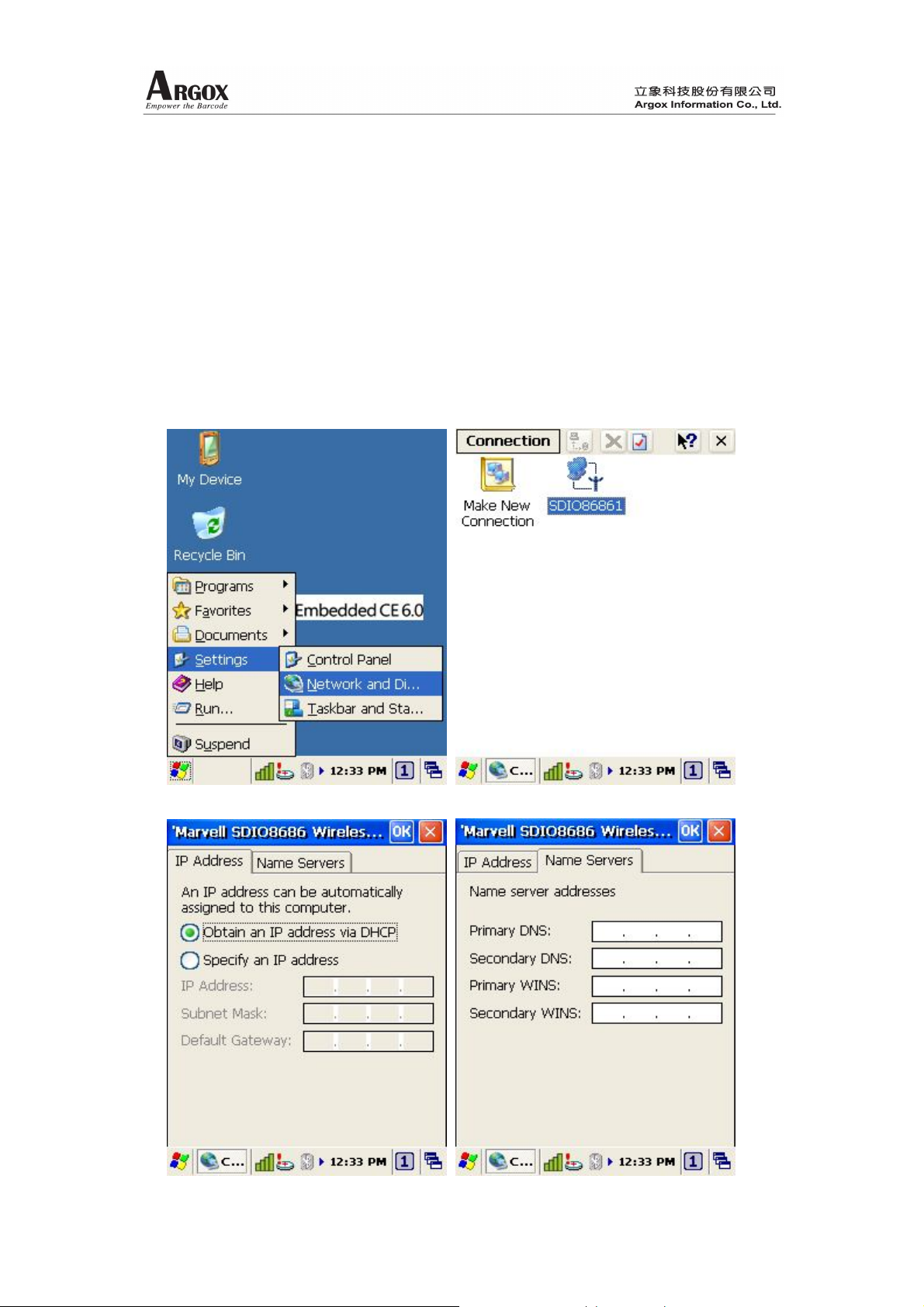
1. Start MenuSettingsNetwork and Di…enter Network Configuration ( as shown
in Fig1.17 );
2. Select “SDIO86861” then “” will bring you into properties selection ( as shown in
Fig1.18 );
3. First page of properties selection can set up IP address, via DHCP or static IP ( as
shown in Fig1.19 );
4. Second page can proceed DNS and WINS configurations ( as shown in Fig1.20 ).
Fig1.17 TCPIP setting (1) Fig1.18 TCPIP setting (2)
Fig1.19 TCPIP setting (3) Fig1.20 TCPIP setting (4)
Altri manuali per PT-90
2
Indice
Altri manuali Argox Terminale touch