Ascent ACT AP224B Series Manuale utente

ACT AP224B
GPON HGU
ONT
Quick Reference
Guide
Revision C

AP224B Series GPON HGU ONT
Solutions Provider for FTTx, RFoG, and HFC
www.ascentcomtec.com
Page 2 of 14
ACT AP224B GPON HGU ONT
Quick Reference Guide
ACT Document Number: ACT AP224B GPON HGU ONT
Quick Reference Guide Revision C
Copyright © 2018 Ascent Communication Technology Limited.
All rights reserved. Reproduction in any manner whatsoever without the express written permission of Ascent
Communication Technology is strictly forbidden.
This document is produced to assist professional and properly trained personnel with installation and maintenance
issues for the product. The capabilities, system requirements and/or compatibility with third-party products
described herein are subject to change without notice.
For more information, contact ACT: support@ascentcomtec.com
Revision History
Revision
Date
Reason for Change
A
2/15/2018
Initial release
B
2/17/2018
Updated login information

AP224B Series GPON HGU ONT
Solutions Provider for FTTx, RFoG, and HFC
www.ascentcomtec.com
Page 3 of 14
Table of Contents
Introduction .............................................................................................................................. 4
1 Hardware Connection ............................................................................................................ 4
2 Computer Setup..................................................................................................................... 6
3 Guide Setup............................................................................................................................ 8
Troubleshooting ...................................................................................................................... 12

AP224B Series GPON HGU ONT
Solutions Provider for FTTx, RFoG, and HFC
www.ascentcomtec.com
Page 4 of 14
ASCENT’s AP224B is a handy, flexible and standard device, with high integration, about
connection to the net. It is a high-end multi-in-one terminal product up to IEEE802.11b/g/n
standard, providing connection with high performance for home users and individual
merchants.
Main Characteristics:
Compliant with ITU-T G.984/988 standard, adopting GPON uplink set and monitored through
WEB
Remote configuration and management through TR069 protocol
NAT and DHCP help to set the network and make internet access easy
Firewall protection
MAC and URL provide customization for Internet safety performance
Terminal wireless access

AP224B Series GPON HGU ONT
Solutions Provider for FTTx, RFoG, and HFC
www.ascentcomtec.com
Page 5 of 14
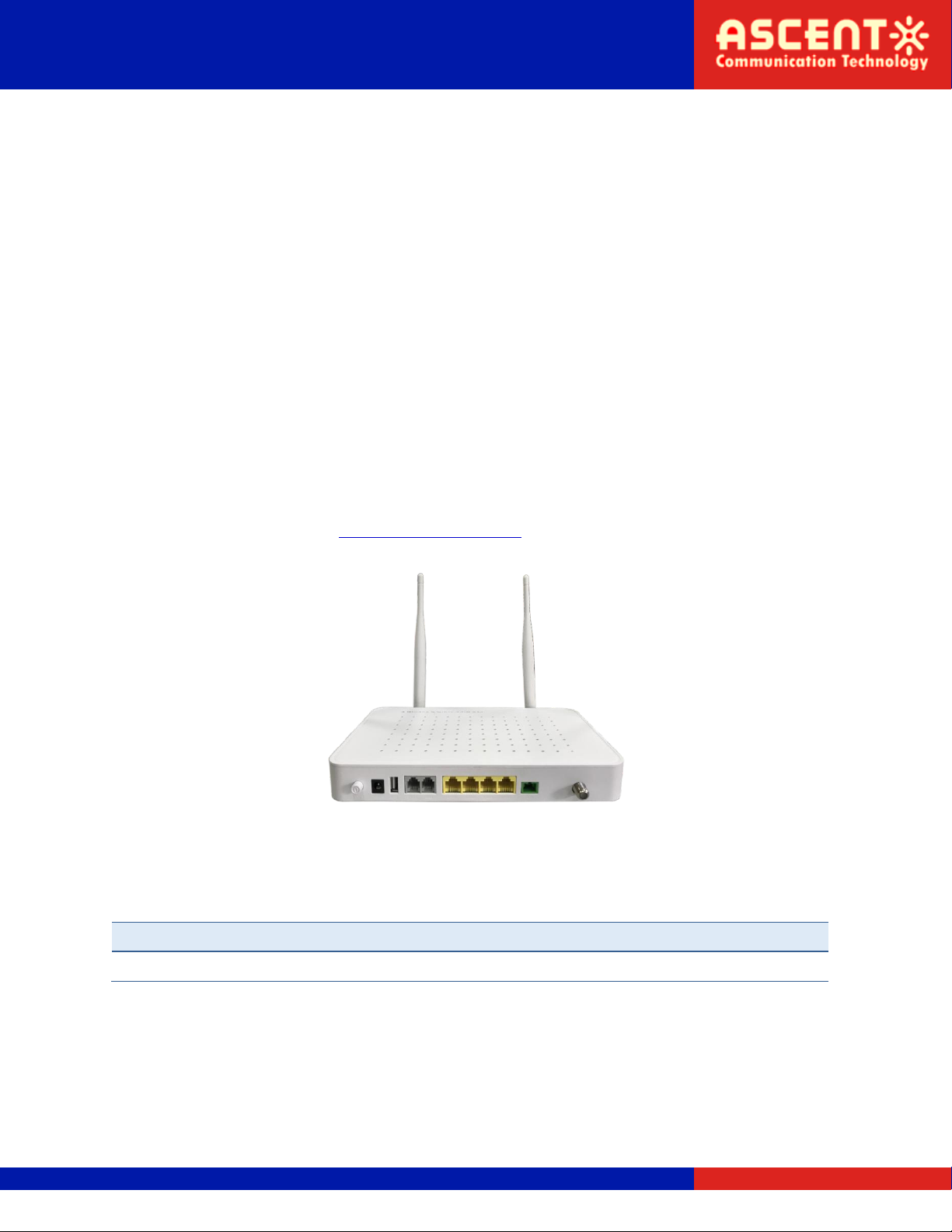
Connection finished, please check the indicators.
POWER
Power indicator
Green
ON: power on
OFF: power off
PON
PON indicator
Green
ON: ONU activation
OFF: no ONU activation
Flickering: ONU activation on
WLAN
WLAN indicator
Green
ON: connected but no data transmission
OFF: power off or no connection between port and net
Flickering: data transmission
LAN 1 to 4
Ethernet indicators
Green
ON: connected but no data transmission
OFF: power off or no connection to terminal device
Flickering: data transmission
POTS
Voice indicator
Green
ON: connected but no data transmission
OFF: power off or no connection to terminal device
Flickering: data transmission.
USB
USB indicator
Green
ON: connected but no data transmission
OFF: power off or no connection to terminal device
Flickering: data transmission
Note
If there is something wrong with the indicators, please check the line connections.
Warning
Lay the devices on horizontally flat surface.
Shut down the power supply and unplug all line connections during a lightning storm.
Keep the device away from heaters and keep the ventilation.
Use configured rated power adapter.

AP224B Series GPON HGU ONT
Solutions Provider for FTTx, RFoG, and HFC
www.ascentcomtec.com
Page 6 of 14
1) Click “Start → Control Panel → Network and Internet → Network and Sharing Center →
Local Connection”, choose “Local Connection”, and “Properties”.
2) Double click “Internet Protocol Version 4 (TCP/IPv4)”

AP224B Series GPON HGU ONT
Solutions Provider for FTTx, RFoG, and HFC
www.ascentcomtec.com
Page 7 of 14
3) Choose “Obtain an IP address automatically” and “Obtain DNS server address
automatically”, then click “OK”.

AP224B Series GPON HGU ONT
Solutions Provider for FTTx, RFoG, and HFC
www.ascentcomtec.com
Page 8 of 14
1. Open Internet Explorer
2. Type 10.0.0.10 in address bar, enter the web, and type UserName “admin”and Password
“super&123” to log in to the interface.
Do as the following steps if UserName and Password is modified.
3. Device Management
On the interface, click “Device Basic Info” under “Status” to see the basic information of the
device.

AP224B Series GPON HGU ONT
Solutions Provider for FTTx, RFoG, and HFC
www.ascentcomtec.com
Page 9 of 14
If you need to update the software, choose “Update” under “Manage”, as follows:
Select updated version and file, then click “Software Update” and enter “Software Update” to
start.
4. Device configuration:
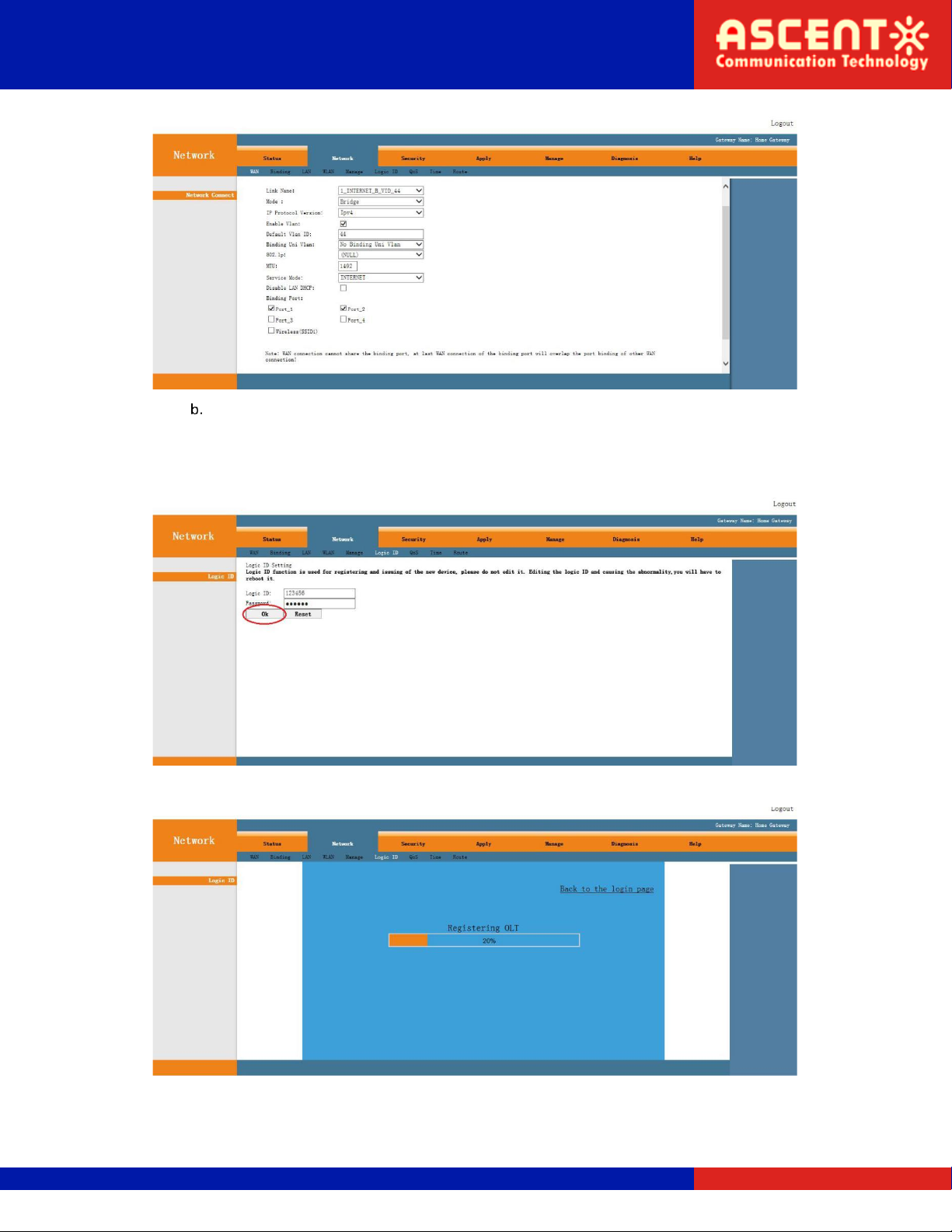
Under WAN, users can set “Mode”. Choose “Bridge”, “Service Mode” and “INTERNET”, select on
binding port and save. Set the PC WLAN as “IP address received automatically” and “DNS service
address received automatically”. The net works.

AP224B Series GPON HGU ONT
Solutions Provider for FTTx, RFoG, and HFC
www.ascentcomtec.com
Page 10 of 14
Logic ID:
If LOID was set, LOID info should be configured on ONU. Please click “Logic ID” to log. As
follows:
Input logic ID and Password, and then click “OK”.
Altri manuali Ascent Interruttore