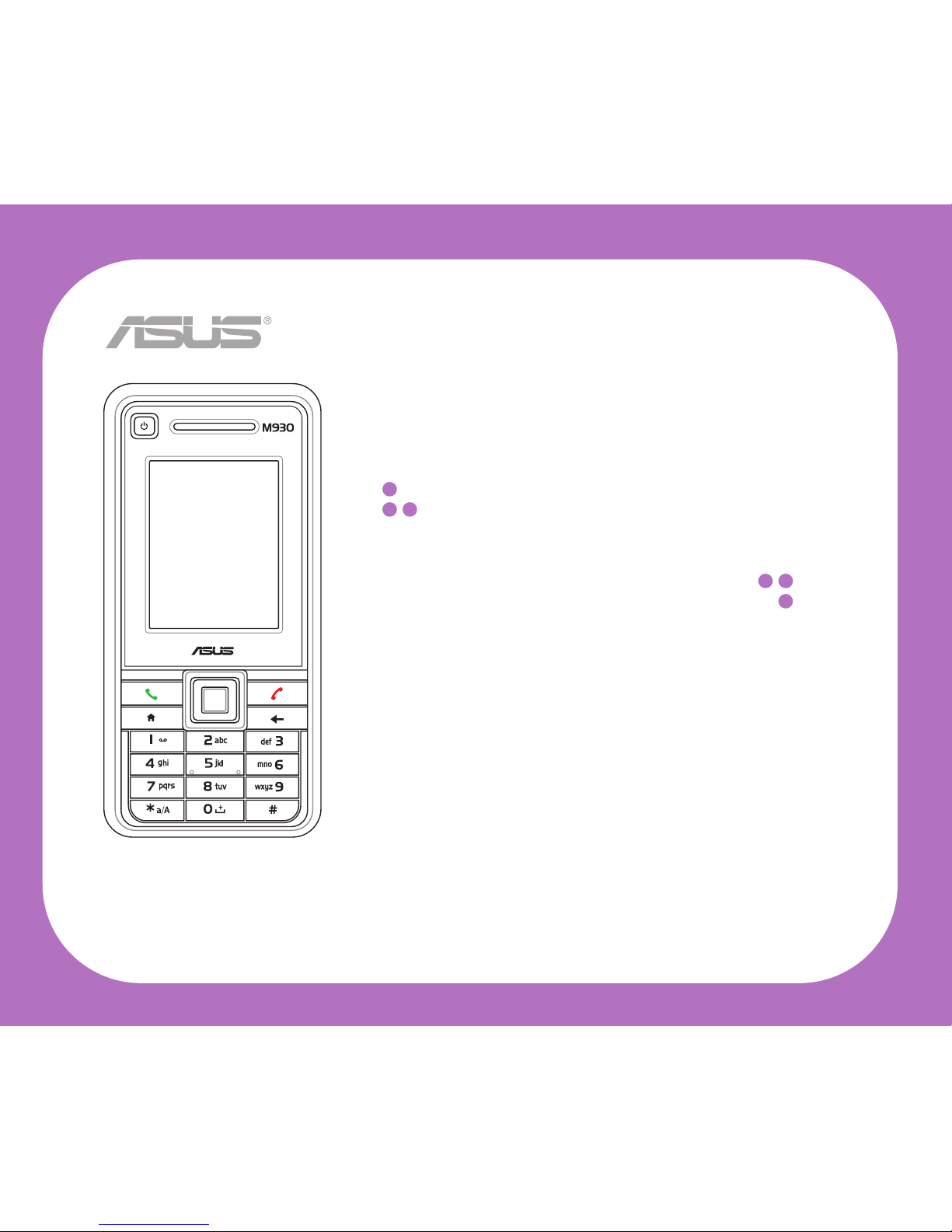
Asus M930 Manuale utente

i
USER MANUAL
M930
Smartphone

ii
ASUS contact information
ASUSTeK COMPUTER INC.
Address 15 Li-Te Road, Peitou, Taipei, Taiwan 11259
Telephone +886-2-2894-3447
Fax +886-2-2890-7798
E-mail [email protected]
Web site www.asus.com.tw
Technical Support
Telephone +86-21-38429911
Online support support.asus.com
ASUS COMPUTER INTERNATIONAL (America)
Address 44370 Nobel Drive, Fremont, CA 94538, USA
Fax +1-510-608-4555
Web site usa.asus.com
Technical Support
Telephone +1-812-282-2787
Support fax +1-812-284-0883
Online support support.asus.com
ASUS COMPUTER GmbH (Germany and Austria)
Address Harkort Str. 21-23, 40880 Ratingen, Germany
Telephone +49-2102-95990
Fax +49-2102-959911
Web site www.asus.de
Online contact www.asus.de/sales
Technical Support
Telephone +49-1805-010923
Support Fax +49-2102-959911
Online support support.asus.com
* Available on this site is an online Technical Inquiry Form that you can fill out to contact technical support.

iii
E3494
First edition
January 2008
Copyright © 2008 ASUSTeK COMPUTER INC. All Rights Reserved.
No part of this manual, including the products and software described in it, may be reproduced, transmitted,
transcribed, stored in a retrieval system, or translated into any language in any form or by any means, except
documentation kept by the purchaser for backup purposes, without the express written permission of ASUSTeK
COMPUTER INC. (“ASUS”).
Product warranty or service will not be extended if: (1) the product is repaired, modified or altered, unless such
repair, modification of alteration is authorized in writing by ASUS; or (2) the serial number of the product is
defaced or missing.
ASUS PROVIDES THIS MANUAL “AS IS” WITHOUT WARRANTY OF ANY KIND, EITHER EXPRESS
OR IMPLIED, INCLUDING BUT NOT LIMITED TO THE IMPLIED WARRANTIES OR CONDITIONS OF
MERCHANTABILITY OR FITNESS FOR A PARTICULAR PURPOSE. IN NO EVENT SHALL ASUS, ITS
DIRECTORS, OFFICERS, EMPLOYEES OR AGENTS BE LIABLE FOR ANY INDIRECT, SPECIAL,
INCIDENTAL, OR CONSEQUENTIAL DAMAGES (INCLUDING DAMAGES FOR LOSS OF PROFITS, LOSS OF
BUSINESS, LOSS OF USE OR DATA, INTERRUPTION OF BUSINESS AND THE LIKE), EVEN IF ASUS HAS
BEEN ADVISED OF THE POSSIBILITY OF SUCH DAMAGES ARISING FROM ANY DEFECT OR ERROR IN
THIS MANUAL OR PRODUCT.
SPECIFICATIONS AND INFORMATION CONTAINED IN THIS MANUAL ARE FURNISHED FOR
INFORMATIONAL USE ONLY, AND ARE SUBJECT TO CHANGE AT ANY TIME WITHOUT NOTICE, AND
SHOULD NOT BE CONSTRUED AS A COMMITMENT BY ASUS. ASUS ASSUMES NO RESPONSIBILITY OR
LIABILITY FOR ANY ERRORS OR INACCURACIES THAT MAY APPEAR IN THIS MANUAL, INCLUDING THE
PRODUCTS AND SOFTWARE DESCRIBED IN IT.
Microsoft, Activesync, Outlook, Pocket Outlook, Windows, and the Windows logo are either registered
trademarks or trademarks of Microsoft Corporation in the United States and/or in other countries. Microsoft
products are licensed to OEMs by Microsoft Licensing, Inc., a wholly owned subsidiary of Microsoft Corporation.

iv
Safety Information
Safety precautions for the power supply unit and battery
Use the correct external power source. The power adapter of this product can only be
operated from the type of power source indicated on the electrical ratings label. If you are
not sure of the type of power source required, consult your authorized service provider.
Battery pack care. This product contains a Li-Ion Polymer battery. There is a risk of fire
and burns if the battery pack is handled improperly. Do not attempt to open or service the
battery pack.
WARNING DANGER OF EXPLOSION IF BATTERY PACK IS INCORRECTLY REPLACED.
TO REDUCE RISK OF FIRE OR BURNS, DO NOT DISASSEMBLE, CRUSH, PUNCTURE,
OR SHORT EXTERNAL CONTACTS OR CIRCUITS. DO NOT DISPOSE OF IN FIRE OR
WATER, OR EXPOSE TO TEMPERATURES HIGHER THAN 60OC(140OF). REPLACE THE
BATTERY PACK ONLY WITH MANUFACTURER SPECIFIED BATTERIES. RECYCLE OR
DISPOSE OF USED BATTERIES ACCORDING TO LOCAL REGULATIONS.
Aircraft
Switch off your wireless device whenever you are instructed to do so by airport or airline staff. If
your device offers a “flight mode” or similar feature, consult airline staff as to its use in flight.
Driving
Full attention should be given to driving at all times. Local laws and regulations restricting the use of
wireless devices while driving must be observed.

v
Hospitals
Mobile phones should be switched off whenever you are requested to do so in hospitals, clinics, or
health care facilities. These requests are designed to prevent possible interference with sensitive
medical equipment.
Petrol Stations
Obey all posted signs with respect to the use of wireless devices or other radio equipment in
locations with flammable material and chemicals. Switch off your wireless device whenever you are
instructed by authorized staff.
Interference
Care must be taken when using the phone in close proximity to personal medical devices such as
pacemakers and hearing aids.
For Pacemakers
Pacemaker manufacturers recommend that a minimum space of 15cm be maintained between a
mobile phone and a pacemaker to avoid interference with the pacemaker. To achieve this, use the
phone on the opposite ear to your pacemaker and do not carry the phone in a breast pocket.
For Hearing Aids
Some digital wireless phones may interfere with some hearing aids. In the event of such
interference, you may want to consult your hearing aid manufacturer to discuss alternatives.
For Other Medical Devices
Consult your physician and the device manufacturer to determine if operation of your phone may
interfere with the operation of your medical device.

vi
Specic Absorption Rate (SAR)
Your M930 has been designed, manufactured and tested not to exceed the limits for exposure to
electromagnetic fields recommended by the Council of the European Union. These limits are part of
comprehensive guidelines developed by independent scientific organisations.
European standards provide for the amount of radio frequency electromagnetic energy absorbed by
the body when using a phone to be measured by reference to the Specific Absorption Rate (SAR).
The SAR limit for the general public is currently 2 watts per kilogram averaged over 10 grams of
body tissue.
Radio Frequency (RF) radiation exposure for body-worn operation: To ensure compliance with
RF exposure guidelines, this device must be used to with a minimum of 1.5 cm (0.6 inch) separation
from the body. Failure to observe these instructions could result in your RF exposure exceeding the
relevant guideline limits.
The maximum SAR value for M930 is GSM: 0.47W/kg@10g(CE); DCS: 0.403W/kg@10g(CE); and
WCDMA: 0.496W/kg@10g(CE).

vii
Welcome!
The ASUS®M930 3.5G Smartphone comes with the latest mobile technology that fits your world
into your hands. The M930 is a tri-band mobile phone with high resolution LCD, built-in dual CMOS
camera with camcorder, video calling and messaging capability, organizer, USB web camera, and a
micro SD card slot.
In addition to 256 MB phone memory, the microSD card extends storage space, allowing you to
save photos, messages, texts, graphics, and audio files, making it a perfect partner whether you are
on or off the road.
With these features and many more, the ASUS M930 is sure to give you a satisfying mobile phone
experience.

viii
Table of Contents
ASUS contact information .................................................................................................................... ii
Safety Information ............................................................................................................................... iv
ASUS M930 specifications ................................................................................................................ xiv
Package contents ............................................................................................................................... xv
Chapter 1 Learning to use your Smartphone ........................................................... 1
1-1 Getting to know your Smartphone ..............................................................................................1
1-2 Installing the SIM card and battery .............................................................................................6
Installing and removing a microSD card.................................................................................8
1-3 Charging your Smartphone ........................................................................................................9
1-4 Turning your Smartphone ON/OFF ..........................................................................................10
1-5 Home screen ............................................................................................................................11
Status indicator icons ...........................................................................................................12
Start menu............................................................................................................................13
Chapter 2 Entering data ............................................................................................ 14
2-1 Navigating.................................................................................................................................14
Navigation pad .....................................................................................................................14
Action key.............................................................................................................................14
Home key .............................................................................................................................15
Back key...............................................................................................................................15
Call key / End key.................................................................................................................15
Soft keys...............................................................................................................................15
Alphanumeric keypad...........................................................................................................15

ix
QWERTY keypad .................................................................................................................16
2-2 Entering text, numbers, and symbols .......................................................................................17
Using Multipress mode.........................................................................................................18
Using Numeric mode............................................................................................................19
Entering symbols..................................................................................................................19
Chapter 3 Personalizing your Smartphone............................................................. 20
3-1 Setting the date, time, and alarm..............................................................................................20
3-2 Setting up advanced sounds ....................................................................................................21
3-3 Changing profile settings ..........................................................................................................22
Adjusting the headset volume level......................................................................................23
3-4 Personalizing your Home screen..............................................................................................23
3-5 Changing the Start Menu view .................................................................................................24
3-6 Entering your contact information.............................................................................................24
3-7 Assigning keypad functions ......................................................................................................24
Chapter 4 Using call features ................................................................................... 25
4-1 Making a voice call ...................................................................................................................25
Calling from the Home screen..............................................................................................25
Calling a Contact entry.........................................................................................................26
Calling a number from the Call History list ...........................................................................26
Calling using speed dial .......................................................................................................27
Making emergency calls.......................................................................................................28
Making international calls.....................................................................................................28
4-2 Responding to a voice call........................................................................................................29
4-3 Options during a call.................................................................................................................30
Managing multiple calls........................................................................................................31

x
4-4 Making a video call ...................................................................................................................31
4-5 Responding to a video call .......................................................................................................32
Chapter 5 Organizing your life ................................................................................. 33
5-1 Using Contacts .........................................................................................................................33
Viewing Contacts..................................................................................................................33
5-2 Using Calendar.........................................................................................................................36
Scheduling an appointment..................................................................................................36
Viewing an appointment.......................................................................................................37
Viewing your schedule .........................................................................................................37
5-3 Using Tasks ..............................................................................................................................38
The Tasks list........................................................................................................................38
5-4 Using Voice Notes ....................................................................................................................39
Chapter 6 Messaging ................................................................................................ 40
6-1 Setting up accounts ..................................................................................................................40
Managing accounts ..............................................................................................................41
6-2 Text and e-mail messages........................................................................................................42
6-3 MMS messaging.......................................................................................................................44
Accessing MMS....................................................................................................................44
Composing and sending an MMS message.........................................................................45
6-4 Using Messenger......................................................................................................................47
6-5 Windows®Live..........................................................................................................................49
Using Hotmail®.....................................................................................................................50
Chapter 7 Synchronizing with ActiveSync®............................................................................................................51
7-1 Microsoft®ActiveSync®.............................................................................................................51
Altri manuali per M930
1
Indice
Altri manuali Asus Telefono cellulare

Asus
Asus Zenfone 2 Laser Manuale utente

Asus
Asus P565 Manuale utente

Asus
Asus Z801 Manuale utente

Asus
Asus M530w Manuale utente

Asus
Asus ZenFone 3 Ultra Manuale utente

Asus
Asus Zenfone 2 ZE550ML Manuale utente

Asus
Asus ZC451TG Manuale utente

Asus
Asus Live G500TG Manuale utente

Asus
Asus ZB602KL Manuale utente

Asus
Asus ZenFone 3 Max Manuale utente

Asus
Asus Zenfone 4 Selfie Lite Manuale utente

Asus
Asus V55 Manuale utente

Asus
Asus ROG PHONE 8 Manuale utente

Asus
Asus Zenfone 8 Manuale utente

Asus
Asus Castor Manuale utente

Asus
Asus GO182 Manuale utente

Asus
Asus X017DA Manuale utente

Asus
Asus Fonepad E9021b Guida

Asus
Asus P525 Manuale utente

Asus
Asus I007D Manuale utente