
Atlantis Land Netcamera 800NV Manuale utente


2
Before you use this Product
This Atlantis Land product has been designed with safety in mind. However, if not used properly electrical
products can cause fires which may lead to serious body injury. To avoid such accidents, be sure to heed the
following.
Legal Caution
Video and audio surveillance can be forbidden by laws that vary from country to country. Check the laws in your
local region before using this product for surveillance purposes.
Heed the safety precautions
Be sure to follow the general safety precautions and the “Operation Notice.”
In case of a breakdown
In case of system breakdown, discontinue use and contact your authorized Atlantis Land dealer.
In case of abnormal operation
• If the unit emits smoke or an unusual smell,
• If water or other foreign objects enter the cabinet, or
• If you drop the unit or damage the cabinet:
1 Disconnect the cable and the connecting cables.
2 Contact your authorized Atlantis Land dealer or the store where you purchased the product.
Operation Notice - Operating or storage location
Avoid operating or storing the camera in the following locations:
• Extremely hot or cold places (Operating temperature: 0 °C to +50 °C [32 °F to 122°F])
• Exposed to direct sunlight for a long time, or close to heating equipment (e.g., near heaters)
• Close to sources of strong magnetism
• Close to sources of powerful electromagnetic radiation, such as radios or TV transmitters
• Locations subject to strong vibration or shock
Ventilation
To prevent heat buildup, do not block air circulation around the device.
Transportation
When transporting the camera, repack it as originally packed at the factory or in materials of equal quality.
Cleaning
• Use a soft, dry cloth to clean the external surfaces of the device. Stubborn stains can be removed using a soft
cloth dampened with a small quantity of detergent solution, then wipe dry.
• Do not use volatile solvents such as alcohol, benzene or thinners as they may damage the surface.

Index
Installation........................................................... 2
Using IP Camera via Mobile Phone................... 2
Using IP Camera via Web Browser ................... 3
1. Initial accessing the IP camera.........................................................................................5
2. Configuration of Main Menu .............................................................................................6
2.1 Setting ......................................................................................................................6
2.2 Client Setting ...........................................................................................................7
2.3 Image Setup .............................................................................................................7
2.4 Live View ..................................................................................................................7
Setting ....................................................................................................................................9
3. Basic...................................................................................................................................9
3.1 System......................................................................................................................9
3.2 Camera ...................................................................................................................13
3.3 Network ..................................................................................................................20
3.4 Security ..................................................................................................................27
4. Advance............................................................................................................................29
4.1 FTP Client...............................................................................................................29
4.2 SMTP.......................................................................................................................35
4.3 HTTP Event ............................................................................................................40
4.4 Schedule.................................................................................................................42
4.5 Alarm Buffer...........................................................................................................43
4.6 Motion Detection....................................................................................................45
4.7 System Log ............................................................................................................47
2
Installation
Installation Steps
Follow these steps to install the NetCameraIR Camera on your Ethernet:
1. Check the package contents against the list below.
2. Set the device. See IP Installer User Manual on the available methods.
Package Contents
Item Description
IP Camera IP Camera
Power Adapter PoE Injector
Accessory Pack Contains accessories for mounting the camera
CD User Manual / Software
Printed Document Quick Installation Guide
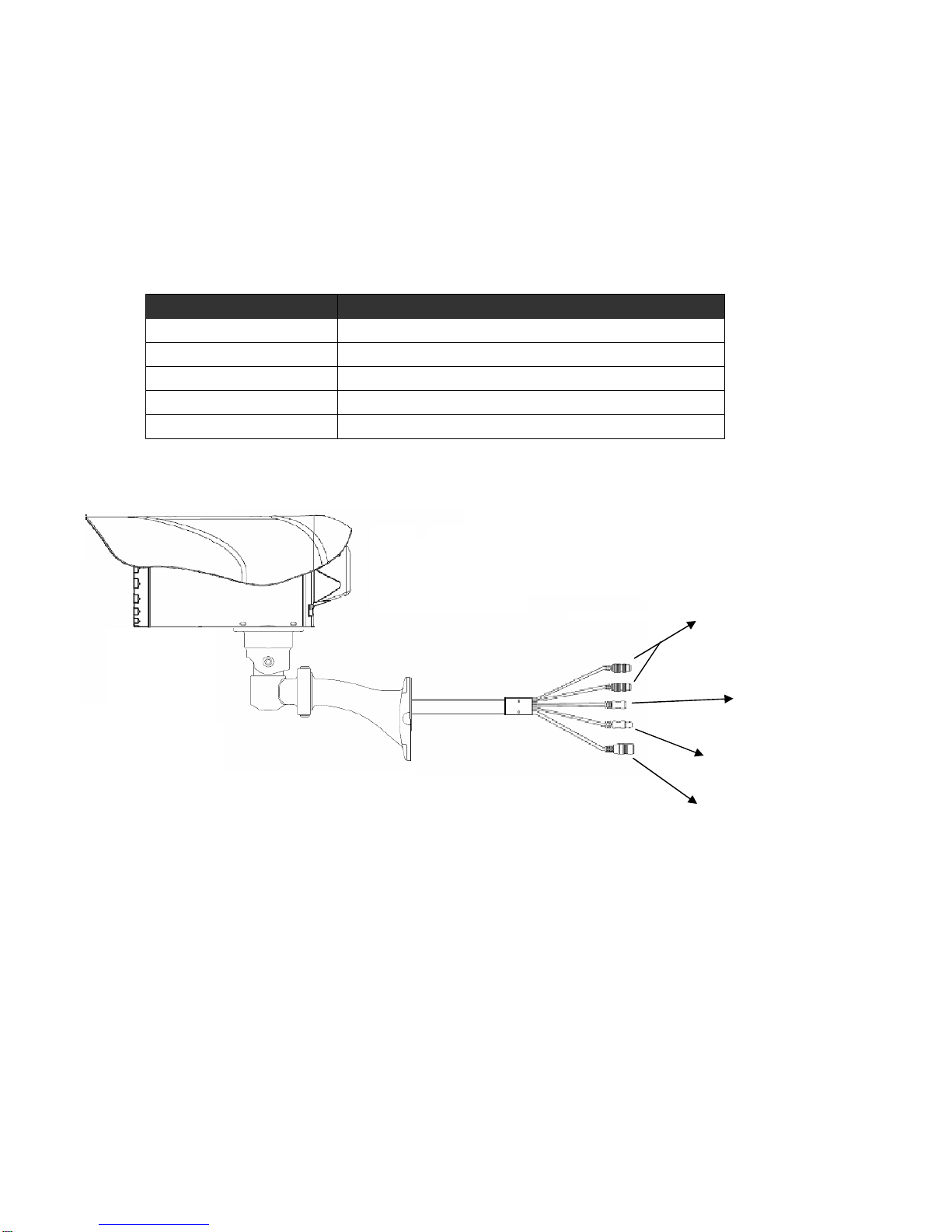
Overview
Powe
r
Video Out
Green line:Audio In
Pink line:Audio Out
Network

2
Using IP Camera via Mobile Phone
To use IP cameras via mobile phones, please make sure your RTSP is set to “ON”.
(Default is “ON”) To change the settings of IP cameras, please see “Settings” for details.
3G Mobile Phone viewing
For 3G mobile phone viewing, type “rtsp://<IP>:<PORT>/video.3gp” into your 3G web
browser. <IP> is the IP address of your IP camera, <PORT> is the RTSP port of your IP camera
(Default value is 8554.)
Example: rtsp://100.10.10.1:8554/video.3gp
Note:
• You can also use RTSP clients (RealPlayer, MPlayer, Windows Media Player,
Quicktime…etc.) to view RTSP streaming, just type in “rtsp://<IP>:<PORT>/video.3gp” as
the Player’s URL
2.5G Mobile Phone viewing
For 2.5G mobile phone viewing, type “<IP>/mobile.wml” into your 2.5G web browser. <IP> is
the IP address of your IP camera.

3
Using IP Camera via Web Browser
System Requirement
To use the product normally, we strongly recommend your computer follows our minimum
system requirement (Computer level lower than this might cause some problems)
Item Requirements
CPU Pentium 4 1600MHz (or equivalent AMD)
Graphic Card 64MB RAM graphic cards (or equivalent on-board graphic cards)
RAM 512MB
Operating System Windows 98, ME (Please see Note)
Windows 2000, 2003, XP, Vista
Web Browser Internet Explorer 6 or later
Note:
• If you’re using Windows 98 or ME, please install IP Installer before using WEB UI to ensure
the system runs normally.

4
How to Use
This chapter introduces how to monitor the image from the device using Microsoft web
browser. The Atlantis Land IP camera can be used with Microsoft web browsers and
Intelligent IP Installer in Windows operation systems. This document focuses on introducing
you to Microsoft web browser. The recommended browser for Windows is Internet Explorer
6.0. If you want to know how to use Atlantis Land IP camera with Intelligent IP Installer, check
Intelligent IP Installer User’s Manual in Windows operation systems.
The functions of the device should be set by the Administrator. For further instructions on
setting the device, see “Setting the Camera” .

5
1. Initial accessing the IP camera
1. Start your web browser, and enter the IP address or host name of the ATLANTIS LAND IP
camera in the Location / Address field of your browser.
Note:
• If you only want to view the video without setting page, enter “http://<IP>/index2.htm”
as your web URL.
2. Use the default account “admin” and default password “admin”.
Note:
• The default user name “admin” and the password are set at the factory for the
administrator. You can change them in the Account Menu under Setting on page 19.
3. The monitor image will be displayed in your browser.

6
2. Configuration of Main Menu
Language
You can click the pulldown box to select system language, including English, Traditional
Chinese, Simplified Chinese, German, Japanese and Spanish.
2.1 Setting
This function is only for the Administrator. Click this button to get into the Basic and Advance
settings menu.

7
2.2 Client Setting
Mode: Click the pulldown box to choose between MPEG4 and MJPEG video compression
mode.
Note:MJPEG streaming is unavailable if RTSP mode is ON.
View Size: Select the desired display image resolution to 640X480 or 320X240.
Protocol: Select the transferring protocol from TCP, UDP, HTTP and Multicast.
Video Buffer: Turn the Video Buffer function On/Off. The Video Buffer function makes the
streaming more smoothly in unsteady network environment, but might cause a little delay
in live viewing.
2.3 Image Setup
You can use the tool bar to optimize video brightness, contrast, and
saturation.
2.4 Live View
Snapshot:
You can capture a still image shot by the camera and save it in your computer.
1. Press , and a snapshot window will appear.
2. Click “Save” to save the picture in your computer.
3. Click “Close” to return to the view page.
Digital Zoom in / out the image via the monitor window
Questo manuale è adatto per i seguenti modelli
1
Indice
Altri manuali Atlantis Land Telecamera IP

Atlantis Land
Atlantis Land IP Security Wireless Motorized Camera... Manuale utente

Atlantis Land
Atlantis Land NetCamera 500 Manuale utente

Atlantis Land
Atlantis Land NetCamera A02-IPCAM-W54 Manuale utente

Atlantis Land
Atlantis Land IP Security Wireless Motorized Camera... Manuale utente

Atlantis Land
Atlantis Land A02-WIPCAM-11B Manuale utente


