Avery Dennison MONARCH 939I Manuale utente

©2004 Avery Dennison Corp. All rights reserved.
28028 28028
0 0
TC0939IOI Rev. AJ 1/10
Operating Instructions
®
Monarch
™
939i Intelligent Keyboard
® ® ® ®, ™
, ,
9416 XL 9825 9855 9860

Each product and program carries a respective written warranty, the only warranty
on which the customer can rely. Avery Dennison Corp. reserves the right to make
changes in the product, the programs, and their availability at any time and without
notice. Although Avery Dennison Corp. has made every effort to provide complete
and accurate information in this manual, Avery Dennison Corp. shall not be liable
for any omissions or inaccuracies. Any update will be incorporated in a later edition
of this manual.
ã2004 Avery Dennison Corp. All rights reserved. No part of this publication may
be reproduced, transmitted, stored in a retrieval system, or translated into any
language in any form by any means, without the prior written permission of Avery
Dennison Corp.
WARNING
This equipment has been tested and found to comply with the limits for a
Class A digital device, pursuant to Part 15 of the FCC Rules. These limits are
designed to provide reasonable protection against harmful interference when
the equipment is operated in a commercial environment. This equipment
generates, uses, and can radiate radio frequency energy and, if not installed
and used in accordance with the instruction manual, may cause harmful
interference to local radio communications. Operation of this equipment in a
residential area is likely to cause harmful interference, in which case the user
will be required to correct the interference at his own expense.
CANADIAN D.O.C. WARNING
This digital apparatus does not exceed the Class A limits for radio noise
emissions from digital apparatus set out in the Radio Interference Regulations
of the Canadian Department of Communications.
Le présent appareil numérique n’émet pas de bruits radioélectriques
dépassant les limites applicables aux appareils numériques de la classe A
prescrites dans le Réglement sur le brouillage radioélectrique édicte par le
ministère des Communications du Canada.
Trademarks
Monarchâ, 938, 939, 939i, 9416®, 9416® XL®, 9800®, 9825®, 9855®, and 9860
are trademarks of Avery Dennison Retail Information Services LLC.
Avery Dennisonâis a trademark of Avery Dennison Corporation.
UFST, Monotype, the Monotype logo, and CG Triumvirate are trademarks of
Monotype Imaging, Inc.
Avery Dennison Printer Systems Division
170 Monarch Lane
Miamisburg, OH 45342

TABLE OF CONTENTS
GETTING STARTED ...................................................1-1
Overview......................................................1-1
Power-Up Modes ...............................................1-2
About This Manual ..............................................1-2
About Scripts ..................................................1-3
Unpacking the Keyboard..........................................1-3
Connecting the Cables to a 9416 XL Printer ...........................1-4
Connecting the Cables to a 9825 Printer .............................1-5
Connecting the Cables to a 9855/9860 Printer .........................1-6
Connecting the Scanner’s Cables...................................1-7
Using the Keyboard .............................................1-8
Control Keys ............................................1-9
SETTING BATCH OPTIONS .............................................2-1
Setting Prompts and Defaults ......................................2-2
Non-Knife Setup .........................................2-5
ENTERING BATCH DATA ...............................................3-1
Entering a Batch ................................................3-2
Printing Tags Without Cutting ...............................3-7
Using Print Multiple with Inc/Dec Fields .......................3-8
Examples ..............................................3-8
TROUBLESHOOTING ..................................................4-1
SPECIFICATIONS & ACCESSORIES ......................................A-1
Accessories & Options ...........................................A-1
Flat Surface Mount.......................................A-2
Wall Mount .............................................A-3
Table of Contents i

CHARACTER SETS....................................................B-1
Supported Symbol Sets and Code Pages ............................B-1
Internal (Standard and Reduced Font) ........................B-2
Bold ..................................................B-3
ANSI..................................................B-4
Code Page 437 .........................................B-5
Code Page 850 .........................................B-6
CONFIGURING THE SYSTEM ...........................................C-1
Accessing the Keyboard’s Main Menu ..............................C-1
Operating in Script Mode .........................................C-1
About the Scanner ..............................................C-2
Operating the Scanner ....................................C-2
Troubleshooting the Scanner ...............................C-3
Cleaning...............................................C-3
Configuring the Scanner..........................................C-4
Reset to Default Values ...................................C-4
Set the Communications Port Defaults .......................C-5
Set the Minimum Bar Code Width ...........................C-7
ii Table of Contents

GETTING STARTED 1
The Monarch® 939iäkeyboard allows you to easily configure the
printer and enter batch data. The keyboard works with the
Monarch® 9416®, 9416® XL®, 9825®, 9855® and 9860äprinters.
This keyboard also works with non-Monarch printers. However, an
auxiliary power supply is required for the keyboard. See Appendix
A, “Specifications and Accessories” for the part number.
This chapter includes information about
¨unpacking the keyboard.
¨connecting the cables.
¨power-up modes.
¨using the keyboard.
Overview
The 939i keyboard is an “intelligent” keyboard that can be
programmed to show user prompts and collect data. Using the
Application Development Kit II (ADK2), an application, or script,
can be written to program the keyboard. Refer to the ADK manual
for more information. Think of the intelligent keyboard like your
PC, where you can enter data using your PC’s keyboard or
connect an optional scanner to scan data.
With a script, you can
¨Create prompts for the user to enter data manually or using
a scanner. See Appendix C, “Configuring the System,” for
more information.
¨Use look-up tables, or files, to store data that will be
printed on labels.
¨Perform additional data tracking, data conversion, and data
manipulation.
Getting Started 1-1

Throughout this manual, you see references to the term “script.” The script
is the program that runs on the keyboard to perform a specific task, such as
scanning or collecting data. We offer custom script writing. Contact your
Sales Representative for information and pricing on custom scripts.
Power-Up Modes
Your 939i keyboard has the ability to operate in “terminal” mode or in
“intelligent” mode (using a custom ADK2 script). Terminal mode is only
available with the 9855 and 9860 printers.
If there is no ADK2 script loaded in the keyboard, the keyboard operates in
terminal mode. You can enter data and configure the printer. In terminal
mode, the keyboard does not access the intelligent functionality provided by
a script.
If an ADK2 script is loaded in the keyboard, the script automatically runs
when the keyboard and printer are turned on. The prompts you see and
what you do are controlled by the script.
About This Manual
This manual is arranged in several sections:
¨Use Chapters 2 through 4 when your keyboard is operating in terminal
mode.
¨Use Appendix A for keyboard specifications.
¨Use Appendix B for the available character sets.
¨Use Appendix C, with information for your System Administrator on
intelligent (script) mode and configuring the scanner.
The information in this document supersedes information in previous
versions. Check our Web site for any updates.
1-2Getting Started

About Scripts
This manual does not cover any specific information about what may be in
your script, because each script is different. Your script is written based on
jobs you need to perform. A script should contain several basics features:
¨A way to enter and exit the script.
¨A way to enter terminal mode (required for 9860 printer).
¨The prompts for entering the date and time each time you turn on the
printer if required by your script. The date and time are not saved when
the printer/keyboard are turned off.
¨The scanner’s configuration and setup (if you are using a scanner).
Contact your System Administrator for more information about these items.
Unpacking the Keyboard
After unpacking the keyboard, look through all packaging material for parts.
Keep the box and packaging material in case the keyboard ever needs
repair.
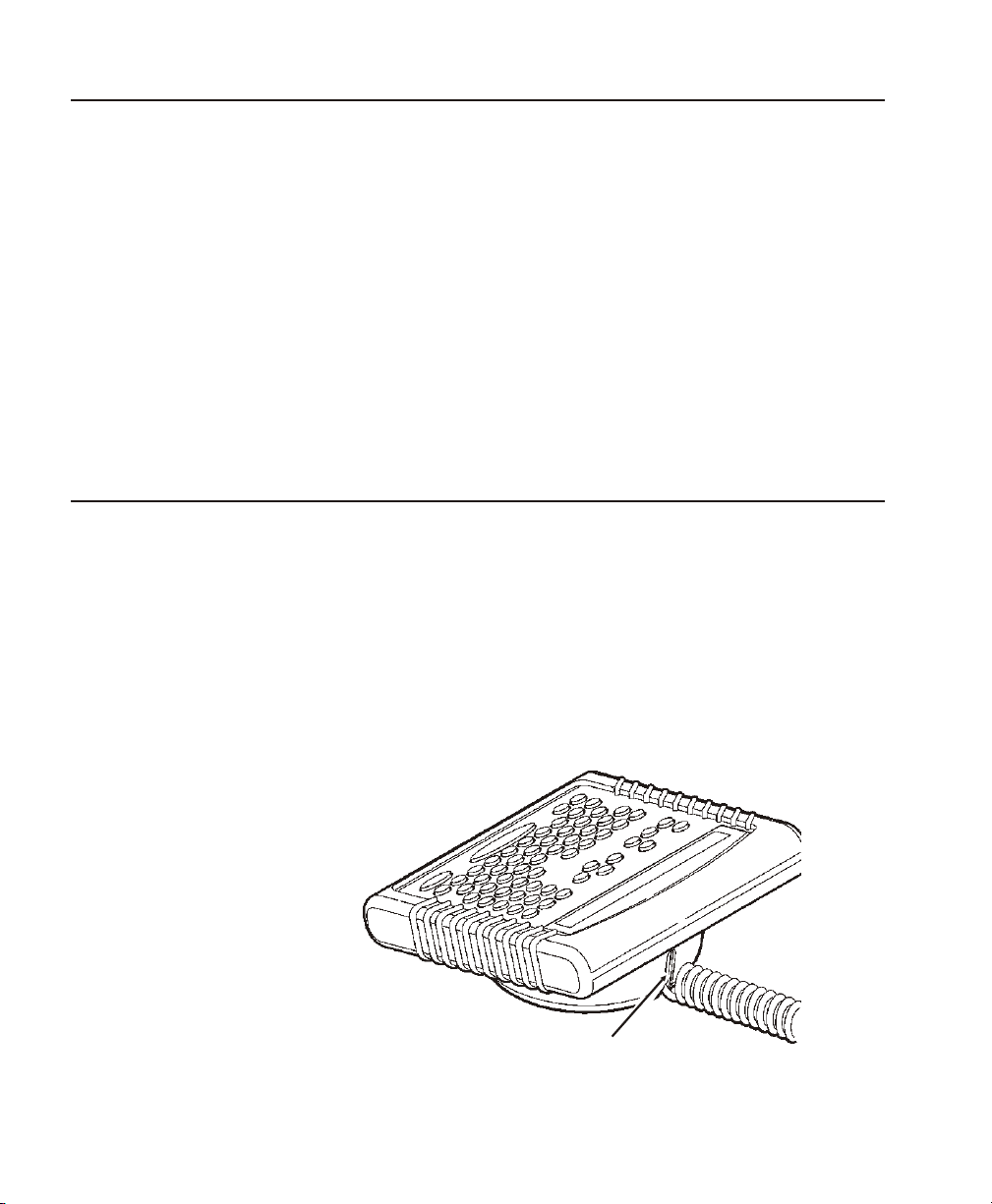
1. Pull the long, coiled cable out from the bottom of the base.
2. Slide the first loop in the cable slot as shown.
Getting Started 1-3
Cable
Slot

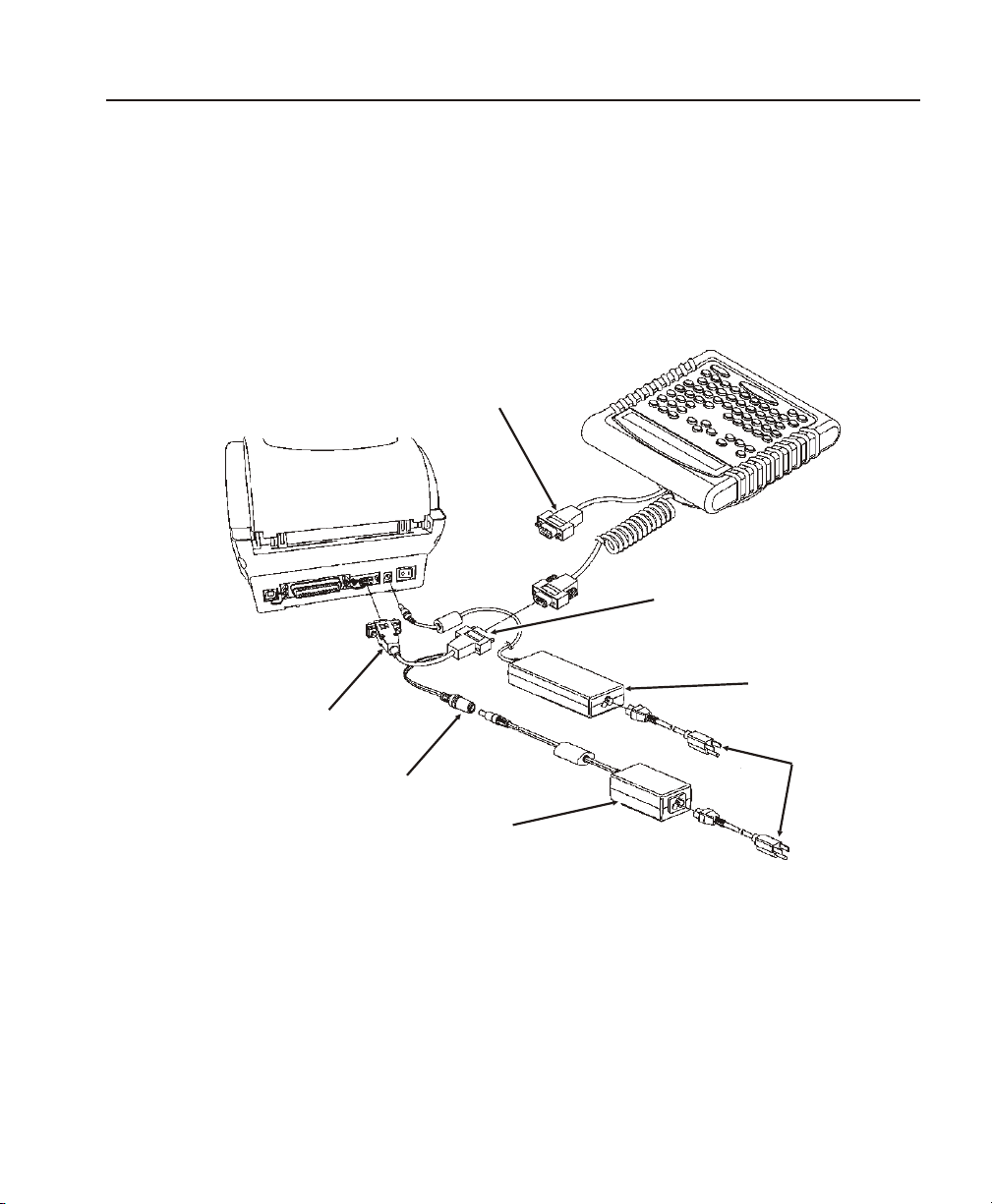
Connecting the Cables to a 9416 XL Printer
When using the keyboard with the 9416 or 9416 XL printer, the keyboard
receives power from the auxiliary power supply (5V).
1. Turn OFF the printer before you connect the keyboard’s cable.
2. Plug the 9-pin coiled keyboard cable into the end of the adaptor cable.
3. Secure the other end of the adaptor cable to the 9-pin port on the
printer. Tighten the screws on the cables.
4. Connect the power cord to both power supplies.
5. Connect the power supply (24V) to the printer.
6. Connect the auxiliary power supply (5V) to the adaptor cable’s power
connector.
7. Turn ON the printer.
1-4Getting Started
Adaptor
Cable
Power
Keyboard’s
PowerSupply
Power
Cords
Printer’sPower
Supply
Keyboardcable
goeshere
Optional
ScannerCable

Connecting the 939I with a Script to a 9800âPrinter
When using the keyboard with a script and a 9825, 9855, or 9860 printer,
the keyboard receives power from the auxiliary power supply.
1. Turn OFF the printer before you connect the keyboard’s cable.
2. Plug the 9-pin coiled keyboard cable into the adaptor cable.
3. Plug the 25-pin serial cable into the back of the printer.
4. Tighten the screws on the
cables.
5. Plug the auxiliary power
supply into the adaptor
cable as shown.
6. Plug the power supply into
an electrical outlet.
7. Turn ON the printer. On
the back of the printer,
press (I) to turn on and (O)
to turn off the printer.
Getting Started 1-5
Auxiliary
Power
Supply
Keyboardcable
goeshere

Connecting the 939I in Terminal Mode to a
9855/9860 Printer
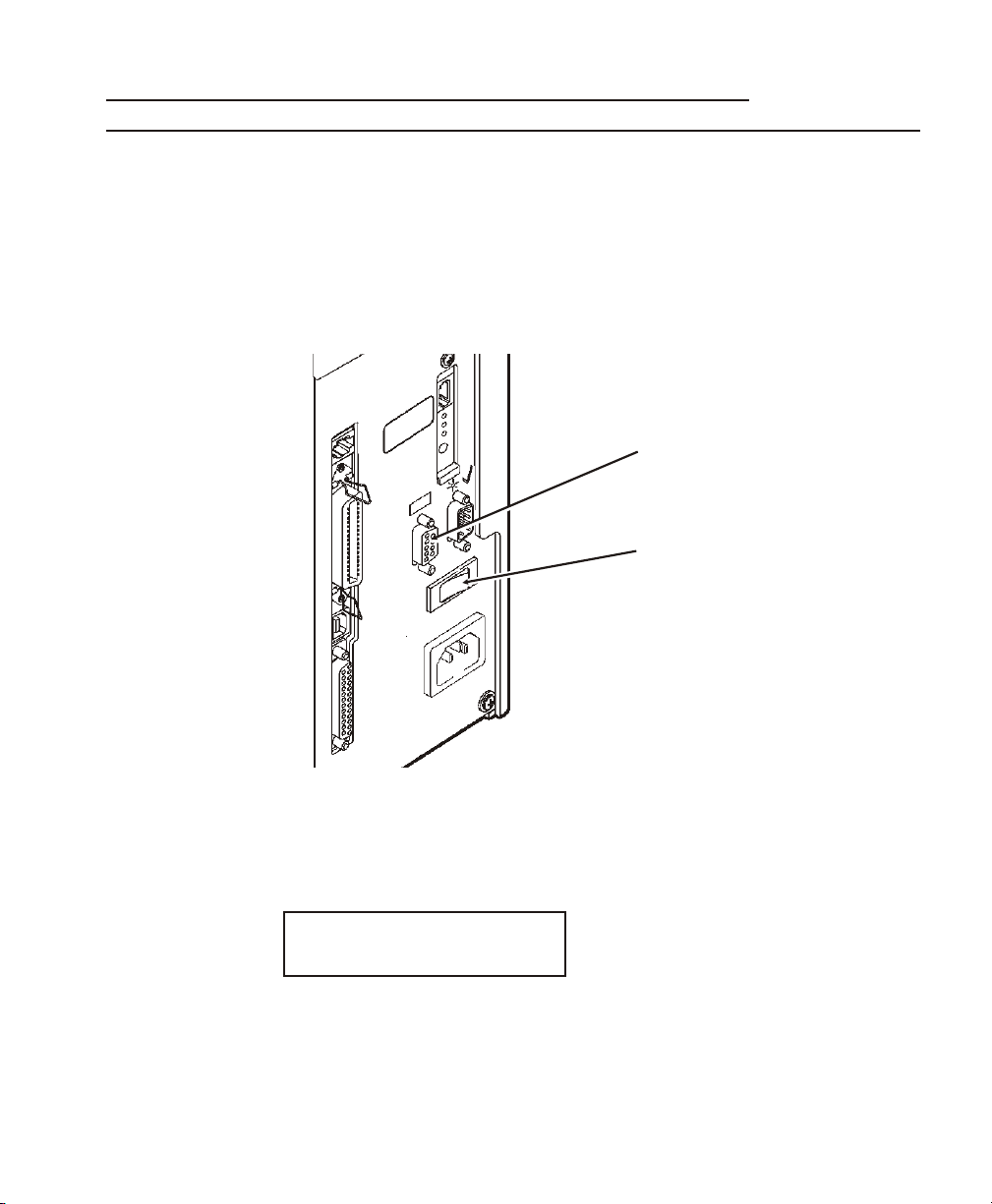
When using the keyboard in terminal mode (no script) with a 9855 or 9860
printer, the keyboard receives power from the printer.
1. Turn OFF the printer before you connect the keyboard’s cable.
2. Plug the 9-pin coiled keyboard cable into the back of the printer.
3. Tighten the screws on the cable to secure the cable to the printer.
4. Turn ON the printer. On the back of the printer, press (I) to turn on and
(O) to turn off the printer. You will see the prompts for your job. If a
script is not written for your job, the keyboard displays
PRINT MODE
Ready
See your System Administrator for information about your job.
1-6Getting Started
Keyboard
CableGoes
Here
ON/OFF
Switch
Altri manuali per MONARCH 939I
1
Questo manuale è adatto per i seguenti modelli
4
Indice
Altri manuali Avery Dennison Tastiera