
B-Speech MiniPad Manuale utente
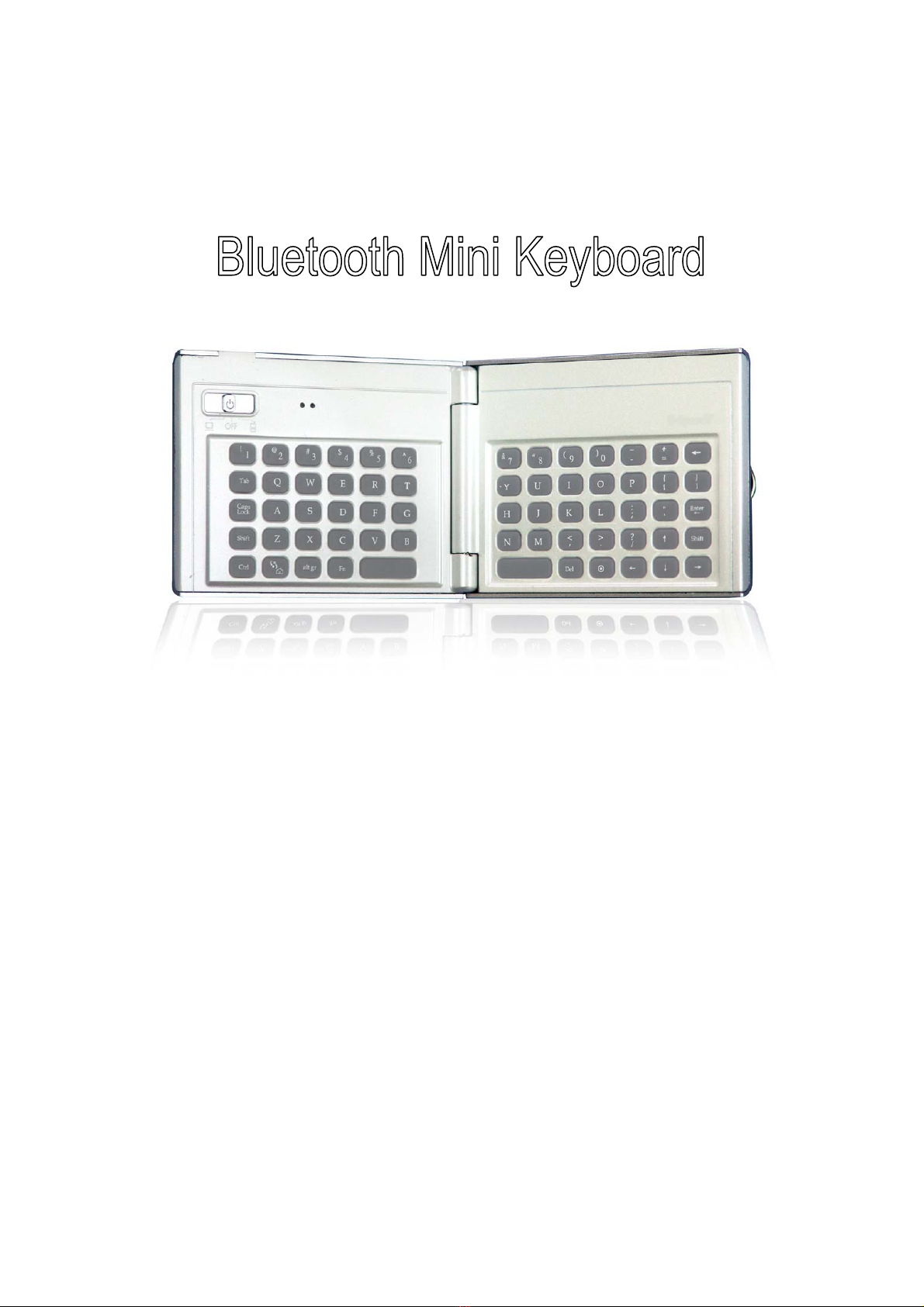
B-Speech® MiniPad User Manual
Page 1 of 22
User Manual
For
Microsoft Pocket PC 2003
Windows Mobile 5.0
Phone Edition

B-Speech® MiniPad User Manual
Page 2 of 22
Manufacturer's Disclaimer Statement
The information in this document is subject to change without notice and does not
represent a commitment on the part of the vendor. No warranty or representation,
either expressed or implied, is made with respect to the quality, accuracy or fitness for
any particular purpose of this document. The manufacturer reserves the right to make
changes to the content of this document and/or the products associated with it at any
time without obligation to notify any person or organization of such changes. In no
event will the manufacturer be liable for direct, indirect, special, incidental or
consequential damages arising out of the use or inability to use this product or
documentation, even if advised of the possibility of such damages. This document
contains materials protected by copyright. All rights are reserved. No part of this
manual may be reproduced or transmitted in any form, by any means or for any
purpose without expressed written consent of its authors. Product names appearing in
this document are mentioned for identification purchases only. All trademarks, product
names or brand names appearing in this document are registered property of their
respective owner.

B-Speech® MiniPad User Manual
Page 3 of 22
TableofContents
Introduction of Bluetooth Keyboard …………………………. 4
¾Keyboard Features ……………………………………………………………………………….. 4
Driver Installation / Upgrading / Removing ………………. 5
¾System Requirements ……………………….……………………………………………..... 5
¾Before to Use …………………………….………………………………………………………... 5
¾How to Install/Upgrade/ Remove the Bluetooth keyboard Driver …...... 5
Configuring Bluetooth Keyboard ……………………………...
7
The Illustration of “Config” Page ……………………………..
8
¾Active Keyboard …………………………………………………………………………………….
8
¾Reconnection ………………………………………………………………………………......... 9
¾Typing Repeat Rate …………………………………………………….………................
10
¾Typing Repeat Delay …………………………………………………..………............... 10
¾Keyboard Test ……..…………………………………………………..………................. 10
The Illustration of “Function” Page …………………………..
11
The Illustration of “About” Page ……………………………...
12
Function key and the Combination keys …………………….
13
¾Launching Applications ……………………………………………......................... 13
¾Editing Text Command ………………………………………………………………………...
14
¾Other Function Key ……………………………………………………………………………... 14
¾Symbol Characters ………………………………………………............................ 15
¾Latin Characters …………………………………………..……………………………………….
16
¾Special Shortcut Key ……………………………………………............................ 17
¾Calculator Functions ……………………………………………………………………………..
17
Bluetooth Keyboard Status LED ……………………………….. 18
Product Specifications ……………………………………………. 19
Appendix A: Troubleshooting …………………………………..
20
Appendix B: Look up the version of Bluetooth Stack .....
21

B-Speech® MiniPad User Manual
Page 4 of 22
Introduction of Bluetooth Keyboard
¾Keyboard Features

B-Speech® MiniPad User Manual
Page 5 of 22
Figure 1
Driver Installation/Upgrading/Remove
¾System Requirements
Microsoft Pocket PC 2003 / Windows Mobile 5.0 with built-in Bluetooth.
At least 420 KB of free memory on your Pocket PC.
A computer with the Microsoft Windows 2000 / XP operating system.
A synchronizing program on your computer, such as Microsoft ActiveSync
3.6 or higher, for copying files to your Pocket PC.
¾Before to Use
Check the batteries status of Bluetooth Mini keyboard.
(Turn the switch on to check the Blue light on the keyboard.)
Disable other application which will use Bluetooth port on your Pocket PC.
¾How to Install / Upgrade / Remove the Bluetooth Mini
keyboard Driver?
Installation
Connect your Microsoft Pocket PC 2003 / Windows Mobile 5.0 through
infrared/cable for ActiveSync with the computer.
Insert Bluetooth Mini Keyboard CD into computer’s CD-ROM drive.
Follow the instruction on screen to complete the installation.
After the Bluetooth Mini keyboard driver is
installed successfully and the Microsoft Pocket PC
is reset, you can find this Bluetooth Mini
keyboard icon is showed on the Start Menu of the
Pocket PC.(Figure 1)
Upgrading
B-Speech® MiniPad User Manual
Page 6 of 22
Please check the Agent’s website from time to time
to check if any new driver is released.
(Note: Please remove the old driver out first, and then install the last one into
your device.)
Removing
Step 1Turn the driver off
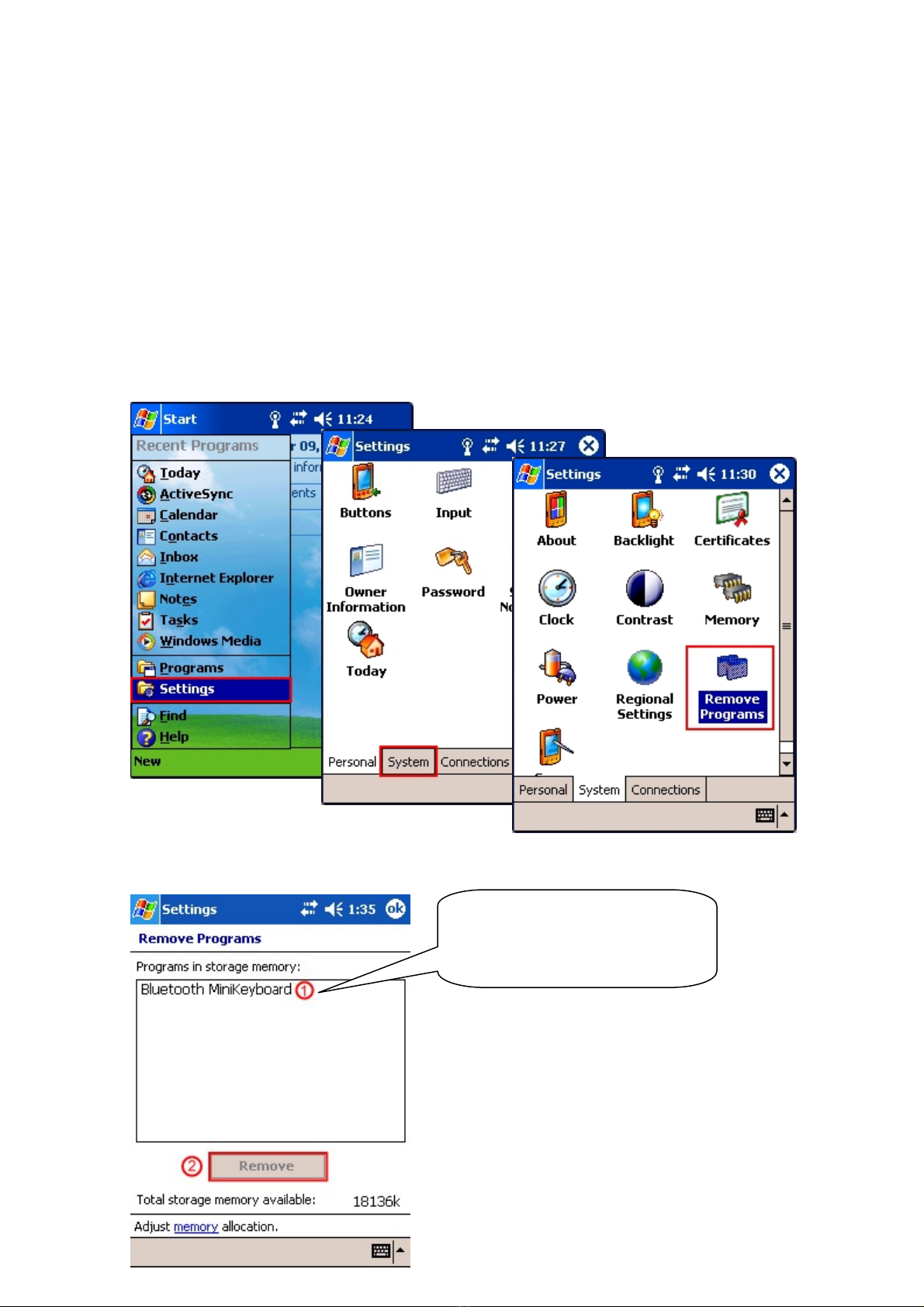
Step 2Tap Start -> Settings -> System -> Remove Programs, (Figure 2)
choose “MiniKB” and click the Remove button. (Figure 3)
Figure 2
Choose MiniKB and click the
Remove button

B-Speech® MiniPad User Manual
Page 7 of 22
Figure 3
Configuring Bluetooth Keyboard
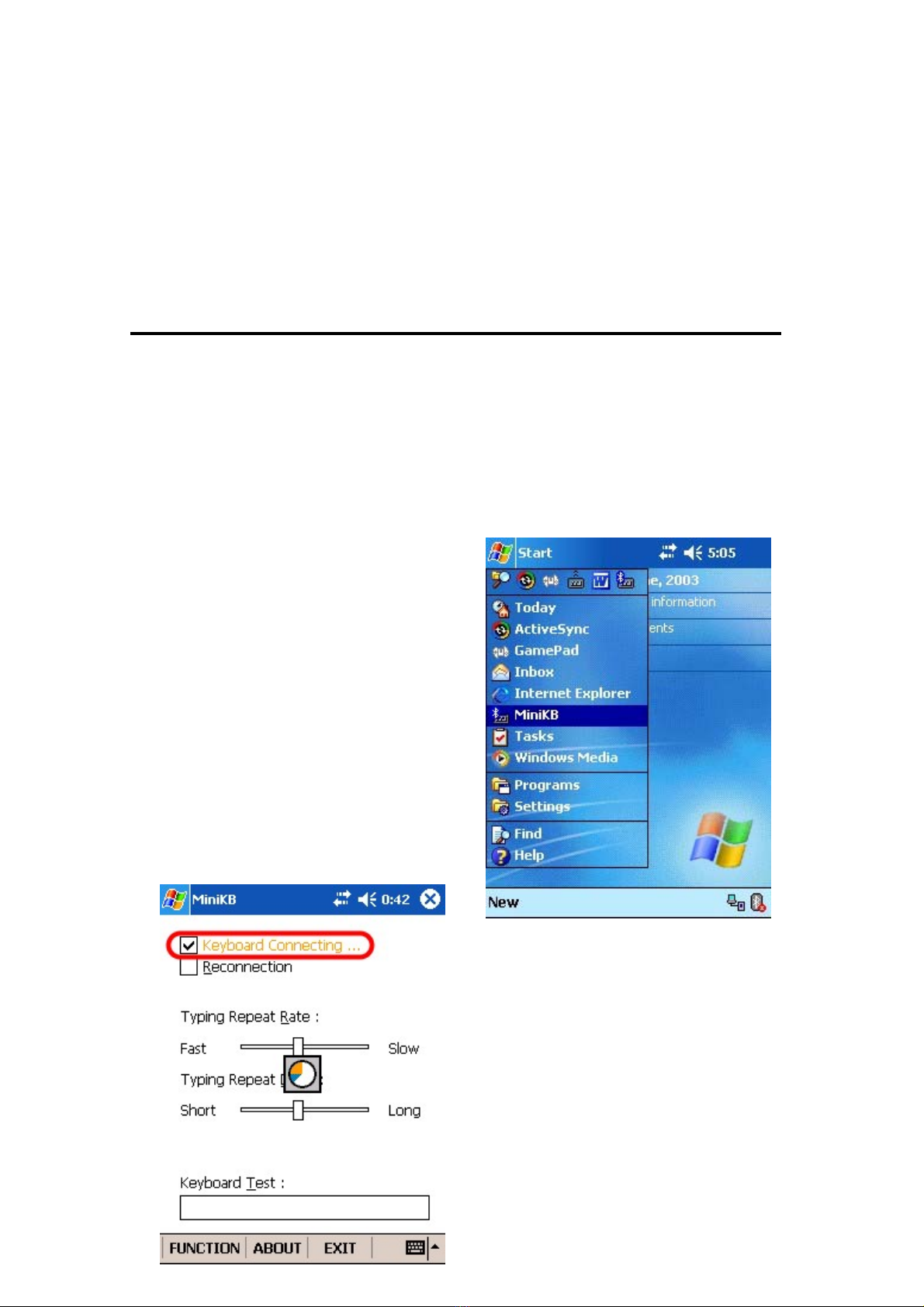
¾When you click the “MiniKB” icon, you will see three pages “Config”, “Function”,
“About”. (Figure 4)
Figure 4
¾“Config” Page
There are including:
“Active keyboard”, “Reconnection”, “Typing Repeat Rate”, “Typing Repeat
Delay”, “Keyboard Test”.
¾“Function” Page
This page provides ten user-definable function keys as Hot Keys.
¾“About” Page
Provides the version of the driver installed in your handheld device.
B-Speech® MiniPad User Manual
Page 8 of 22
The Illustration of “Config” Page
¾Active Keyboard
How to connect the Bluetooth Mini keyboard with your device??
Step 1:
Turn the Bluetooth Mini keyboard on, the LED will flash blue once every other
second, the Bluetooth Mini keyboard is in Discovery mode.
Step 2:
Tap Start -> MiniKB.(Figure 5)
Step3:
Click “Active Keyboard”.
Pocket PC will search and connect the
Bluetooth Mini Keyboard automatically
(Figure 6)
Figure 5
Figure 6
B-Speech® MiniPad User Manual
Page 9 of 22
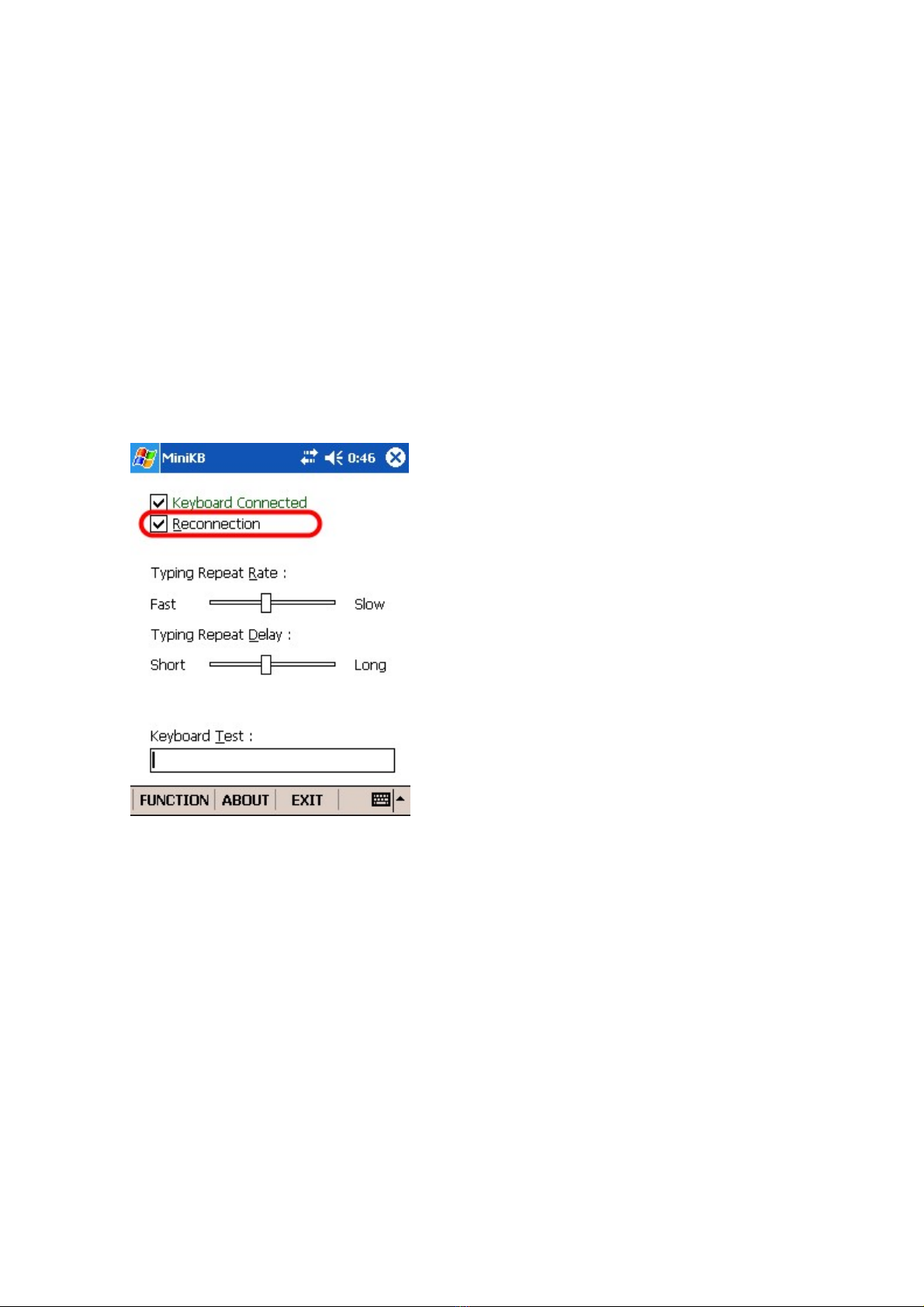
Figure 7
¾Reconnection
After the connection established successfully,
then you can turn “Reconnection” to “On”.
This function allows the Bluetooth keyboard
memorizes the last connected device, and they
will pair automatically in next connection
without further search. (Figure 7)
Note: Please do not turn “Reconnection” on
before the first connection established.

B-Speech® MiniPad User Manual
Page 10 of 22
Figure 8
Figure 9
¾Typing Repeat Rate
This option allows you to set the speed at
which a letter, number or other character
repeats when you press and hold a key.
Use your stylus to drag the marker arrow
toward Fast (to increase) or Slow (to
decrease)
the repeat rate. (Figure 8)
¾Typing Repeat Delay
This option allows you to set the length of
time before a letter, number or other
character begins to repeat when you press
and hold a key. Use your stylus to drag the
marker arrow toward Long (to increase) or
Short (to decrease) the length of the
delay. (Figure 9)
Altri manuali per MiniPad
2
Indice
Altri manuali B-Speech Tastiera


