
BadgePass NXT5000 Manuale utente
280 Trace Colony Park • Ridgeland, MS 39157
601.499.2131
www.badgepass.com
BadgePass Card Printer © 2012. All rights reserved.
September 2012.
Ref. KU-034-ENG Rev A1
BadgePass NXT5000 USER GUIDE

Page 2
Copyright
BadgePass Card Printer.
Copyright notice
Users must observe the copyright regulations applicable in their country. This manual must not be photocopied, translated, reproduced or transmitted, in whole or in part, for any
reason and by any electronic or mechanical means whatsoever without the express written consent of BadgePass. All the information contained in this document is subject to change
without prior notice. BadgePass cannot be held liable for any errors that may be found in this manual, or for any loss or damage arising accidentally or as a result of dissemination
or use of this manual.
Environmental information
BadgePass is committed to helping the environment by reducing the energy consumption of its products.
Recycling of end-of-life products
The manufacture of the equipment that you have purchased required the extraction and use of natural resources. It may contain materials that are hazardous to health and the
environment. To prevent the dispersal of such materials into our environment and reduce the pressure on our natural resources, we recommend that you use existing recycling
or collection facilities. These facilities will appropriately re-use or recycle most of the materials in your end-of-life equipment.
Document History BadgePass NXT5000 USER GUIDE

Page 3
About your new printer
Getting started
Thank you for choosing the BadgePass NXT5000 printer. Your new printer will be able to create a wide variety of high-quality cards and badges which can be printed in various
thicknesses, colors and styles. This printer uses consumables and accessories that are available from BadgePass. For further details, please visit our website at www.badgepass.com
The purpose of this user guide is to walk you, step by step, through the operation of your new printer. Taking some time to read it in order to better understand your printer and its
features will help save you save time during installation and operation. As with all BadgePass products, a great deal of care has been taken with this manual. However, if you
Icons
The following icons are used in this manual to highlight important information:
Information providing further details or depth about certain points in the main text.
Indicates that failing to take the recommended action could damage your printer.
This symbol indicates that a video showing the procedure is available on the www.badgepass.com website and clicking on it takes you straight to on-line help.
This symbol links to BadgePass Print Suite, accessible from your computer, which you can use to administer and manage your printer and change its settings.
Document History BadgePass NXT5000 USER GUIDE

Page 4
If any of these components are missing, please contact your BadgePass dealer. Use only the power supply unit supplied with your BadgePass printer.
SWITCHBOX Type F10723-A or CWT Type KPL-065M. Use only the USB cable supplied with your BadgePass printer.
You will be asked for the full original packaging (outer box, inner wedges and protective bags) in the event that the printer is returned. If the printer is returned
without its original packaging and components are damaged in transit, these components will no longer be covered by the warranty. You will be charged
for new packaging for shipping the printer back to you.
1-1 Unpacking
Getting started
Your printer is supplied with several accessories that we ask you to look at closely. This list may vary depending on your location.
The printer is shipped in special packaging designed to prevent damage during transit. If you notice any visible damage, please contact the shipper and immediately inform your
BadgePass dealer, who will tell you the procedure to follow. BadgePass takes great care over the quality of its packaging and we ask that you keep this packaging somewhere
clean and dry.
Accessories supplied with your printer:
• Power supply unit - SWITCHBOX Type F10723-A or CWT Type KPL-065M.
• Main power cable.
• USB cable.
• Reject box.
• Installation, documentation and software CD-ROM.
• Starter cleaning kit.
• Quick installation guide.
• Warranty notice.
The BadgePass printer must be placed in a dry location, protected from dust, and also well-ventilated. Take care to keep your printer on a flat, sturdy surface
able to bear its weight.
Document History BadgePass NXT5000 USER GUIDE

Page 5
Pushbutton
Cards and ribbon
Cleaning
Printer
Wi-Fi (option)
1-2 Description of the printer and its functions
A- Card input feeder F - Ethernet connector
B- Output hopper G- Power cable socket
C- Control panel H- Place for Kensington lock
D- USB connector (type A)
E- USB connector (type B)
C
B
A
H
G
D E F
Document History BadgePass NXT5000 USER GUIDE

Page 6
I- Thermal print head M - Dust filter
J- Cleaning roller N- Serial number label
K- Card thickness adjustment gauge
L- Side panel opening mechanism
Access to the side panels of the machine and the optional module fitting/removal areas is restricted to your retailer/installer or to experienced users. The
machine should always be disconnected from the power supply (unplugged) before carrying out any work on it.
Look at the getting started video described in the following section.
J
I
K
M
L
O
Document History BadgePass NXT5000 USER GUIDE

Page 7
The printer must be connected to a properly protected and grounded electrical installation.
1-3a Connecting the printer
Connection to the power supply
1. Connect the power cable to the power supply unit, then plug the power supply unit connecting into the printer.
2. Next, plug the end of the power cable into an earthed power socket.
3. The printer will power on: the control panel lights up showing that the printer is working properly. If the control panel does not light, then either
installation has not been carried out correctly or the printer is not working properly. Check the installation.
To save energy, the printer will automatically switch itself to standby mode after 10 minutes of inactivity. The printer switches to hibernation mode after
30 minutes in standby mode. The standby times can be configured in the BadgePass Print Suite. In standard standby mode, sending a print request
restarts the printer and quickly pressing the pushbutton (for 1 second) will exit the printer from hibernation mode.
Under no circumstances should you connect the USB data cable before installation of the printer driver is complete.
Connecting the USB cable
Before attempting any maintenance, ensure that the power cable is unplugged. For your personal safety, ensure that the cable and power supply unit
remain accessible, especially in the event of an emergency.
1-3 Installation
Refer to the section on printer driver installation for further details, and follow the instructions carefully.
Document History BadgePass NXT5000 USER GUIDE
Page 8
1-3b Ribbons
BadgePass High Trust® ribbons are designed to optimize the operation of your printer. The use of ribbons from other suppliers is not recommended as damage to the printer could
occur and will also void the manufacturer’s warranty for the printer. For optimum print quality, BadgePass recommends that the printer is fully cleaned every time the ribbon is
changed. See the Servicing and Maintenance section of this manual.
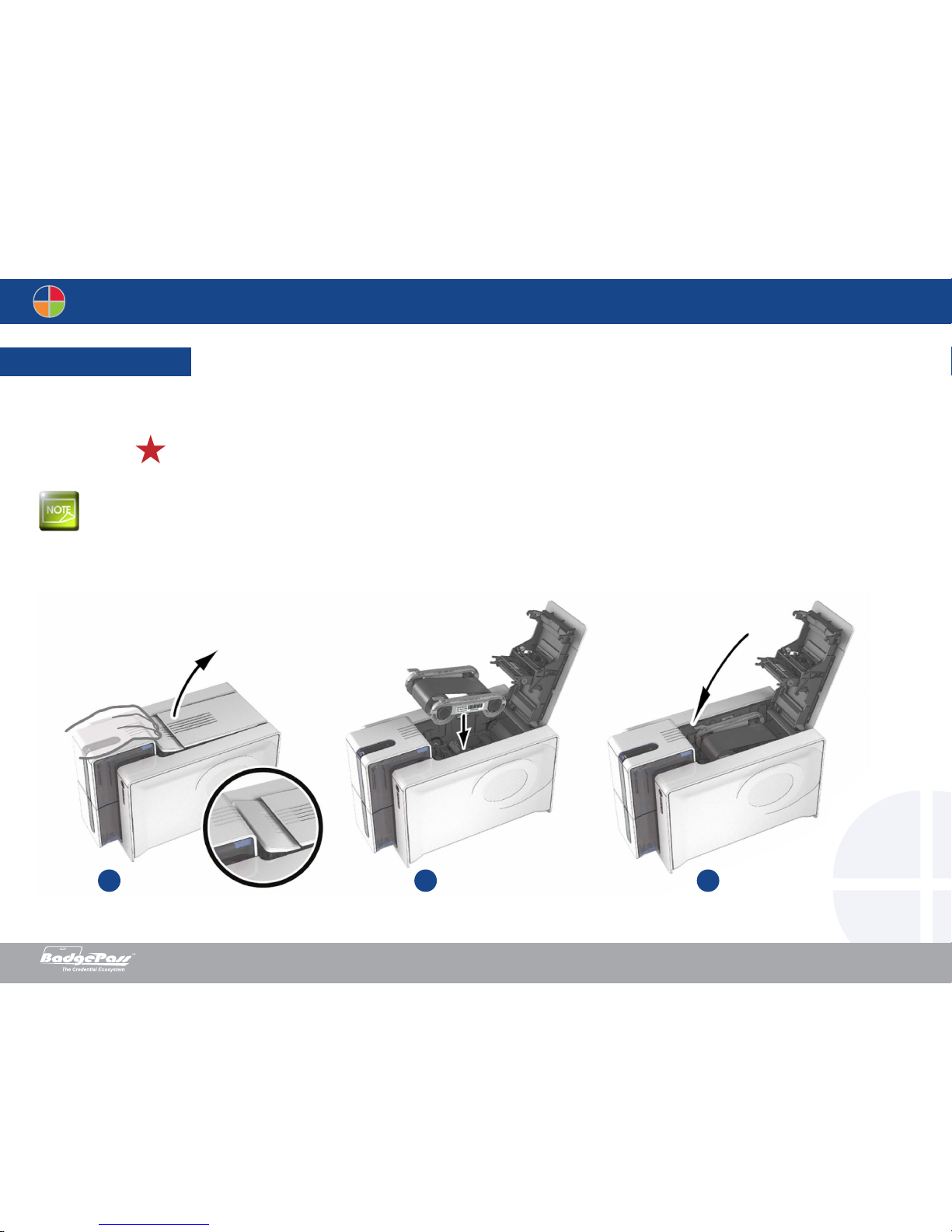
The printer automatically recognizes the ribbon inserted.
Fitting the ribbon
1. Open the cover.
2. Insert the ribbon as shown.
3. Close the cover and press until a click is heard.
21 3
Document History BadgePass NXT5000 USER GUIDE
Page 9
1-3c Cards
For optimum quality, the cards used must be ISO 7810 certified. Use only the card types recommended by BadgePass. Do not touch the printable surface of the cards
in order to preserve print quality. Do not use cards that have been damaged, folded, embossed or dropped on the floor. Keep your cards protected from dust.
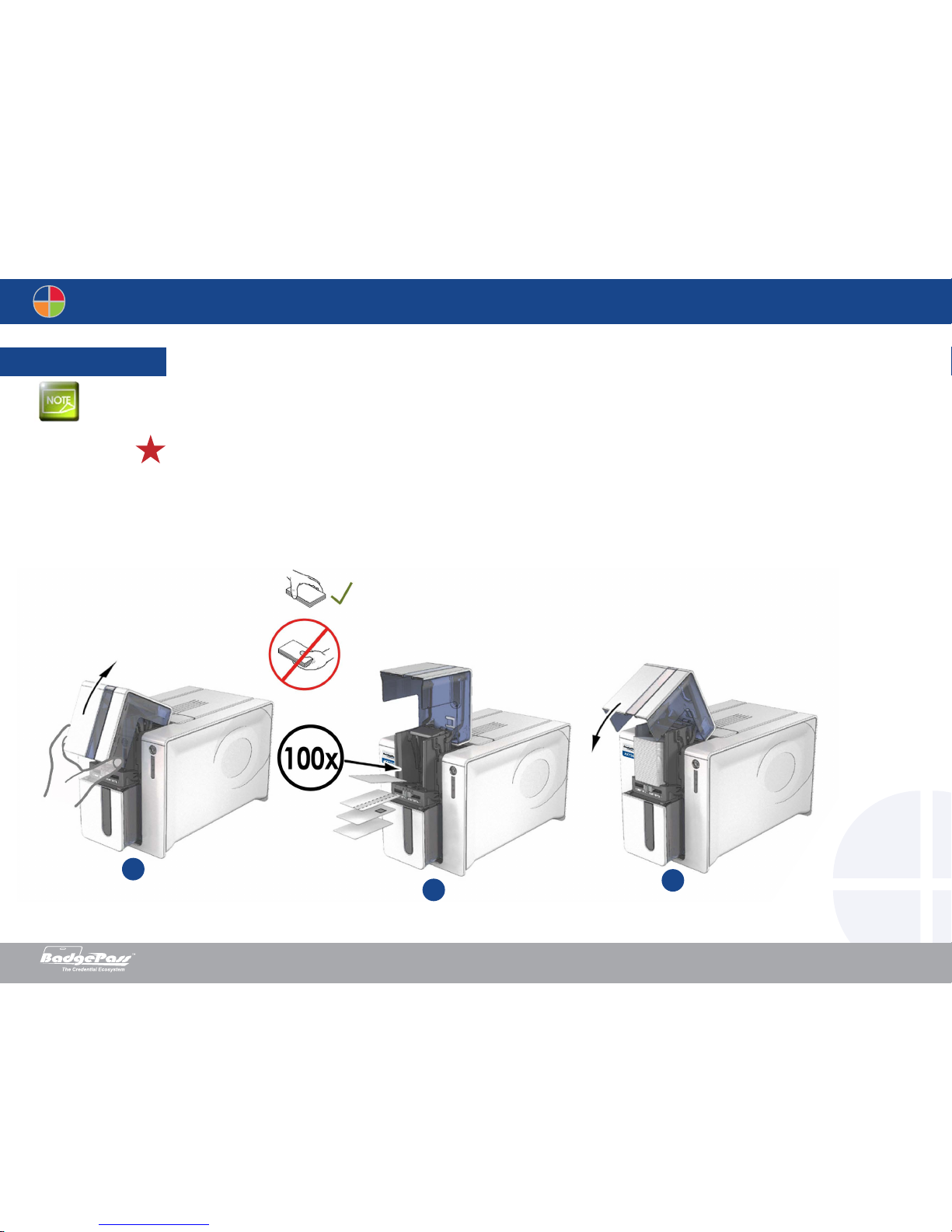
Loading the cards
1. Open the card feeder.
2. Insert the cards, a maximum of 100 cards of thickness 0.76 mm. Ensure the cards are positioned as illustrated in the diagram.
3. Close the feeder.
1
23
Document History BadgePass NXT5000 USER GUIDE

Page 10
Removing printed cards
Once the print cycle is complete, cards are delivered into the output hopper below the card feeder. This output hopper is designed to collect the printed and/or encoded cards. The
printer is equipped with an output hopper with a maximum capacity of 100 x 0.76 mm cards.
Adjusting card thickness
The printer is equipped with a manual card thickness adjustment mechanism which can be reached through the card feeder when open. The printer accepts cards between 0.25
mm and 1.25 mm thick (10 to 50 mil). The factory setting is 0.76 mm.
Document History BadgePass NXT5000 USER GUIDE
Altri manuali per NXT5000
3
Indice
Altri manuali BadgePass Stampante


