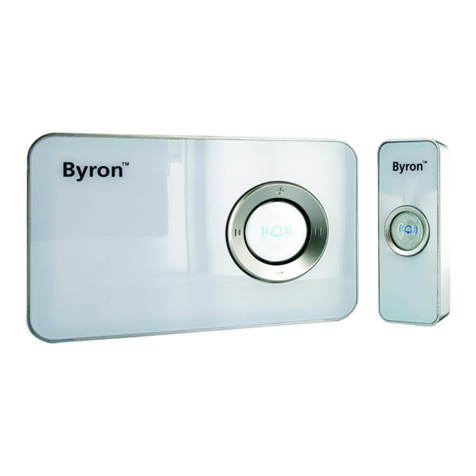
Byron DIC-24102 Manuale utente

DIC-24102

2

DIC-24102
en • 15/07/2019

Table of Contents Byron
iv
Table of Contents
1 Safety ..........................................................................................................................................................................................................6
1.1 Installation Safety...............................................................................................................................................................................6
1.2 Operation Safety ................................................................................................................................................................................6
2 Parts description .......................................................................................................................................................................................6
2.1 What's in the box................................................................................................................................................................................6
2.2 Indoor unit (monitor)...........................................................................................................................................................................6
3 Installation..................................................................................................................................................................................................7
3.1 Fix the mounting plate of the indoor unit (monitor) ............................................................................................................................7
3.2 Electrical installation ..........................................................................................................................................................................7
3.2.1 Connecting an additional monitor ....................................................................................................................................... 7
3.2.2 Connecting the AC power ................................................................................................................................................... 7
3.2.3 Mount the indoor unit .......................................................................................................................................................... 7
4 Basic functions ..........................................................................................................................................................................................7
4.1 Answering a call.................................................................................................................................................................................7
5 Home screen and menus ..........................................................................................................................................................................8
5.1 Monitor menu .....................................................................................................................................................................................8
5.2 Intercom menu ...................................................................................................................................................................................8
5.3 Recording playback menu .................................................................................................................................................................8

Byron Table of Contents
v
5.4 Photo menu........................................................................................................................................................................................8
5.5 Settings menu ....................................................................................................................................................................................8
5.5.1 Select photos or video recordings....................................................................................................................................... 9
5.5.2 Video duration..................................................................................................................................................................... 9
5.5.3 Number of photos ............................................................................................................................................................... 9
5.5.4 Image settings..................................................................................................................................................................... 9
5.5.5 Customer service information ............................................................................................................................................. 9
5.5.6 Formatting MicroSD card\Internal memory ......................................................................................................................... 9
5.5.7 Date and time settings ...................................................................................................................................................... 10
5.5.8 Ringtone and volume ........................................................................................................................................................ 10
6 Frequently asked questions ...................................................................................................................................................................10
7 Specifications ..........................................................................................................................................................................................11
8 Environment.............................................................................................................................................................................................11
9 Declaration of Conformity.......................................................................................................................................................................11

Instruction manual
6
1 Safety
1. Please read these instructions carefully before installing and
using the product.
2. Do not cut the power supply cable to extend it; the device
(transformer) will not work with a longer cable. Do not plug in the
device until all the wiring has been finished.
1.1 INSTALLATION SAFETY
1. Keep children and bystanders away while installing the products.
Distractions can cause you to lose control.
2. Do not overreach when installing this product. Keep proper
footing and balance at all times. This enables better control in
unexpected situations.
3. This product is not a toy. Mount it out of reach of children.
1.2 OPERATION SAFETY
1. Do not operate electrically powered products in explosive
atmospheres, such as in the presence of flammable liquids ,
gases, or dust. Electrically powered products create sparks which
may ignite the dust or fumes.
2. The warnings, precautions, and instructions discussed in this
instruction manual cannot cover all possible conditions and
situations that may occur. It must be understood by the operator
that common sense and caution are factors which cannot be built
into this product, but must be supplied by the operator.
3. Do not expose the Power Adapter of this product to rain or wet
conditions. Water entering the Power Adapter will increase the
risk of electric shock.
4. Do not abuse the Power Cord. Never use the cord for unplugging
the plug from the outlet. Keep cord away from heat, oil, sharp
edges or moving parts. Damaged or entangled cords increase the
risk of electric shock.
5. The adapter must match the outlet. Never modify the plug in any
way. Unmodified plugs and matching outlets will reduce risk of
electric shock.
2 Parts description
2.1 WHAT'S IN THE BOX
1. Monitor
2. Mounting plate monitor
3. AC adapter
4. Cables
5. Terminal blocks
6. Instruction manual
7. Screws and plugs
2.2 INDOOR UNIT (MONITOR)
1. Microphone
2. Home button
3. Touchscreen
4. MicroSD card slot

Instruction manual
7
3 Installation
3.1 FIX THE MOUNTING PLATE OF THE
INDOOR UNIT (MONITOR)
To mount the monitor, you will need the following tools:
üA suitable screwdriver for the included screws.
üA drill and suitable drill bit for the included screw plugs.
A. Position the provided mounting plate where desired.
B. Mark the screw positions with a pen.
C. Drill the necessary holes.
D. Insert the plugs.
E. Pull the required cables through the mounting plate.
F. Fasten the mounting plate with the screws.
3.2 ELECTRICAL INSTALLATION
3.2.1 Connecting an additional monitor
To connect an additional monitor to an existing monitor, a BLUE
terminal block is available. The additional monitor acts as a repeater
to one of the main monitors.
To connect the terminal blocks, you will need the following tool:
üA small flat head screw driver.
A. BLUE terminal block: Loosen the terminal screws.
B. With the terminal facing you, insert the black wire on the left and
the red wire on the right.
C. Fasten the terminal screws.
D. Connect the terminal block to the existing monitor. (See sticker on
the existing monitor for position)
E. Repeat steps a-d to fasten an identical terminal block to the other
end of the cable and connecting it to the additional monitor.
3.2.2 Connecting the AC power
To connect the AC terminal blocks, you will need the following tool:
üA small flat head screw driver.
A. ORANGE terminal block: Loosen the terminal screws.
B. With the terminal facing you: Insert the (-) wire on the left and the
(+) wire on the right.
C. Fasten the terminal screws.
D. Connect the terminal block(s) to the monitor.
3.2.3 Mount the indoor unit
üA suitable screwdriver for the included screws.
A. Attach the indoor unit to the mounting plate.
4 Basic functions
4.1 ANSWERING A CALL
When the doorbell rings, you can:
A. Press the gate button to open the gate (optional).
B. Press the lock button to open the door (optional).
C. Press the camera button to make a video or take a picture.
D. Press the talk button to talk to your visitor.
EN

Instruction manual
8
5 Home screen and menus
• Press the home button on the monitor to open the home screen.
The screen will turn on, and you can view the home screen.
The home screen allows you to access the following menus:
1. Time/date
2. Monitor menu
3. Intercom menu
4. Playback recordings menu
5. Photo menu
6. Settings menu
7. Power off
5.1 MONITOR MENU
üOpen the monitor menu from the home screen to check the live
footage from the doorbell camera.
A. Press the gate icon to open your gate.
B. Press the lock icon to open your lock.
C. Press the photo icon to take a snap shot.
D. Press the speaker icon to communicate.
ðPress the home button to exit the menu and go back to the home
screen.
5.2 INTERCOM MENU
üYou need an additional monitor to use this function.
A. Open the intercom menu from the home screen on one of your
monitors.
ðThe other monitor will start chiming.
B. Press the answer icon in the top corner of the screen of the
second monitor to accept the call.
ðYou will now be able to talk to another person from one
monitor to the other.
C. Press the end call icon in the top corner on one of the monitors to
end the call.
5.3 RECORDING PLAYBACK MENU
üYou have made recordings.
A. Open the playback menu from the homescreen.
B. Use the onscreen arrow buttons to scroll through your recordings.
C. Use the onscreen controls to review or delete your recorded
footage.
5.4 PHOTO MENU
You have taken photos
A. Open the photo menu from the home screen.
B. Use the onscreen arrow buttons to scroll through your saved
photos.
C. Use the onscreen controls to review or delete your saved photos.
5.5 SETTINGS MENU
A. Select photos or video recordings
B. Video duration
C. Number of photos

Instruction manual
9
D. Image settings
E. Customer service information
F. Formatting MicroSD card / Internal Memory
G. Date and time settings
H. Ringtone and volume settings
5.5.1 Select photos or video recordings
You can choose if your intercom takes photos or video recordings of
your visitors.
üMake sure to have a MicroSD card installed if selecting video
recording.
A. Tap on the video icon to select video recordings
B. Tap on the photo icon to select photos.
5.5.2 Video duration
You can select video recording duration. The video starts recording
when the doorbell is activated.
üVideo must be selected in the settings menu.
A. Press the button with the desired duration, 5-30 seconds.
5.5.3 Number of photos
You can select amount of photos recorded. The photos are taken
when the doorbell is activated.
üPhotos must be selected in the settings menu.
A. Press the button with the desired amount, 1, 3 or 5 photos.
5.5.4 Image settings
The image can be adjusted using the arrows. The settings include:
• Brightness
• Contrast
• Color saturation
5.5.5 Customer service information
At Smartwares, we care about our customers and that the products
work as intended. Please contact us if you run into any issues. You
can also check out our YouTube videos by scanning the QR code
below with your phone!
5.5.6 Formatting MicroSD card\Internal
memory
The internal memory is used to store photos and is formatted
separately from videos that can only be stored on a MicroSD card
(not included).
A. Press the photo icon and confirm to format the internal memory
EN

Instruction manual
10
B. Press the video icon and confirm to format the MicroSD card (not
included).
5.5.7 Date and time settings
A. Select the desired field to change.
B. Press the arrow keys up or down until the desired value is shown.
5.5.8 Ringtone and volume
The ringtone melody and volume can be adjusted using the arrow
keys. The settings include:
• Volume
• Ringtone melody
6 Frequently asked questions
Problem Solution
• Monitor does not switch on. • Make sure that the monitor is
connected to the power
source.
• Do not use extension cords,
as the voltage might not be
sufficient to power on the
device.
• Monitor is switched on but no
image is displayed.
• Check the wire connections
between the outdoor unit and
the monitor (including the
correct polarity).
• The picture quality is not
good.
• Adjust brightness and
contrast in settings menu.
• Make sure there is no direct
light source pointed at the
monitor.
• The volume is too low. • Adjust the volume
• Connected gate opener does
not work.
• Test the installation and the
12 V relay using wired
control. Refer to the
instruction manual of the gate
opener.
• Connected gate opener and
electric strike does not work.
• Use suitable accessories with
12 V, 500 mA specification.
Only install lock having a
mechanical storage system.
• Video and audio signal is too
weak or with interference
• The monitor is installed too
close to other electronic
devices. Move other electrical
devices away.
• Please check the distance
between indoor unit with
outdoor unit, and also check
the thickness of the cables
used,
Indice
Lingue:
Altri manuali Byron Sistema di interfono

Byron
Byron BY101 Manuale utente

Byron
Byron DIC-24712 Manuale utente

Byron
Byron DIC-25312 Manuale utente

Byron
Byron DIC-22815 Manuale utente

Byron
Byron LySonix 3000 Manuale utente

Byron
Byron DIC-22815 Manuale utente

Byron
Byron DIC-24512 Manuale utente

Byron
Byron DIC-24112 Manuale utente

Byron
Byron 765 Manuale utente

Byron
Byron DIC-23312 Manuale utente

Byron
Byron SX304 Manuale utente

Byron
Byron W255 Manuale utente

Byron
Byron DIC-24615 Manuale utente

Byron
Byron BY206 Manuale utente

Byron
Byron DIC-24312 Manuale utente

Byron
Byron MP001 Manuale di istruzioni

Byron
Byron DIC-25712 Manuale utente

Byron
Byron DIC-24212 Manuale utente

Byron
Byron DIC-24712 Manuale utente

Byron
Byron DIC-24122 Manuale utente