
Clear G SERIES Manuale utente

CLEAR MODEM
(SERIES G)
USER GUIDE

1
GET TO KNOW YOUR CLEAR MODEM (SERIES G) 3
WHAT’S IN THE BOX? 3
INFORMATIVE LED INDICATORS 3
USE WITH CARE 3
SET UP THE MODEM 4
PLACE THE MODEM ON A FLAT, STABLE SURFACE 4
PLUG IN THE CABLES 4
CONNECT TO CLEAR 4G 5
CONNECT TO THE INTERNET 6
MANAGE YOUR MODEM 7
CLEAR MODEM HOME PAGE OVERVIEW 7
CLEAR MODEM HOME PAGE / HOME TAB 8
CLEAR MODEM HOME PAGE / DEVICE STATUS TAB 9
CLEAR MODEM HOME PAGE / DEVICE STATUS TAB (CONTINUED) 10
CLEAR MODEM HOME PAGE / BASIC / PASSWORD TAB 11
CLEAR MODEM HOME PAGE / BASIC / TIME ZONE TAB 12
CLEAR MODEM HOME PAGE / BASIC / DEVICE NAME TAB 13
CLEAR MODEM HOME PAGE / BASIC / RESET FACTORY SETTINGS TAB 14
CLEAR MODEM HOME PAGE / BASIC / LANGUAGE TAB 15
CLEAR MODEM HOME PAGE / ADVANCED / FIREWALL TAB 16
CLEAR MODEM HOME PAGE / ADVANCED / INTERNET PROTOCOL TAB 17
CLEAR MODEM HOME PAGE / ADVANCED / DYNAMIC DNS TAB 18
CLEAR MODEM HOME PAGE / ADVANCED / PORT FORWARDING / BASIC TAB 19
CLEAR MODEM HOME PAGE / ADVANCED / PORT FORWARDING / FORWARDING TAB 20
CLEAR MODEM HOME PAGE / ADVANCED / LOCAL ADDRESS / DHCP SERVER TAB 21
CLEAR MODEM HOME PAGE / ADVANCED / LOCAL ADDRESS / LEASE STATUS TAB 22
CLEAR MODEM HOME PAGE / ADVANCED / LOCAL ADDRESS / LEASE RESERVATION TAB 23
QUICK TIPS 24
UNDERSTANDING THE LED LIGHTS 24
TO MAXIMIZE SIGNAL STRENGTH 24
UNABLE TO BROWSE THE INTERNET? 25
CONNECT TO YOUR HOME WIRELESS NETWORK 25
RESET THE MODEM TO THE FACTORY SETTINGS 25
IMPORTANT MESSAGE FROM CLEAR 25
IMPORTANT INFORMATION 26
TECHNICAL SPECIFICATIONS 26

2
STILL NEED HELP? 27
FAQS AND LIVE CHAT SUPPORT 27
TELEPHONE SUPPORT 27
QUESTIONS ABOUT YOUR BILL? 27
IMPORTANT INFORMATION DOCUMENT 27
WARRANTY INFORMATION 27
LEGAL DISCLOSURES 27

3
Get to Know Your CLEAR Modem (Series G)
What’s in the Box?
CLEAR Modem - Series G Ethernet Cable Power Adapter Quick Start Guide
Informative LED Indicators
The LED indicators are located on the side of the CLEAR Modem – Series G (Modem).
The Signal Strength LEDs indicate the strength of the CLEAR 4G signal (five LEDS lit indicates
an excellent signal).
The Network LED indicates the status of the Modem connection to a computer.
The Power LED indicates the Modem is turned on.
Use with Care
Do not throw, drop, or dismantle the Modem.
Keep the Modem out of direct sunlight.
Keep pets and children from playing with the Modem.
Do not immerse the Modem in water or other liquid.
Make sure your hands are dry before handling the Modem.
Signal Strength
Network LED
Power LED

4
Set up the Modem
Place the Modem on a Flat, Stable Surface
Rotate the foot of the Modem and place it upright on a flat, stable surface.
Do not place the Modem on its side or block the top air vents. The preferred location is near a
window and away from obstructions.
Plug in the Cables
1) Plug one end of the Ethernet Cable into the ethernet port on your computer and plug the other end
into the Modem.
2) Plug one end of the Power Adapter into the AC Power Port on the Modem and plug the other end
into a power outlet.

5
Set up the Modem (continued)
Connect to CLEAR 4G
After you’ve plugged in the cables, the Modem automatically will search for a CLEAR 4G signal.
It’s best to position the Modem near an outside wall or window, and away from onstructions.
If at least two LED lights are not lit, try moving the Modem to another room.
As the Modem is searching for the
CLEAR 4G signal, five LED lights,
located on the side of the Modem, will
blink sequentially and then in unison.
When the Modem is connected to the
CLEAR 4G signal, the LED lights will
stop blinking and remain lit.
Note: The number of lights indicates the
CLEAR 4G signal strength. For optimal
signal strength, you should try different
locations for the Modem in order to
ensure a minimum of two lights are lit.
Move the Modem (not your computer) to another room,
and wait 15 – 20 seconds after the LED lights are solid
green, in order to obtain the most accurate reading of
the CLEAR 4G signal.
To optimize the signal strength in the Modem’s current
location, try turning the Modem by small ¼”
increments.
When you find the strongest CLEAR 4G signal,
reconnect the Modem to your computer.
If, for some reason, the room with the strongest
CLEAR 4G signal is not where you want to put the
Modem, consider using a longer Ethernet Cable or
ordering a wireless router by logging into your CLEAR
online account.

6
Set up the Modem (continued)
Connect to the Internet
The first time you connect to the internet with your Modem, you’ll be directed to a page to review your
rate plan information, complete your CLEAR online account, and read / accept the CLEAR Terms of
Service.
Congratulations!
You’re ready for INTERNET AWESOMENESS!

7
Manage Your Modem
CLEAR Modem Home Page Overview
It’s easy to manage your Modem with the CLEAR Modem Home Page.
Set up your Modem.
Change security settings.
View signal strength.
View and upgrade the Modem firmware.
And more!
With your computer connected to the Modem, enter http://192.168.15.1 in your web browser in order
to open the Modem Home Page.
It is not required to log in to the Modem Home Page to access the internet. Logging in to the Modem
Home Page is required to manage the settings of your Modem.
Note: Making any changes to the settings may adversely affect the performance of the connection to
the internet. The Modem works without any additional configuration changes and the information is
provided for advanced users.
To log in to the Modem Home Page, you’ll need to enter a password. The default password is
“CLEAR123”.
We recommend bookmarking the Modem Home Page for easy reference.
If you’re using your Modem
and are connected to the
internet, click here to open
the Modem Home Page.

8
Manage Your Modem (continued)
CLEAR Modem Home Page / Home Tab
After you’ve logged in to the CLEAR Modem Home Page, you’ll see the Home Tab, which displays
helpful information about the Modem.
Signal Meter: Shows the Modem’s signal strength in its current location. Five LEDs lit indicates
an excellent signal.
Current Device Settings:
o Device Software Version: Shows the software version of the Modem, which cannot be
changed.
o WiMAX MAC ID: Shows the MAC ID of the Modem. A Mac ID is a unique serial number
burned into network adaptors that identifies them on a network. The Modem has the ability
to specify what MAC IDs are allowed to connect the Modem. The MAC ID can be found on
the label on the bottom of the Modem. The MAC ID can’t be changed.
o CINR: Displays a measurement of signal effectiveness, or CINR, for the active connection.
o WAN IP Address: Displays the Internet Protocol (IP) Address used to locate and access
your Modem.
o Firewall ON/OFF: A firewall can be used to help to protect your home network from
unauthorized access. A firewall also helps to manage authorized access from the internet
to your Modem.
o Device Up Time: Displays the length of time the Modem has been on.
o Port Forwarding ON/OFF: Port forwarding enables you to direct incoming traffic to
specific LAN hosts (computers on your network) based on the protocol and port number.
Port Forwarding is used to play Internet games or provide local services (such as web
hosting) for a LAN group.
The other tabs (Device Status, Basic, and Advanced) appear on all screens of the CLEAR Modem
Home Page.
At the bottom of every tab of the Modem Home Page, you can click:
Logout: To log out of the Modem.
Reboot: To turn the Modem off and turn it back on.
Reconnect: To reconnect to the Modem, if you’ve lost your connection.
If you’re using your Modem
and are connected to the
internet, click here to open
the Modem Home Page.
9
Manage Your Modem (continued)
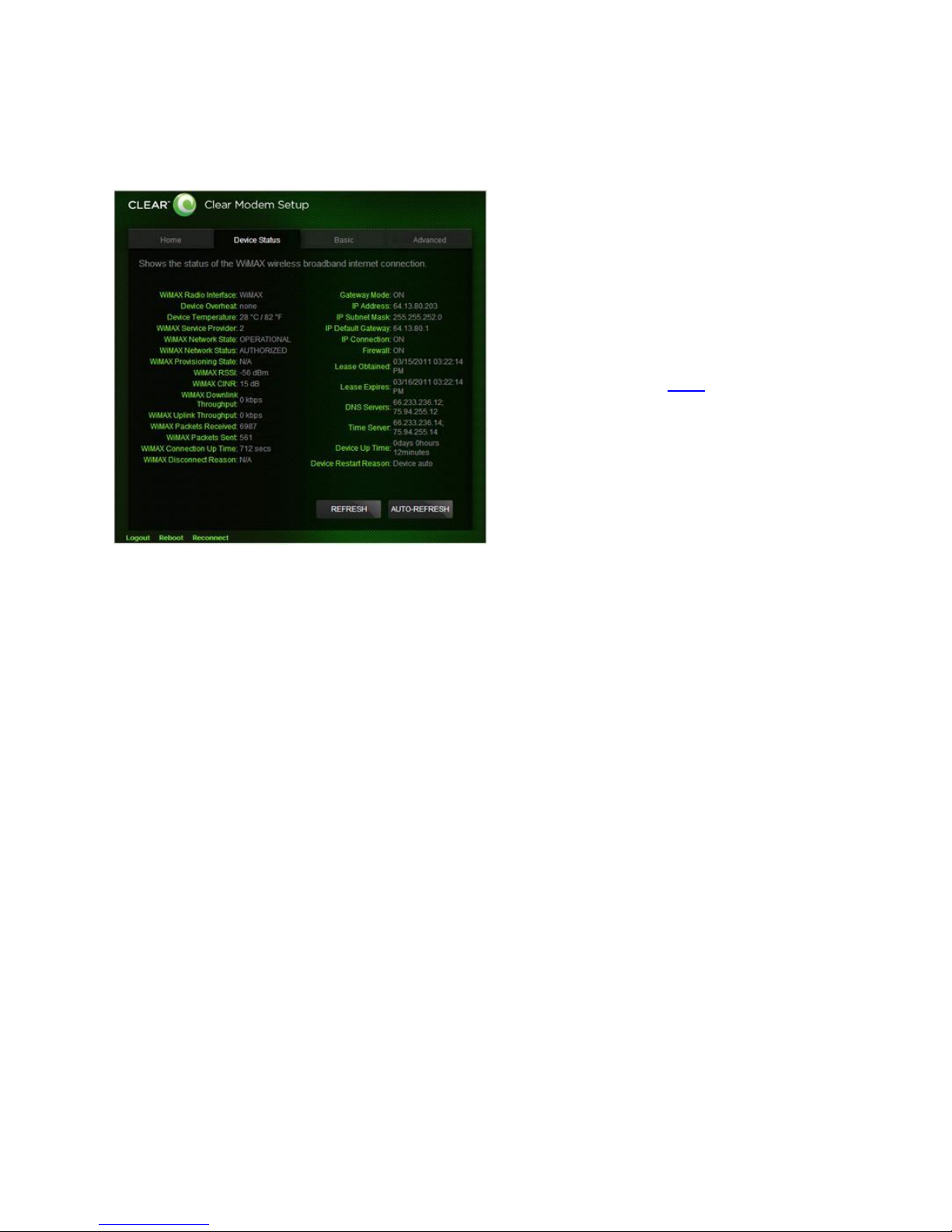
CLEAR Modem Home Page / Device Status Tab
This tab shows the status of the Modem.
WiMAX Radio Interface: Displays the type of network to which the Modem is connected.
Device Overheat: Indicates if the Modem is overheated.
Device Temperature: Displays the current temperate of the Modem.
WiMAX Service Provider: Displays the service provider with whom the Modem is activated.
WiMAX Network State: Displays the operational state of the Modem.
WiMAX Network Status: Displays the status of the Modem on the CLEAR 4G network.
WiMAX Provisioning State: Displays the provisioning state of the Modem.
WiMAX RSSI: Displays the power present in the radio signal (RSSI) of the active connection.
WiMAX CINR: Displays a measurement of signal effectiveness, or CINR, for the active
connection.
WiMAX Downlink Throughput: Displays the downlink bandwidth.
WiMAX Uplink Throughput: Displays the uplink bandwidth.
WiMAX Packets Received: Shows the number of WiMAX data packets received by the Modem.
WiMAX Packets Sent: Shows the number of WiMAX data packets sent by the Modem.
WiMAX Connection Up Time: Shows the length of time the Modem has been connected to the
CLEAR 4G network.
WiMAX Disconnect Reason: Describes the reason a computer was disconnected from the
Modem.
Gateway Mode: Displays the status of the Gateway Mode.
IP Address: Displays the Internet Protocol (IP) Address used to locate and access your Modem.
IP Subnet Mask: The subnet mask can be used to subdivide the network.
IP Default Gateway: Displays the IP Default Gateway value.
IP Connection: Displays the IP Connection status (ON or OFF).
Firewall: A firewall can be used to help to protect your home network from unauthorized access.
A firewall also helps to manage authorized access from the internet to your Modem.
If you’re using your Modem
and are connected to the
internet, click here to open
the Modem Home Page.
Altri manuali per G SERIES
1
Questo manuale è adatto per i seguenti modelli
1
Indice
Altri manuali Clear Modem

Clear
Clear Spot 4G Manuale utente

Clear
Clear G SERIES Scheda tecnica

Clear
Clear Spot 4G+ Manuale utente

Clear
Clear Stick Atlas PXU1960 Manuale utente

Clear
Clear MODEM with Wi-Fi Manuale utente

Clear
Clear Spot 4G Manuale utente

Clear
Clear WIXB-175 Manuale utente

Clear
Clear Spot 4G+ Scheda tecnica

Clear
Clear WIXFBR-117 Scheda tecnica


