
Coherent Solutions SwitchPXIe-1106 Manuale utente

SwitchPXIe
Optical Switch
USER MANUAL

PXIe Platform Optical Switch Module|SwitchPXIe
i
Copyright © 2018 Coherent Solutions Ltd. All rights reserved. No part of this publication may
be reproduced, stored in a retrieval system or transmitted in any form, be it electronically,
mechanically, or by any other means such as photocopying, recording or otherwise, without
the prior written permission of Coherent Solutions Ltd. (Coherent Solutions).
Information provided by Coherent Solutions is believed to be accurate and reliable.
However, no responsibility is assumed by Coherent Solutions for its use nor for any
infringements of patents or other rights of third parties that may result from its use. No
license is granted by implication or otherwise under any patent rights of Coherent Solutions.
The information contained in this publication is subject to change without notice.
Trademarks
Coherent Solutions’ trademarks have been identified as such. However, the presence or
absence of such identification does not affect the legal status of any trademark.
Units of Measurement
Units of measurement in this publication conform to SI standards and practices.
Version 2.01

PXIe Platform Optical Switch Module|SwitchPXIe
ii
Contents
1Conventions ....................................................................................................................4
2Safety Information .........................................................................................................5
3Introducing the SwitchPXIe –Optical Switch Module ..............................................6
SwitchPXIe Overview & Features- Single Slot Models ....................................................... 6
SwitchPXIe Overview & Features- Double Slot Models...................................................... 7
SwitchPXIe Overview & Features- Crossover Modules...................................................... 8
Status LED .................................................................................................................................. 9
3.4.1 For SwitchPXIe-1003 and SwitchPXIe-1103 ............................................................... 9
3.4.2 For SwitchPXIe-1006/1009/1107 ................................................................................. 9
3.4.3 For SwitchPXIe-1004........................................................................................................ 9
4Connecting Optical Input............................................................................................ 10
Cleaning and Connecting Optical Fibers.............................................................................10
5Handling the SwitchPXIe Module.............................................................................. 11
SwitchPXIe Module Installation............................................................................................11
SwitchPXIe Module Uninstallation.......................................................................................13
6Software Installation Information ............................................................................. 14
Installation Overview...............................................................................................................14
7Windows Driver Installation for CSL Devices .......................................................... 15
8CSL Server Installation ............................................................................................... 18
9cohesionUI Installation............................................................................................... 22
10 CSL Firmware Updater ............................................................................................... 29
Overview of the Firmware Updater Main Display..............................................................29
Downloading the Firmware file.............................................................................................30
Running the CSL Firmware Updater....................................................................................30
11 cohesionUI™................................................................................................................. 35
Finding the IP address............................................................................................................35
Home .........................................................................................................................................36
Modules.....................................................................................................................................37
Settings .....................................................................................................................................38
Info .............................................................................................................................................39
12 SwitchPXIe control with cohesionUI ........................................................................ 40
13 Programming Guide.................................................................................................... 42
Programming Conventions ...................................................................................................42

PXIe Platform Optical Switch Module|SwitchPXIe
iii
Common System Command Summary .............................................................................43
Common System Command Descriptions ........................................................................44
Specific Command Summary...............................................................................................45
Specific Command Descriptions..........................................................................................46
13.5.1 Slot Commands...............................................................................................................46
13.5.2 Configuration Commands.............................................................................................47
Multi Chassis Mode Operation .............................................................................................48
13.6.1 NI-MAX ..............................................................................................................................48
13.6.2 SCPI Multi Chassis Commands ...................................................................................49
14 Maintenance ................................................................................................................ 50
15 Technical Support ....................................................................................................... 53
Contacting the Technical Support Group ...........................................................................53
Transportation .........................................................................................................................53
16 Warranty....................................................................................................................... 54
General Information................................................................................................................54
Liability.......................................................................................................................................54
Exclusions.................................................................................................................................54
Certification ..............................................................................................................................55
Service and Repairs ................................................................................................................55

PXIe Platform Optical Switch Module|SwitchPXIe
Coherent Solutions Ltd. Version 2.01 4
1Conventions
Before using the instrument described in this manual, take note of the following conventions:
WARNING
Indicates a potentially hazardous situation which, if not avoided, could
result in death or serious injury. Do not proceed unless the required
conditions are met and understood.
CAUTION
Indicates a potentially hazardous situation which, if not avoided, may
result in minor or moderate injury. Do not proceed unless the required
conditions are met and understood.
CAUTION
Indicates a potentially hazardous situation which, if not avoided, may
result in component damage. Do not proceed unless the required
conditions are met and understood.
IMPORTANT
Refers to information about this product you should not overlook.

PXIe Platform Optical Switch Module|SwitchPXIe
Coherent Solutions Ltd. Version 2.01 5
2Safety Information
Before using the SwitchPXIe module, ensure that the following safety information had been
read and understood.
WARNING
•Do not install or terminate fibers while a light source is active.
Care must be taken to ensure that the instrument has been turned
OFF before inspecting the end face(s) of the instrument, or any
optical patch cords connected to this instrument. Never look
directly into a live fiber; ensure that your eyes are protected at all
times.
•The use of controls, adjustments and procedures other than those
specified herein may result in exposure to hazardous situations or
impair the protection provided by this unit.
CAUTION
The SwitchPXIe modules are sensitive to electrostatic discharge (ESD).
Store the modules that are not installed in protective electrostatic
packaging.
IMPORTANT
•For electromagnetic compatibility, this instrument is a Class A
product. It is intended for use in an industrial environment. There
may be potential difficulties in ensuring electromagnetic
compatibility in other environments, due to conducted as well as
radiated disturbances.
•Wherever the symbol is printed on the unit, refer to the
instructions provided in the device documentation for related
safety information Ensure that the required conditions are met
and understood before using the product.

PXIe Platform Optical Switch Module|SwitchPXIe
Coherent Solutions Ltd. Version 2.01 6
3Introducing the SwitchPXIe –Optical Switch Module
The SwitchPXIe is an efficient solution for test procedure automation designed to be used on
the National Instruments PXIe platform. The MEMS based optical switch ensures repeatable
and low-loss switching to various test set-ups while taking advantage of the PXIe
mainframe’s flexible connectivity and high channel density form-factor.
SwitchPXIe Overview & Features- Single Slot Models
Note: Number of common and routing ports will depend on the selected model. SwitchPXIe-1003 shown above.
1
Fastening screw
2
Routing Indicator LED
3
Common Optical port
4
Routing Optical ports
5
PXIe Headers
6
PXIe Module/Optical Connector Information
7
Fastening clip

PXIe Platform Optical Switch Module|SwitchPXIe
Coherent Solutions Ltd. Version 2.01 7
SwitchPXIe Overview & Features- Double Slot Models
Note: Number of common and routing ports will depend on the selected model. SwitchPXIe-1106 shown above.
1
Fastening screw
2
Error Status LED
3
Common Optical port
4
Routing Optical ports
5
PXIe Module/Optical Connector Information
6
Fastening clip
7
SwitchPXIe Module Information
8
PXIe Headers

PXIe Platform Optical Switch Module|SwitchPXIe
Coherent Solutions Ltd. Version 2.01 8
SwitchPXIe Overview & Features- Crossover Modules
1
Fastening screw
2
Routing Indicator LEDs
3
Red Optical ports
4
Blue Optical ports
5
PXIe Module/Optical Connector Information
6
Fastening clip
7
SwitchPXIe Module Information
8
PXIe Headers
IMPORTANT
All Crossover switch modules DO NOT HAVE A PARK STATE. When
plugging optical fibres into the ports or inspecting fibres, ensure that
the optical source is off to prevent user injury.
PXIe Platform Optical Switch Module|SwitchPXIe
Coherent Solutions Ltd. Version 2.01 9
Status LED
The Status LEDs are used to denote the operation state of the SwitchPXIe. The different
colours have slightly different meanings for the different SwitchPXIe models.
3.4.1 For SwitchPXIe-1003 and SwitchPXIe-1103
•Blinking yellow: Indicates initialization on startup.
•All off- Indicates that the SwitchPXIe is in the PARK state (State 0).
•Solid green- Indicates which state the SwitchPXIe is routed to.
•Solid red- Indicates a Switch error. Most often this means an invalid route position.
3.4.2 For SwitchPXIe-1006/1009/1107
•Blinking yellow: Indicates initialization on startup.
•Solid green- Indicates successful initialization and communication.
•Solid red- Indicates a Switch error. Most likely an initialization error at startup.
3.4.3 For SwitchPXIe-1004
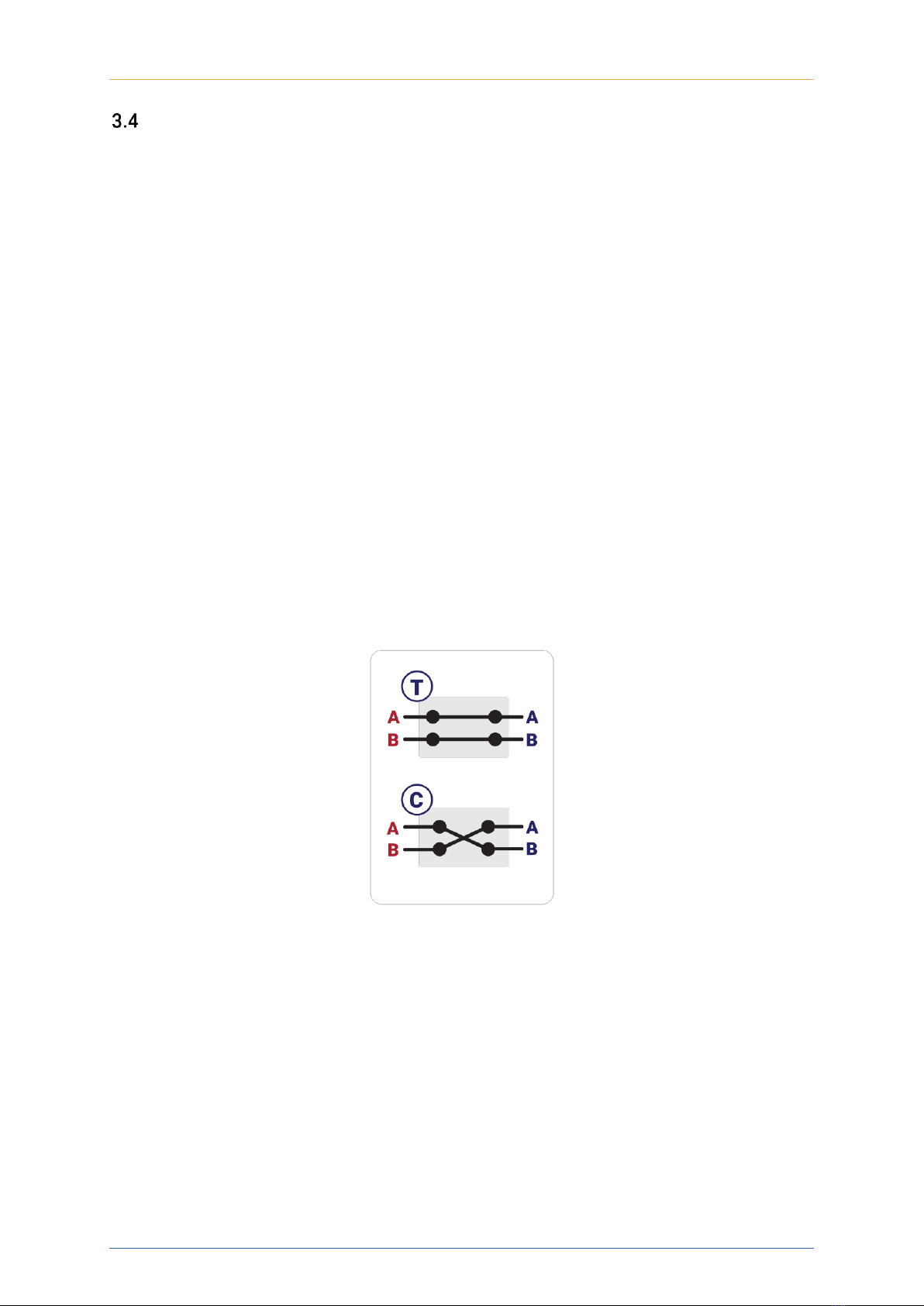
The SwitchPXIe-1004 is a 2x2 crossover switch. This means that it has only 2 valid states:
Transmit (T) and Cross.(C) The front panel LEDs on this switch will indicate which state the
switch is in. Further information can be gathered from the colour of the LEDs as such:
•Solid green- Indicates which state the SwitchPXIe is in (default is T)
•Solid red- Indicates there was an error in switching states. Only 1 LED will light up.
Questo manuale è adatto per i seguenti modelli
6
Indice
Altri manuali Coherent Solutions Interruttore


