
Colorado time systems QuickStart Pro Manuale utente

User Guide
QuickStart Pro
F896 Rev. 0406

Colorado Time Systems
Corporate Office
1551 East 11th Street
Loveland, CO 80537 USA
Sales - 1-800-279-0111 or +1 970-667-1000
Service: 1-800-287-0653 x256 or +1 970-667-1000 x256
FAX: 970-667-1032
Web: www.coloradotime.com
Email: [email protected]
Part Number F896 Rev. 0406
© 2006. Colorado Time Systems. All rights reserved.

Table of Contents
Introduction
Input Modes ...............................................................................5
Power .........................................................................................6
Intensity & Mode Setting...........................................................6
Training Modes
Lap counter ......................................................................................7
Simple Pace Clock ...........................................................................8
Pace clock with Cumulative Splits ..................................................8
Pace clock with Lap Splits...............................................................9
Relay Exchanges..............................................................................9
Start Reaction.................................................................................10
Turn Speed.....................................................................................10
Breakout Time ...............................................................................11
Start Reaction and Breakout Time.................................................11
Single Lane Timer .........................................................................12
Mid-Race Timing...........................................................................14
Test Mode ......................................................................................15

Introduction
Thank you for purchasing a Colorado Time Systems QuickStart Pro.
Your QuickStart Pro features 15 training modes.
Introduction This introductory section describes physical features of your
QuickStart Pro.
Training Modes This section, beginning on page 7, describes the training modes, in-
cluding what the mode does and which other devices are needed for
the mode.
Input Modes Most of the various training modes require input from one or more
of the following: touchpads, relay platform, pushbutton or start sys-
tem. Plug the device(s) providing the input into the proper connec-
tor(s) on the side panel.
Most input connections are self-explanatory.
Pushbuttons For all input connectors, a pushbutton operated by a human judge
may be connected to provide input; however, some precision in tim-
ing will be lost. The QuickStart Pro records to a hundredth of a sec-
ond, but a human with a pushbutton can’t come close to that level of
accuracy!
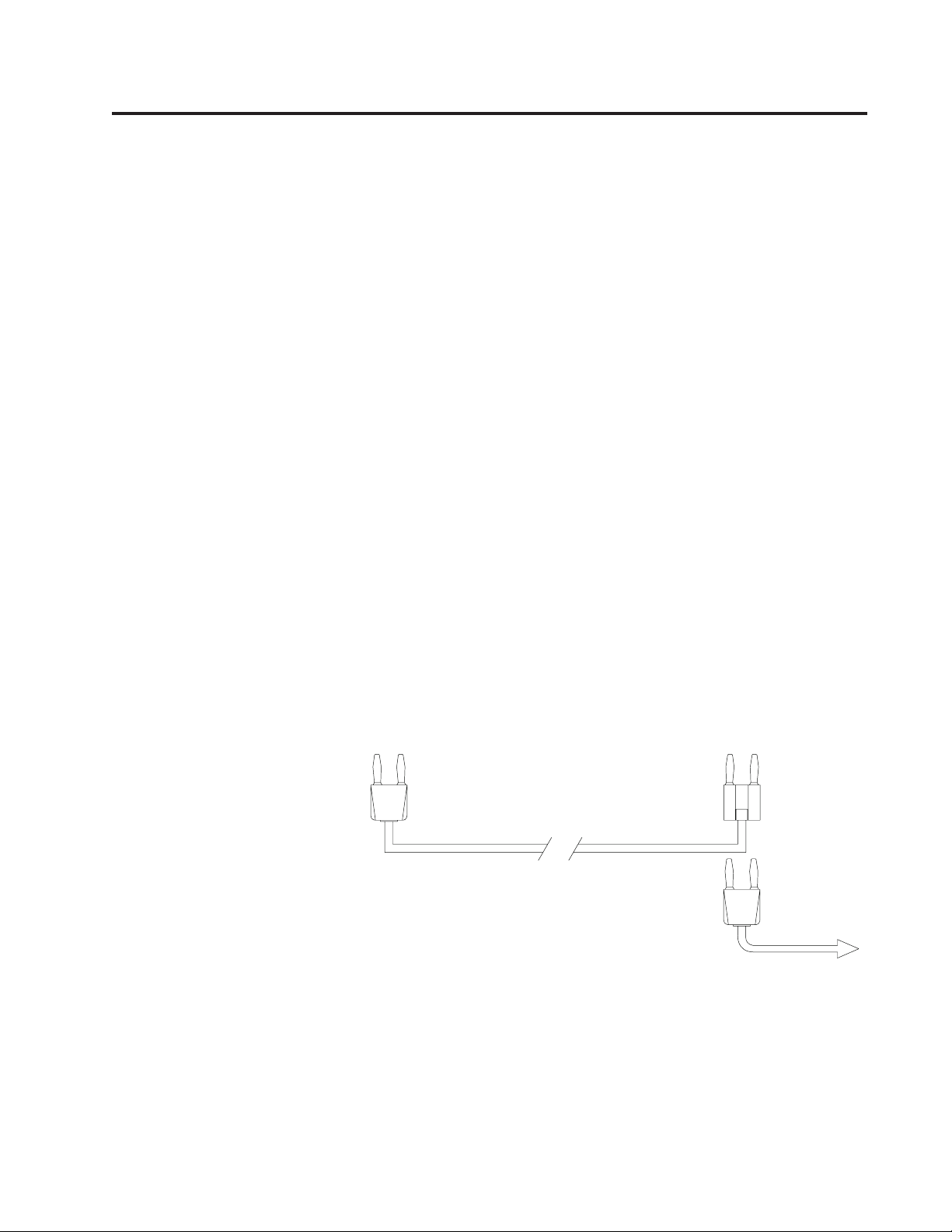
Touchpads There are two touchpad inputs to allow for touchpad input from both
ends of the pool. The two touchpad inputs are connected internally.
They are equivalent, and it makes no difference which one is used.
To take input from touchpads at both ends of the pool, plug the
touchpad from one end of the pool into either touchpad input on the
QuickStart Pro. Plug the touchpad from the other end into the other
5
Cabling for far end touchpad input
stackable,
open-ended dual
banana plug
to touchpad
plug into QuickStart Pro
touchpad input
extension cable

touchpad input, using an extension cable (CTS SJ series) with a
stackable, open-ended dual banana plug.
Power
AC Power Connect the QuickStart Pro to AC power using the supplied (15
DVC) power brick. Plug the power brick 5-pin DIN connector into
the QuickStart Pro, and plug the power brick in to AC power.
Battery An internal battery can supply power to the QuickStart Pro. A fully
charged battery will run the unit for a minimum of 6 hours. Leave
the unit plugged in overnight to fully charge the battery after use.
The battery charges any time the unit is plugged in to AC power.
Power Switch The power switch is on the right side of the QuickStart Pro, next to
the DIN connector for the power brick.
Intensity & Mode
Setting
Use the Mode switch on the right side of the QuickStart Pro to set
the intensity of the LED digits as follows:
Intensity When a QuickStart Pro is turned on, it will first display in for Inten-
sity. While in is displayed, the Mode switch adjusts the intensity of
the display. Eight levels of intensity are available, from 1 (low) to 8
(high). These same settings can also be selected from 9 (low) to 16
(high).
Mode After the Mode switch has been in the same intensity setting for 4
seconds, the clock will display the firmware revision, and then the
current mode. At this point, the Mode switch changes the mode. The
Mode switch will change only the mode until the clock is turned off
and then on again.
6
Training Modes
Mode # Mode Description See Page #
1 Lap counter 7
2 Simple pace clock 8
3 Pace clock with cumulative splits 8
4 Pace clock with Lap Splits 9
5 Relay Exchanges 9
6 Start Reaction 10
7 Turn Speed 10
8 Breakout Time 11
9 Start Reaction and Breakout Time 11
10, 11, 12, 13, 14 Single Lane Timer (1, 2, 3, 4 or multiple laps) 12
15 Mid-race Timer 14
16 Test Mode 15
Lap counter Mode 1
Equipment required: Touchpad required; start system or pushbutton can be used to reset
the clock.
Set up: Connect the touchpad to either Touchpad input. If using a start sys-
tem or pushbutton for resetting the display, connect the start system
or a pushbutton to the Start System input, or connect a pushbutton to
the Reset/Breakout input.
Operation: The clock displays 01, indicating mode 1. The display will flash, and
then show 0, indicating 0 laps completed. Each valid touchpad hit
will cause the display to count up by 1.
A start input (either a start signal from the start system or one click
on a pushbutton connected to the start input) or a double click on a
pushbutton connected to the reset/breakout input will reset the coun-
ter to 0.
7

Simple Pace Clock Mode 2
Equipment required: None required for basic operation; start system or pushbutton can be
used to reset the clock.
Set up: If using a start system or pushbutton for resetting the clock, connect
the start system or a pushbutton to the Start System input, or connect
a pushbutton to the Reset/Breakout input.
Operation: The clock displays 02, indicating mode 2. The display will flash, dis-
play :00, and begin counting up, showing the time in minutes, sec-
onds and tenths. After displaying 59:59.9, the display will roll over
to zero. A start input or a double click from the reset input will reset
and start the clock.
Pace clock with
Cumulative Splits
Mode 3
Equipment required: Touchpad required; start system or pushbutton can be used to reset
the clock.
Set up: If using a start system or pushbutton for resetting the clock, connect
the start system or a pushbutton to the Start System input, or connect
a pushbutton to the Reset/Breakout input. Connect the touchpad to
either Touchpad input.
Operation: The clock displays 03, indicating mode 3. The display will flash, dis-
play :00, and begin counting up, showing the time as minutes, sec-
onds and tenths.
At each valid touchpad hit, the display shows the time of the
touchpad hit (cumulative split) in minutes, seconds and hundredths
(M:SS.HH). Meanwhile, the running time continues internally. Fol-
lowing the cumulative split display the clock will resume displaying
the running time as minutes, seconds and tenths. Once the running
time is above ten minutes, the time of the touchpad hit is shown al-
ternating between minutes, seconds and hundredths (M:SS.HH) and
minutes, seconds and tenths (MM:SS.T).
A start input or a double click from the reset input will reset and start
the clock any time the running time is displayed.
8

Pace clock with Lap
Splits
Mode 4
Equipment required: Touchpad required; start system or pushbutton can be used to reset
the clock.
Set up: Connect the touchpad to either Touchpad input. If using a start sys-
tem or pushbutton for resetting the clock, connect the start system or
a pushbutton to the Start System input, or connect a pushbutton to
the Reset/Breakout input.
Operation: The clock displays 04, indicating mode 4. The display will flash, dis-
play :00, and begin counting up, showing the time as minutes, sec-
onds and tenths.
At each valid touchpad hit, the display shows the time of the
touchpad hit (lap split) in minutes, seconds and hundredths
(M:SS.HH). The running time is reset to 0 at the touchpad hit, and
continues running internally. Following the lap split display, the
clock will resume displaying the running time as minutes, seconds
and tenths.
A start input or a double click from the reset input will reset and start
the clock any time the running time is displayed.
Relay Exchanges Mode 5
Equipment required: Touchpad and relay judging platform (RJP).
Set up: Connect the touchpad to either Touchpad input. Connect the RJP to
the Relay Platform input.
Operation: The clock displays 05, indicating mode 5. The numbers on the dis-
play go blank, leaving a colon and a decimal lit. The clock is waiting
to record a relay exchange.
RJP input times are recorded, and the first touchpad hit is recorded.
For a legal relay exchange (the touchpad hit occurred before the re-
lay takeoff), the display shows the relay exchange time in seconds
and hundredths (SS.HH). Exchanges of .2 seconds and faster are
shown in green; exchanges of .21 seconds or greater are shown in
yellow. For an illegal relay exchange (the touchpad hit occurred after
the relay takeoff), the display shows the difference between the two,
in red, preceded by a minus sign. If no valid RJP input is detected
within 2 seconds of a touchpad input, “Err” will be displayed on the
clock in red.
9

The clock displays the exchange time for 10 seconds, and then auto-
matically resets itself for the next exchange.
Start Reaction Mode 6
Equipment required: Start system or pushbutton, and touchpad for backstroke starts or
RJP for starting block starts. Optional pushbutton for reset.
Set up: Connect the start system or a pushbutton to the Start System input.
For backstroke starts, connect the touchpad to either Touchpad input.
For starting block starts, connect the RJP to the Relay Platform in-
put. If you would like to use a pushbutton to reset the clock after a
start has been recorded, connect a pushbutton to Reset/Breakout.
Operation: The clock displays 06, indicating mode 6. The numbers on the dis-
play go blank, leaving a colon and a decimal lit. The clock is waiting
for a start input. The start input starts the clock and the display
counts up in hundredths of a second for 2 seconds. All touchpad or
RJP inputs detected during this time are recorded, and the last one
recorded is displayed at the end of the 2-second window. Start reac-
tion times of .55 to .74 seconds are shown in green; .75 to 2.00 sec-
onds are shown in yellow; .54 seconds and below would be consid-
ered early starts and are shown in red.
The start reaction time (the difference between the start input and the
swimmer’s departure) is displayed until the clock is reset with a dou-
ble click from the Reset/Breakout input, or a new start input.
If a start input is received and no RJP or touchpad input is detected
within 2 seconds, the clock will display “Err” in red.
Turn Speed Mode 7
Equipment required: Touchpad
Set up: Connect the touchpad to either of the Touchpad inputs.
Operation: The clock displays 07, indicating mode 7. The numbers on the dis-
play go blank, leaving a colon and a decimal lit. The clock is waiting
for a touchpad input (typically hand touch). All touchpad releases
detected during the next 3 seconds are recorded. The last one re-
corded (departure) is displayed at the end of the 3-second window,
showing the time it took for the turn (the difference between the
two).
10
Indice
Altri manuali Colorado time systems Orologio

Colorado time systems
Colorado time systems Counting Clock Pro Manuale utente

Colorado time systems
Colorado time systems Ultimate Pace Clock Manuale utente

Colorado time systems
Colorado time systems Slim Pace Manuale utente

Colorado time systems
Colorado time systems MS-0043 Manuale utente

Colorado time systems
Colorado time systems Pro Pace Clock Manuale utente


