
Colorlight Z6 Super Controller Manuale utente

Z6 Super Controller

Content
1 Overview ...........................................................................................................................................................1
2 Appearance .......................................................................................................................................................1
3 Signal Connection ............................................................................................................................................3
4 LEDVISION Installation ...................................................................................................................................3
5 Parameter Configuration .................................................................................................................................4
5.1 Detect Sender and Receiving Card ..........................................................................................................4
5.2 LED Screen Setting ....................................................................................................................................5
5.2.1 Sending Device Setting ......................................................................................................................6
5.2.2 Screen Parameters Setting ............................................................................................................. 13
5.2.3 Connection Parameters Setting ..................................................................................................... 14
6 LCD Operation Instruction ........................................................................................................................... 16
6.1 Operational Motion Instruction ............................................................................................................ 16
6.2 Main Interface ........................................................................................................................................ 17
6.3 Operation Instruction ............................................................................................................................ 17
6.3.1 Display Setting ................................................................................................................................ 17
6.3.2 EDID Setting .................................................................................................................................... 18
6.3.3 Splicing Setting ................................................................................................................................ 19
6.3.4 Input Clip Setting ............................................................................................................................ 19
6.3.5 Output Setting ................................................................................................................................. 20
6.3.6 Output Shift ..................................................................................................................................... 20
6.3.7 Lock to Input ................................................................................................................................... 21
6.3.8 Art-Net Setting ................................................................................................................................ 21
6.3.9 Others .............................................................................................................................................. 22

1
1 Overview
Z6 Super Controller is a professional LED display controller. As video splicer, processor and
sender in one combined, Z6 has 4K video input capability, UHD and HDR images processing and
transmission. Z6 can be applied to high-end rental display and high resolution LED display perfectly.
Features:
Video input ports including SDI×2, HDMI2.0×1, DVI×4;
Support input resolution up to 3840×2160@60Hz;
Loading capacity: 8.3 million pixels, Maximum Width/Height: 8192 pixels;
The input images can be spliced and scaled according to the screen resolution;
Support PIP function, the location and size can be adjusted freely;
Support splicing and cascading among several controllers with synchronization strictly;
Support 3D display;
Support brightness and chromaticity adjustment;
Support improved gray-scale at low brightness;
Support HDCP2.2;
Compatible with all receiving cards, multifunction card, optical fiber transceivers of Colorlight.
2 Appearance
Front Panel
NO Name Function
1 3.5-inch LCD Display operation menu and system information
2 Knob Turning knob to select or adjust

2
3 Function keys
OK:Enter key
ESC: Escape current operation or selection
Bright: Brightness options
Black: Blank screen
Lock: Lock keys
4 Selection keys
PIP: PIP switch
Freeze: Freeze screen
DVI/HDMI/SDI1/SDI2: video source selection
Back Panel
Input Interface
1 SDI 2 3G-SDI inputs
2 HDMI HDMI2.0 input
3 DVI 4 DVI inputs
Output Interface
1 Gigabit Ethernet 16 Neutrik Gigabit Ethernet outputs
Controlling Interface
1 100M Ethernet 100M-Ethernet Control port (communication with PC, or access
network), and can be used as Art-Net control port
2 USB_OUT USB output, cascading with next controller
3 USB_IN USB input, connecting to PC to configure parameters
4 Genlock Genlock signal input ensures synchronism of display image
5 Genlock_loop Genlock synchronous signal loop output
6 3D sync Connect to 3D emitter (Optional)

3
3 Signal Connection
4 LEDVISION Installation
Please download the installation package of the LEDVISION software from Colorlight’s official
website, and complete the installation according to the diagrams shown below.
① Run the software package, and select [English] for installer language. Click [OK] to move on.

4
② After selecting a language, an installation wizard like below will appear, click [Next];
Then choose installation location, click [Browse] to change default target location, then click
[Next] after completing;
Choose components according to your own computer status, click [Install] to complete;
After the installation is complete you are ready to use LEDVISION.
5 Parameter Configuration
Please make sure the correctness of the hardware connection before setting, use LEDVISION
to detect sender and all receiving cards.
5.1 Detect Sender and Receiving Card
① Run LEDVISION, click [Control] – [Screen Control], [Select Sending Device] for [Sender].

5
② Click [Detect Senders] in [Sender Settings]. Please check the hardware connection or the
installation of relevant driver if cannot detect senders.
Select network port and click [Detect Receiver Cards] respectively, the software will
automatically acquire the receiver card quantity of each network port of the sender. Please check
corresponding cable if the numbers of receiver card are inconsistent with actual status.
5.2 LED Screen Setting
Click [LED Screen Settings] to enter the LED Screen Setting interface, and set up [Sending
Device], [Screen Parameters], [Connection Parameters].

6
5.2.1 Sending Device Setting
[Select Sending Device] for [Sender], and detect senders. Sending Device Setting includes 8
parts: Output, Control Area, EDID, Network, Art-Net, 3D, Other, Detect Receivers.
1, Output
①Signal Source
When the input signal source of Z6 is normal, the upper right of the software interface will
display the input signal information auto acquired via the software. At the moment, users can
select signal source (HDMI/DVI/SDI1/SDI2) according to needs in [Main]; if PIP has been open,
users can also select specific signal source (HDMI/DVI/SDI/SDI2) in [PIP]. Note: Main and PIP can’t
select the same source.

7
②Scaling
In Image View Area, select the image that needs to be scaled, set X, Y, width and height of it
in [Main Image], or you can click the white box in the bottom right corner of the image and drag it
with the mouse, finally click [Save].

8
③Clipping
Select signal source of the image that needs to be clipped in Input Signal Area, click [Set] to
enter the clipping interface.
In the clipping interface, check [Clipping], set X, Y, width and height, then click [Save] to
complete.
④Splicing
Select DVI signal source in Input Signal Area, click [Set] to enter the splicing interface; there is
only one specific splicing mode, set width and height of splicing unit of it, then click [Save] to
complete. Note: Splicing is only available for DVI signal source.
Indice
Altri manuali Colorlight Controllori

Colorlight
Colorlight X16 Manuale utente

Colorlight
Colorlight X20 Manuale utente
Colorlight
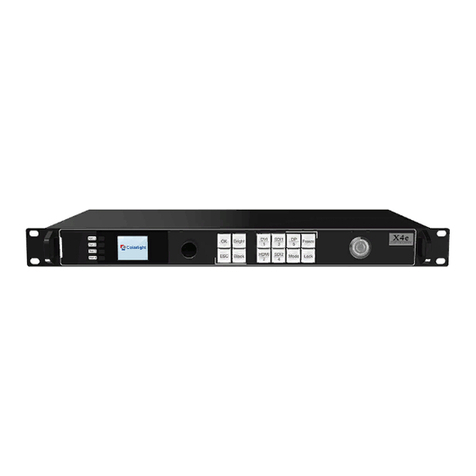
Colorlight X4e Manuale utente

Colorlight
Colorlight X20m Manuale utente

Colorlight
Colorlight X16 Manuale utente

Colorlight
Colorlight X2 Manuale utente

Colorlight
Colorlight X3 Manuale utente

Colorlight
Colorlight X4 Manuale utente

Colorlight
Colorlight X12 Manuale utente

Colorlight
Colorlight Z6 PRO Manuale utente


