
Colormetrics C1400 Manuale utente
1
www.colormetrics.info Colormetrics C1400
Errors excepted; subject to change www.colormetrics.info
C1400
User Manual
Version 1.0

2www.colormetrics.infoColormetrics C1400
COPYRIGHT 2020 COLORMETRICS ALL RIGHTS RESERVED.
This manual, software and firmware described in it are copyrighted by their respective owners and
protected under the laws of the Universal Copyright Convention. You may not reproduce, transmit,
transcribe, store in a retrieval system, or translate into any language, in any form or by any means,
electronic, mechanical, magnetic, optical, chemical, biological, molecular, manual, or otherwise, any
part of this publication without the express written permission of the publisher.
All products and trade names described within are mentioned for identification purpose only. No
affiliation with or endorsement of the manufacturer is made or implied. Product names and brands
appearing in this manual are registered trademarks of their respective companies.
The information published herein has been checked for accuracy as of publishing time. No
representation or warranties regarding the fitness of this document for any use are made or implied by
the publisher. We reserve the right to revise this document or make changes in the specifications of
the product described therein at any time without notice and without obligation to notify any person of
such revision or change.
COPYRIGHT

3
www.colormetrics.info Colormetrics C1400
SAFETY INSTRUCTIONS
1. Read these instructions carefully. Keep these instructions for future reference.
2. Please disconnect this equipment from AC outlet before cleaning. Don’t use liquid or sprayed
detergent for cleaning. Use moisture sheet or cloth for cleaning.
3. Please keep this equipment from humidity.
4. Lay this equipment on a reliable surface when installing. A drop or fall could cause injury.
5. Make sure power cord is connected in such a way that people cannot step on it. Do not place
anything over the power cord.
6. All cautions and warnings on the equipment should be noted.
7. If the equipment is not used for a long time, disconnect the equipment from main to avoid
being damaged by transient over voltage.
8. Never pour any liquid into opening; this could cause fire or electrical shock.
9. If one of the following situations arises, get the equipment checked by a service personnel:
a. The power cord or plug is damaged.
b. Liquid has penetrated into the equipment.
c. The equipment has been exposed to moisture.
d. The equipment does not work well or you cannot get it to work according to user manual.
e. The equipment has been dropped and/or damaged.
10. Do not leave this equipment in an unconditioned environment, storage
temperature below -20 °C or above 60 °C, as this may damage the equipment.
11. Unplug the power cord when doing any service or adding optional kits.
Lithium Battery Caution:
1. Danger of explosion can happen if the battery is incorrectly replaced. Replace only the original
or equivalent type recommended by the manufacturer. Dispose of used batteries according to
the manufacturer’s instructions.
2. Do not remove the cover, and ensure no user serviceable components are inside.
Take the unit to the service centre for service and repair.

4www.colormetrics.infoColormetrics C1400
CE Notice
This device complies with the requirements of the CE directive.
FCC Notice
This equipment has been tested and found to comply with the limits for a Class A digital device,
pursuant to Part 15 of the FCC rules. These limits are designed to provide reasonable protection
against harmful interference in a residential installation. This equipment generates uses and can
radiate radio frequency energy and, if not installed and used in accordance with the instructions,
may cause harmful interference to radio communications. However, there is no guarantee that inter-
ference will not occur in a particular installation. If this equipment does cause harmful interference to
radio or television reception, which can be determined by turning the equipment off and on, the user
is encouraged to try to correct the interference by one or more of the following measures:
• Reorient or relocate the receiving antenna.
• Increase the separation between the equipment and receiver.
• Connect the equipment to an outlet on a circuit
different from that to which the receiver is connected.
• Consult the dealer or an experienced radio/TV technician for help.
Shielded interface cables must be used in order to comply with emission limits.
Changes or modifications not expressly approved by the party responsible for compliance could
void the user’s authority to operate the equipment.
WEEE Notice
This appliance is labeled in accordance with European Directive 2002/96/EC concerning waste
electrical and electronic equipment (WEEE). The Directive determines the framework for the return
and recycling of used appliances as applicable throughout the European Union. This label is applied
to various products to indicate that the product is not to be thrown away, but rather reclaimed upon
end of life per this Directive.

5
www.colormetrics.info Colormetrics C1400
1 PACKING LIST ...................................... 6
1-1 Standard Accessories ............................ 6
1-2 Optional Accessories ............................. 6
2. SYSTEM VIEW ....................................... 7
2-1 Front View ............................................... 7
2-2 Side View ................................................ 8
2-3 Back View ............................................... 8
2-4 Rear View ................................................ 9
2-6 Specifications........................................ 10
2-6 Thermal printer Specifications .............. 11
2-7 Internal Layout ...................................... 12
2-7-1 Main PCBA............................................ 12
2-7-2 Printer Control Board ............................ 13
3 PIN DEFINITION .................................. 14
3-1 Main PCAB............................................ 14
3-1-1 CN12: eDP connector ........................... 14
3-1-2 M_1: M.2 B key socket (SSD) ............... 14
3-1-3 SW1: Power On/Off connector ............. 15
3-1-4 LED1: Led connector ............................ 15
3-1-5 CN11: Touch panel connector .............. 16
3-1-6 CN4: Printer USB Power connector...... 16
3-1-7 CN7: Printer Cash Drawer connector ... 16
3-1-8 CN2: RFID connector............................ 16
3-1-9 CN3: VFD connector ............................. 17
3-1-10 CN1: 2nd display power connector........ 17
3-1-11 HDMI1: 2nd display connector ............... 17
3-1-12 COM1,COM2: connector ...................... 18
3-1-13 JBAT1 Clear CMOS .............................. 18
3-1-14 MINI PCIE1............................................ 19
3-2 Printer module....................................... 20
3-2-1 CN3: Power connector ......................... 20
3-2-2 CN1: Cash drawer connector ............... 20
3-2-3 USB1: USB connector .......................... 20
4 REAR I/O INTERFACE ........................ 21
4-1 System .................................................. 21
4-1-1 DC Jack Pin .......................................... 21
4-1-2 2-Layer USB 3.0 connector .................. 21
4-1-3 LAN: RJ45 ............................................ 21
4-1-4 RJ11 (Cash Drawer) connector............. 22
5 SYSTEM ASSEMBLY &
DISASSEMBLY..................................... 23
5-1 M.2 SSD / Memory................................ 23
5-2 MSR / iButton / RFID ............................ 24
5-3 Printer module ...................................... 25
5-3-1 Thermal printer module replacement ... 25
5-3-2 Paper Installation .................................. 26
5-4 4.3” 2nd display replacement ................. 28
5-5 VFD module replacement ..................... 31
6 DEVICE DRIVER INSTALLATION ....... 34
6-1 MagSwipe Card Reader
Configuration Utility .............................. 34
6-1-1 Installation............................................. 34
6-1-2 Select Reader Interface ........................ 35
6-1-3 Change Basic Reader Setting............... 36
6-1-4 General Settings ................................... 38
6-1-5 Pre/Postamble ...................................... 40
6-1-6 Track Settings ....................................... 41
6-1-7 Keyboard Settings ................................ 42
6-2 iButton Reader Configuration Utility ..... 44
6-2-1 Device Connection................................ 44
6-2-2 Utility Features ...................................... 45
6-3 VFD ....................................................... 50
6-3-1 Utility Setup .......................................... 50
6-3-2 VFD Connection.................................... 51
6-3-3 VFD Setup............................................. 51
6-4 RFID ...................................................... 54
6-4-1 Install driver........................................... 54
6-4-2 Install framework 4.0............................. 57
6-4-3 Quick Start with Demo Software .......... 58
6-5 P1400 Printer ........................................ 60
6-5-1 Printer Utility ......................................... 60
Add printer ............................................ 64
Testing ............................................ 66–70
Parameter setting............................ 75–76
6-5-2 Windows Driver Installation .................. 78
Detailed Windows Driver Setting .......... 81
Other settings........................................ 85
7 BIOS/UTILITY SETUP.......................... 89
7-1 Advanced .............................................. 91
7-1-1 Boot Configuration ............................... 92
7-1-2 Audio Configuration .............................. 93
7-1-3 Video Configuration .............................. 94
7-1-4 SATA Configuration ............................... 95
7-2 Security ................................................. 96
7-3 Power .................................................... 97
7-4 Boot ...................................................... 98
7-5 Exit ........................................................ 99
8 TROUBLESHOOTING OF PRINTER. 100
8-1 Printer Not Working ............................ 100
8-2 Troubles Occurring During Printing..... 100
8-3 Problems Occurring During
Paper Cutting ...................................... 101
8-4 Removing Jammed Paper................... 101
9 PRINTER CLEANING
AND MAINTENANCE ........................ 102
9-1 Cleaning Head .................................... 102
9-2 Cleaning Sensors, Roller
and/or Paper Path .............................. 102
10 LCD SURFACE CLEANING ............... 103
TABLE OF CONTENTS
6www.colormetrics.infoColormetrics C1400
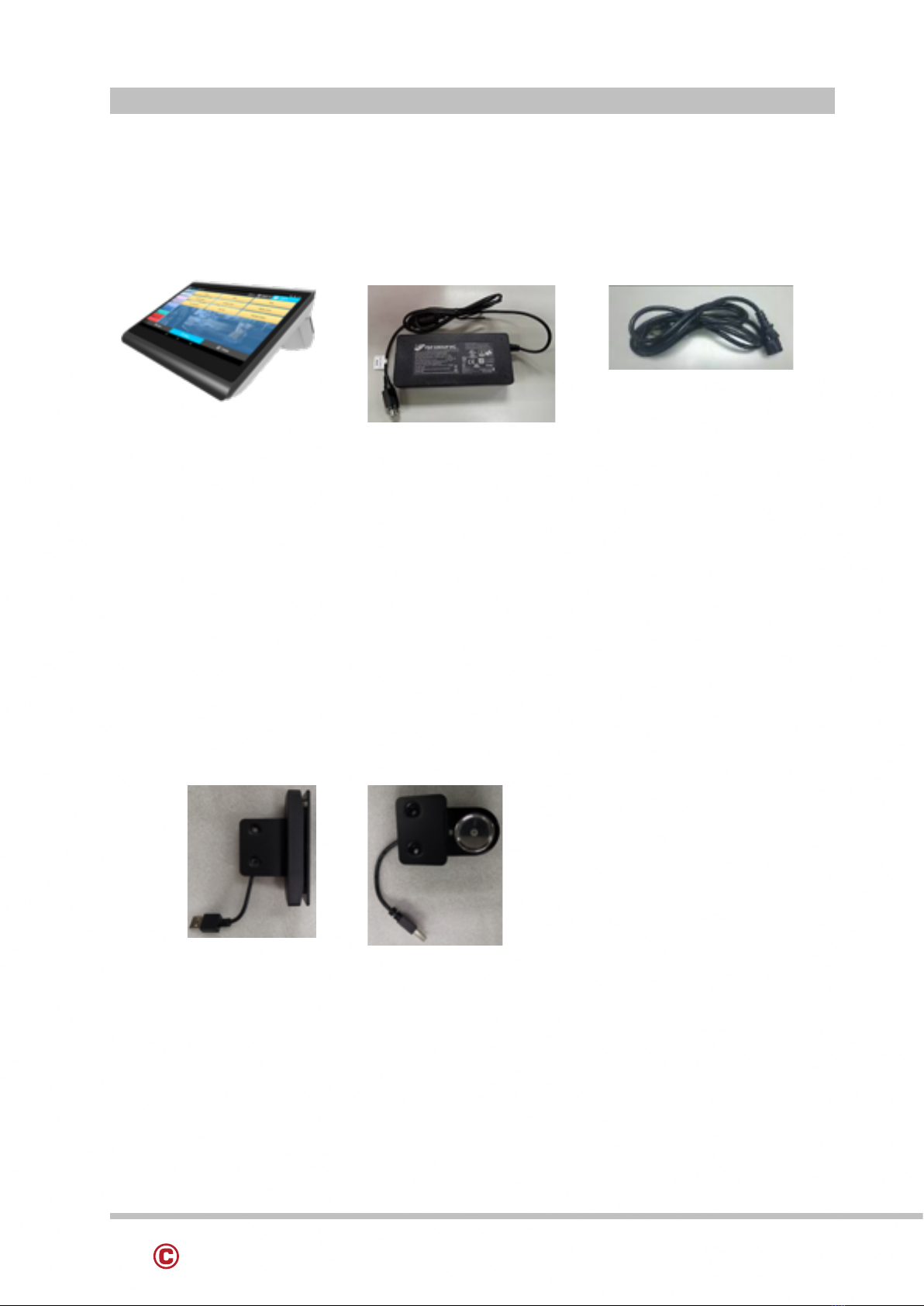
Power Cord90W Power Adaptor
iButton
System
Magnetic Stripe
Reader
1 - PACKING LIST
1-1 STANDARD ACCESSORIES
1-2 OPTIONAL ACCESSORIES
7
www.colormetrics.info Colormetrics C1400
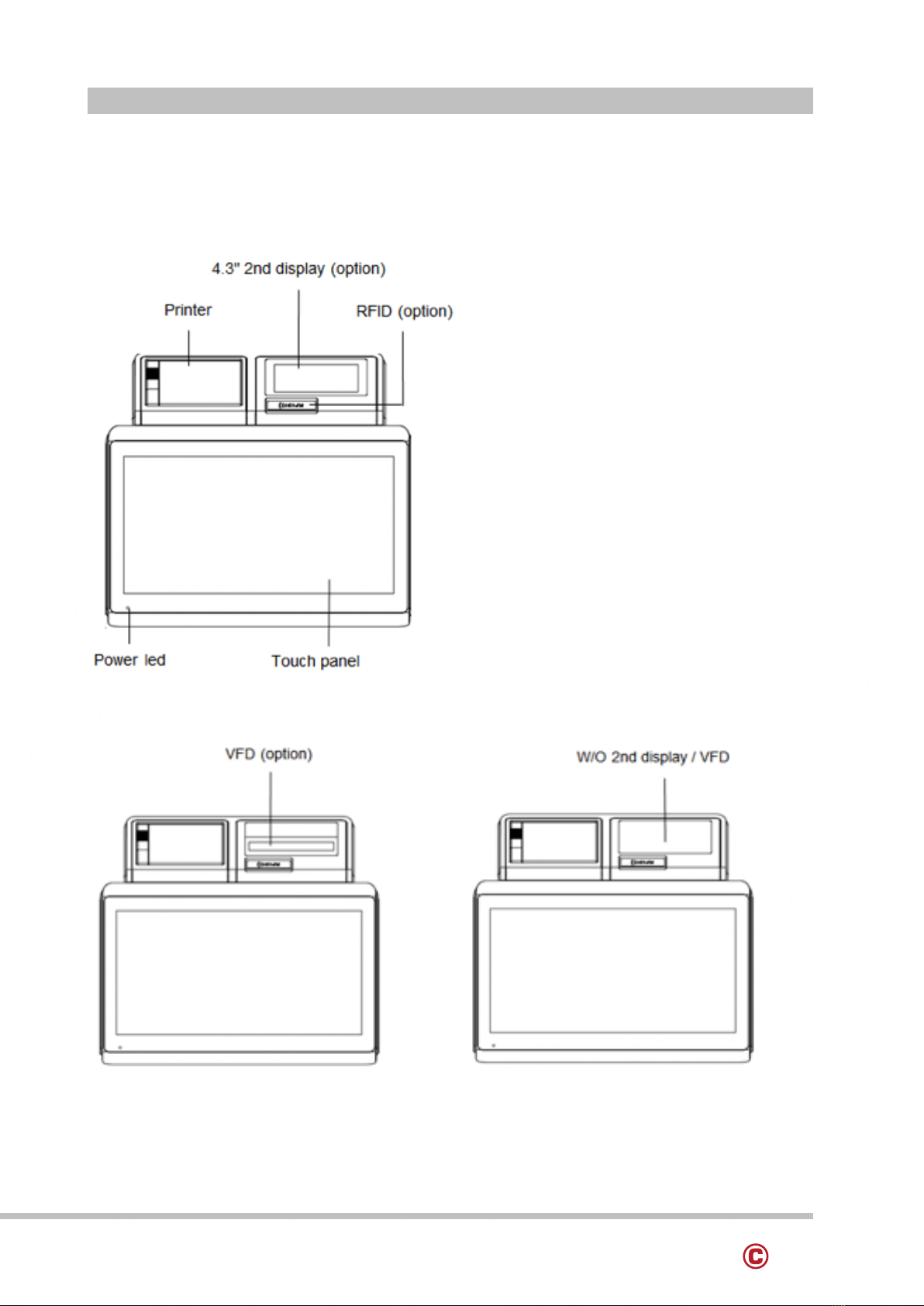
2 - SYSTEM VIEW
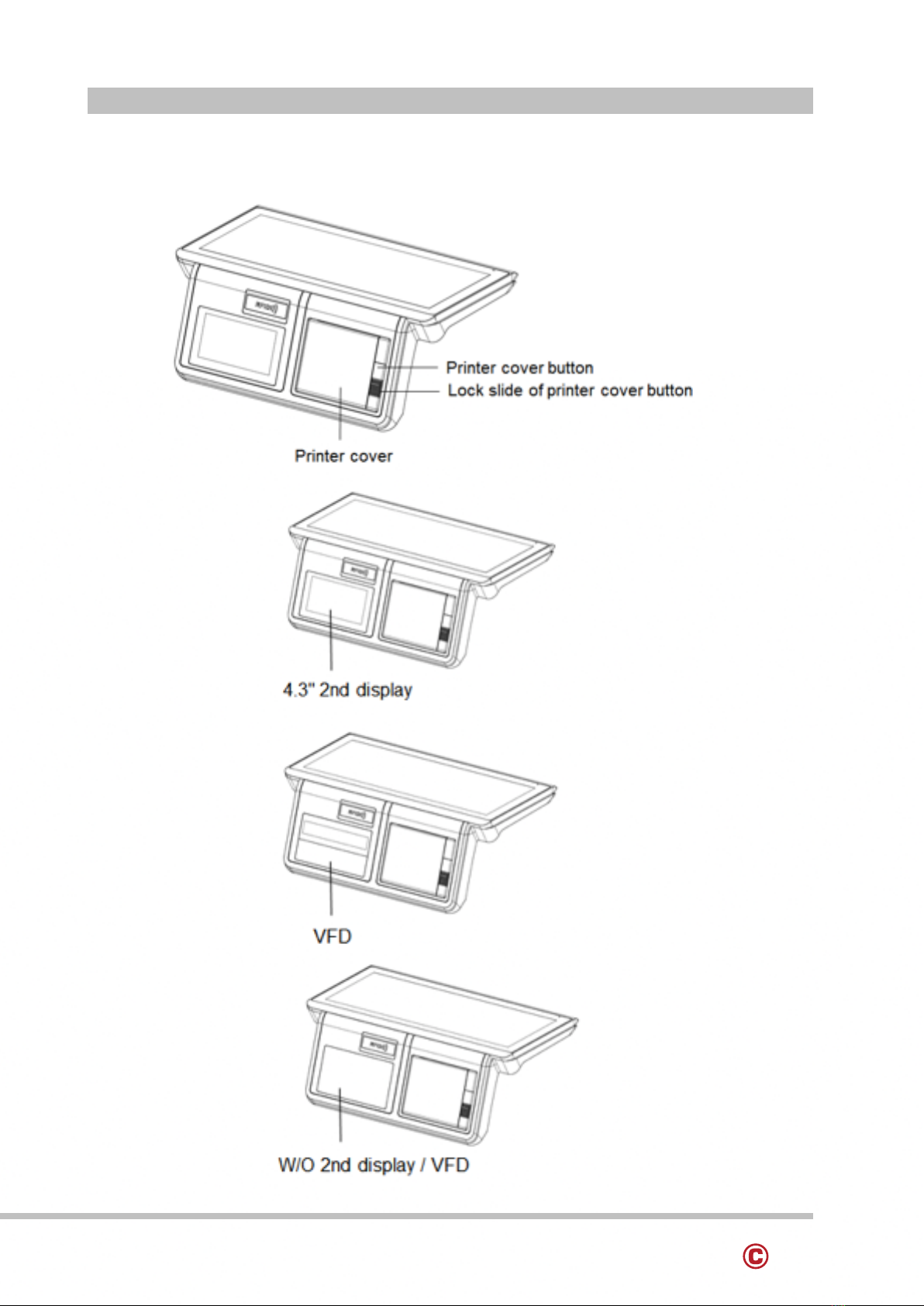
2-1 FRONT VIEW
8www.colormetrics.infoColormetrics C1400
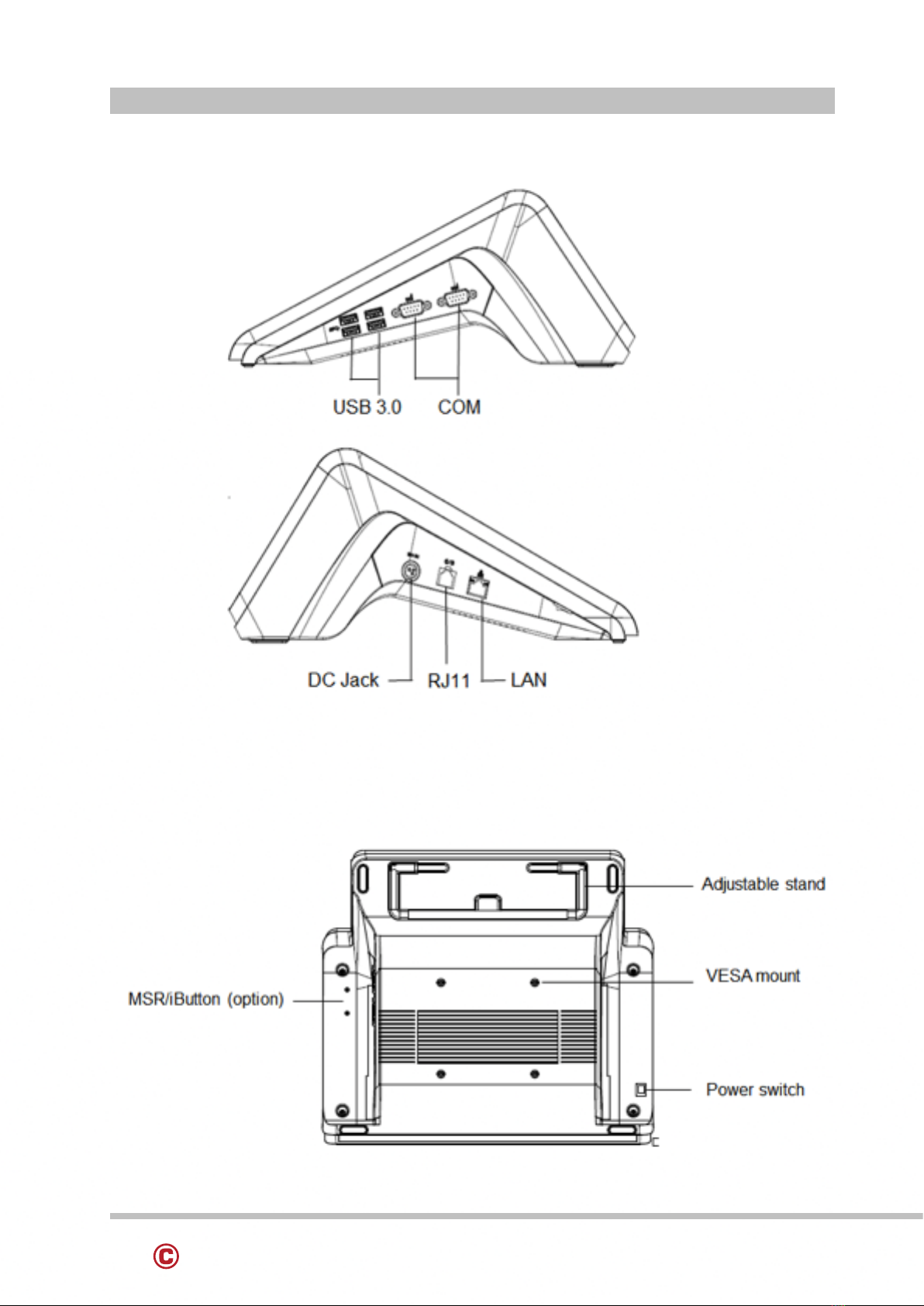
2-3 BOTTOM VIEW
2 - SYSTEM VIEW
Right side
Left side
2-2 SIDE VIEW
9
www.colormetrics.info Colormetrics C1400
2 - SYSTEM VIEW
Type 1
Type 2
Type 3
2-4 REAR VIEW

10 www.colormetrics.infoColormetrics C1400
2-5 SPECIFICATIONS
Display
Display Size 14" TFT LCD
Resolution 1366 x 768
Brightness / Color 220 cd/m2, 16.7M colors
Backlight LED
Touch Panel Type Projected Capacitive Touch
Processor CPU/ Chipset Intel® Atom™ X5-E8000 1.04 GHZ Braswell
Memory x 1 DDR3L SO-DIMM, up to 8GB
Storage x 1 (M.2 SATAIII SSD)
I/O Connectors
USB 3.0 x 4
Powered COM (RS232) x 2 (DB9 powered COM 5V/ 12V
selected by jumper)
Cash Drawer Port x 1 (24V RJ11 port)
LAN x 1 (RJ45 10/100/1000 Base-T)
DC In Lockable 3-pin DC 19V input
Built-in 58 / 80 mm Printer x 1
Optional Peripherals VFD / 4.3” 2nd Display / MSR /
iButton / RFID / WIFI / 4G LTE
Power Supply 90W 19V Power Adaptor
OS Support Win 10 IOT Enterprise
Environment Temperature Operation 32° to 95° F (0 to 40 °C)
Storage -4° to 140° F (-20 to 60 °C)
Relative Humidity 20% to 80% non-condensing
Dimension (W x H x D) mm 352.8 x 129.8 x 313.2 mm
Certifications CE / FCC / LVD
Please make sure 19V DC plug in the right direction before plugging in DC jack.
Ensure to connect the power cord to a socket-outlet with earthing connection.
2 - SYSTEM VIEW
Indice
Altri manuali Colormetrics Terminale touch

Colormetrics
Colormetrics P5100 Manuale utente

Colormetrics
Colormetrics C1000 mPOS Manuale utente

Colormetrics
Colormetrics P4500 Manuale utente

Colormetrics
Colormetrics Vion Manuale utente

Colormetrics
Colormetrics P4500 Manuale utente

Colormetrics
Colormetrics V1506 Manuale utente

Colormetrics
Colormetrics V1200 Manuale utente

Colormetrics
Colormetrics P2500 Manuale utente

Colormetrics
Colormetrics P2000 Manuale utente

Colormetrics
Colormetrics PS1000 Manuale utente


