
Compex NetPassage 28G Hotspot Manuale utente
Quick Install Guide
Wireless Super-G BroadBand Multimedia Router
NetPassage 28G Hotspot

i
Table of Contents
1: Introduction...................................................................................1
Packaging Content............................................................................... 2
Scenario for setting up a hotspot......................................................... 3
2: Let’s Get Going-Hardware Setup ...............................................4
Power Up in 4 Steps:.............................................................................. 4
3: Access to Web-based Interface ................................................5
Access to the Web interface with uConfig ......................................... 5
Access to the Web interface manually .............................................. 8
4: Panel Views and Descriptions...................................................10
5: Technical Specifications ...........................................................13
WARRANTY REGISTRATION CARD .....................................................18

Chapter 1 Introduction
1
1: Introduction
Public HotSpots integrated with Wi-Fi technology are rapidly becoming
common in coffee shops, hotels, convention centers, airports, libraries, and
other places where people gather. In these locations, a Wi-Fi network can
provide Internet access to subscribers ( eg. guests, visitors or customers). These
people can connect either by using their own laptop computers equipped with
Wi-Fi and portable computing devices, or by using Wi-Fi equipped desktop
computers provided at the location. A single networked printer with a built-in
print server can also be connected to the access point, to provide printing
services to users.
HotSpots operate in various ways. A small public HotSpot may provide free
access to its guests, or it may charge a membership, per-time or data-use
connection fee. Even if the venue is providing Internet connectivity as a free
value added service, it asks users to provide user and registration information
before they can connect to the Internet.
This document describes how the router can be used to configure hot spots for
subscribers seeking Wi-Fi Internet access. Launching and operating the hot
spots via the NetPassage 28G HotSpot, the café cashiers or operators can
easily print receipt with billing information, and can easily add time increments
or credits to the requesting subscribers by just pressing the keypad. During a
transaction, the cashier or operator can press the keypad to generate a new
access key for the subscriber. When a subscriber launches his own web
browser, the built-in captive portal feature (SMTP Redirection) automatically
directs the subscriber to the secure login page. After entering the access key,
he/she can securely surf the Internet. See Chapter 2 Scenario for Setting up a
HotSpot.

Chapter 1 Introduction
2
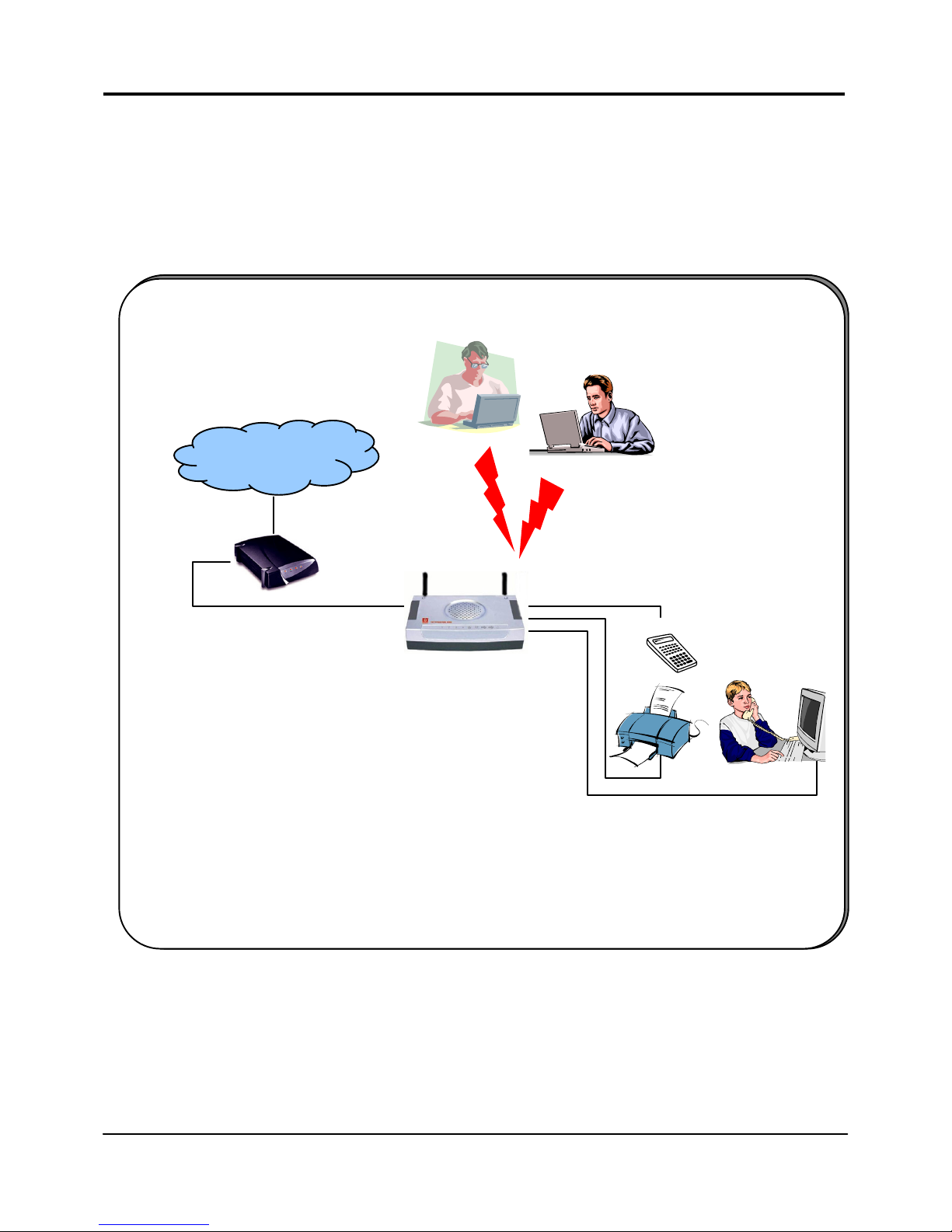
Packaging Content
Actual product appearance may slightly differ depending on the hardware
version.
1 x Router 1 x RJ45 Ethernet Straight Cable
1 x External Power Adapter 1 x Read-Me-First Note
1 x Product CD
Chapter 1 Introduction
3
Scenario for setting up a hotspot
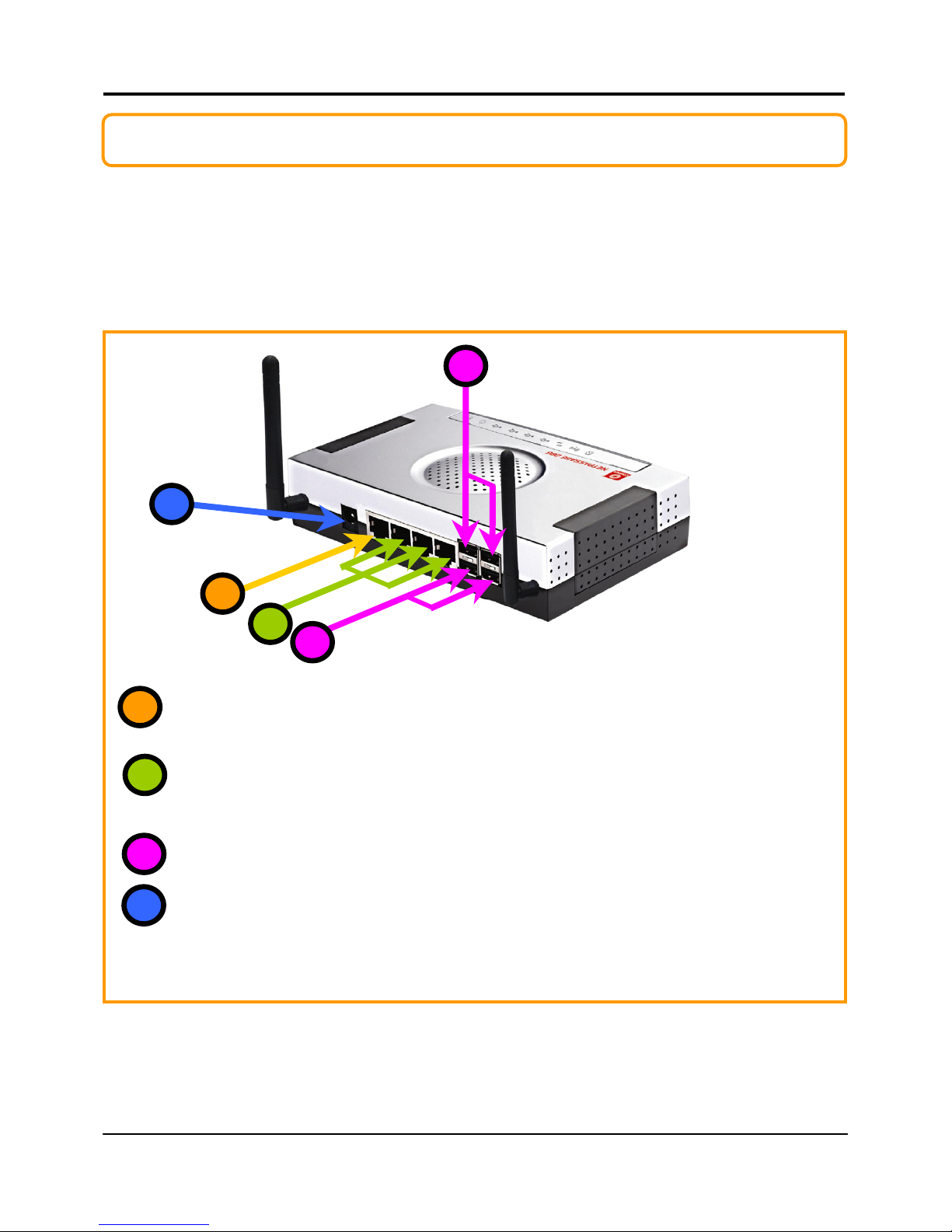
The router is suited to accomplish a simple network configuration you may have
in mind. Combined with a web-based configuration interface, you can easily
set up your feature-rich router for these hot spot applications.
INTERNET
Router
Connect from Cable/ADSL
modem to WAN port
Subscribers use their wireless LAN
laptops to access the Internet via
the router.
Cashier/
Operator’s
computer
This set up example illustrates the demand for wireless network that is increasin
g
at heavil
y
populated areas such as airports, hotels, restaurants and cafes. Using the web-based
confi
g
uration interface, the cashier/operator is able to monitor the status of subscribers
while the subscribers are able to log in to access almost any web-browsers.
USB Bill Printer
USB keypad
Scenario :
Internet Access in Public Areas
Chapter 2 Let’s Get Going - Hardware Setup
4
2: Let’s Get Going-Hardware Setup
Power Up in 4 Steps:
In 4 simple steps, you shall have your router wired and functional. After which,
you may proceed to the software configuration and get yourself ready to surf
the Internet at high-speeds!
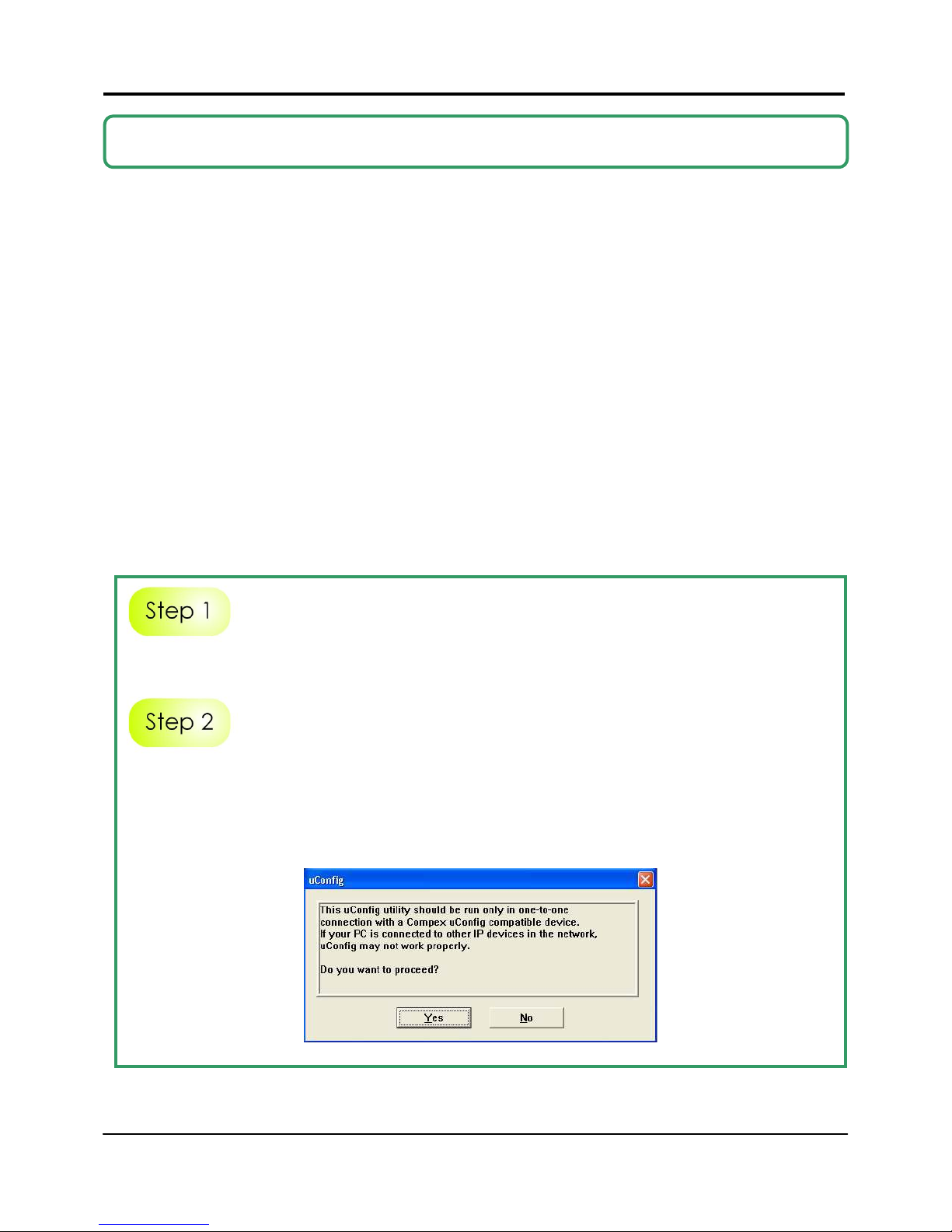
Connect the Ethernet cable from your Cable/ADSL modem on one end, and
then connect the cable to the socket labeled WAN on the router.
If you have a computer with an Ethernet connection you wish to join to the
wired network, connect an Ethernet cable from that PC to any LAN ports on the
router (labeled 1-3).
3
Connect the USB devices (such as USB printer ) to the USB ports of the router.
Next, plug in the power adapter that is supplied to the main electrical supply,
and connect the power plug to the socket on the router.
You may power on the device now. You are done with the hardware setup!
2
4
1
4
1
2
3
3
Chapter 3 Access to Web-based Interface
5
3: Access to Web-based Interface
There are two methods to access to the web-based interface of the router:
1. Through the Compex Utility – uConfig
You can access to the web-based interface directly without having to
change the IP address of your PC.
2. Through your web browser
First, you will need to assign an IP address to your PC, such as
192.168.168.xxx, where x can be any value from 2 to 254, so that it is in the
same subnet as the router. Then, enter IP address of the router in the
address bar of Internet Explorer and press Enter.
Access to the Web interface with uConfig
Compex has developed a powerful uConfig utility that provides hassle-free
access to the web-based configuration page.
Insert the Product CD into your CD-ROM drive.
From the Utilities section, select to install the uConfig utility to your hard disk.
When the utility has been installed, double-click on the uConfig icon. The
following screen will appear, click on the Yes button to proceed.
Chapter 3 Access to Web-based Interface
6
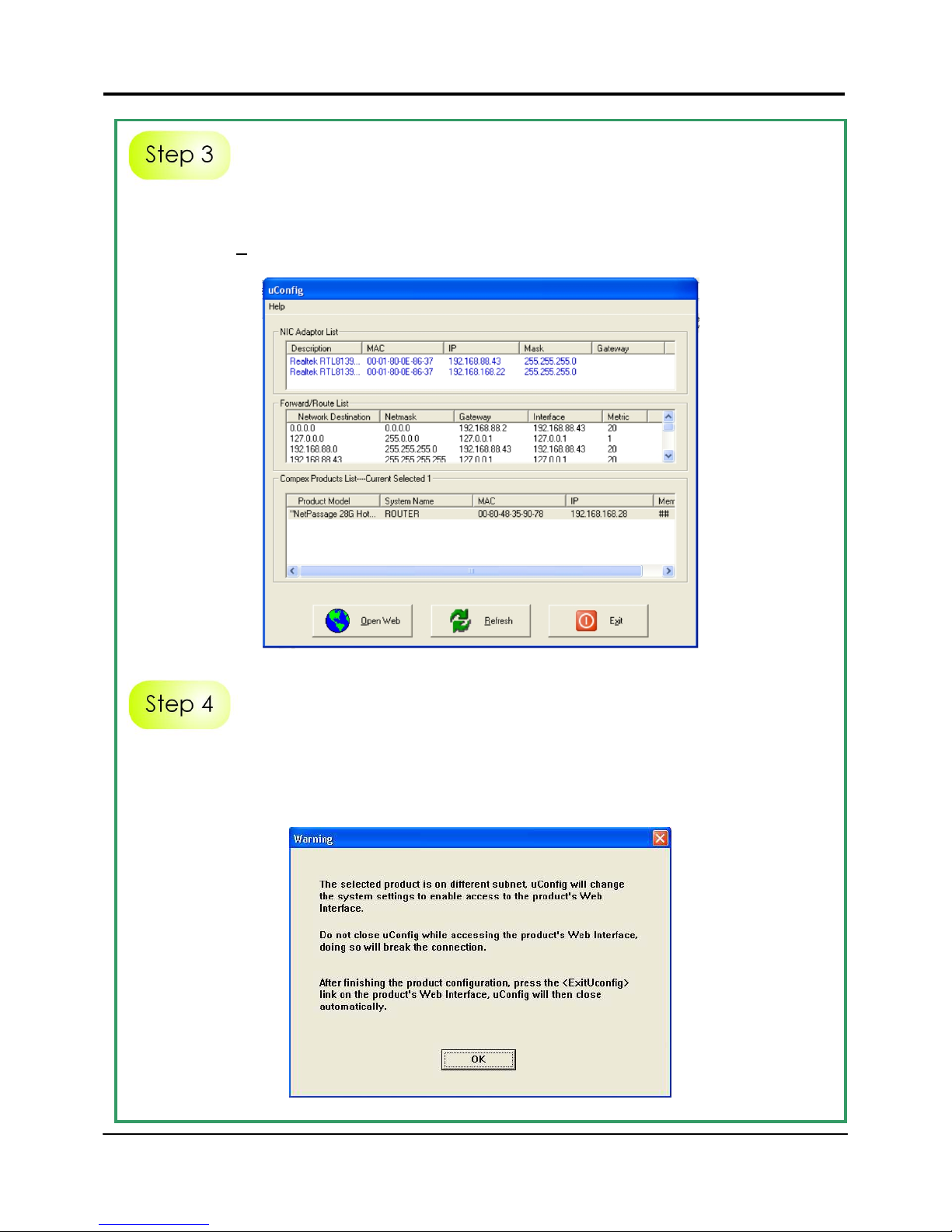
Select NetPassage 28G HotSpot in the Compex Products List section and click
on Open Web button. To update and display the available device(s) in the list,
click on the Refresh button.
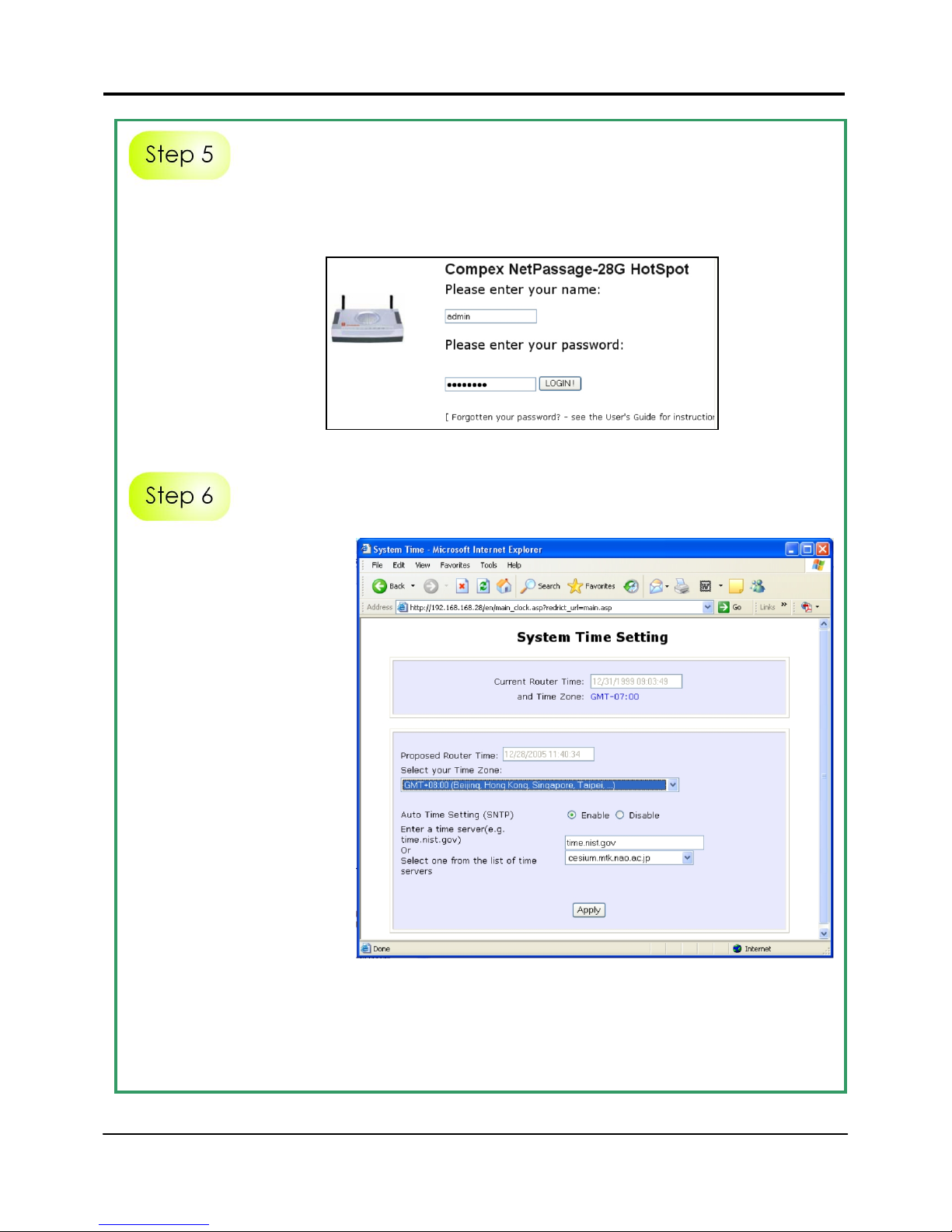
This screen prompts you not to exit your uConfig program while accessing to
your web-based interface, or else you will fail to connect to your device. Click
on the OK button to proceed.
Chapter 3 Access to Web-based Interface
7
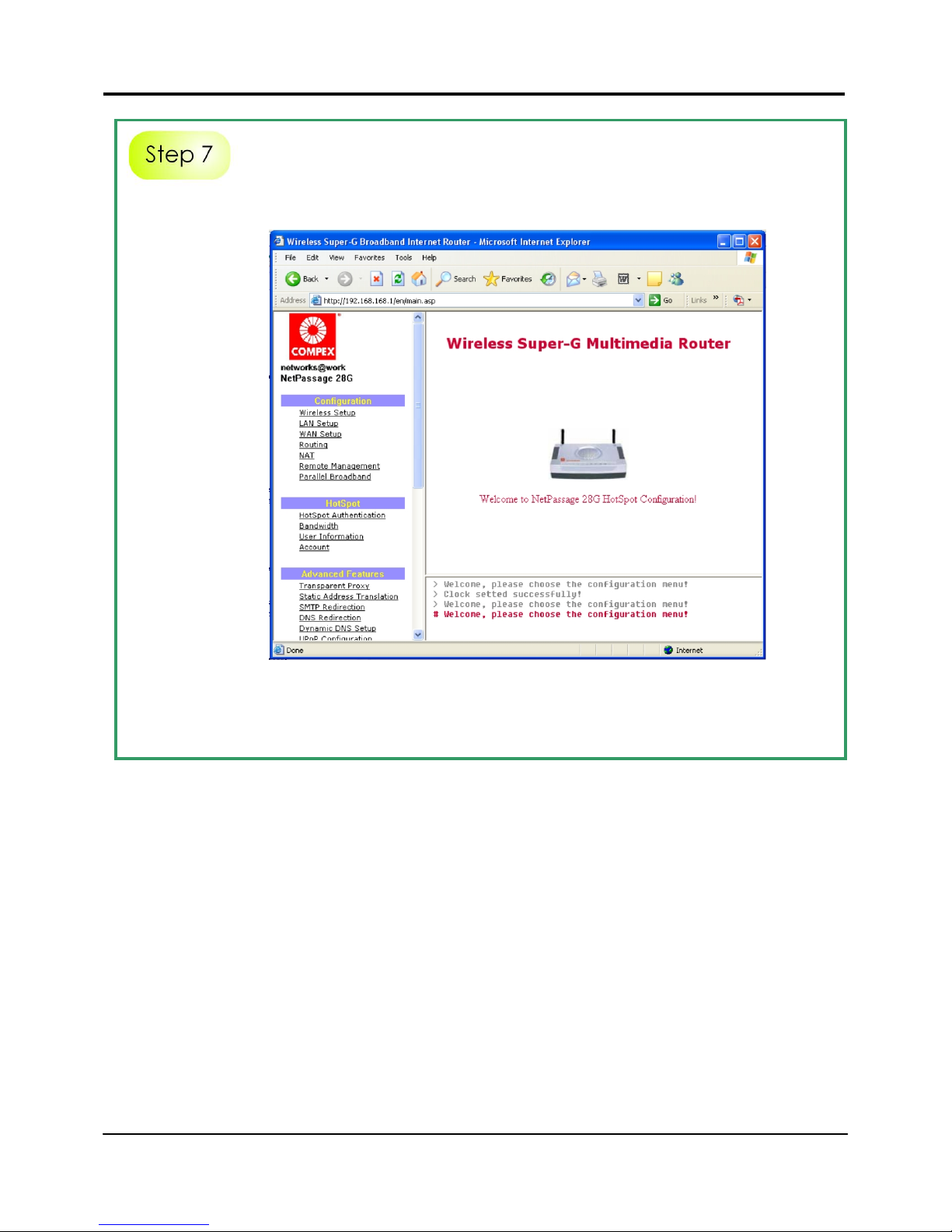
At the authentication page, click on the LOGIN! button to enter the main
configuration page. The default password is “password”.
For the first-time login,
you will be prompted
with the System Time
Setting page before
accessing the router’s
main web page.
From the drop-down
selection, choose the
correct Time Zone and
simply Enable the Auto
Time Setting (SNTP)
using a Time Server
such as time.nist.gov.
Alternatively, select
the available time
server from the list.
Finish by clicking the Apply button.
Take note that during the next and subsequent logins, you will not see the
System Time Setting page again.
Chapter 3 Access to Web-based Interface
8
You will then reach the home page of the router’s web-based interface.
Note:
Refer to User’s Manual for instructions on how to configure the router for
wireless access.
Access to the Web interface manually
If you wish to access to the web interface manually, you need to configure the
TCP/IP of your PC. Refer to User’s Manual for more details.
If you have forgotten the IP address of your access point, do not worry!
Compex has designed another utility program NpFind that helps you verify the
IP address of your Compex product. You can also find this utility in the Product
CD.
Altri manuali per NetPassage 28G Hotspot
1
Questo manuale è adatto per i seguenti modelli
1
Indice
Altri manuali Compex Router wireless

Compex
Compex NetPassage 28G Manuale utente

Compex
Compex Wireless-G Internet Router NP25G 6C Manuale utente

Compex
Compex NetPassage 28G Manuale utente

Compex
Compex MRL21E Manuale utente

Compex
Compex NP12N 6REU Manuale utente

Compex
Compex NetPassage 28G Manuale utente

Compex
Compex NetPassage 27G Manuale utente

Compex
Compex NetPassage 28G Hotspot Manuale utente

Compex
Compex NetPassage 28G Manuale di istruzioni


