COMPRO X100 - START UP GUIDE Manuale utente

1
VideoMate X100/X200
Start Up Guide
About This Guide
This manual tells you how to install and use your VideoMate PCI TV Tuner
Card. For more information on using applications, please see the User’s
Guides in the programs, on the CDs, or at our website for the latest manuals
http://www.comprousa.com/download.
About VideoMate PCI TV Tuner Card
VideoMate TV lets you watch and record TV on your PC. It features an analog
TV tuner and FM Tuner (X200 version only). VideoMate TV supports Digital
Video Recording (DVR) functions, scheduled recording at anytime, crystal
video quality, intelligent TV viewing, and Multi-function Remote Control.
Additionally, VideoMate TV also provides a Video capture function so that you
can transfer videos from video devices, such as video cameras, to your PC.
MINIMUM SYSTEM REQUIREMENTS
•400 MHz Pentium II or equivalent CPU and 128 MB RAM for watching
TV.
•1.7 GHz Pentium 4 or equivalent CPU and 256 MB RAM for DVD
recording.
•Sound card, Available PCI slot
•CD-ROM drive for software installation
•Windows XP, 2000 or above
•50 MB free disk space for basic software installation.
•600 MB (VCD-quality) to 3 GB (DVD-quality) per hour of recorded video.

2
VideoMate PCI TV Tuner Card Contents
VideoMate PCI TV Tuner Card Connectors
Item Function Description
1 TV Tuner-In Connect to a TV antenna or TV
cable feed.
2 FM Tuner-In Connect to a FM antenna or FM
cable feed. (X200 version only)
3 IR Connect the IR receiver here.
4 S-Video-In Use a S-Video to Composite cable
to connect to a video source.
If your equipment has S-Video
output and S-Video cable, you can
directly connect to our card.
VideoMate PCI TV
Tuner card
FM Antenna
(X200 only)
IR ReceiverSoftware CD
Manual Wireless Remote Control
(batteries included)
1
3
2
4
S-Video to
Composite cable

3
Remote Control Key Definition and Use
Please refer to the buttons and their corresponding function listed on the
opposite page.

4
Key ComproPVR 2 ComproFM 2
(X200 only) ComproDVD 2
0-9 Number keys Pre-set stations Number keys
10 Mute sound Mute Mute sound
11 Zoom In/Out Minimize/Maximize Zoom In/Out
12 Start/Stop ComproDVD 2
13 Start/Stop ComproFM 2 (if available)
14 Start/Stop ComproPVR 2
15 Replay Rewind Rewind
16 Pause or enable
timeshifting Play/Pause during
playback Play/Pause during
playback
17 Advance Forward Forward
18 Previous channel Jump to last station Last chapter
19 Stop Stop Stop
20 Tab function Not used Next chapter
21 EPG (US only) Open on-line help Main manual
22 Open setup dialog Open setup dialog Open setup dialog
23 Up arrow or select
Mono/Stereo/SAP Up arrow Up arrow
24 Replay or switch
TV format Scan down Left arrow
25 Down arrow
or snapshot Down arrow Down arrow
26 Advance Scan up Right arrow
27 Volume control Volume control Volume control
28 Open play list Open play list OK
29 Channel up Station up Choose DVD angle
30 Channel down Station down DVD subtitle select
31 Record Record Snapshot
32 TV/ S-Video/
Composite Not used Add to bookmark
33 Channel surfing Not used Go to bookmark
34 Not used Enter frequency Select language
35 Sleep function Sleep function AB repeat

5
Installation
Step 1. Shut down your computer. Remove the computer case cover.
Step 2. Insert VideoMate X100/X200 in an available PCI slot. Compro
recommends installing the card in the fourth PCI slot from AGP away
from the AGP slot.
Step 3. Connect the Cable TV or TV antenna cable to the TV Tuner-In
connector. Connect the supplied FM antenna to the FM-in connector
(X200 version only). Adjust FM antenna for optimal reception
Step 4. After restarting, Windows will detect your VideoMate TV card and start
the Add/Remove Hardware Wizard, prompting you to install the
VideoMate TV drivers. Please press Cancel and go to the next step.
Step 5. Insert the installation CD into your CD drive. If you have Autorun
enabled, the installer will start automatically. (IfAutorun is disabled,
double-click on “setup.exe” on the installation CD.) You can choose
Complete to install all necessary software (VideoMate TV drivers,
ComproPVR 2, ComproDVD 2, ComproFM 2, Ulead PhotoExplorer
8.5 SE) or choose Custom to select item by item. Compro
recommends you choose Complete. ComproFM 2 is only for FM
version only.
Step 6. If you see the Windows Logo testing message, below, please press
“Continue Anyway” to proceed.
Step 7. Press Next to install ComproPVR 2, ComproDVD 2, ComproFM 2
(X200 only), Ulead PhotoExplorer 8.5 SE.
Step 8. When installation completes, press Finish to restart computer.
Step 9. Open ComproPVR to enjoy the show.
Continue Anyway

6
ComproPVR 2
Introduction
ComproPVR is a complete digital entertainment solution for your PC. Watch
and record TV programs on your PC, in full-screen mode or in a window.
Timeshifting lets you watch TV, pause live TV, or review your favorite scenes
without missing a minute of the program. Integrated deinterlacing technology
assures the highest picture quality. All this, with the universal remote control.
Control Panel
The ComproPVR control panel resembles the controls on a VCR. Keep in mind
that not all options are available at all times, and may be grayed out or
inaccessible depending on your hardware setup and TV services available.
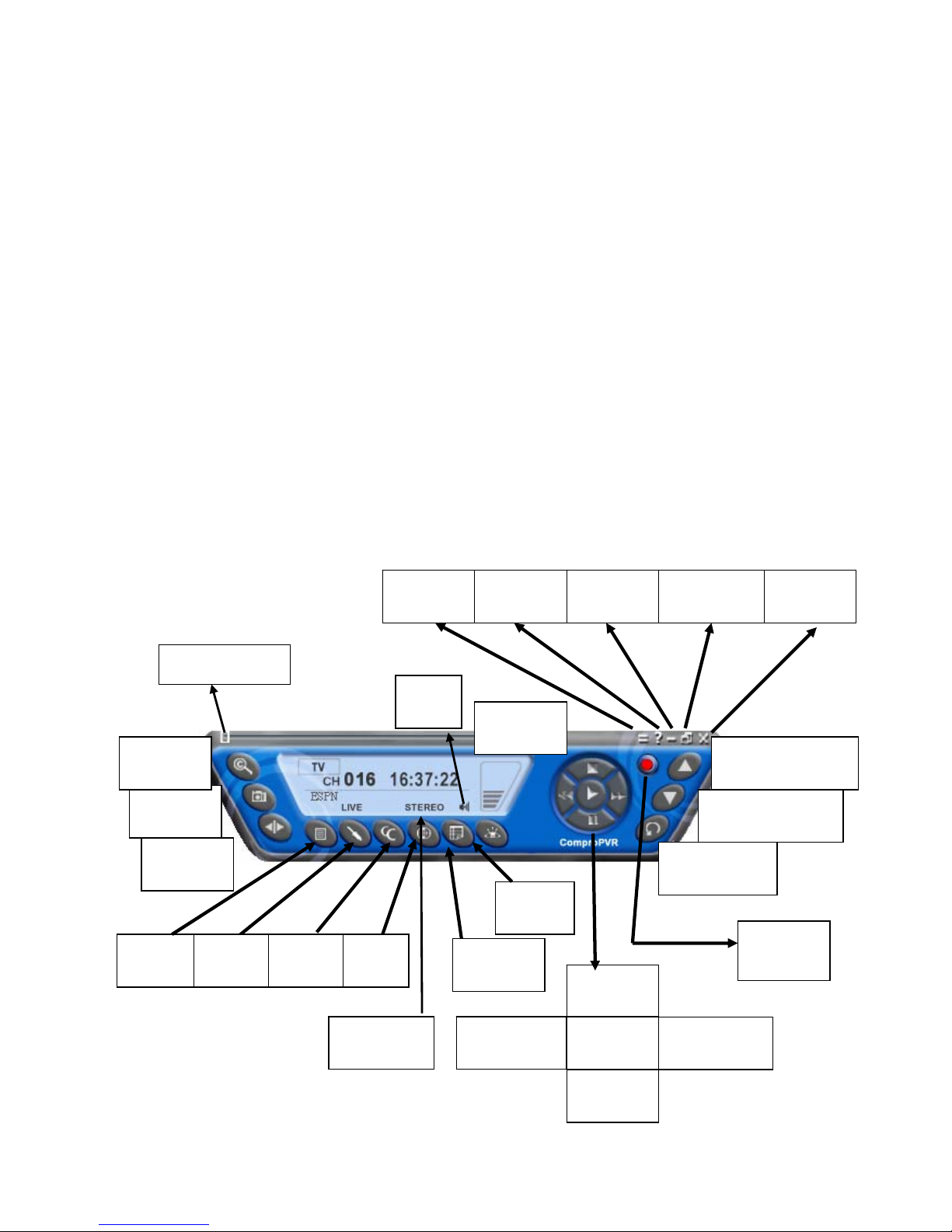
The following describe the ComproPVR control panel functions, and tips for
using ComproPVR. The following figure gives you the function of the button
with (Hot Key.)
Snapshot
(Space)
Close
(CTRL+X)
Last Channel
(N)
Teletex
t
Schedule
(B)
Channel
Surf(F)
Language
Select (Q)
Timeshift
(T)
Channel Down
(Page down)
Stop
(S)
Docking
(D)
Volume
(+, -)
Full Screen
(Z)
Mute
(M)
Record
(R)
Channel Up (Page
Up) with lists( I )
Help
(H) Minimize
(G)
Timeshift bar
Play
(P)
Pause
(U)
Replay
(Left Arrow) Advance
(Right Arrow)
Options
(O) EPG
(E)
Source
(V)
Lists
( I )

7
Icon HotKey Description
A Enable/Disable Always-on-Top function for
TV window.(Orange circle on the upper-right
corner of the TV window)
n/a L Sleep function
Note: Language select is only available while the program supports it.
Watching
After installation, just press the PVR/TV button on the remote or double click
the ComproPVR icon on the desktop you will be able to watch TV. Same as
operating a normal TV set. Watch TV programs on your PC, in full-screen
mode or in a window. Channel up and down. Close ComproPVR and even
shutdown the computer with the full function remote control keypad.
Channel Surfing
While watching TV, the channel surfing feature displays a 4x4 grid of channel
images to give you an overview of available programming.

8
Right-Click Mouse Menu
If using mouse to right-click on the TV screen, you can see a menu pop up.
There are many useful options for your convenience.
Zooming image
If you would like to see more details on a certain part of a video image, you can
press the mouse right button to drag a zone of the screen. You will see the
zoomed image.
Also you can press the mouse right button and move on the screen to shift the
zoomed area of the image. Just click the mouse left button to resume normal
mode.
Still Image Capture
Click on the capture icon on the control panel or hit the "Space Bar" of
the keyboard shortcut to capture an image of the display window. You can see
the screen capture dialog as below.

9
Recording
ComproPVR is a digital video recorder. ComproPVR can record full-motion
video and audio from your video source and save it to your hard disk.
ComproPVR supports MPEG-1, MPEG-2, MPEG-4 encoding, which saves
disk space while providing high video quality.
To instantly start recording:
1. Press the Record button . ComproPVR starts recording the video
source currently showing in the display window. It will save it to a file on
your disk.
2. Press the Pause button to pause the recording if you like. This is
useful to skip recording the commercials.
3. Press the Stop button to stop recording.
4. When you stop recording, ComproPVR prompts you to name the file
containing the recorded video. Enter the name and press OK.
To playback the recorded file, press the Play button and select the file you wish
to view.
Scheduled Recording
ComproPVR can be scheduled to record a TV program later or remind you of
an upcoming program. The schedule can be set for a one-time or a recurring
session. You can repeatedly record any regularly scheduled programming.
Relax. Never miss your favorite shows.
Press the icon to open the Scheduled Recording dialog box.
Timeshifting
Timeshifting lets you pause, replay, or skip commercials during live TV, without
interrupting an ongoing recording session. Timeshifting gives you absolute
control over how you watch television, like never before. For example, you
watch your favorite sporting event, pause the live action and help yourself to
an ice-cold beverage from the fridge.
Press the Timeshifting button and the Time Monitoring bar will appear.
(See below.)

10
The Time Monitoring bar informs you of how much of the timeshifting buffer is
in use You can also use your mouse to drag the Time Control Shuttle to jump
to a specific time in the program.
You may also press the Advance (for commercial skip) and Replay (for instant
replay) buttons on the control panel or remote control to navigate through the
program.
Timeshifting temporarily saves the video to your hard disk for a specified
period of time. When you return to your seat, you can resume viewing the
program from the point when you left.
Options
You can press the Options button to open the Options dialog box. You
can change detail settings of ComproPVR here.
Remote Shut Down
There are two situations for the operation.
When not watching TV, i.e. no ComproPVR running:
Just press the SLEEP button on the lower-right corner on the remote keypad,
you will see a dialog as shown below. Program will countdown 20 seconds to
shutdown the computer. If you don’t want to shut down the computer, please
press the SLEEP button again, in other words, pressing the SLEEP key a
second time is the same as pressing the “Cancel” button. You may also use
your mouse to press the cancel button. Press OK to immediately shutdown the
computer.
When watching TV, i.e. ComproPVR is running:
Just press the SLEEP button on the lower-right corner on the remote keypad
repeatedly, you will see the text on the screen turns to SLEEP OFF, SLEEP ON
- 30 MINUTES, SLEEP ON - 1 HOUR, SLEEP ON - 2 HOURS, and
SHUTDOWN. When the text shows SHUTDOWN, the program will countdown
20 seconds to shutdown the computer. If you don’t want to shutdown the
computer, please press the SLEEP button again.
Note
This manual only provides basic information for the ComproPVR 2. For more
information on using applications, please see the User’s Guides in the
programs, on the CDs, or at Compro website for the latest manuals.
Questo manuale è adatto per i seguenti modelli
3
Indice
Altri manuali COMPRO Sintonizzatore TV

COMPRO
COMPRO H900F - STARTUP Manuale utente

COMPRO
COMPRO X500 - START UP GUIDE Manuale utente

COMPRO
COMPRO S500 - STARTUP Manuale utente

COMPRO
COMPRO M505 - STARTUP Manuale utente

COMPRO
COMPRO S300 - STARTUP Manuale utente

COMPRO
COMPRO S350 - STARTUP Manuale utente

COMPRO
COMPRO E900F - STARTUP Manuale utente

COMPRO
COMPRO U880 - START UP GUIDE Manuale utente

COMPRO
COMPRO U900 - START UP GUIDE Manuale utente

COMPRO
COMPRO U700 - START UP GUIDE Manuale utente