
Contemporary Research IR-232 Manuale utente

Introduction
IR-232 IR ToolKit Software
The Contemporary Research IR-232 IR to RS-232 Interface is an intelligent CR System Tool that translates IR
remote codes into RS-232 control commands. Able to automatically identify CR, JVC, Mitsubishi, NEC, Philips
RC5, Samsung, Sharp, Sony, and Tivo IR control codes, the IR-232 serves a wide variety of IR control
applications.
For the first time, integrators can easily combine off-the-shelf IR remotes with custom system applications.
The process begins by linking the remote’s IR codes to native or user-defined RS-232 commands using the
included IR ToolKit software. Once a complete list of functions is created, the database can be downloaded
to the IR-232, printed, and saved for later use.
To further simplify integration, the IR-232 structures continuous IR remote commands into discrete button
push and release codes. When someone holds down the Volume Up button, the IR-232 doesn't send a stream
of RS-232 commands, just a single push, then a release code.
The IR-232 can also act as a direct control interface for special control applications. Instead of sending the
native commands, the IR-232 can be programmed to send user-defined RS-232 strings to a video projector,
plasma display or other RS-232 controlled equipment.
The IR-232 is shipped complete with DC power supply and IR ToolKit software.
•Translates IR remote codes into RS-232 commands
•Automatically identifies CR, JVC, Mitsubishi, NEC, Philips RC5, Samsung, Sharp, and Sony IR
•Structures continuous IR commands into discrete button push and release codes
•Builds database of native or custom RS-232 commands using IR ToolKit software
•Communicates RS-232 data at 1,200 to 115,200 baud, software programmable
•Attaches to any flat surface, swivel-mount enclosure can be aimed for best reception, painted to
match application
•Receives wireless IR, wired IR emitter connections, and external IR sensors from CR, ChannelPlus,
Audioplex, and Xantech
Page 1

•Includes 100 mA DC power supply (domestic only), may be powered by control system, from 11.5 to
24 VDC
•Programs with included IR Toolkit Software, control database can be saved, modified, and reused
Page 2
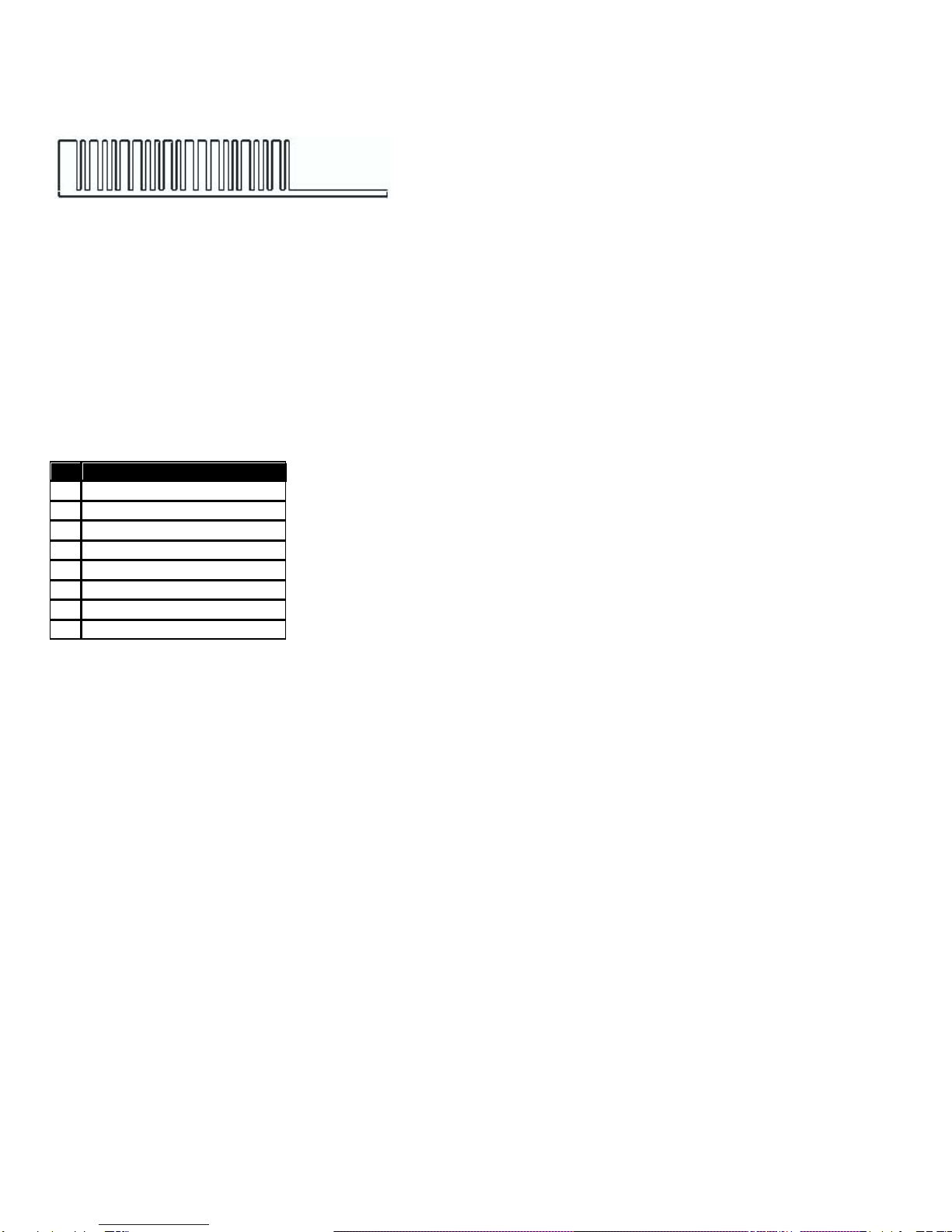
How Does the IR-232 Work?
Translating IR into RS-232
=]3:093A32 (Push)
]3*093A32 (Release)
IR Command RS-232 String
The IR-232 translates the incoming IR command into an equivalent, or Native, RS-232 command. Rather than
simply repeating the RS-232 command as long as the remote sends the IR code, the IR-232 will send a single
command when the button is pushed and a release code when the button is released.
IR-232 Native Code Structure
Here’s how to interpret the IR-232 native codes:
Code format: ”]<Type><Push/Release><Hex pattern ><CR>”
Attention Byte: The “]” character starts the string
Code Type: Manufacturer ID
ID Manufacturer
1Samsung
2NEC
3Sony
4Sharp, CR (4, 9)
5Philips RC5
7JVC
8Mitsubishi, CR (5-8)
9Tivo
Push/Release Byte: “:”= Push, “*” = Release
Hex Pattern: Expressed as two or three hex byte pairs. JVC, Philips, and CR codes will use two pairs, three
for Samsung and NEC, Sony uses both two and three (example code above is a Sony DVD play command).
Carriage Return: A carriage return completes the statement
RS-232 Push/Release String Options
In addition to sending the native RS-232 codes for push and release, the IR-232 can provide alternate
commands to meet your application requirements.
•Native Strings –sends the native RS-232 command
•Custom Strings –sends a custom string, such as a video projector input command
•Short Strings –sends a standard code, such as “!*” for every release, common for panel interface
applications
•Nothing –sends nothing, typical for custom control button releases
Page 3

Getting Ready
Create and Install COM cable
1. Create a captive-screw to COM cable, as shown above.
2. Connect between the IR-232 and your PC.
3. Connect included power supply to IR-232.
As an option, you can also purchase an IR-232 COM Adapter that provides a male DB9 to screw-terminal
interface to use with your standard null-modem programming cables (DB-9 Female to Female, RX/TX
swapped).
Set DIP Switch 2
Set the IR-232 DIP switch 2 to ON (Up). This locks RS-232 to default settings (9600 baud, 8 data bits, No
parity, 1 stop bit) for programming. If you’re using a different setting for your application, the IR-232 will use
the assigned RS-232 properties when you turn Switch 2 off (down) and turn the power off, then on again.
Page 4
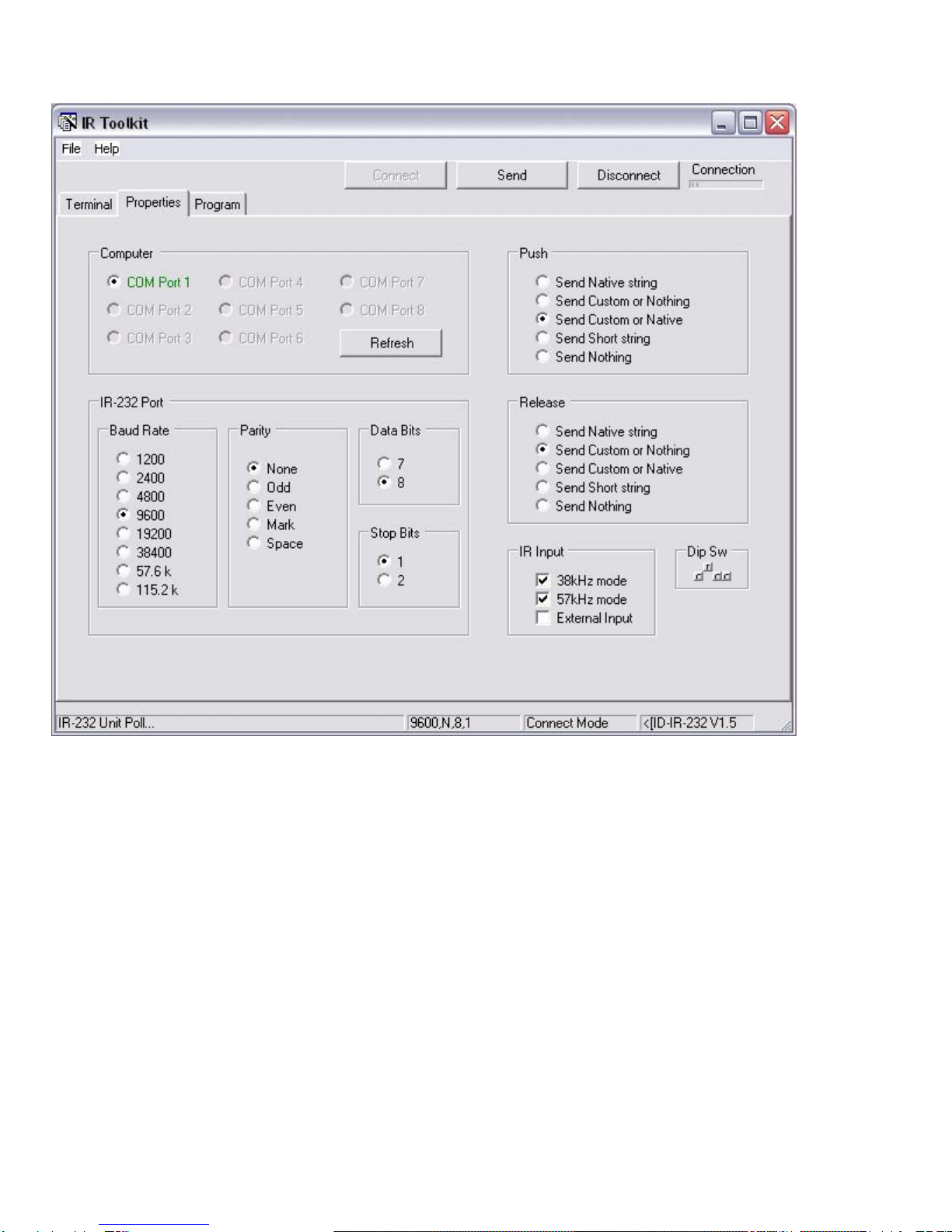
IR ToolKit Properties - RS-232
There are a few basic steps to connect and set the RS-232 parameters for the IR-232.
1. Set the IR-232 DIP switch 2 to ON (Up - fixed 9600 baud rate,8,N,1)
2. Click the Connect button. IR ToolKit will search for the first available COM port to connect to the
IR-232.
3. If you add a USB COM port after IR ToolKit loads, press Refresh to re-scan the ports.
4. If you have multiple COM ports available, you can manually select the required COM port by clicking
the desired COM Port in IR ToolKit Properties.
5. If the IR-232 isn’t set to the default RS-232 settings (see step 1 above), IR Toolkit will find the unit,
display the current settings, and display a flashing red indicator in the Dip Switch box on the bottom
left.
6. Set the DIP switch #2 to on (up). While IR ToolKit will automatically connect at any RS-232 setting,
data load and save is more reliable at a fixed RS-232 setting.
7. The COM Port window will display the current RS-232 setting in IR-232 memory. If you need a
different setting for direct device control or other applications, make the change in the IR-232 Port
section.
Page 5

8. IR ToolKit will upload the current database in the IR-232 when it connects.
9. When you’re done programming the IR-232, there are two ways you can return the IR-232 to the
saved RS-232 parameters:
oClick the Disconnect button, and then turn off DIP switch 2.
oTurn off DIP switch 2, and then disconnect and reconnect IR-232 DC powe
Tech Tip on USB-RS-232 Interfaces
As most laptops don't include serial ports these days, we tested many makes and models of USB to RS-232
interfaces with the IR-232. We discovered that virtually all use the same processor, and most aren't
compatible with Windows XP, though they all claim they are. The reason is that many are only supplying a
pre-XP driver. There are two telltales to this problem; your Windows installer will state that the program is
not a verified XP application, and the PC will think there are two new RS-232 ports, not just one. As a result,
your non-XP interface may work - but not reliably.
The Hawking HUC2325 is the only USB Serial interface is the only one we found that works with XP, and
operates as a single RS-232 port. It uses the same processor as the others, but evidently they created a
new, XP-compatible driver.
Page 6

IR ToolKit Properties - Operation
Push and Release
The right side of the Properties window defines the overall operation of the IR-232.
Push and Release.
There are five options for the strings IR-232 sends when an IR button is pushed and released:
Option Definition
Send Native stings Sends interpreted IR strings
Send Custom or nothing If no custom code is entered, send nothing
Send Custom or Native If no custom code is entered, send native strings
Send short strings Sends short “]:” or “]*” string for all releases
Send nothing Sends no string at all
Page 7

None of the options will affect any custom codes stored in the IR-232 memory. While you can create many
push/release combinations, there are two you’ll use most often –read the upcoming “Programming For”
sections for an explanation.
IR Input
You can choose whether IR commands are received from the internal 38 kHz sensor or 57 kHz sensor or the
external IR input connection. You can select one or all three settings. This allows you to receive from the
IR-232 internal sensor as well as an external sensor –or turn off internal sensors to receive a wired IR signal
or external sensor only.
.
Page 8

IR ToolKit Programming Overview
Building a control database is a simple, step by step process.
•Capture New captures each IR button press, translates the native RS-232 code, and allows you to
enter a name, custom push string, and custom press string.
•Modify allows you to change the selected entry’s name, custom push, and custom press.
•Clear Custom clears all the custom strings.
•Clear All clears all data.
•Delete deletes the selected line.
•Send sends the database to the IR-232, including all the assigned properties.
•File/Save can save the database for future applications.
ToolKit Tip: Saving and Sending
When you create the database in IR ToolKit, you can have an entry that has a Name, a Native Code, but no
Custom strings for either a Press or Release. When you Save the file –all that information will be kept –you
can Open the file later and add custom strings. When you Send the database to the IR-232, IR ToolKit won’t
include native strings that don't have a matching custom string. If there is no need to send a custom string,
Page 9

the IR-232 doesn’t need to store the native code. That is created automatically.
.
Page 10
Altri manuali per IR-232
2
Indice
Manuali Software popolari di altre marche


PS Audio
PS Audio PowerPlay Manuale del proprietario

Brady
Brady LOCKOUT PRO 3.0 Manuale di servizio

Avaya
Avaya Interaction Center Manuale utente

Texas Instruments
Texas Instruments TI-83 Plus Silver Edition Manuale

Novell
Novell GROUPWISE 8 - INTERNET AGENT Manuale utente

Oracle
Oracle Application 9i Manuale utente

Acer
Acer RDM Manuale utente

Canon
Canon Vixia HF21 Manuale utente

Canon
Canon ZR950 Manuale utente

Samsung
Samsung Auto Backup Manuale utente

Polycom
Polycom Vortex EF2201 Istruzioni per l'installazione e il funzionamento

Brocade Communications Systems
Brocade Communications Systems Brocade 8/12c Manuale utente