
Corsair Gaming K70 Manuale utente

CORSAIR GAMING
KEYBOARD
SOFTWARE QUICK START GUIDE

ii
CORSAIR GAMING RGB KEYBOARD SOFTWARE QUICK START GUIDE
TABLE OF CONTENTS
Introduction����������������������������������������������������������������������������������������������������������� 1
Installing Corsair Gaming hardware and software�������������������������������� 2
Updating Firmware�������������������������������������������������������������������������������������������� 3
Understanding Profiles and Modes�������������������������������������������������������������4
Customizing the Keyboard Background Lighting��������������������������������� 5
Clearing the Default Lighting ������������������������������������������������������������������������6
Customizing Background Lighting for a Single Key����������������������������� 7
Customizing Background Lighting for Multiple Keys��������������������������� 8
Customizing Background Lighting for Key Groups������������������������������9
Making Advanced Customizations������������������������������������������������������������ 10
Obtaining Support���������������������������������������������������������������������������������������������11
Help ������������������������������������������������������������������������������������������������������������������������12
INTRODUCTION
UNDERSTANDING
PROFILES AND MODES
OBTAINING SUPPORT
1
4
11
5
CUSTOMIZING
THE KEYBOARD
BACKGROUND LIGHTING

1
CORSAIR GAMING RGB KEYBOARD SOFTWARE QUICK START GUIDE
Welcome to your Corsair Gaming keyboard� The
following quick start guide will help you get your
Corsair Gaming keyboard and Corsair Utility Engine
software up and running right away� You’ll find more
in-depth information on advanced features in the full
User Manual�
INTRODUCTION
INTRODUCTION

2
CORSAIR GAMING RGB KEYBOARD SOFTWARE QUICK START GUIDE
INTRODUCTION
• Turn on your computer�
• Connect the USB cable on the keyboard to
your computer�
– Connecting via USB 3�0
»Use one connector (the one with the
keyboard icon) when connecting via
USB 3�0
– Connecting via USB 2
»Use both connectors when using
USB 2� Important Note: Plug in the
connector with the two arrows icon
first, and the connector with the
keyboard icon second.
• Install the Corsair Utility Engine software�
• After installation, start the Corsair Utility
Engine�
INSTALLING CORSAIR
GAMING HARDWARE AND
SOFTWARE

3
CORSAIR GAMING RGB KEYBOARD SOFTWARE QUICK START GUIDE
Keeping your Corsair Gaming keyboard’s firmware
updated helps make sure you have the latest
features from Corsair�
To update your firmware,
1� In the Corsair Utility Engine, click Settings and
then click Device�
2� In the Device Settings section, click Update
Firmware�
3� The Firmware Update dialog box appears�
Click Please download the latest firmware by
clicking this link and saving the firmware.
4� Your browser should download the firmware
as a zip file� Once the firmware zip file has
been downloaded, extract the contents of the
zip file to a location on your computer�
5� In the Corsair Utility Engine, click Browse�
6� The Select firmware image dialog box appears�
Browse to the location of the firmware file, click
Open, and then click Update�
7� When the update is complete, verify that the
new firmware version appears in the Device tab�
UPDATING FIRMWARE
INTRODUCTION

4
CORSAIR GAMING RGB KEYBOARD SOFTWARE QUICK START GUIDE
UNDERSTANDING
PROFILES AND MODES
To get the most from your Corsair Utility Engine, it’s
important to understand how profiles and modes
work�
When you install the Corsair Utility Engine, a default
Profile with a single default Mode is created� The
default profile is active when no custom profiles are�
For example, if you have a custom profile linked to
Call of Duty®, when you launch the game, its profile
starts� When you exit the game, the default profile
becomes active again�
PROFILES
• A Profile is group of settings usually linked to
a specific game or application�
• You can set up a Profile to be activated when
a particular game is launched, or you can
switch between Profiles using the System Tray�
• You can define a Default Profile to be the one
used when there is no game-specific Profile
active�
MODES
• A keyboard Mode is a set of macros/key
assignments, lighting effects, and performance
UNDERSTANDING
PROFILES AND MODES
settings that can be created for a profile� You
can have multiple Modes for each Profile�
• Modes allow you to customize your keyboard
to fit your style of play at the time� For
example, in an online multiplayer fantasy
game, you may have two different characters,
a Warrior and a Mage, and you may want
to have different keys lit, different lighting
effects, or different macros or key mappings
for those characters, even though they’re tied
to the same game�
• You can assign a keyboard key to cycle
through each of the Modes in a Profile� (See
“Mode Switching” in the User Manual)
You can get started right away, customizing
the default profile by changing key or button
assignments, changing performance settings, and
adding lighting effects� For more information about
profiles and modes see the User Manual�

5
CORSAIR GAMING RGB KEYBOARD SOFTWARE QUICK START GUIDE
CUSTOMIZING
THE KEYBOARD
BACKGROUND
LIGHTING
You can configure several different types of lighting
for your Corsair Gaming keyboard� One of the most
common tasks when getting started is to change the
background lighting, assigning each key a backlight
color� You can apply background lighting to single
keys, multiple keys at once, or to predefined or
custom groups of keys�
CUSTOMIZING
THE KEYBOARD
BACKGROUND
LIGHTING

6
CORSAIR GAMING RGB KEYBOARD SOFTWARE QUICK START GUIDE
By default, your Corsair keyboard has red
background lighting assigned to the group called All,
and the groups for the WASD and arrow keys have a
gradient lighting effect that changes them from red
to white� When you create a new profile, the default
mode for the profile will also have these settings� If
you want to remove the default lighting to add your
own customizations, perform the following steps�
In the Corsair Utility Engine,
1� Click Profiles and then click Lighting�
2� An image of the keyboard appears in the
Lighting tab� In the bar above the keyboard
image, click All�
3� All the keys in the image will be highlighted�
Right-click one of the keys and then click
Clear.
4� The lighting for all the keys should turn off,
though the WASD and the arrow keys will still
change gradually to white because they have
a foreground lighting effect� In the bar above
the keyboard, click Arrows�
5� In the keyboard image, the arrow keys will be
highlighted� Right click one of them and then
click Clear�
6� In the bar above the keyboard, click WASD�
7� In the keyboard image, the WASD keys will be
highlighted� Right click one of them and then
click Clear�
CUSTOMIZING
THE KEYBOARD
BACKGROUND
LIGHTING
CLEARING THE
DEFAULT LIGHTING

7
CORSAIR GAMING RGB KEYBOARD SOFTWARE QUICK START GUIDE
In the Corsair Utility Engine,
• Click Profiles and then click Lighting�
• An image of the keyboard appears in the
Lighting tab� In the image, click the key you
want to assign a lighting to�
• In the keyboard image, the key appears
highlighted�
• Beneath the keyboard image, in the color
palette, click a color you want to use
for background lighting� If you want to
add additional colors to the palette, see
Customizing the Background Color Palette in
the User Manual� In the device image, the key
or button will change to color you selected�
Figure 1 - Close-up of the Background Color Palette
CUSTOMIZING
THE KEYBOARD
BACKGROUND
LIGHTING
CUSTOMIZING
BACKGROUND LIGHTING
FOR A SINGLE KEY
8
CORSAIR GAMING RGB KEYBOARD SOFTWARE QUICK START GUIDE
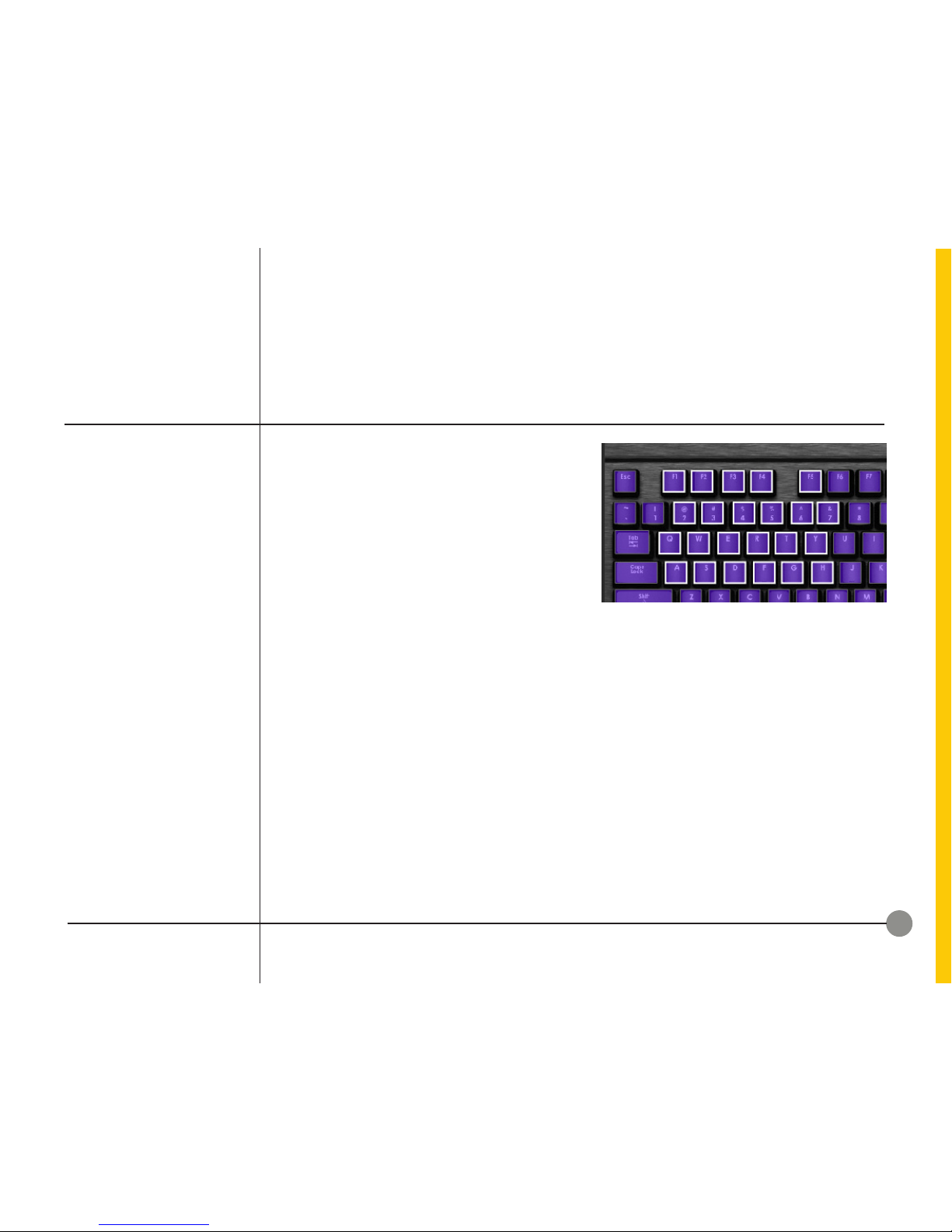
In the Corsair Utility Engine, in the Profiles menu,
1� Click Profiles and then click Lighting�
2� An image of the keyboard appears in the
Lighting tab� In the image, select multiple keys
using one of the following methods:
• Click a key, then CTRL+Click other
individual keys or buttons elsewhere
on the keyboard until all the desired
selections appear highlighted�
Or
• Click and drag around the keys you
want to assign background lighting to� A
rectangle will appear, and as you drag the
rectangle, keys fully inside the rectangle
will be selected and highlighted� This
is useful for selecting several adjacent
keys� You may still CTRL+Click to select
additional keys that are not adjacent to
your selection�
Beneath the keyboard image, in the color palette,
click a color you want to use for background
lighting� If you want to add additional colors to the
palette, see Customizing the Background Color
Palette in the User Manual� In the keyboard image,
the keys will change to the color you selected�
Figure 2 - Selection of Multiple Keys
CUSTOMIZING
THE KEYBOARD
BACKGROUND
LIGHTING
CUSTOMIZING
BACKGROUND LIGHTING
FOR MULTIPLE KEYS
Indice
Altri manuali Corsair Gaming Tastiera


