
Creative BLASTER TRANSMITTER Manuale utente
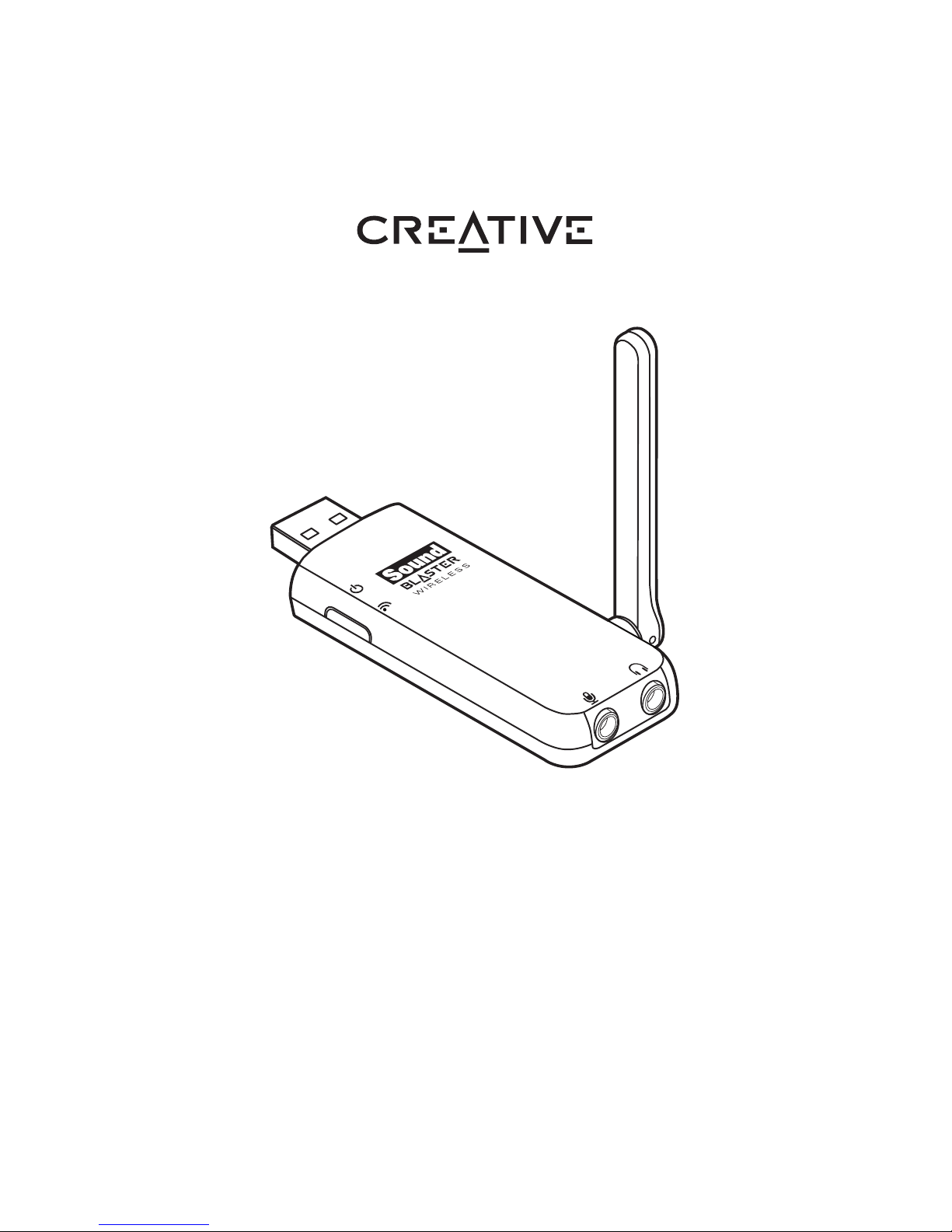
CONNECT
User’s Guide
Sound Blaster®Wireless Transmitter

Congratulations!
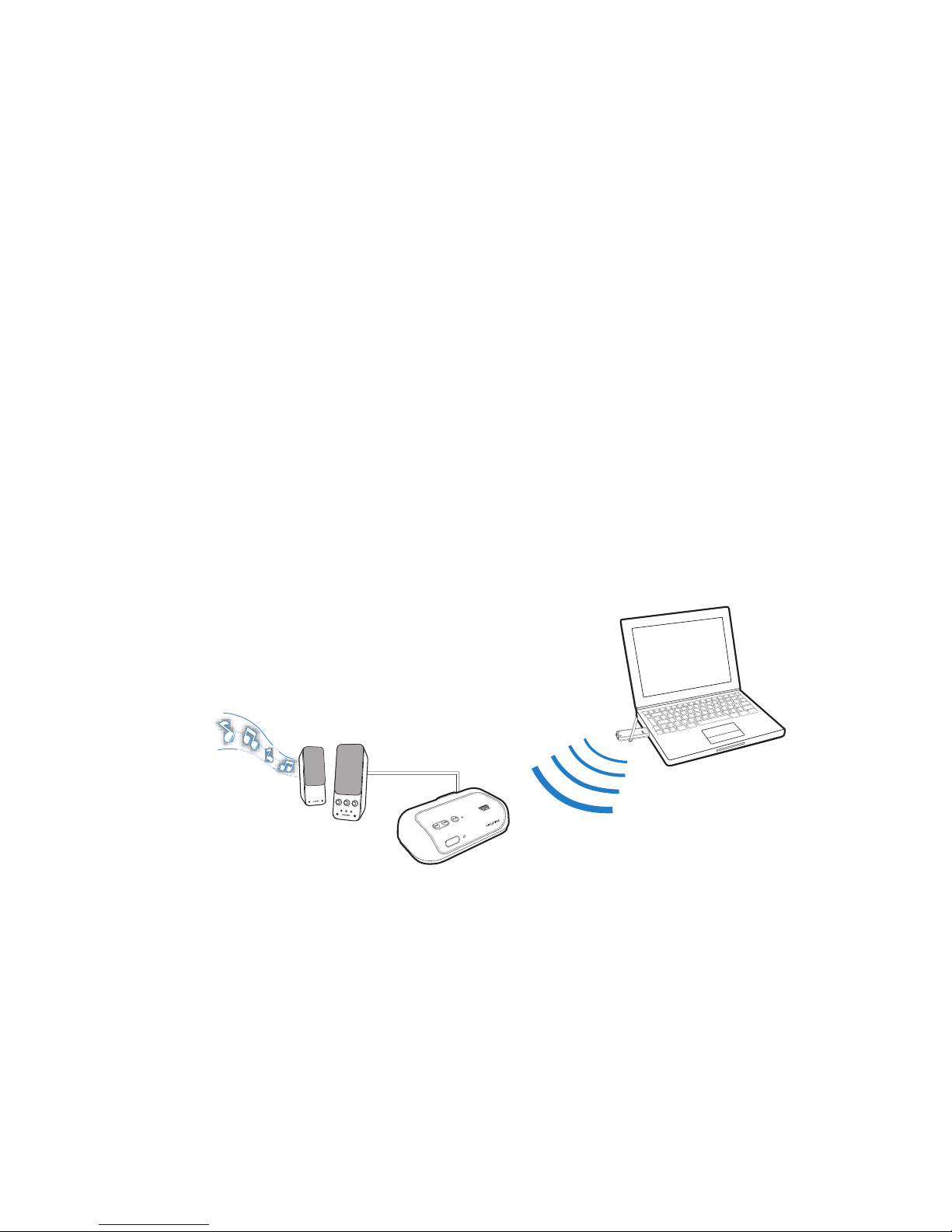
Sound Blaster®Wireless Transmitter is capable of streaming high-quality
music wirelessly to Sound Blaster Wireless receivers wherever you are in your
home and controlling them using the software provided. For a list of supported
devices, visit www.soundblaster.com.
System Requirements
Minimum Requirements
•Microsoft
®Windows®7 32bit or 64-bit, Windows Vista®32-bit or 64-bit with
Service Pack 1 (SP1), Windows XP Professional x64 Edition, Windows XP
Service Pack 2 (SP2) or Service Pack 3 (SP3), Windows XP Media Center Edition
(MCE) 2004 or later; Mac OS®X version 10.4.4 or later
• Intel® Pentium®M, Intel CoreTM, AMD TurionTM series or equivalent mobile
processor 1.66 GHz, or faster
•Intel,AMD
®or 100% compatible motherboard chipset
• For Windows 7 or Windows Vista: 1 GB RAM
For Windows XP: 512 MB RAM
• 600 MB of free hard disk space
•AvailableUSBport
• CD or DVD drive, OR a broadband internet connection (required for software
installation)
NOTE The terms “audio device” and “transmitter” used throughout this
User’s Guide refer to Sound Blaster Wireless Transmitter.
“Transmitter” is used when the audio device is functioning as a
wireless transmitter.

About Your Audio Device 2
About Your Audio Device
CONNECT
90o
90o
90o
2
1
3
4
5
6
7
1 USB connector
2PowerLED
Lights up blue when connected
to the computer’s USB port and
computer is turned on.
3LinkLED
Lights up green when wireless
streaming is enabled and ready.
Flashes green when the
Connect button is pressed to
indicate pairing with a wireless
receiver or other supported
device.
4 Connect button
5 Microphone/Line In jack
6 Headphone/Line Out
jack
7 Adjustable antenna

Setting Up Your Audio Device 3
Setting Up Your Audio Device
Step 1: Connect to your computer’s USB port
NOTE The USB extension cradle allows you to:
• Connect the audio device to your computer if it is not physically
possible to connect directly to the USB port due to obstruction of
neighboring USB devices.
• Extend or move the audio device away from other wireless devices
to optimize transmission range.
OR

Installing Software 4
Step 2: Installing Software
Your audio device is operational without any software installation. However to
enjoy all the features, install the drivers and applications provided on the
installation CD.
For all supported Windows OS
1If prompted for the audio drivers, click the Cancel button.
2Insert the Installation CD into your CD or DVD drive. Your CD should start
automatically. If it does not, follow the steps below:
i. Click Start -> My Computer.
ii. Right-click the CD or DVD drive icon, and then click Open Autoplay or
Autoplay.
3If you have downloaded the software, double-click the downloaded .exe file.
4To complete the installation, follow the instructions on the screen.
5When prompted, restart your computer.
For Mac OS
1Insert the Installation CD into your CD or DVD drive.
2Double-click the <SB_INSTALL> icon.
3Double-click the <Install> icon.
4To complete the installation, follow the instructions on the screen.
5Go to System Preferences, then click the Sound icon. For both the Output and Input
tabs, select SB Wireless.
6Launch Creative Audio Console from the System Preferences Pane.
NOTE You can also download the software from www.creative.com/
support. Simply select your audio device from the list of products
shown on the support page.

Connecting Speakers and Headphones 5
Connecting Speakers and Headphones
NOTE You will be prompted to select the device type when you connect a
device to the input or output jacks. If you have selected the Do not
show this message again check box and subsequently require to
change the input/output device type, launch Sound Blaster Wireless
Control Panel and click the Restore Defaults button.
L1
2 3 4
5
1 Headset
2 Microphone
3 Headphones
4 Powered stereo or 2.1
speakers
5 Stereo cable
(available separately)
IMPORTANT
Do not listen to audio on your
headphones or headset at high
volumes for prolonged periods
of time as hearing loss might
result.
Using Your Audio Device 6
Using Your Audio Device
Communicating with Voice over Internet Protocol (VoIP)
Use a headphones and microphone combination, or a headset with your audio
device to enjoy outstanding acoustic performance for your VoIP applications
like Skype®, or instant messaging applications like Yahoo!® Messenger. Refer
to the diagram on page 5 for connecting these peripherals.
Streaming Music Wirelessly
Your audio device is capable of streaming music wirelessly to supported
devices. For example, you can pair up one or more Sound Blaster Wireless
Receivers* and control playback using the Broadcast and Zone features in the
Sound Blaster Wireless Control Panel to enjoy music throughout your house.
The Broadcast feature enables you to stream music to any number of wireless
receivers and/or supported devices. It can be used without manual pairing.
BASSTREBLE
OFF
AUXIN
MAX
VOLUME

Using Your Audio Device 7
The Zone feature enables you to stream music to a maximum of four selected
wireless receivers and/or supported devices. It requires manual pairing and
each device is assigned to an available zone. You can also rename the four
zones.
For more information on using the broadcasting and zone control features, see
“Using the Wireless Features” on page 11.
NOTE * Available separately or may be bundled with your audio device.
Expand your wireless system by adding on other Sound Blaster
Wireless devices. For a list of Sound Blaster Wireless devices that
work with your audio device, visit www.soundblaster.com.

Using Your Audio Device 8
Playing / Recording Music
You can play music from, and/or record music to external devices (for example,
MP3 players, Digital Audio Tape players/recorders and MiniDisc players/
recorders) by connecting them to your audio device.
2
1
1 Stereo cable
(available separately)
2MP3players,MD
players
3 MD recorder
3
1
Playing Music from external devices Recording Music to external devices

Using Your Audio Device 9
Creating Music
Put together your own productions consisting of multiple music tracks from a
MIDI Synthesizer or an electric guitar. Alternatively, connect your electric
guitar using a Pre-amp Box to the Microphone/Line In jack. Use a convertor if
your Pre-amp Box comes with a larger connector.
NOTE Your audio device only supports dynamic and low-powered electret
microphones.
1 2
1Microphone
2 Electric guitar with
pre-amp
Altri manuali per BLASTER TRANSMITTER
1
Questo manuale è adatto per i seguenti modelli
1
Indice
Altri manuali Creative Trasmettitore

Creative
Creative BLASTER TRANSMITTER Manuale utente

Creative
Creative Bluetooth Audio BT-D1 Manuale utente

Creative
Creative SA0160 Manuale utente

Creative
Creative BT-W4 Manuale utente

Creative
Creative BT-W5 Manuale utente

Creative
Creative BT-W4 Manuale utente

Creative
Creative BT-W3 Manuale utente

Creative
Creative BT-W3X Manuale utente

Creative
Creative INSPIRE S2 WIRELESS - SETUP Manuale utente

Creative
Creative Blaster Modem Manuale utente


